


Automate Notion Entries from Calendly with n8n
Why bother automating Calendly to Notion in the first place?
You know that feeling when someone books a call with you and you think, “I’ll add their details to Notion later,” and then… you never do? Or you copy-paste the same info over and over again? That’s exactly the kind of tiny but constant task that slowly drains your time and attention.
This workflow template fixes that. Every time an invitee schedules a meeting in Calendly, n8n automatically creates a matching entry in your Notion database. No manual data entry, no missed leads, no “I swear I wrote that down somewhere.”
In this guide, we’ll walk through what the template does, when you’ll actually want to use it, and how to set it up step by step inside n8n.
What this n8n workflow template actually does
Let’s start with the big picture. This automation is very simple, but very effective:
- Trigger: A new Calendly invitee is created (
invitee.createdevent). - Action: A new page is added to a specific Notion database with that invitee’s details.
So every time someone books via your Calendly link, you instantly get a new row or page in Notion with their name, email, and a status you define. You can treat that Notion database as your lightweight CRM, a client list, a sales pipeline, or a meeting notes tracker.
When this workflow is a perfect fit
This template is ideal if:
- You use Calendly for scheduling calls, demos, interviews, or coaching sessions.
- You keep track of contacts, leads, or meetings inside a Notion database.
- You want invitees to appear in Notion automatically without copying data by hand.
- You prefer to keep everything centralized in Notion for follow-ups, notes, and status updates.
If that sounds like your setup, this n8n workflow will quietly keep everything in sync for you in the background.
How the automation is structured in n8n
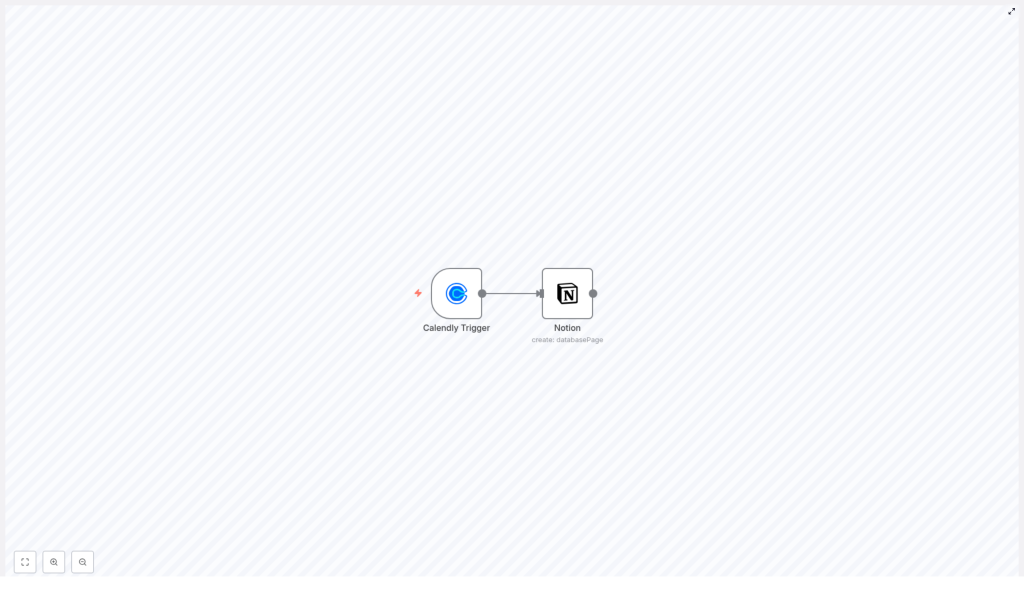
The workflow uses just two nodes, which keeps things easy to understand and maintain:
- Calendly Trigger node – listens for new invitees created in your Calendly account.
- Notion node – creates a new page in your chosen Notion database using the invitee data.
Once connected, the Calendly trigger sends the invitee information directly into the Notion node, which then writes it into your database.
Step 1 – Configure the Calendly Trigger node
We’ll start with the part that listens for new bookings. In n8n, add a Calendly Trigger node to your workflow. This node is responsible for reacting whenever someone books an appointment with you.
Here’s what you need to set up inside the node:
- Event: Choose
invitee.created.
This tells n8n to run the workflow every time a new invitee is created in Calendly, which basically means whenever someone finishes booking a time with you. - Credentials: Connect your Calendly API credentials.
Make sure you use valid Calendly API keys so n8n can securely listen to events from your account.
Once this node is configured, n8n will be ready to pick up every new booking automatically.
Step 2 – Set up the Notion node to create database pages
Next up is telling n8n what to do with the Calendly data. That’s where the Notion node comes in. This node will create a new page in your chosen Notion database whenever the Calendly trigger fires.
Basic configuration
- Resource: Set this to
databasePage.
This tells n8n that you want to create a new page inside a Notion database, not just a standalone page. - Database ID: Paste the ID of the Notion database where you want the entries to go.
This is your main “destination” for all new invitee records. - Credentials: Connect your Notion API credentials.
Make sure your integration has access to the specific database you plan to use.
Map Calendly invitee data to Notion properties
Now for the fun part: mapping the data. You want the information from Calendly to land in the right columns or properties in Notion. In the Notion node, configure the properties so they pull values from the Calendly trigger payload:
- Name: Map this to the invitee’s name from Calendly.
- Email: Map this to the invitee’s email address.
- Status: Set a default select status using the status identifier in your Notion database.
For example, you might use something like “New,” “Scheduled,” or “Pending follow-up” as the default.
This mapping makes sure each new Notion page is properly structured and ready for you to work with, instead of just being a blank page with random text.
Step 3 – Connect the nodes so data flows automatically
With both nodes configured, you just need to connect them inside n8n:
- Link the output of the Calendly Trigger node to the input of the Notion node.
That connection tells n8n: “Whenever a new invitee is created in Calendly, send their data over here and create a Notion page from it.” Once you save and activate the workflow, your automation is live.
Why this simple automation makes life easier
It might look like a small workflow, but it solves a very real daily annoyance. Here is what you gain once it is running:
- No more manual data entry Every new Calendly booking instantly appears in Notion. You do not have to copy names and emails into your database ever again.
- An always up to date Notion CRM or meeting tracker If you use Notion as a CRM, lead tracker, or meeting log, this workflow keeps it current without you touching it.
- Lower risk of missing opportunities Since every invitee is automatically logged, you are far less likely to forget a follow-up or lose track of who booked what and when.
In short, n8n handles the repetitive part so you can focus on the conversation with the person who booked, not the admin around it.
Wrapping up
By connecting Calendly and Notion through n8n, you get a lightweight but powerful automation that quietly keeps your records clean and organized. It is easy to customize, so you can extend it later with more fields, additional steps, or extra tools if you want to build a more advanced workflow around your meetings.
Ready to try it yourself?
If you are using Calendly and Notion already, this is one of those “set it up once and forget about it” automations that pays off every single day. Connect your accounts, follow the steps above in n8n, and let the workflow take over the busywork.
Want to skip the manual setup and start faster? Use the ready made template below and tweak it to fit your own Notion database and Calendly setup.
