


Automate Notion Sign-Ups & Semester Enrollment with n8n
Automating the flow from sign-up form submission to structured Notion records eliminates repetitive work and improves data quality. This guide presents a production-ready n8n workflow template that receives user sign-ups via webhook, checks Notion for existing records, creates new users when needed, and automatically links each user to the current semester through a Notion relation field.
The result is a robust, API-driven integration without having to write or maintain a custom client. The workflow is fully configurable and can be extended with additional automation steps such as email notifications, analytics, or approvals.
Use Case: Automated Notion User Onboarding
Many organizations use Notion as a lightweight CRM, student roster, or membership database. When sign-ups are handled manually, teams face several issues:
- Time-consuming data entry and updates
- Inconsistent records across semesters or cohorts
- Higher likelihood of typos and duplicate entries
By combining n8n with the Notion API, you can implement a no-code, maintainable pipeline that:
- Captures incoming sign-ups via HTTP POST
- Normalizes and validates user data
- Prevents duplicate user records based on email
- Keeps user-to-semester relations in sync automatically
This pattern is especially useful for academic programs, training cohorts, and membership organizations that track participation across multiple semesters or periods.
High-Level Workflow Architecture
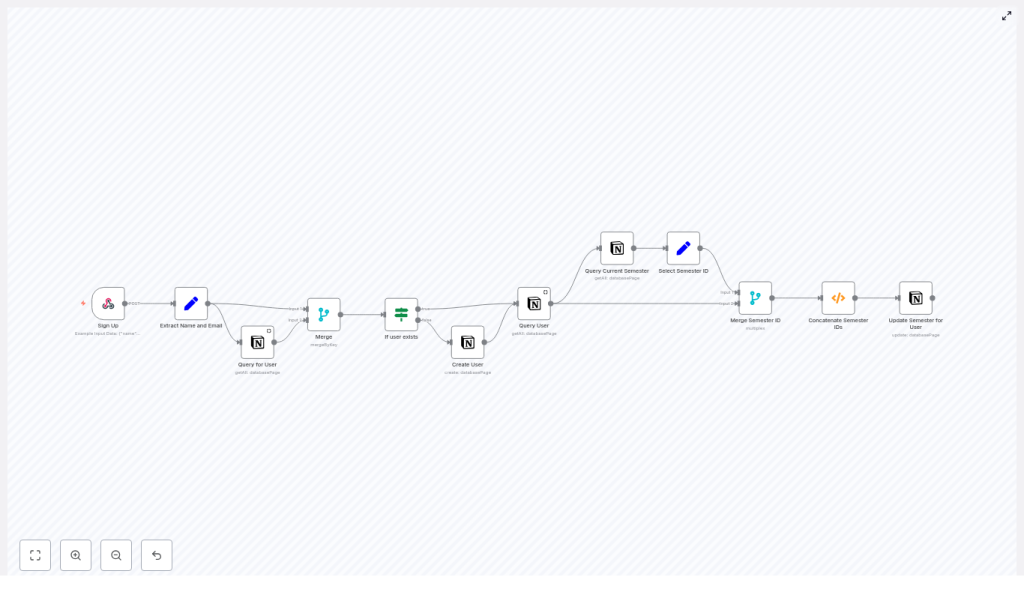
The workflow orchestrates several key steps:
- Receive sign-up data via a secure webhook
- Extract and standardize the name and email fields
- Query Notion to determine whether the user already exists
- Create a new Notion user record if no match is found
- Retrieve the full user page including existing semester relations
- Identify the current semester in a dedicated Notion database
- Merge the current semester with the user’s existing semester relations
- Update the user page in Notion with the final semester relation list
Sample Request Payload
The workflow expects a JSON payload similar to the following:
{  "name": "John Doe",  "email": "doe.j@northeastern.edu"
}
These fields are mapped to Notion properties and used as the primary identifiers for user records.
Core Nodes and Integrations
The workflow is composed of a sequence of n8n nodes that each perform a specific task. Below is a structured breakdown of the main components and how they interact.
1. Sign-Up Ingestion – Webhook Node
The entry point is a Webhook node configured to receive POST requests:
- HTTP Method: POST
- Path:
/sign-up - Authentication: Basic Auth or another supported method
The webhook node captures the body of the incoming request and forwards it to subsequent nodes. It is recommended to secure the endpoint with authentication to prevent unauthorized or malicious submissions.
2. Data Normalization – Set Node
Next, a Set node extracts and maps the relevant fields from the incoming payload. For example, it reads body.name and body.email and exposes them as:
NameEmail
These standardized fields are referenced throughout the flow, which simplifies configuration and reduces the risk of mapping errors later in the pipeline.
3. User Lookup in Notion – Notion getAll
The workflow then uses a Notion node with the getAll operation to query the users database. The query filters for a page where the Email property matches the incoming email.
Important configuration details:
- The Notion database must include an
Emailproperty of type email. - The query should be constrained to a single database that represents your user roster.
This step determines whether the user already exists in Notion, which drives the conditional logic that follows.
4. Data Consolidation – Merge (mergeByKey)
A Merge node configured with mergeByKey combines the output from the Set node and the Notion query. The merge key is the Email field.
The resulting item contains both:
- The original sign-up data (name, email)
- Any matched Notion user record data
This consolidated structure ensures that downstream nodes have access to both the raw request payload and any existing Notion information for the same user.
5. Existence Check – If Node
An If node evaluates whether the Notion query returned a user page. Typically, this is done by checking for the presence of an id field, which represents the Notion page ID.
- If true: The user already exists. The workflow proceeds to fetch full details and update semester relations.
- If false: The user does not exist. The workflow branches to create a new user record.
6. Conditional Creation – Notion create
In the branch where no existing user is found, a Notion node with the create operation is used to insert a new page into the users database. The node maps the standardized Name and Email fields to the corresponding Notion properties.
This ensures that every sign-up results in a canonical user record in Notion, even if it is the first time that email address appears.
7. Retrieve Full User Record – Notion getAll
After user creation, or when a user already exists, the workflow needs the full Notion page including any existing semester relations. Another Notion getAll operation is used to retrieve the complete user record.
This step guarantees that the workflow has both:
- The Notion page
idrequired for updates - The current list of related semesters from the Semesters relation property
8. Identify the Current Semester – Notion getAll
The next stage targets the Semesters database. A dedicated Notion getAll node queries for the semester where the boolean property Is Current? is set to true.
Recommended configuration:
- Filter:
Is Current?equalstrue - Sort: by created time, descending
- Limit: 1 record
This ensures that a single, clearly defined “current semester” is selected, even if multiple entries have been created historically.
9. Extract Semester Identifier – Set Node
A subsequent Set node reads the id of the current semester page and stores it as currentSemesterID. This value will later be merged with the user’s existing semester relations.
10. Merge User and Semester Data & Build Relation Array
To combine user and semester information, the workflow uses a merge operation (for example, multiplex merge) so that each item contains both the user record and the currentSemesterID field.
A Function node then constructs the final list of semester IDs that should be related to the user. The pseudocode used in this node is as follows:
// Pseudocode used in the Function node
for (item of items) {  const currentSemesterID = item.json["currentSemesterID"]  let allSemesterIDs = [currentSemesterID];  if (item.json["Semesters"]?.length > 0) {  allSemesterIDs = allSemesterIDs.concat(  item.json["Semesters"].filter(  semesterID => semesterID !== currentSemesterID  )  );  }  item.json["allSemesterIDs"] = allSemesterIDs
}
return items;
This logic enforces two important rules:
- The current semester is always included and listed first.
- Duplicate semester IDs are avoided by filtering out any existing occurrence of the current semester.
11. Persist Semester Relation – Notion update
Finally, a Notion node with the update operation writes the allSemesterIDs array back to the user’s Semesters relation property.
This update step ensures that:
- The user is related to the current semester in Notion.
- All previously related semesters are preserved, except for duplicates.
Data Flow Summary
At a high level, the workflow operates as follows:
- A client sends a POST request with name and email to the n8n webhook.
- The workflow normalizes the payload and queries Notion for an existing user by email.
- If no user is found, a new user page is created in the Notion users database.
- The full user page is retrieved, including existing Semesters relations.
- The Semesters database is queried to identify the current semester.
- The current semester ID is merged with the user’s existing semester IDs, ensuring no duplicates.
- The user page is updated so that its Semesters relation reflects the final list of semester IDs.
Testing and Debugging the Workflow
To validate and troubleshoot the automation, consider the following practices:
- Enable
responseDataon the Webhook node to quickly inspect responses during local or staging tests. - Use the n8n execution log to trace each node’s input and output payloads when diagnosing issues.
- Test edge cases, such as users who already have multiple semesters, missing or empty email fields, and invalid email formats.
- Add logging or temporary debug fields inside the Function node to verify how the
allSemesterIDsarray is built and filtered.
Security Considerations and Best Practices
When exposing a webhook and integrating with Notion in a production environment, security and reliability are critical. Recommended practices include:
- Protect the webhook endpoint using Basic Auth, API keys, IP allowlists, or a combination of these controls.
- Validate the incoming payload structure before executing Notion operations, and reject malformed or incomplete requests early.
- Use a dedicated Notion integration with the minimum required scopes and limit database access to only what the workflow needs.
- Implement rate limiting and retry logic to handle transient Notion API errors gracefully.
- Normalize email addresses (for example, lowercase and trim whitespace) to reduce the risk of duplicate user records.
Extending the Template for Advanced Use Cases
The template provides a solid foundation that can be adapted to a wide range of automation scenarios. Common extensions include:
- Sending confirmation emails through SMTP or a transactional email provider after user creation or update.
- Emitting analytics events to platforms like Segment or Google Analytics for marketing attribution and funnel analysis.
- Processing CSV bulk imports by iterating over each row and applying the same user and semester logic.
- Triggering Slack or other chat notifications when new users are added or when specific conditions are met.
- Capturing consent or opt-out flags in Notion for compliance and preference management.
Conclusion
This n8n workflow template delivers a reliable and extensible pattern for transforming sign-up form submissions into structured Notion user records, while automatically maintaining accurate semester relations. It minimizes manual effort, enforces consistent data relationships, and provides a clear path for further automation around onboarding and lifecycle management.
To implement this in your environment, import the template into your n8n instance, connect your Notion integration, and test the webhook with a sample POST request. From there, you can iterate on the workflow by adding notifications, advanced error handling, or custom business rules.
Call to action: Import the template into your n8n instance, connect your Notion credentials, and run a test sign-up to validate the full end-to-end flow.
