


Automate Outlook Email Classification with n8n & OpenAI
Imagine this inbox nightmare…
You open Outlook on a Monday morning and your inbox looks like it lost a fight with a mailing list. Customer questions, invoices, newsletters, promo codes, “quick questions” that are never quick… all shouting for your attention.
Now imagine instead that an AI assistant quietly reads every new email, decides what it is, files it neatly, drafts replies, and pings your team only when it really matters. No more manual sorting, no more “I’ll deal with this later” folders that you never open again.
That is exactly what this n8n Outlook email classification workflow does, using OpenAI to triage your inbox and automation to handle the boring bits.
What this n8n + OpenAI email workflow actually does
This workflow automatically classifies incoming Outlook emails into clear, useful categories so you do not have to:
- High Priority
- Customer Support
- Promotions
- Finance/Billing
Once an email is classified, the workflow can:
- Move it into the correct Outlook folder
- Draft smart AI-powered responses
- Send Telegram notifications for important updates
- Summarize promotional and financial emails so you do not have to read walls of text
It is ideal for busy professionals and teams who want to stop babysitting their inbox and let automation do the heavy lifting.
Created by someone who also hates email chaos
- Workflow created by Sandeep Patharkar
- Join the Skool community for n8n + AI automation tutorials, live Q&As, and exclusive workflow templates.
How the workflow works behind the scenes
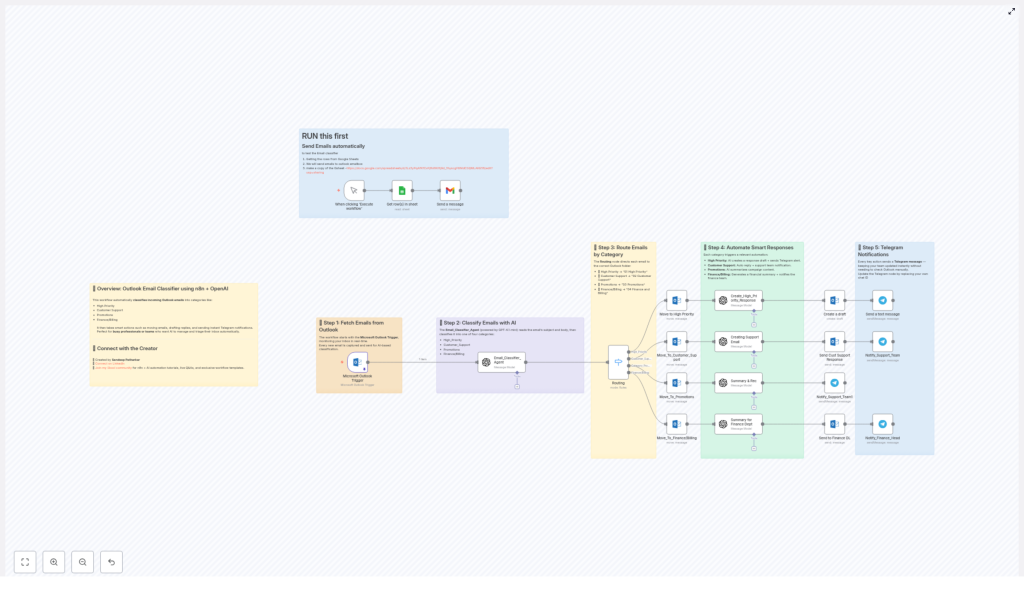
Here is the high level flow so you know what magic is happening where:
- New email lands in Outlook.
- n8n catches it instantly using the Outlook trigger.
- An AI agent (powered by GPT-4.1-mini) reads the content and classifies it.
- Based on the category, the email is moved to the right folder.
- Smart actions kick in, like drafting replies or notifying your team on Telegram.
Step 1 – Outlook keeps watch for new emails
The workflow starts with the Microsoft Outlook Trigger. It monitors your inbox in real time, so every new email that arrives is:
- Captured automatically
- Passed into the workflow for AI classification
No need to click anything or run the workflow manually. Once set up, it just quietly works in the background while you drink your coffee.
Step 2 – AI reads and classifies your emails
The heart of the workflow is the Email_Classifier_Agent, powered by GPT-4.1-mini. It reads the email subject and body, then assigns each email to one of four categories:
- High_Priority
- Customer_Support
- Promotions
- Finance/Billing
In other words, the AI does the “what kind of email is this?” thinking for you, which is usually the part that makes you stare at your inbox for 5 minutes before doing anything.
Step 3 – Routing emails into the right Outlook folders
Once the category is decided, the Routing node in n8n takes over and moves each email into the correct Outlook folder. The default mapping looks like this:
- 📂 High Priority →
01 High Priority - 💬 Customer Support →
02 Customer Support - 📢 Promotions →
03 Promotions - 💰 Finance/Billing →
04 Finance and Billing
You can keep these folder names or adjust them to match your existing Outlook structure, but the idea is simple: important emails stop hiding between promo blasts and newsletters.
Step 4 – Smart responses and actions for each category
Here is where things get fun. Once an email lands in a category, the workflow triggers tailored automations so you are not stuck replying to everything manually.
- High Priority:
- AI generates a draft response that you can quickly review and send
- A Telegram alert is sent so you know something important just landed
- Customer Support:
- An automatic reply is sent to acknowledge the request
- Your support team gets notified so they can jump in
- Promotions:
- AI creates a summary of the campaign, so you can see the key offer without scrolling through design-heavy emails
- Finance/Billing:
- A financial summary is generated from the email contents
- The finance team is notified so invoices and billing updates do not slip through the cracks
The result: you spend less time staring at your inbox and more time actually acting on what matters.
Step 5 – Telegram notifications so no one misses a thing
Key actions in the workflow trigger Telegram messages, which is perfect if your team lives in chat apps more than email. You can:
- Get instant alerts for high priority emails
- Notify support or finance teams automatically
- Stay updated without constantly refreshing Outlook
Just remember to update the Telegram node with your own chat ID so the messages go to the right place. Once that is set, your phone becomes a helpful notification center instead of a stress device.
Testing the workflow with Google Sheets (highly recommended)
Before turning this on for your real inbox, you can safely test the entire Outlook classifier using a Google Sheets driven email flow. This is handy for demos, debugging, or just making sure the AI behaves.
Bonus: Auto send test emails from Google Sheets
The idea is simple:
- Store sample email data (subjects, bodies, etc.) in a Google Sheet
- Use n8n to fetch rows from the sheet
- Send those as emails to your Outlook mailbox
- Watch the workflow classify and route them automatically
This lets you run multiple test cases quickly without typing out the same “fake customer email” twenty times.
Be sure to make a copy of the sample Google Sheet: Demo_Emails Sheet
Quick setup checklist
To get this n8n Outlook email classifier running smoothly, you will typically need to:
- Configure the Microsoft Outlook Trigger node to watch your inbox
- Set up the OpenAI / GPT-4.1-mini based Email_Classifier_Agent
- Confirm or adjust the Routing node so it uses your preferred folder names
- Update the Telegram node with your own chat ID and channel details
- Optionally connect Google Sheets if you want to auto send test emails
Once configured, you can let it run and gradually fine tune categories, folder names, and message templates based on how your team works.
Why this workflow is worth implementing
Manually sorting and replying to emails is one of those tasks that feels productive but quietly eats your day. This n8n Outlook email classification template helps you:
- Cut down inbox overload with automatic categorization
- Respond faster with AI drafted replies and auto responses
- Keep teams in the loop through Telegram notifications
- Test and demo everything safely using Google Sheets driven emails
If you are serious about taming your inbox with automation, this workflow is a great starting point.
Try the template
Ready to let automation handle your email triage so you do not have to? Load up the template in n8n and start customizing it for your own setup.
Connect and learn more
For more automation ideas, workflow templates, and AI powered n8n setups:
- Connect with the creator on LinkedIn: Sandeep Patharkar
- Join the Skool community for tutorials, live Q&As, and exclusive n8n + AI automation content
Turn your inbox from a daily chore into an automated system that quietly works for you in the background.
