


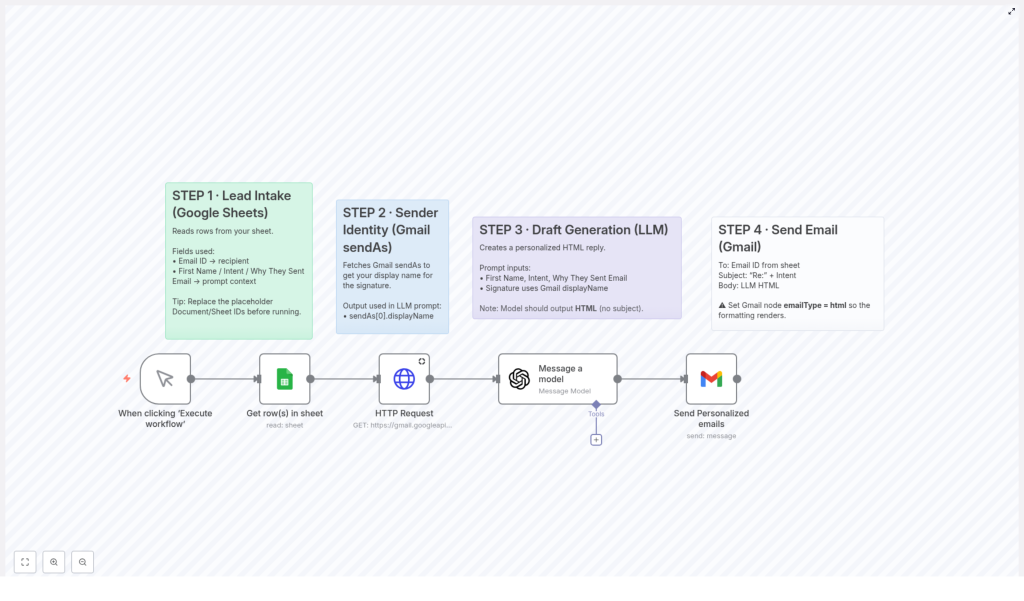
Automate Personalized Email Replies with Google Sheets, Gmail, and AI in n8n
Overview
This n8n workflow template automates the generation and delivery of personalized email replies by orchestrating three main services: Google Sheets for lead intake, Gmail for sending messages, and an AI language model for drafting responses. It is designed for users who already understand n8n concepts such as nodes, triggers, credentials, and data mapping, and want a robust, repeatable way to scale 1-to-1 style communication.
At a high level, the workflow:
- Reads structured lead data from a Google Sheet.
- Retrieves your Gmail
sendAsidentity to build a consistent email signature. - Uses an LLM node to generate an HTML email body tailored to each lead.
- Sends the final email via Gmail, with a subject line derived from the lead’s intent.
Workflow Architecture
The template is typically executed on a schedule or via a manual trigger, then processes one or more rows from a Google Sheet, passing each row through a series of nodes. The core data flow looks like this:
- Lead Intake (Google Sheets node)
Reads lead information such as email address, first name, intent, and the reason they reached out. - Sender Identity Retrieval (HTTP Request node to Gmail API)
Calls Gmail’ssendAsendpoint to obtain your display name, used later in the email signature. - Email Draft Generation (LLM node)
Combines lead data and sender display name into a structured prompt for the language model, which returns an HTML email body. - Email Delivery (Gmail node)
Sends the generated HTML to the lead’s email address, with a subject line prefixed byRe:and the lead’s intent.
Data Model and Prerequisites
Google Sheets Structure
The workflow assumes that a specific Google Sheet is used as the source of truth for lead data. At minimum, the following columns must be present:
- Email ID – The recipient’s email address. This value is mapped to the Gmail node’s
tofield. - First Name – Used by the LLM node to personalize the greeting.
- Intent – A short description of what the lead is interested in or asking about. This is used both in the AI prompt and as part of the outbound subject line.
- Why They Sent Email – A more detailed explanation of the lead’s request or context, which the AI uses to craft a specific and relevant reply.
Before running the workflow, replace any placeholder Document ID and Sheet ID values in the Google Sheets node with the actual identifiers for your spreadsheet. Incorrect or missing IDs will prevent the workflow from reading data.
Required Credentials
To successfully run the workflow, you must configure the following credentials in n8n:
- Google Sheets credentials – For read access to the lead data sheet.
- Gmail credentials – Used both by the HTTP Request node (for the
sendAsidentity lookup) and by the Gmail node (for sending messages). - OpenAI (or compatible LLM) credentials – For the language model node that generates the email body.
Ensure that the Gmail account used for the HTTP Request node and the Gmail node is the same account whose display name you want to appear in the signature.
Node-by-Node Breakdown
1. Lead Intake from Google Sheets
The workflow begins with a Google Sheets node configured to read rows from the target spreadsheet. This node typically runs in “Read” mode, pulling one or more rows that represent new or unprocessed leads.
- Key parameters:
Document ID– The ID of the Google Sheet document.Sheet IDorSheet Name– The specific sheet tab that contains the lead data.- Column names mapping to:
Email IDFirst NameIntentWhy They Sent Email
This node outputs one item per row. Each item carries the lead-specific fields that will be referenced later by the LLM and Gmail nodes.
2. Fetch Sender Identity from Gmail
Next, an HTTP Request node queries the Gmail API to retrieve your sendAs configuration, in particular your display name. This display name is used to construct a human, branded signature at the end of the AI-generated email.
- Purpose: Obtain the sender’s display name to ensure consistent, professional sign-offs.
- Data consumed: Gmail account credentials configured in n8n.
- Data produced: A JSON response that includes the
sendAsidentity, from which the display name is extracted and passed to the LLM node.
If the HTTP Request node fails or returns no sendAs records, the LLM node may not receive a valid display name. In such cases, the email body can still be generated, but the signature may be incomplete or generic, depending on how the prompt is constructed.
3. Draft Generation via AI Language Model
The central part of the workflow is the language model node (LLM node). It receives a combination of lead data from the Google Sheets node and sender identity from the HTTP Request node, then generates a fully formatted HTML email body.
- Inputs to the prompt:
- Recipient’s first name (
First Name). - Lead intent (
Intent), which describes the topic or request. - Detailed context (
Why They Sent Email), used to make the response specific and relevant. - Sender display name from Gmail
sendAs, used in the closing signature.
The prompt is crafted so that the LLM:
- Produces a friendly, helpful, and context-aware reply.
- Outputs valid HTML suitable for use as an email body.
- Excludes the subject line from the generated content, since the subject is constructed separately in the Gmail node.
The LLM node should be configured with the appropriate OpenAI (or compatible) model and your API credentials. Any misconfiguration here will result in failed or empty responses, which will in turn cause the Gmail node to send incomplete emails or fail entirely.
4. Sending the Personalized Email via Gmail
The final processing step is a Gmail node that dispatches the AI-generated reply to each lead. This node consumes both the HTML body produced by the LLM and the lead metadata from the Google Sheets node.
- Key configuration details:
to– Mapped from theEmail IDcolumn of the Google Sheet.subject– Constructed asRe: <Intent>, where<Intent>is the value from the lead record.body– The HTML string output from the LLM node.emailType– Must be set tohtmlso that the email renders as formatted HTML instead of plain text.
If emailType is not set to html, the recipient will see raw HTML tags instead of a properly formatted message. Ensure this parameter is explicitly configured in the node.
Configuration Notes and Setup Checklist
Google Sheets Configuration
- Confirm that the Document ID and Sheet ID or Sheet Name in the Google Sheets node match your actual spreadsheet.
- Verify that the column names exactly match those referenced in the workflow (
Email ID,First Name,Intent,Why They Sent Email), or adjust the node mappings accordingly. - Optionally, filter rows to avoid reprocessing leads that have already received a reply.
Gmail and Identity Retrieval
- Set up Gmail credentials in n8n and test them in both the HTTP Request node and the Gmail node.
- Ensure the Gmail account has a configured
sendAsidentity with the display name you want to appear in your signature. - If multiple
sendAsidentities exist, ensure the workflow selects the correct one in the HTTP Request node’s response parsing.
LLM Node and OpenAI Configuration
- Provide a valid OpenAI (or equivalent) API key in the credentials configuration.
- Select the desired model in the LLM node, consistent with your usage limits and latency requirements.
- Confirm that the prompt template references all required fields (first name, intent, reason, display name) using correct n8n expression syntax.
Behavior, Edge Cases, and Error Considerations
While the template is straightforward, a few practical considerations help ensure stable operation:
- Missing or invalid lead data: If any of the key fields (especially
Email ID) are empty or malformed, the Gmail node may fail or send to an incorrect address. Consider adding validation or conditional checks before the send step. - Unavailable Gmail display name: If the HTTP Request node cannot retrieve a display name, the LLM prompt may need a fallback value. Without it, the email can still be sent but the signature may be less polished.
- HTML rendering issues: If the LLM output contains malformed HTML, some email clients may not render the message as expected. Keeping the prompt instructions clear and concise helps maintain valid HTML structure.
- Rate limits and scaling: When processing many rows at once, consider API rate limits for both Gmail and the LLM provider. The template is capable of handling multiple leads because it reads multiple rows from Google Sheets, but external limits still apply.
Benefits of Using This n8n Workflow Template
- Automation – Automatically responds to incoming leads without manual drafting, reducing repetitive work.
- Personalization – Each reply is uniquely tailored using the lead’s intent and their detailed reason for contact.
- Scalability – By reading multiple rows from Google Sheets, the workflow can respond to many leads in a single run.
- Consistent Branding – The Gmail display name is used in the signature, ensuring that all replies reflect your professional identity.
Getting Started: Implementation Checklist
Before activating the workflow, verify the following:
- You have a Google Sheet with the required columns and real lead data.
- Google Sheets, Gmail, and OpenAI (or compatible LLM) credentials are configured and tested in n8n.
- The Google Sheets node uses your actual Document ID and Sheet ID.
- The HTTP Request node is correctly pointed to the Gmail
sendAsendpoint and uses the appropriate Gmail credentials. - The LLM node is configured with the correct model and a prompt that instructs the AI to:
- Generate a friendly, specific, and helpful reply.
- Output HTML only, without a subject line.
- The Gmail node has
emailTypeset tohtmland constructs the subject asRe: <Intent>.
Advanced Customization Ideas
Once the base template is working, you can extend it in several ways:
- Introduce filters or conditions so only new or high-priority leads are processed.
- Log sent emails to another Google Sheet or a database for auditing and analytics.
- Adjust the LLM prompt to support different tones, languages, or product lines.
- Add additional nodes to tag leads in a CRM after the email is sent.
Next Steps
If you already use n8n for automation, this template provides a fast way to scale personalized email replies without sacrificing quality. With Google Sheets as a simple interface for lead intake, Gmail for reliable delivery, and an AI model for content generation, you can streamline lead management and improve response times with minimal ongoing effort.
Configure your credentials, connect your sheet, and enable the workflow to start sending tailored replies automatically.
