


Automate POV Historical Videos with n8n: A Story of One Creator’s Breakthrough
By the time the third coffee went cold on her desk, Lena knew something had to change.
Lena was a solo creator obsessed with history. Her YouTube Shorts and TikTok feed were filled with first-person “guess the discovery” clips, each one a short POV glimpse into moments like the printing press, the light bulb, or the first vaccine. Viewers loved trying to guess the breakthrough, but there was a problem: every 25-second video took her hours to make.
She had to brainstorm a concept, write a script, prompt an image model until the visuals looked right, record and edit a voiceover, then manually stitch everything together in an editor. It was creative, yes, but it was also painfully slow. While she was polishing one video, other creators were publishing ten.
One night, after wrestling with yet another timeline in her editor, Lena stumbled across an n8n workflow template that promised something bold: fully automated POV historical shorts with AI-generated images, voiceover, and rendering, all orchestrated from a single Google Sheet.
This is the story of how she turned that template into her production engine, and how you can do the same.
The Problem: Creativity at War With Time
Lena’s format was simple but demanding. Each short followed a structure:
- Five scenes, 5 seconds each, for a total of 25 seconds
- POV visuals that stayed consistent across scenes (same hands, same clothing, same setting)
- A voiceover that hinted at a historical discovery without giving it away
Her audience loved the suspense. They got detailed clues about a time period and setting, but the final reveal always came in the comments. Still, the manual production process meant she could only publish a few videos per week. She wanted dozens per day.
That is when she realized automation might be the only way to scale her creativity without burning out.
The Discovery: An n8n Workflow That Thinks Like a Producer
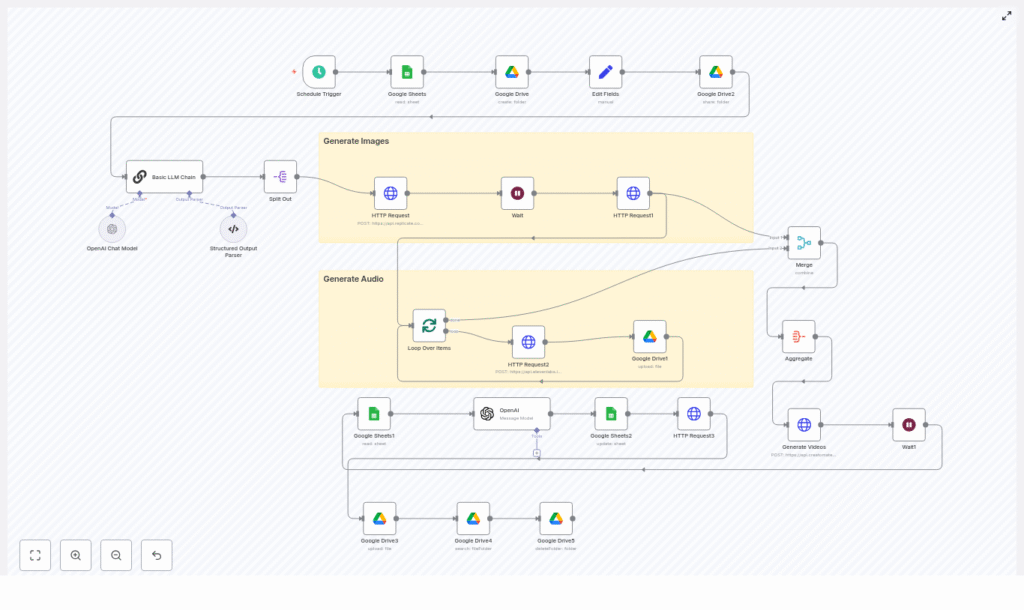
What caught Lena’s eye was a template that described almost exactly what she needed: a full pipeline that went from a simple topic in Google Sheets to a rendered vertical short.
The workflow combined several tools she already knew about, but had never wired together:
- Google Sheets & Google Drive for orchestration and storage
- n8n as the automation backbone
- Replicate for AI image generation
- OpenAI (or another LLM) for structured prompts and scripts
- ElevenLabs for AI voiceovers
- Creatomate for final video rendering
The promise was simple: once the pipeline was set up, she would only need to drop new topics into a spreadsheet. n8n would handle the rest.
Setting the Stage: How Lena Prepared Her Sheet and Schedule
Lena started with the least intimidating part: a Google Sheet.
She created columns for Theme, Topic, Status, and Notes. Her editorial guidelines looked like this:
- Theme: Science History, Medical Breakthroughs, Inventions
- Topic: Internal clue like “Printing Revolution – Gutenberg” (never shown to viewers)
- Status: Pending / Generated / Published
- Notes: Extra instructions such as “avoid modern faces” or “keep props period-accurate”
In n8n, she connected a Schedule Trigger to that sheet. Every hour, the workflow would wake up and look for rows where Status = Pending. Each of those rows represented a video idea. This meant non-technical collaborators, or even future interns, could queue videos just by adding rows.
The Rising Action: Teaching the Workflow to Write and Imagine
From Topic to Structured Scenes
Once the Schedule Trigger grabbed a “Pending” row, the real magic began. The workflow passed the Theme and Topic into a LLM prompt generator node, built with an OpenAI or Basic LLM Chain node in n8n.
Lena carefully designed the prompt so the LLM would return a structured output with five scene objects. Each scene had three parts:
- image-prompt for Replicate
- image-to-video-prompt with a short motion cue
- voiceover-script for ElevenLabs
She learned quickly that consistency was everything. To keep the POV visuals coherent, every scene prompt repeated specific visual details. For example:
- “Your ink-stained hands in a cream linen sleeve”
- “The same linen cream shirt with rolled sleeves and a leather apron”
She made sure the LLM prompt always emphasized:
- Visible body details like hands, forearms, fabric color, and accessories
- The historical time period and cultural markers, such as “mid-15th century, Mainz, timber beams, movable type”
- POV framing instructions like “from your torso level” or “POV: your hands”
- Mood and textures such as candlelight, ink stains, parchment, wood grain
- Camera motion hints like “slow push-in on hands” or “gentle pan across the printing press”
These details would later guide Replicate and Creatomate to keep the story visually coherent.
Splitting the Story Into Parallel Tasks
The LLM returned a neat block of structured data, but n8n still needed to treat each scene individually. Lena added a Structured Output Parser node to convert the LLM’s response into clean JSON that n8n could work with.
From there, she used a Split node. This was the turning point where the workflow stopped thinking of the video as one big chunk and started handling each scene as its own item. That split allowed n8n to generate images and audio in parallel, saving time and keeping the workflow modular.
The Turning Point: When AI Images and Voices Come Alive
Replicate Steps In: Generating POV Images
For each scene, n8n sent the image-prompt to Replicate using an HTTP Request node. Lena chose a model like flux-schnell and set the parameters recommended by the template:
- Aspect ratio: 9:16 for vertical phone screens
- Megapixels: 1 for fast drafts, higher for more fidelity
- Num inference steps: low for speed, higher (around 20-50) for more detail
She noticed that if she forgot to repeat key POV details, the character’s hands or clothing sometimes changed between scenes. Whenever that happened, she went back to her prompt design and strengthened the recurring descriptors, using the exact same phrase each time, such as “linen cream shirt with rolled sleeves and leather apron.”
Waiting for Asynchronous Magic
Replicate did not return final images instantly. To handle this, Lena added a short Wait node, then a follow-up request to fetch the completed image URLs. Once all scenes had their URLs, n8n aggregated them into a single collection. Now the workflow had five image URLs ready to use.
Giving the Scenes a Voice with ElevenLabs
Next came the sound.
Lena configured a Loop in n8n to iterate over the five voiceover-script fields. For each script, an HTTP Request node called ElevenLabs and generated an MP3 file. She then uploaded each audio file to a specific folder on Google Drive, making sure the links were accessible to external services like Creatomate.
Timing was crucial. Every scene was exactly 5 seconds, so Lena aimed for voiceover scripts that would play comfortably in about 3.5 to 4 seconds. She kept each script to roughly 10-18 words, depending on the speaking rate, and used ElevenLabs voice controls to keep pacing and energy consistent across all five clips.
Whenever she saw black gaps or silent stretches in early tests, she knew the script was too long or too short. A quick adjustment to the word count or speaking speed fixed it.
Bringing It All Together: Creatomate Renders the Final Short
At this point, n8n had:
- Five image URLs generated by Replicate
- Five audio URLs from ElevenLabs, stored in Google Drive
The next step felt like assembling a puzzle.
Lena used n8n to merge these assets into a single payload that matched the expected format for Creatomate. The template she used in Creatomate was designed for vertical shorts: five segments, each 5 seconds long. Each segment received one image and one audio file.
With another HTTP Request node, n8n called Creatomate, passed in the payload, and waited for the final video render. When the job finished, Creatomate returned a video URL. n8n then updated the original Google Sheet row with:
- The final video link
- An updated Status (for example, from Pending to Generated)
- Additional metadata like title and description
Automation Learns to Write Hooks: SEO and Titles on Autopilot
Lena wanted more than just a finished video. She needed titles and descriptions that would drive clicks and engagement without spoiling the mystery.
So she added another LLM node at the end of the workflow. Once the video was rendered, n8n sent the Theme, Topic, and a short summary of the scenes to the LLM and asked for:
- A viral, curiosity-driven title that hinted at the discovery but did not reveal it
- A short, SEO-friendly description that ended with a call to guess the discovery
- Relevant hashtags, including #shorts and the theme keyword
The output went straight into the Google Sheet, ready to be copy-pasted into YouTube Shorts or TikTok. Lena no longer had to sit and brainstorm hooks for every upload.
Behind the Scenes: Trade-offs, Pitfalls, and Fixes
Balancing Quality, Speed, and Cost
As Lena scaled up production, she had to make decisions about quality and budget. She found that:
- Higher megapixels and more inference steps improved image quality, but also increased cost and latency
- Batching image and audio calls sped up throughput, but she had to watch API rate limits carefully
- Storing intermediate assets in Google Drive made it easy to share and debug, but she needed to periodically delete old files to control storage costs
Common Issues She Ran Into
Inconsistent Character Details
Whenever hands or clothing looked different between scenes, she knew the prompts were too loose. The fix was always the same: repeat the exact same descriptive phrase for the recurring details in every scene prompt.
Black Gaps or Empty Frames
If Creatomate rendered black frames or cut off scenes early, it usually meant the voiceover duration did not match the scene length. Keeping scripts slightly under 4 seconds, and adjusting ElevenLabs pace, resolved this.
Rate Limits and Slow Runs
On days when she queued many videos, APIs like Replicate or ElevenLabs sometimes hit rate limits. She added Wait nodes and used polling with gentle backoff. Running image generation in parallel helped, as long as she kept batch sizes within the API’s comfort zone.
Lena’s Final Routine: From Idea to Automated Short
After a few iterations, Lena’s workflow settled into a simple rhythm. Her “to do” list for each new batch of videos looked like this:
- Confirm API keys and quotas for Replicate, ElevenLabs, Creatomate, and Google APIs
- Add a new row in Google Sheets with Theme, Topic, and Status set to Pending
- Run a quick test on a single scene if she changed prompt styles, to verify visual and audio consistency
- Tune voice pace and scene duration if she noticed any black frames or awkward pauses
Everything else happened automatically. The schedule trigger picked up new topics, the LLM generated structured prompts and scripts, Replicate and ElevenLabs created visuals and audio, Creatomate rendered the final vertical short, and the LLM wrote a title and description tailored for “guess the discovery” engagement.
Where She Took It Next
Once Lena trusted the pipeline, she started experimenting with upgrades:
- Using higher resolution and subtle motion effects like parallax layers for a more polished look
- Testing adaptive scripts that could add more clues based on viewer performance or comments
- Planning to connect YouTube and TikTok APIs so n8n could upload and schedule posts automatically
What began as a desperate attempt to reclaim her time became a full production system that scaled her creativity instead of replacing it.
Your Turn: Step Into the POV
If you see yourself in Lena’s story, you are probably juggling the same tension between ambitious ideas and limited hours. This n8n template gives you a practical way out. You keep control of the creative direction, while the workflow handles the repetitive parts.
To recap, the pipeline you will be using:
- Reads “Pending” topics from a Google Sheet via a Schedule Trigger
- Uses an LLM to generate five scenes with image prompts, motion hints, and voiceover scripts
- Splits scenes, calls Replicate for images, and waits for the final URLs
- Loops through voiceover scripts, calls ElevenLabs for audio, and stores MP3s on Google Drive
- Aggregates images and audio, then calls Creatomate to render a 25-second vertical POV short
- Generates SEO-friendly titles and descriptions, updates your sheet, and marks the video as ready
Ready to scale your own historical POV shorts? Import the n8n template, connect your API keys, and start filling your Google Sheet with themes and topics. The workflow will handle the rest.
If you would like a copy of the prompt library and the Creatomate template that powered Lena’s transformation, subscribe to the newsletter or reach out for a starter pack and hands-on setup help.
