


Automate RAG with n8n: Turn Google Drive PDFs into a Pinecone-Powered Chatbot
Imagine dropping a PDF into a Google Drive folder and, a few minutes later, being able to ask a chatbot questions about it like you would a teammate. No manual copy-paste, no tedious indexing, no complicated scripts.
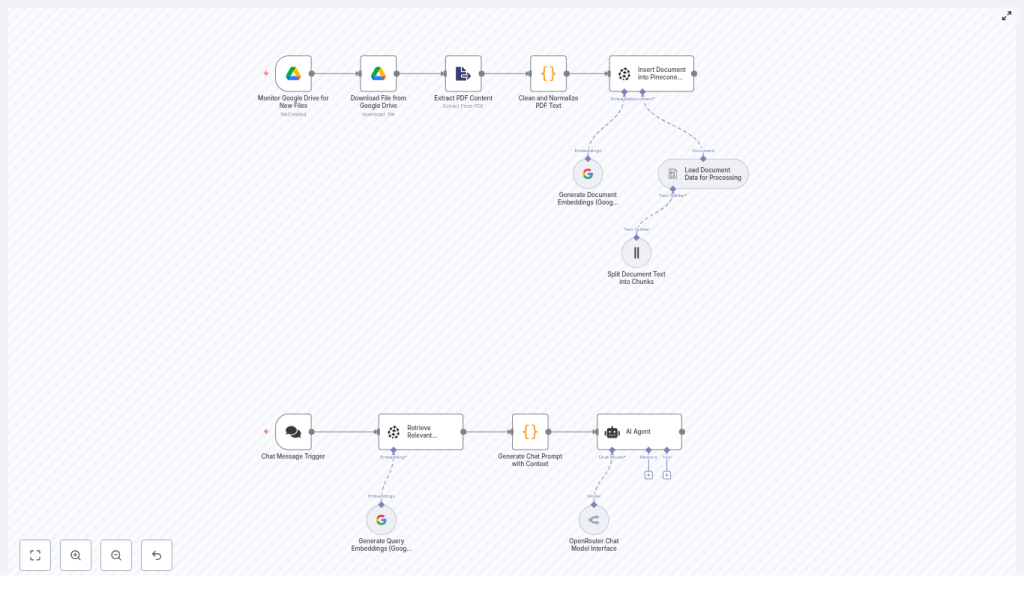
That is exactly what this n8n workflow template gives you. It watches Google Drive for new PDFs, extracts and cleans the text, creates embeddings with Google Gemini (PaLM), stores everything in Pinecone, and then uses that knowledge to power a contextual chatbot via OpenRouter. In other words, it is a complete retrieval-augmented generation (RAG) pipeline from file upload to smart answers.
What this n8n RAG workflow actually does
Let us start with the big picture. The template automates the full document ingestion and Q&A loop:
- Watches a Google Drive folder for new PDFs
- Downloads each file and extracts the text
- Cleans and normalizes that text so it is usable
- Splits long documents into chunks that work well with LLMs
- Creates embeddings with Google Gemini (PaLM) and stores them in Pinecone
- Listens for user questions through a chat trigger
- Retrieves the most relevant chunks from Pinecone
- Feeds that context into an LLM (OpenRouter -> Google Gemini) to generate a grounded answer
The result is a chatbot that can answer questions using your PDFs as its knowledge base, without you having to manually process or maintain any of it.
Why bother automating RAG from Google Drive?
Most teams have a graveyard of PDFs in shared folders: policies, research reports, contracts, training material, you name it. All that information is valuable, but it is effectively locked away.
Doing RAG manually usually means:
- Downloading files by hand
- Running ad-hoc scripts to extract and clean text
- Manually pushing embeddings into a vector database
- Trying to wire up a chatbot on top
That gets old fast. With this n8n automation, you can instead:
- Continuously monitor a Google Drive folder for new PDFs
- Normalize and index content without touching each file
- Keep Pinecone up to date as documents change or get added
- Offer a chat interface that returns context-aware answers from your own content
It is ideal when you want a self-updating knowledge base, or when non-technical teammates keep dropping documents into Drive and you want that knowledge to be instantly searchable via chat.
How the architecture fits together
Under the hood, this is a classic RAG setup assembled with n8n nodes. Here is the flow at a high level:
- Google Drive trigger watches a specific folder for fileCreated events.
- Google Drive download fetches the new PDF.
- PDF extraction converts the file into raw text.
- Text cleaning removes noise and normalizes the output.
- Document loader & splitter breaks the text into manageable chunks.
- Embeddings generation uses Google Gemini (PaLM) to create vectors.
- Pinecone insert stores embeddings plus metadata for fast similarity search.
- Chat trigger listens for incoming user questions.
- Query embedding + Pinecone query finds the most relevant chunks.
- LLM response (OpenRouter / Gemini) answers using the retrieved context.
Let us walk through each phase in more detail so you know exactly what is happening and where you can tweak things.
Phase 1: Ingesting and cleaning PDFs from Google Drive
1. Watching Google Drive for new files
The workflow starts with a Google Drive Trigger node. You configure it to listen for the fileCreated event in a specific folder. Whenever someone drops a PDF into that folder, n8n automatically kicks off the workflow.
2. Downloading and extracting PDF text
Next comes a regular Google Drive node that downloads the file contents. That file is passed into an Extract From File node, configured for PDFs, which converts the PDF into raw text.
At this point you usually have messy text, with odd line breaks, stray characters, and inconsistent spacing. That is where the cleaning step comes in.
3. Cleaning and normalizing the text
To make the text usable for embeddings, the workflow uses a small Code node (JavaScript) that tidies things up. It removes line breaks, trims extra spaces, and strips special characters that might confuse the model.
Here is the example cleaning code used in the template:
const rawData = $json["text"];
const cleanedData = rawData  .replace(/(\r\n|\n|\r)/gm, " ")  // remove line breaks  .trim()  // remove extra spaces  .replace(/[^\w\s]/gi, "");  // remove special characters
return { cleanedData };
You can adjust this logic if your documents have specific formatting you want to preserve, but this gives you a solid baseline.
Phase 2: Chunking, embeddings, and Pinecone storage
4. Loading and splitting the document
Once the text is cleaned, the workflow feeds it into a document data loader and then a splitter. Long documents are split into chunks so the LLM can handle them and so Pinecone can retrieve only the relevant pieces later.
A common setup is something like:
- Chunk size around 3,000 characters
- With some overlap between chunks so you do not cut important sentences in half
You can experiment with these values based on your document type and how detailed you want retrieval to be.
5. Generating embeddings with Google Gemini (PaLM)
Each chunk is then sent to the Google Gemini embeddings model, typically models/text-embedding-004. This step converts each chunk of text into a numerical vector that captures its meaning, which is exactly what Pinecone needs for similarity search.
6. Inserting embeddings into Pinecone
Finally, the workflow uses a Pinecone insert node to push each embedding into your Pinecone index. Along with the vector itself, it stores metadata such as:
- Source file name
- Chunk index
- Original text excerpt
This metadata is handy later when you want to show where an answer came from or debug why a particular chunk was retrieved.
Phase 3: Powering the chatbot with RAG
7. Handling incoming user questions
On the chat side, the workflow uses a Chat Message Trigger (or similar entry point) to receive user queries. Whenever someone asks a question, that text flows into the RAG part of the pipeline.
8. Retrieving relevant context from Pinecone
The query is first turned into an embedding using the same Google Gemini embeddings model. That query vector is sent to Pinecone with a similarity search, which returns the most relevant chunks from your indexed documents.
Typically you will fetch the top few matches, such as the top 3 chunks. These provide the context the LLM will use to ground its answer.
9. Building the prompt and calling the LLM
Next, a Code node assembles a prompt that includes the retrieved chunks plus the user’s question. It might look something like this:
Using the following context from documents:

Document 1:
<text chunk>

Document 2:
<text chunk>

Answer the following question:
<user query>

Answer:
This combined prompt is then sent to the LLM via OpenRouter, typically using a Google Gemini model as the backend. Because the model has the relevant document context right in the prompt, it can answer in a way that is grounded in your PDFs instead of guessing.
Prompt engineering and context strategy
A big part of good RAG performance is how you assemble the context. Here are a few practical tips:
- Limit the number of chunks you include, for example the top 3, so you stay within token limits and keep the prompt focused.
- Preserve ordering of chunks if they come from the same document section, so the LLM sees a coherent narrative.
- Use clear separators (like “Document 1:”, “Document 2:”) so the model can distinguish between different sources.
The provided code node in the template already follows this pattern, but you can refine the wording or add instructions like “If you are not sure, say you do not know” to improve reliability.
Best practices for a solid n8n RAG setup
Once you have the basic pipeline running, a few tweaks can make it much more robust and cost effective.
Chunking and overlap
- Experiment with 1,000 to 3,000 character chunks.
- Try 10% to 20% overlap so important sentences are not split awkwardly.
- For highly structured docs, you may want to split by headings or sections instead of raw character count.
Metadata for better answers
- Store file name, section or heading, and page numbers in Pinecone metadata.
- Use that metadata in your final answer to provide source attribution like “According to Policy.pdf, page 3…”.
Cost control
- Batch embeddings when ingesting many documents to reduce overhead.
- Pick the most cost-effective embedding model that still meets your accuracy needs.
- Monitor how often you call the LLM and adjust prompt length or frequency if needed.
Security and access
- Use least-privilege credentials for Google Drive so n8n only sees what it needs.
- Store API keys and secrets in environment variables or secret stores, not hard-coded in nodes.
Monitoring and observability
- Log how many files you process and how many embeddings you create.
- Set up alerts for ingestion failures or unusual spikes in document volume.
Troubleshooting common issues
PDF extraction gives messy or incomplete text
Some PDFs are basically images with text on top, or they have poor OCR. If extraction returns gibberish or blanks:
- Add an OCR step (for example Tesseract or a cloud OCR service) before the Extract From File node.
- When possible, get text-native PDFs or DOCX files instead of scanned documents.
Embeddings feel off or results are not relevant
If the chatbot is returning unrelated chunks, check:
- That you are using the correct embedding model consistently for both documents and queries.
- Your chunk size and overlap. Too big or too small can hurt retrieval.
- Whether you need to index more chunks or increase the number of results you fetch from Pinecone.
Slow Pinecone queries
If responses feel sluggish:
- Confirm the vector dimension in your Pinecone index matches your embedding model.
- Consider scaling replicas or choosing a more suitable pod type for your traffic.
Security and compliance: handle sensitive data carefully
When you are embedding internal documents and exposing them via a chatbot, it is worth pausing to think about data sensitivity.
- Encrypt data in transit and at rest across Google Drive, Pinecone, and your n8n host.
- Mask or redact PII before embedding if it is not needed for retrieval.
- Audit who has access to the Google Drive folder and keep a change log for compliance.
Costs and scaling your RAG pipeline
Your main cost drivers are:
- API calls for embeddings and LLM completions
- Pinecone storage and query usage
- Compute resources for running n8n
To keep things scalable and affordable:
- Batch embedding requests during large backfills of documents.
- Choose embedding models with a good price-to-quality tradeoff.
- Monitor Pinecone metrics and tune pod size as your data grows.
- Use asynchronous processing in n8n for big ingestion jobs so you do not block other workflows.
When this template is a great fit
This n8n RAG workflow shines when you:
- Have important PDFs living in Google Drive that people constantly ask questions about.
- Want a self-updating knowledge base without manual indexing.
- Need a chatbot grounded in your own documents, not just a generic LLM.
- Prefer a no-code / low-code way to orchestrate RAG instead of building everything from scratch.
You can extend the same pattern to other file sources, databases, or even streaming document feeds once you are comfortable with the basics.
Getting started: from template to working chatbot
Ready to try it out? Here is a simple way to get from zero to a working pipeline:
- Import the template into your n8n instance.
- Connect credentials for:
- Google Drive
- Pinecone
- OpenRouter / Google Gemini
- Point the Google Drive trigger to a test folder.
- Run a small test with a few representative PDFs to validate:
- PDF extraction quality
- Chunking and embeddings
- Relevance of Pinecone results
- Answer quality from the chatbot
As you iterate, you can refine chunk sizes, prompt wording, and metadata to better fit your documents and use cases.
Need a bit more guidance?
If you want to go a step further, you can:
- Follow a step-by-step checklist to import and configure the workflow correctly.
- Fine-tune chunk size, overlap, or prompt templates based on your document types.
- Draft an ingestion policy that covers PII handling and access control.
Next move: import the workflow into n8n, hook it up to Google Drive, Pinecone, and OpenRouter / Gemini, and start indexing your documents. Once you see your first accurate, context-aware answer come back from your own PDF collection, you will wonder how you ever lived without it.
