


Automate RSS Feed Posts to Slack Daily with n8n
Overview
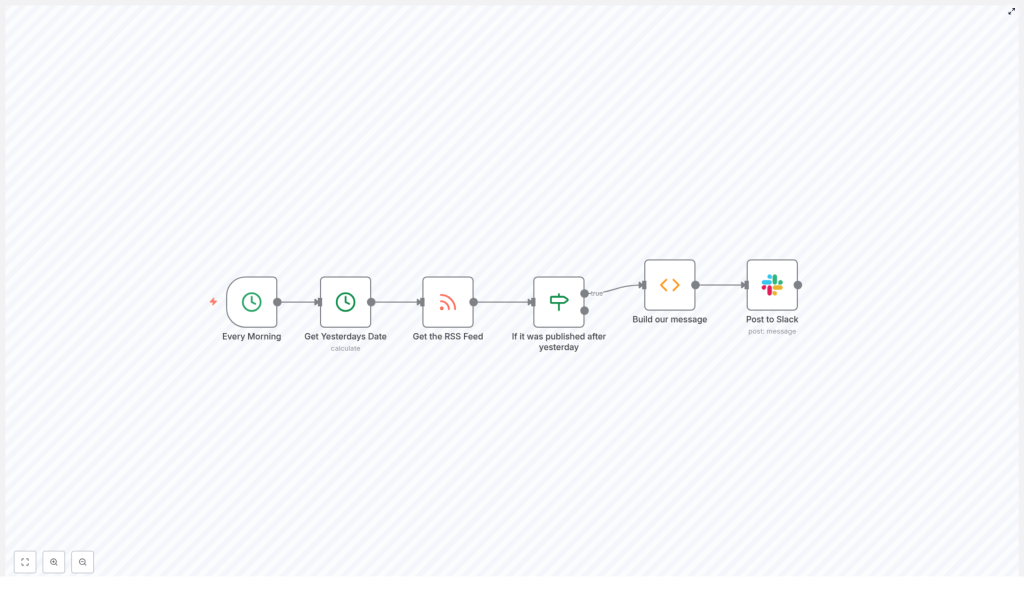
This workflow template automates the daily delivery of RSS feed updates into a Slack channel using n8n. It is designed for teams that want a consistent, scheduled digest of new content without manual checks or copy-paste work.
At a high level, the automation:
- Runs every morning at a fixed time using a Cron trigger
- Calculates the date for “yesterday” with a Date/Time node
- Fetches entries from an RSS feed URL
- Filters items to only those published after the calculated date
- Builds a formatted message from the filtered items
- Posts that message into a specific Slack channel
The template uses only standard n8n nodes and a single Slack credential, which makes it easy to adapt, extend, or integrate into existing automations.
Workflow Architecture
The workflow is linear and deterministic, which makes it straightforward to debug and customize. The node sequence is:
- Cron – time-based trigger at 8:00 AM daily
- Date & Time – compute yesterday’s date
- RSS Feed Read – fetch RSS items from the configured URL
- If – filter items based on publication date
- Function – assemble a single formatted Slack message
- Slack – send the compiled message to a Slack channel
Data flows from left to right. Each item in the RSS feed is evaluated independently by the If node, then the Function node aggregates the filtered items into one message payload for Slack.
Node-by-Node Breakdown
1. Cron Node – Daily Trigger
The workflow starts with a Cron node configured to execute at 08:00 every day. This ensures that your Slack channel receives the RSS summary at a consistent time each morning.
- Trigger type: Time-based schedule
- Frequency: Daily
- Time: 8:00 AM (server time or n8n instance time zone)
If your team operates in multiple time zones, you may want to adjust the Cron schedule to match the primary audience’s morning hours. The Cron node does not require external credentials and is purely configuration-based.
2. Date & Time Node – Calculate Yesterday’s Date
Next, a Date & Time node computes the date for “yesterday” by subtracting one day from the current execution time. This value is used as a reference to filter RSS items.
- Operation: Manipulate date & time
- Input: Current date/time at workflow execution
- Transformation: Subtract 1 day
The resulting timestamp is stored in the node’s output data. Downstream nodes, especially the If node, reference this value when comparing against each RSS item’s publication date. This keeps the workflow dynamic so it always considers “yesterday” relative to the current run.
3. RSS Feed Read Node – Fetch RSS Items
The RSS Feed Read node retrieves entries from a specified RSS feed URL. In the example configuration, the URL is:
https://n8n.io/blog/rssKey characteristics:
- Node type: RSS Feed Read
- Input: RSS feed URL
- Output: One item per RSS entry, including fields such as title, link, description, and publication date
This node does not require authentication for publicly accessible feeds. For private feeds, you would adjust the URL and any required headers or parameters accordingly, but the core logic of the template remains the same.
4. If Node – Filter Items Published After Yesterday
The If node acts as a filter to ensure that only items published after the calculated “yesterday” date continue through the workflow.
- Condition type: Compare each item’s publication date to the reference date from the Date & Time node
- True branch: Items with a publication date newer than yesterday
- False branch: Items that are older or equal to the cutoff date
The node evaluates each RSS item individually. Only the items on the true path are passed to the next node for message construction. Items on the false path are effectively discarded for the purpose of this daily summary.
If the feed does not provide a standard publication date field or uses a different field name, you would adjust the If node’s condition to match the actual property containing the date. The template assumes a typical RSS structure where a publication date is available.
5. Function Node – Build the Slack Message
The Function node converts the filtered RSS items into a single formatted message string that is suitable for posting to Slack.
Typical structure of the generated message:
- Each item is converted into a line with a clickable title that links to the original post
- A short description or summary may be included under or next to each title
- Items are concatenated into one text block so Slack receives a compact digest
Internally, the Function node:
- Iterates over all incoming items from the If node’s true branch
- Extracts fields such as
title,link, anddescription - Builds a formatted string using Slack-friendly formatting (for example, linked titles)
- Outputs a single item containing the final message text
This aggregation step is important because it prevents the Slack channel from being flooded with one message per RSS item. Instead, the team receives a single digest that is easy to scan.
6. Slack Node – Post to Slack Channel
The final step uses the Slack node to send the compiled message to a predefined Slack channel, such as:
#newsKey configuration aspects:
- Credentials: Slack API credentials configured in n8n
- Operation: Send message
- Channel: Target channel name or ID (for example,
#news) - Message text: The formatted string produced by the Function node
Once the node executes successfully, team members in that channel receive an immediate notification with the daily RSS summary. If your Slack workspace uses different channels for different topics, you can duplicate or parameterize this node to route content to multiple destinations.
Configuration Notes
RSS Feed URL
The template uses https://n8n.io/blog/rss as an example source. You can replace this with any valid RSS feed URL that your team wants to monitor. Ensure that the feed:
- Is reachable from your n8n instance
- Provides a publication date field for each entry
Slack Credentials and Permissions
The Slack node requires:
- A configured Slack credential in n8n with permission to post messages
- Access to the specific channel where messages will be posted
If messages fail to send, verify that the Slack app or token used has the appropriate scopes and that the bot is invited to the target channel.
Time Zone and Scheduling
The Cron node uses the time zone of the n8n instance or the configuration in the node itself. If your team operates in a different time zone than the server, confirm that 8:00 AM in the workflow matches the intended local time. Adjust the Cron schedule accordingly if needed.
Handling Days with No New Posts
If the RSS feed has no items published after yesterday’s date, the If node will pass no items to the Function node. In this case, the Function node may produce an empty message or no output, depending on the implementation. You can extend the Function node logic to:
- Skip sending a message entirely when there are no new items
- Send a fallback message such as “No new posts in the last day”
Benefits of Automating RSS to Slack with n8n
- Time-saving: Eliminates manual checking of RSS feeds and manual posting to Slack.
- Consistency: Ensures updates arrive at the same time every day without relying on individual habits.
- Improved communication: Keeps your team aligned with the latest content and updates in a channel they already use.
Because this workflow is built with standard n8n nodes, it is easy to maintain, audit, and modify as your needs evolve.
Advanced Customization Options
While the template focuses on a simple daily digest, you can extend it in several ways:
- Multiple feeds: Add additional RSS Feed Read nodes and merge their results before the If node.
- Channel routing: Use additional If nodes or Switch nodes to route different feeds to different Slack channels.
- Custom formatting: Adjust the Function node to include tags, authors, or categories in the Slack message.
- Alternative notification platforms: Replace or complement the Slack node with other nodes such as email, Microsoft Teams, or other chat tools while keeping the same core logic.
All these variations build on the same foundational pattern of scheduled triggers, date filtering, RSS retrieval, and message construction.
Implementing the Workflow in n8n
To get started, combine the following n8n nodes in your editor:
- Cron
- Date & Time
- RSS Feed Read
- If
- Function
- Slack
Configure each node as described above, test the workflow with a manual execution, then activate it so it runs automatically every morning. The same structure can be reused for different RSS sources or for other notification systems with minimal changes.
Get the Ready-Made Template
If you prefer to start from a preconfigured setup rather than building the workflow from scratch, you can use the existing n8n template and customize it to your feeds and Slack channels.
