


Automate RSS to Telegram with n8n
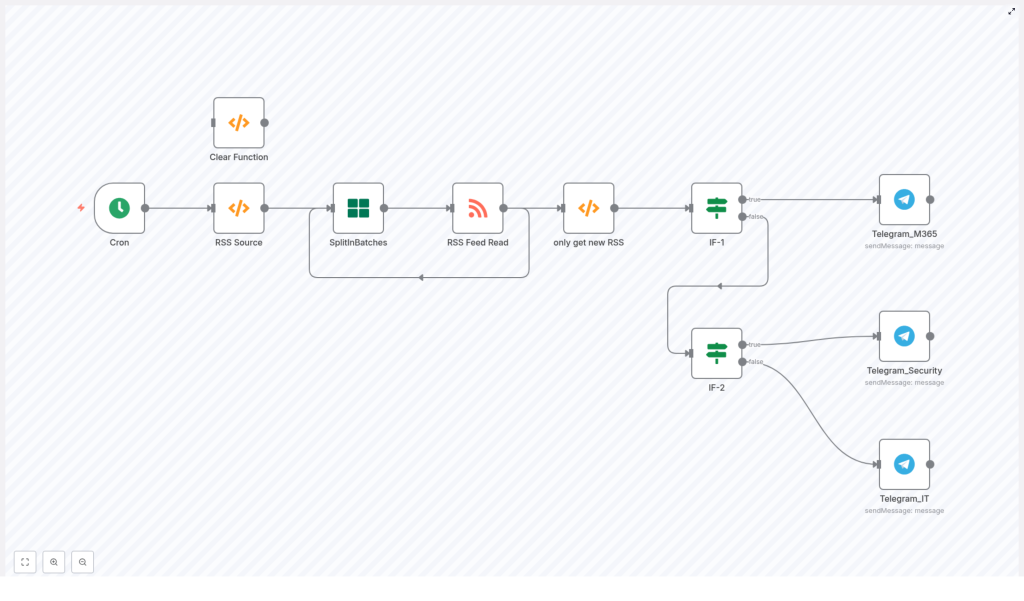
Delivering RSS updates directly into Telegram is a powerful way to keep IT teams, security operations, and online communities informed in real time. Instead of manually checking dozens of feeds, you can use n8n to pull in multiple RSS sources, remove duplicates, classify content by topic or source, and send each update to the right Telegram channel.
This guide teaches you how the provided n8n workflow template works and how to adapt it for your own feeds and Telegram channels.
What you will learn
By the end of this tutorial, you will be able to:
- Explain why automating RSS to Telegram is useful for IT and security teams
- Understand each node in the n8n workflow and what it does
- Configure multiple RSS feeds in a single workflow
- Use workflow static data to deduplicate RSS items
- Route items based on source URLs and security-related keywords
- Connect and configure Telegram bots and channels in n8n
- Troubleshoot common issues and extend the workflow with best practices
Why automate RSS to Telegram?
Monitoring blogs, vendor advisories, and security news by hand is error-prone and time-consuming. Automation with n8n helps you:
- Poll RSS feeds automatically using a Cron trigger
- Read and parse feed items with the RSS Feed Read node
- Filter out previously sent items using deduplication logic
- Route messages to different Telegram channels based on:
- Source URL (for example Microsoft TechCommunity)
- Keywords that indicate security-related content
The result is an automated RSS-to-Telegram pipeline that keeps your channels updated with only the latest, most relevant posts.
Concepts and building blocks in this n8n workflow
Before you follow the step-by-step setup, it helps to understand the main nodes and concepts used in the template.
1. Workflow trigger and feed list
- Cron
This node starts the workflow on a schedule. In the template, it runs every 10 minutes, but you can adjust the frequency to match your needs or rate limits. - RSS Source (Function node)
This function node outputs an array of JSON objects, each containing an RSS feed URL. It centralizes your feed list so you can easily add or remove feeds without changing the rest of the workflow.
2. Handling multiple feeds safely
- SplitInBatches
This node processes one RSS feed at a time. It takes the list of URLs from the RSS Source node and iterates through them in batches. This helps:- Reduce the number of simultaneous HTTP requests
- Avoid rate or concurrency issues with RSS providers
- Make debugging easier, since you deal with one feed per batch
- RSS Feed Read
For each batch (each feed URL), this node fetches and parses the RSS feed items.
3. Deduplication with workflow static data
To avoid sending the same RSS item repeatedly, the workflow uses a Function node called only get new RSS. This node uses n8n’s getWorkflowStaticData('global') to store IDs of items that have already been processed.
Here is the exact code used in the template:
// only get new RSS
const staticData = getWorkflowStaticData('global');
const newRSSIds = items.map(item => item.json["isoDate"]);
const oldRSSIds = staticData.oldRSSIds;  if (!oldRSSIds) {  staticData.oldRSSIds = newRSSIds;  return items;
}

const actualNewRSSIds = newRSSIds.filter((id) => !oldRSSIds.includes(id));
const actualNewRSS = items.filter((data) => actualNewRSSIds.includes(data.json['isoDate']));
staticData.oldRSSIds = [...actualNewRSSIds, ...oldRSSIds];

return actualNewRSS;
How this logic works in practice:
- First run: If there is no stored list yet, the node:
- Stores all current
isoDatevalues instaticData.oldRSSIds - Returns all items (you can later modify this if you want to skip historical posts)
- Stores all current
- Later runs: On each subsequent execution, it:
- Collects the current
isoDatevalues - Compares them with the stored
oldRSSIds - Filters out any item whose
isoDatehas already been seen
- Collects the current
- Updating memory: After finding the new items, it prepends their IDs to the stored list:
- This keeps a growing memory of processed items
- You can later add a size limit or use a different ID strategy if needed
4. Routing based on source URL (IF-1)
The first IF node, often named IF-1, checks where the RSS item comes from. In this template:
- It tests if the item’s link contains
techcommunity.microsoft.com - If the condition is true, the item is routed directly to a dedicated M365 Telegram channel
- If the condition is false, the item continues to the next routing step based on keywords
5. Routing based on security keywords (IF-2)
The second IF node, IF-2, uses a regular expression to detect security-related terms in the item title. In the template, this regex includes terms in both English and Chinese.
- If the regex matches the title:
- The item is sent to a Security Telegram channel
- If the regex does not match:
- The item is sent to a more general IT Telegram channel
6. Sending messages to Telegram
- Telegram_* nodes
These aresendMessagenodes configured for each target Telegram channel. Each node:- Uses Telegram bot credentials configured in n8n
- Sends a formatted message (for example title, link, date) to a specific
chatId
- Clear Function node
This is an optional utility node that you can use during testing to reset workflow static data. It clears stored IDs so you can simulate a fresh start.
Step-by-step: set up the RSS to Telegram workflow in n8n
Use the following steps to get the template running in your own n8n instance.
Step 1: Import or recreate the workflow
- Download or copy the workflow JSON from the template page.
- In n8n, go to Workflows and choose Import from file or Import from clipboard.
- Alternatively, recreate the nodes manually following the described structure:
- Cron → RSS Source → SplitInBatches → RSS Feed Read → only get new RSS → IF-1 → IF-2 → Telegram_* nodes
Step 2: Configure Telegram credentials
- In Telegram, open @BotFather and create a new bot.
- Follow the prompts and copy the bot token that BotFather returns.
- In n8n, open Credentials and create a new Telegram credential.
- Paste the bot token into the appropriate field.
- In each Telegram sendMessage node in the workflow:
- Select the Telegram credential you just created
- Set the correct
chatIdfor each channel or group (remember that some channel or group IDs can be negative numbers)
Step 3: Add your RSS feeds
- Open the RSS Source Function node.
- Locate the array of feed URLs in the node’s code or JSON.
- Replace the example URLs with the RSS feeds you want to monitor.
- You can add as many feeds as you like
- Each feed URL will be processed one at a time by the SplitInBatches node
Step 4: Adjust the schedule
- Open the Cron node.
- In the configuration, set how often the workflow should run.
- The template uses every 10 minutes as a starting point
- If your feeds update slowly, you can run less frequently
- If your feeds are heavy or you face rate limits, consider longer intervals
Step 5: Review and customize deduplication
- Open the only get new RSS Function node.
- Read through the code to understand how it uses
isoDateand static data. - Decide how you want to handle the first run:
- Default behavior: all existing items are treated as new and sent once
- If you prefer not to post historical items:
- Change the branch inside
if (!oldRSSIds)so it returns an empty array instead ofitems
- Change the branch inside
Step 6: Adapt routing rules (IF-1 and IF-2)
- Source-based routing (IF-1):
- Open the IF-1 node.
- Check the condition that looks for
techcommunity.microsoft.comin the link. - Update this condition if you want to:
- Route other domains to special channels
- Support additional vendor or product-specific feeds
- Keyword-based routing (IF-2):
- Open the IF-2 node.
- Locate the regular expression used to match security-related terms in the title.
- Modify or extend the regex to reflect your topics:
- Security, vulnerability, CVE, patch Tuesday, etc.
- Include terms in the languages your team uses (for example English and Chinese)
Step 7: Test the workflow end to end
- In n8n, click Execute Workflow to run it manually.
- Watch the execution:
- Confirm that the RSS Feed Read node retrieves items
- Check that the only get new RSS node returns some items on first run
- Verify that items are correctly routed through IF-1 and IF-2
- Open your Telegram channels:
- Confirm that messages appear in the expected M365, Security, or IT channels
Troubleshooting common issues
Telegram messages not delivered
- Double-check the bot token in your Telegram credential.
- Verify the chatId values for each Telegram node.
- Some group or channel IDs are negative numbers, make sure they are copied correctly.
- Ensure the bot has permission to post in the target channel or group.
RSS feed returns no items or errors
- Open the RSS Feed Read node output in the execution view.
- Inspect the raw response to see if:
- The feed is empty
- There are encoding or parsing issues
- Some feeds may require:
- Custom headers
- A specific user-agent string
Duplicate messages still appear
- Insert a temporary debug or Function node to log
staticData.oldRSSIds. - Check if the list is being updated with new IDs on each run.
- If the array grows very large over time:
- Consider adding a size limit and trimming older entries
- Or switch to a more robust ID strategy, for example using GUID or a hash
Rate limits or many items at once
- The SplitInBatches node already helps by processing feeds one by one.
- If a feed publishes many items at once:
- Consider adding a Delay node between Telegram sendMessage nodes
- Adjust the Cron frequency to reduce how often you poll
Enhancements and best practices
Once the basic RSS to Telegram automation is running, you can refine it using these ideas.
- Use more robust item identifiers Instead of using
isoDatealone for deduplication, consider:- GUID or unique ID provided by the feed
- The link URL
- A hash of
title + link + isoDatefor extra safety
- Persist state externally If you run multiple instances of n8n or need high reliability across restarts:
- Store processed IDs in Redis, a database, or another external system
- Read and write that state from within your function nodes
- Add error handling and backoff For unstable feeds or Telegram API issues:
- Wrap HTTP calls with retry logic
- Implement exponential backoff for repeated failures
- Enrich Telegram messages Make messages more informative by:
- Including the feed name or creator
- Adding a short snippet or summary
- Parsing HTML content to extract thumbnails or key details
- Rate limiting and batching If your Telegram usage grows:
- Group multiple updates into a single message when appropriate
- Add rate limiting nodes to avoid hitting Telegram API quotas
