


Automate Senior Designer Job Searches on LinkedIn & Twitter with n8n
What You Will Learn
In this guide you will learn how to:
- Set up an automated senior designer job search using n8n
- Collect job posts from LinkedIn and Twitter on a schedule
- Filter roles by keywords, location, and time period
- Extract job and poster details from LinkedIn job pages
- Save all validated job listings into a Notion database
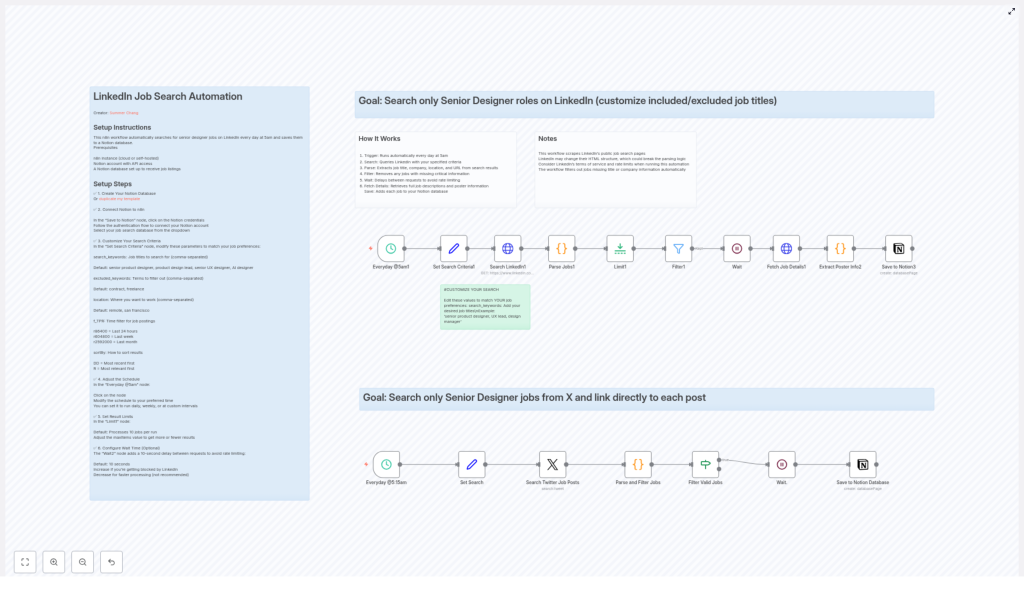
By the end, you will have a working n8n workflow that runs twice a day, finds relevant senior designer roles, and sends them straight to Notion so you can focus on applying instead of searching.
Concept Overview: How the Automation Works
This n8n workflow combines two main job sources and a single source of truth for saving results:
1. Data Sources
- LinkedIn job search pages The workflow scrapes public LinkedIn job listings for senior designer roles that match your criteria.
- Twitter job-related posts It also searches for tweets that mention senior designer hiring opportunities, filtered by keywords and location.
2. Processing & Filtering
- Job posts are parsed to extract key fields like title, company, location, posting date, and URL.
- Filters remove incomplete, irrelevant, or unwanted listings based on your keyword rules.
- For LinkedIn, the workflow goes deeper to fetch full job descriptions and poster details from each job page.
3. Storage in Notion
- All validated jobs from LinkedIn and Twitter are saved to a Notion database.
- Each entry includes core job information plus metadata such as source platform and poster details (where available).
4. Automation Schedule
By default, the workflow runs twice a day:
- 5:00 AM – LinkedIn job search and processing
- 5:15 AM – Twitter job search and processing
You can adjust these times later using the n8n trigger nodes.
Step 1: Prepare Your Notion Database
The workflow needs a place to store all the job listings. You can either create your own database from scratch or start from a template.
- Create or duplicate a Notion database
- Create a new Notion database that will store job records, or
- Duplicate this Notion template and customize it.
- Include useful fields Make sure your database has properties for:
- Job title
- Company
- Location
- Job URL
- Source (LinkedIn or Twitter)
- Posting date
- Job description (optional but helpful)
- Poster name and profile URL (for LinkedIn, if you want this data)
Step 2: Connect Notion to n8n
Next, you will link your Notion workspace to n8n so that the workflow can write new job entries directly into your database.
- Open the workflow in n8n Import or open the provided template in your n8n instance.
- Locate the “Save to Notion” nodes In the workflow, find the nodes responsible for saving LinkedIn and Twitter jobs to Notion. These are usually labeled something like Save to Notion.
- Authenticate your Notion account Within each “Save to Notion” node:
- Add or select your Notion credentials.
- Grant n8n access to the database you created or duplicated earlier.
- Select your job database Configure each “Save to Notion” node to point to the same job database so that all listings are stored in one place.
Step 3: Customize Your Job Search Criteria
The power of this workflow comes from tailoring search filters to match your ideal roles. You will configure this in the “Set Search Criteria” and “Set Search” nodes.
Key Parameters to Adjust
Edit the following properties to match your preferences:
- search_keywords Job titles and role-related keywords you want to include, for example:
- senior product designer
- product design lead
- senior UX designer
- AI designer
- excluded_keywords Terms you want to filter out, such as:
- contract
- freelance
- junior
- intern
This helps keep your list focused on permanent senior roles.
- location Target locations, for example:
- remote
- San Francisco
You can adapt this to your preferred cities, regions, or remote-only searches.
- f_TPR (LinkedIn time period filter) Controls how recent the LinkedIn job postings should be. Example:
r86400– last 24 hours
Adjust this if you want a longer or shorter time window.
- sortBy (LinkedIn sorting method) Tells LinkedIn how to order results. Common value:
DD– most recent first
By fine-tuning these values, you can choose how broad or narrow your job search should be across both LinkedIn and Twitter.
Step 4: Configure the Schedule and Rate Limits
Scheduling the Workflow
The template includes trigger nodes that define when each part of the workflow runs:
- LinkedIn trigger Runs daily at 5:00 AM by default.
- Twitter trigger Runs daily at 5:15 AM by default.
To change these times:
- Open each trigger node in n8n.
- Adjust the schedule to your preferred times or frequency.
- Save and activate the workflow once you are done.
Handling Rate Limits
LinkedIn and Twitter can restrict access if you send too many requests in a short time. The workflow uses Wait nodes to slow down requests and avoid rate limiting.
- In the LinkedIn workflow, there is a delay of 10 seconds between certain requests.
- Twitter processing also includes waits before saving to Notion.
You can adjust these waits if you see rate limit errors or want to be extra cautious.
Step 5: Understand the LinkedIn Workflow (Daily at 5 AM)
The LinkedIn branch of the workflow focuses on scraping public job listings and then enriching them with detailed information.
LinkedIn Processing Steps
- Trigger The workflow is scheduled to start at 5:00 AM every day (or at the time you configure).
- Search Job Listings An HTTP Request node sends a query to LinkedIn job search pages using:
- Your
search_keywords - Location filters
- Time period filter (
f_TPR) - Sorting method (
sortBy)
This returns raw HTML for job search result pages.
- Your
- Parse Job Cards A parsing node extracts structured data from the HTML, such as:
- Job title
- Company name
- Location
- Posting date
- Job URL
- Filter Jobs The workflow removes any listings that are clearly incomplete, for example:
- Missing job title
- Missing company name
Additional filters can be applied using your keyword rules.
- Delay Processing A Wait node introduces a 10 second delay between requests. This helps reduce the risk of hitting LinkedIn rate limits or triggering anti-scraping measures.
- Fetch Job Details For each remaining job:
- The workflow loads the individual LinkedIn job page.
- It extracts the full job description.
- It identifies hiring team or poster information where available.
- Extract Poster Information From the job page, the workflow attempts to extract:
- Poster name
- Poster title
- Poster LinkedIn profile URL
These details are useful if you want to reach out directly.
- Save to Notion Finally, a “Save to Notion” node:
- Creates a new entry in your Notion job database for each validated listing.
- Stores job title, company, location, posting date, job URL, full description, and poster info.
- Tags the record with the source as LinkedIn.
Step 6: Understand the Twitter Workflow (Daily at 5:15 AM)
The Twitter branch focuses on discovering hiring-related tweets that mention senior designer roles.
Twitter Processing Steps
- Trigger The workflow is scheduled to run at 5:15 AM daily (or at your configured time).
- Search Tweets A search node queries Twitter for tweets related to senior designer job posts. It uses:
- Your
search_keywordsto find relevant roles. - Location filters to focus on acceptable regions or remote roles.
- Additional filters to focus on hiring or job-related tweets.
- Your
- Parse & Filter Tweets The workflow extracts from each tweet:
- Job title (if available or inferred)
- Company (if mentioned)
- Location (if mentioned or tagged)
- Tweet URL
It then filters out tweets containing any of your
excluded_keywords, such as “intern” or “junior”. - Validate Jobs Only tweets that appear to describe real job opportunities are kept. The workflow checks that:
- There is a valid job title.
- There is a company or clear employer reference.
- Wait & Save to Notion Before saving, the workflow includes waits to avoid hitting Twitter rate limits. Then, for each validated tweet:
- A new entry is created in your Notion job database.
- Key details like job title, company, location, tweet URL, and poster handle are stored.
- The record is tagged with the source as Twitter.
Important Notes & Best Practices
- LinkedIn scraping can break This workflow scrapes data from LinkedIn public pages. If LinkedIn changes its HTML structure or layout, your parsing logic may stop working. Be prepared to:
- Review and update your parsing nodes periodically.
- Test the workflow after major platform changes.
- Respect platform terms of service Before scraping or using APIs, review the terms of service for LinkedIn and Twitter. Make sure your usage complies with their policies.
- Use delays to avoid bans The Wait nodes are important. They:
- Help you avoid IP bans.
- Reduce the chance of hitting rate limits.
If you encounter errors, consider increasing delay durations.
- Fine-tune keywords for quality The relevance of your results depends heavily on:
- Good
search_keywordsthat match your ideal titles. - Strong
excluded_keywordsto remove noise like internships or junior roles. - Thoughtful location filters that reflect where you are willing to work.
- Good
Quick Recap
Here is a brief summary of what you set up:
- A Notion database to collect all senior designer job opportunities.
- n8n connections to Notion plus workflow nodes that:
- Search LinkedIn job pages at 5 AM.
- Parse and filter LinkedIn job cards.
- Fetch full job descriptions and poster info from job pages.
- Search Twitter for hiring-related tweets at 5:15 AM.
- Parse and validate tweets as real job posts.
- Save all validated jobs from both platforms into Notion.
- Custom search criteria that match your ideal senior designer roles.
- Rate limiting safeguards using Wait nodes.
FAQ
Can I change the job titles or focus on a different role?
Yes. Update the search_keywords field in the “Set Search Criteria” and “Set Search” nodes. For example, you can switch from “senior product designer” to “design manager” or another title.
How often should the workflow run?
Twice daily is a good starting point for fresh results without overloading platforms. You can increase or decrease the frequency by editing the trigger nodes, as long as you respect rate limits and platform policies.
What if I only want remote jobs?
Set the location field to “remote” or similar remote-related terms. You can also combine this with keyword filters like “remote” in the job title or description where applicable.
Do I need to know how to code?
No coding is required. You will configure existing n8n nodes, adjust fields like keywords and locations, and connect your Notion account. The logic is handled by the workflow template.
Start Automating Your Senior Designer Job Search
Instead of manually checking LinkedIn and Twitter every day, let n8n collect and organize senior designer job opportunities for you.
Connect your Notion database, customize your search criteria, set your preferred schedule, and activate the workflow. From there, you will receive a steady stream of curated roles that match your goals, so you can spend your time on thoughtful applications and interviews instead of endless searching.
Happy job hunting!
