


Automate SERP Analysis with n8n & SerpApi
Every SEO team knows the feeling of chasing rankings by hand. Endless tabs, repeated Google searches, copy-pasting URLs into sheets, trying to keep up with competitors who publish faster than you can analyze. It is tiring, and it pulls you away from the strategic work that really moves the needle.
Automation gives you a different path. Instead of spending hours collecting data, you can design a system that does it for you, every time, in the same reliable way. This n8n workflow template is one of those systems. It automates SERP data collection with SerpApi, crawls top-ranking pages with Crawl4ai, uses OpenAI for competitor analysis, and stores everything neatly in Google Sheets for your team.
Think of it as a starting point for a more focused, data-driven, and calm SEO workflow. Once it is running, you can reclaim your time for strategy, creativity, and growth.
The Problem: Manual SERP Analysis Slows You Down
Manually checking search results feels simple at first, but it does not scale. As your keyword list grows, you quickly run into limits:
- Checking desktop and mobile results separately is repetitive and easy to forget.
- Copying URLs, titles, and snippets into spreadsheets takes time and invites mistakes.
- Digging into each top-ranking page for content and keyword analysis is slow and draining.
- Sharing findings with your team means more manual formatting, screenshots, and explanations.
Over time, this manual work becomes a bottleneck. It delays content decisions, slows down testing, and makes it harder to respond quickly to competitors.
The Possibility: An Automated SERP Engine Working For You
Now imagine a different setup. You type in a focus keyword and a country, and a few minutes later you have:
- Desktop and mobile SERP data collected in one run.
- Top-ranking pages crawled and their content cleaned and ready to analyze.
- Competitor content summarized and broken down into focus keywords, long-tail keywords, and n-grams.
- FAQs and related questions extracted and stored for content ideas and schema.
- Everything saved into organized Google Sheets that your whole team can access.
This is what the SERP Analysis Template in n8n gives you. It is not just a workflow. It is a mindset shift. You move from “I have to do this every time” to “I have a system that does this for me.” Once that shift happens, you start to see other parts of your work that can be automated too.
The Tool: Inside the n8n SERP Analysis Template
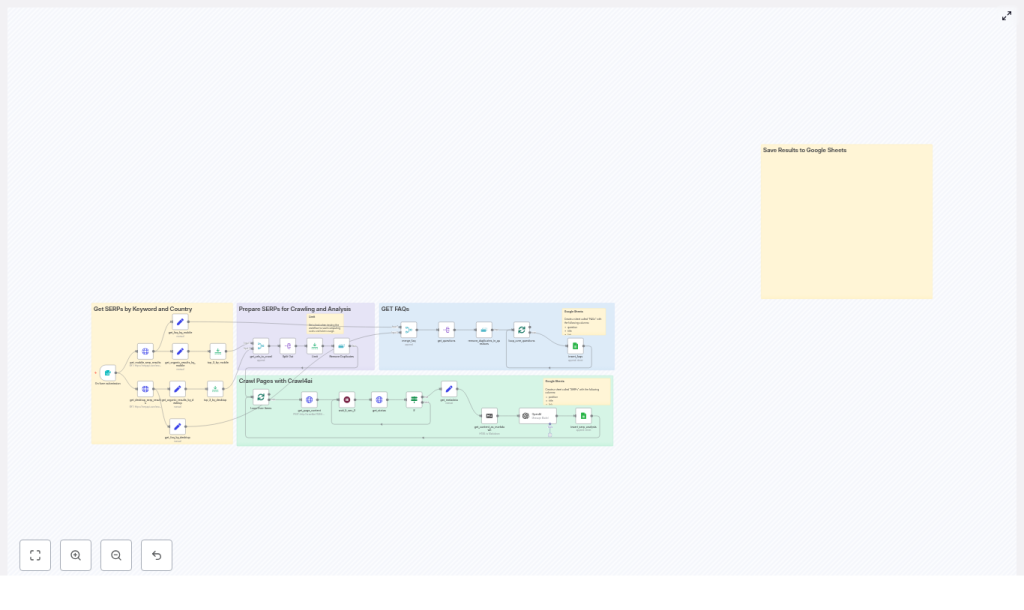
The template is designed as a modular pipeline that you can understand quickly and customize over time. It uses:
- Form Trigger to start the workflow with a focus keyword and country.
- SerpApi to fetch desktop and mobile SERP results in parallel.
- n8n Set and Merge nodes to extract and combine organic results and FAQs.
- Limit and Remove Duplicates to keep your crawl and analysis efficient.
- Crawl4ai to crawl top results and return cleaned HTML plus metadata.
- Markdown conversion to turn HTML into readable text.
- OpenAI to generate summaries, focus keywords, long-tail keywords, and n-gram analysis.
- Google Sheets to store SERP and FAQ data for collaboration and reporting.
You can use it as-is to get quick wins, then iterate and adapt it to your own SEO processes.
Step 1: Start With a Simple Trigger
Every powerful workflow starts with a clear, simple input. In this template, that is a form trigger.
The form collects two fields:
- Focus Keyword
- Country
This design keeps the workflow flexible. Anyone on your team can launch a new SERP analysis by submitting the form. There is no need to touch the flow logic or edit nodes. You remove friction, which makes it easier to use the workflow daily or on demand.
Step 2: Capture Desktop and Mobile SERPs With SerpApi
Search results are not the same across devices. Rankings, rich snippets, and People Also Ask boxes can differ between desktop and mobile. To stay accurate, the template calls SerpApi twice:
- One HTTP Request node for
device=DESKTOP - One HTTP Request node for
device=MOBILE
Each request uses the keyword and country from the form:
// Example query params
q = "={{ $json['Focus Keyword'] }}"
gl = "={{ $json.Country }}"
device = "DESKTOP" or "MOBILE"
This dual collection gives you a more complete view of your search landscape and sets you up to make device-aware content decisions.
Step 3: Turn Raw SERP Data Into Structured Insights
Raw API responses are powerful, but they are not yet usable insights. The template uses n8n Set nodes to extract:
organic_resultsfor URLs, titles, and snippets.related_questionsto capture FAQs and People Also Ask style queries.
It then merges desktop and mobile FAQs into a unified list and removes duplicates. This ensures you keep only unique URLs and unique questions, which makes your analysis cleaner and your Sheets easier to scan.
Step 4: Focus Your Effort With Limits and Deduplication
Smart automation is not about doing everything. It is about doing the right things at scale.
To control cost and processing time, the template uses a Limit node to cap the number of pages you crawl, for example the top 3 results per device. It then uses a Remove Duplicates node so you do not crawl the same URL twice.
This gives you a focused set of pages to analyze while keeping API usage predictable. As you gain confidence, you can increase the limit or adjust it per use case.
Step 5: Crawl Top Pages With Crawl4ai
Once you know which URLs matter, the workflow sends each unique URL to a /crawl endpoint powered by Crawl4ai.
The process looks like this:
- Submit crawl jobs for the selected URLs.
- Periodically poll the task status with a wait loop.
- When a task completes, retrieve:
result.cleaned_html- Page title
- Meta description
- Canonical URL and other useful metadata
The cleaned HTML is key. It removes noise and prepares the content for high quality text analysis with OpenAI.
Step 6: Convert to Markdown and Analyze With OpenAI
Next, the workflow converts the cleaned HTML into Markdown. This gives you readable, structured text that OpenAI can process more effectively.
The OpenAI node, configured as a content-analysis assistant, receives this text and returns:
- A short summary of the article.
- A potential focus keyword.
- Relevant long-tail keywords.
- N-gram analysis, including:
- Unigrams
- Bigrams
- Trigrams
In one automated pass, you get a structured view of each competitor article. This turns what used to be 30 to 60 minutes of manual reading and note taking into a repeatable, scalable analysis step.
Step 7: Store Everything in Google Sheets for Easy Collaboration
Insights are only useful if your team can see and act on them. The final part of the workflow writes results into Google Sheets.
The template appends SERP analysis to a sheet named SERPs, including columns such as:
- Position
- Title
- Link
- Snippet
- Summary
- Focus keyword
- Long-tail keywords
- N-grams
FAQs and related questions are written to a separate sheet for FAQ mining and schema planning. This structure makes it easy to filter, sort, and share insights with content strategists, writers, and stakeholders.
Best Practices to Get the Most From This Template
Protect and Centralize Your API Credentials
Store all credentials in n8n, including SerpApi, Crawl4ai, OpenAI, and Google Sheets. Avoid hard-coding keys inside nodes or templates. This keeps your workflow secure and easier to maintain as your team grows.
Start Small, Then Scale With Confidence
When you first test the workflow, use the Limit node to cap crawled pages to 1 to 3 URLs. This keeps API costs low and makes debugging faster. Once you are happy with the results, gradually increase the limit to match your SEO needs.
Respect Rate Limits and Site Policies
Check the rate limits for SerpApi and Crawl4ai and configure sensible delays. The template includes a 5 second wait loop to prevent throttling and to stay aligned with robots.txt and good crawling practices.
De-duplicate Early to Save Time and Tokens
Use Remove Duplicates nodes before crawling or writing to Sheets. De-duplicating URLs and FAQ questions early reduces processing time, cuts down OpenAI token usage, and keeps your data clean.
Customize the OpenAI Prompt for Your Strategy
The OpenAI node is a powerful place to tailor the workflow to your business. Adjust the system message and prompt to fine-tune:
- The tone and depth of summaries.
- The level of keyword detail you want.
- The structure of the n-gram output.
You can also configure OpenAI to return JSON for easier parsing into Sheets or downstream tools. Treat this prompt as a living asset you improve over time.
Troubleshooting: Keep the Automation Flowing
If something does not work as expected, use this quick checklist:
- No results from SerpApi: Check that your query parameters are formatted correctly and that your SerpApi plan has remaining quota.
- Crawl tasks never finish: Confirm that the Crawl4ai endpoint is reachable from n8n and that your polling logic matches the API response structure.
- Duplicate entries in Google Sheets: Review the
Remove Duplicatesnode configuration and verify that you are comparing the correct field, such as URL or question text. - OpenAI errors or timeouts: Reduce input size by trimming non-essential HTML or sending only the main article content to OpenAI.
Practical Ways to Use This SERP Automation
Once this workflow is live, it becomes a reusable engine for multiple SEO tasks:
- Competitive content research – Summarize top-ranking articles and extract the keywords and n-grams they rely on.
- Article briefs – Turn competitor n-grams and long-tail keywords into focused outlines for your writers.
- FAQ and schema discovery – Collect common questions from SERPs to power People Also Ask optimization and FAQ schema.
- Ranking monitoring – Schedule recurring runs for your target keywords and export trend data to Sheets.
Each of these use cases saves you time, but more importantly, they give you a clearer view of your market so you can make better decisions faster.
Implementation Checklist: From Idea to Running Workflow
To turn this template into a working part of your SEO stack, follow this path:
- Import the n8n SERP Analysis Template into your n8n instance.
- Configure credentials for:
- SerpApi
- Crawl4ai
- OpenAI
- Google Sheets
- Create Google Sheets with:
- A SERPs sheet for ranking and analysis data.
- A separate sheet for FAQs and related questions.
- Run an initial test with:
- One focus keyword.
Country=usorCountry=de.Limitnode set to 1 to 3 URLs.
- Review the Google Sheets output, then refine:
- The OpenAI prompt.
- The columns you store.
- The number of results you crawl.
With each iteration, your workflow becomes more aligned with your strategy and more valuable to your team.
Your Next Step: Build a More Automated SEO Workflow
Automating SERP analysis with n8n, SerpApi, Crawl4ai, and OpenAI transforms a manual, repetitive task into a repeatable system. The template gives you a launchpad to:
- Collect SERP data at scale.
- Crawl and analyze competitor content with consistency.
- Generate actionable insights and store them in Google Sheets for easy access.
This is not the final destination. It is a powerful first step. Once you experience how much time and mental energy you save, you will start to see new opportunities to automate briefs, content audits, reporting, and more.
Ready to experiment? Import the template, set up your credentials, and run your first keyword. See the data appear in your Sheets, adjust the prompt, and make it your own. If you want a pre-configured version, a walkthrough, or help tailoring the prompts and credentials to your stack, reach out. We can help you integrate this workflow into your existing processes and optimize it for your SEO goals.
Start with one automated workflow today, and let it be the foundation for a more focused, automated, and growth-oriented way of working.

2 thoughts on “Automate SERP Analysis with n8n & SerpApi”