


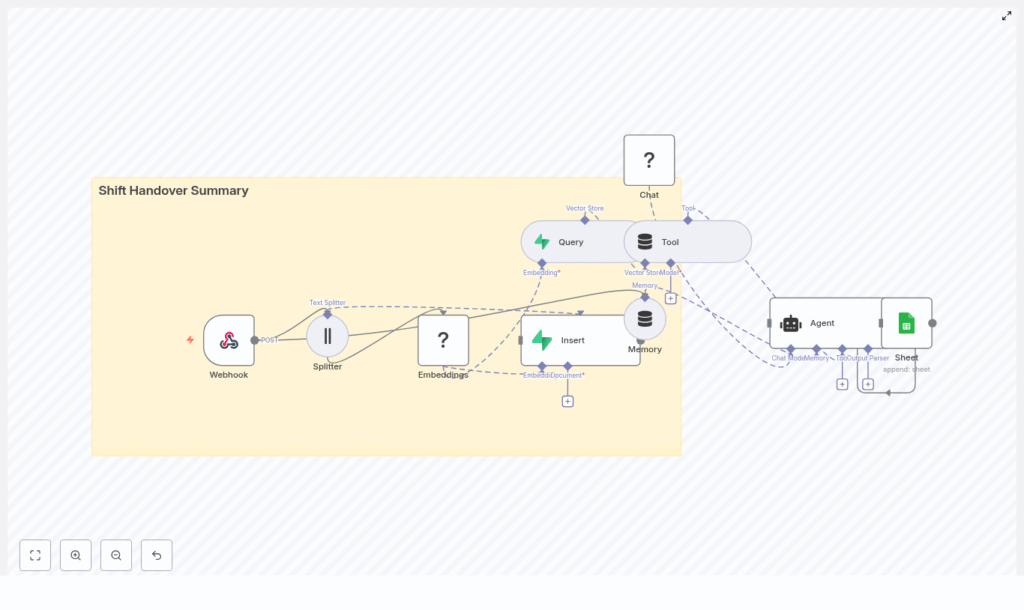
Automate Shift Handover Summaries with n8n
Capturing clear and consistent shift handovers is critical for keeping teams aligned and avoiding information gaps. In busy environments, it is easy for important details to get lost between shifts.
This guide teaches you how to use an n8n workflow template to:
- Ingest raw shift notes through a webhook
- Split and embed notes for semantic search
- Store embeddings in a Supabase vector store
- Use an agent to generate a concise, structured handover summary
- Append the final summary to a Google Sheets log
By the end, you will understand each part of the workflow and how to adapt it to your own operations, NOC, customer support, or field service teams.
Learning goals
As you follow this tutorial, you will learn how to:
- Configure an n8n webhook to receive shift handover data
- Split long notes into chunks that work well with embedding models
- Generate embeddings with a HuggingFace model and store them in Supabase
- Build an agent that retrieves relevant context and produces a structured summary
- Append the final output to a Google Sheet for long-term logging and reporting
- Apply best practices for chunking, metadata, prompts, and security
Why automate shift handovers?
Manual shift handovers often suffer from:
- Inconsistent detail and structure
- Missed critical issues or follow-up actions
- Notes that are hard to search later
Automating the process with n8n helps you:
- Standardize the format of every handover
- Make past shifts searchable via embeddings and vector search
- Quickly surface related incidents and context for the next shift
- Maintain a central, structured log in Google Sheets
This workflow is especially useful for operations teams, network operations centers (NOC), customer support teams, and field services where accurate handovers directly impact reliability and customer experience.
Concept overview: How the workflow works
Before we go step by step, it helps to understand the main building blocks of the n8n template.
High-level flow
The template workflow processes a shift handover like this:
- A POST request hits an n8n Webhook with raw shift notes.
- A Splitter node breaks the notes into smaller text chunks.
- A HuggingFace Embeddings node converts each chunk into a vector.
- An Insert node stores these vectors in a Supabase vector store.
- A Query + Tool setup lets the agent retrieve relevant past context.
- A Memory node keeps recent conversational context for the agent.
- A Chat/Agent node generates a structured summary and action items.
- A Google Sheets node appends the final record to your Log sheet.
In short, you send raw notes in, and the workflow produces:
- A semantic representation of your notes stored in Supabase
- A clear, structured, and consistent shift handover entry in Google Sheets
Step-by-step: Building and understanding the n8n workflow
Step 1 – Webhook: Entry point for shift notes
The Webhook node is where your workflow starts. Configure it to listen for POST requests at the path:
shift_handover_summary
Any tool that can send HTTP requests (forms, internal tools, scripts, ticketing systems) can submit shift data to this endpoint.
A typical payload might look like this:
{  "shift_id": "2025-09-01-A",  "team": "NOC",  "shift_lead": "Alex",  "notes": "Servers A and B experienced intermittent CPU spikes. Restarted service X. Customer ticket #1245 open. No data loss. Follow-up: investigate memory leak."
}
In the workflow, these fields are passed along to downstream nodes for processing, embedding, and summarization.
Step 2 – Splitter: Chunking long handover notes
Long text can be difficult for embedding models to handle effectively. To address this, the workflow uses a character text splitter node to break the notes field into smaller pieces.
Recommended configuration:
- chunkSize: 400
- chunkOverlap: 40
Why chunking matters:
- Improves embedding quality by focusing on smaller, coherent segments
- Helps keep inputs within model token limits
- Preserves local context through a small overlap so sentences that cross boundaries still make sense
You can adjust these values based on the typical length and structure of your shift notes, but 400/40 is a solid starting point.
Step 3 – Embeddings: Converting chunks to vectors with HuggingFace
Next, the workflow passes each text chunk to a HuggingFace Embeddings node. This node:
- Uses your HuggingFace API key
- Applies a configured embedding model to each text chunk
- Outputs vector representations that can be stored and searched
The template uses the default model parameter, but you can switch to a different model if you need:
- Higher semantic accuracy for domain-specific language
- Better performance or lower cost
Keep your HuggingFace API key secure using n8n credentials, not hardcoded values.
Step 4 – Insert: Storing embeddings in Supabase vector store
Once the embeddings are generated, the Insert node writes them into a Supabase vector store. The template uses an index named:
shift_handover_summary
Each stored record typically includes:
- The original text chunk
- Its embedding vector
- Metadata such as:
shift_idteamtimestampauthororshift_lead
Metadata is very important. It lets you filter searches later, for example:
- Find only incidents for a specific team
- Limit context to the last 30 days
- Retrieve all notes related to a given shift ID
Make sure your Supabase credentials are correctly configured in n8n and that the shift_handover_summary index exists or is created as needed.
Step 5 – Query + Tool: Enabling context retrieval for the agent
To generate useful summaries, the agent needs access to relevant historical context. The workflow uses two pieces for this:
- Query node that searches the Supabase vector store using the current notes as the query.
- Tool node that wraps the query as a callable tool for the agent.
When the agent runs, it can:
- Call this tool to retrieve similar past incidents or related shift notes
- Use that context to produce better summaries and action items
This is especially valuable when you want the summary to reference prior related issues, recurring incidents, or ongoing tickets.
Step 6 – Memory: Keeping recent conversational context
The Memory node (often configured as a buffer window) stores recent interactions and context. This is useful when:
- The agent needs to handle multi-step reasoning
- There is a back-and-forth with another system or user
- You want the agent to remember what it just summarized when generating follow-up clarifications
By maintaining a short history, the agent can produce more coherent and consistent outputs across multiple steps in the workflow.
Step 7 – Chat & Agent: Generating the structured shift summary
The core intelligence of the workflow lives in two nodes:
- Chat node: Uses a HuggingFace chat model to generate language outputs.
- Agent node: Orchestrates tools, memory, and prompts to produce the final summary.
Key configuration details:
- The Agent node is set with promptType of
define. - The incoming JSON payload from the webhook (shift_id, team, notes, etc.) is used as the basis for the prompt.
- The agent can:
- Call the vector store tool to retrieve relevant context
- Use the memory buffer for recent history
- Produce a structured output that includes summary and actions
With the right prompt design, you can instruct the agent to output:
- A concise summary of the shift
- Critical issues detected
- Follow-up actions and owners
Step 8 – Google Sheets: Appending the final handover log
The final step is to persist the structured summary in a log. The workflow uses a Google Sheets node with the operation set to append.
Configuration highlights:
- Select the correct spreadsheet
- Use the
Logsheet as the target tab - Map fields from the agent output into sheet columns
A recommended column layout is:
- Timestamp
- Shift ID
- Team
- Shift Lead
- Summary
- Critical Issues
- Action Items
- Owner
This structure makes it easy to filter, sort, and report on shift history, incidents, and follow-up work.
Example: Sending a test payload to the webhook
To test your setup, send a POST request to your n8n webhook URL with JSON like this:
{  "shift_id": "2025-09-01-A",  "team": "NOC",  "shift_lead": "Alex",  "notes": "Servers A and B experienced intermittent CPU spikes. Restarted service X. Customer ticket #1245 open. No data loss. Follow-up: investigate memory leak."
}
Once the workflow runs, you should see:
- New embeddings stored in your Supabase vector index
shift_handover_summary - A new row appended in your Google Sheets Log tab containing the summarized shift handover
Best practices for configuration and quality
Chunk size and overlap
Starting values of chunkSize 400 and chunkOverlap 40 work well for many use cases:
- Smaller chunks can lose context across sentences.
- Larger chunks risk exceeding token limits and may dilute focus.
Monitor performance and adjust based on the average length and complexity of your notes.
Using metadata effectively
Always include useful metadata with each chunk in the vector store, such as:
shift_idteamtimestampshift_lead
Metadata makes it easier to:
- Filter searches to specific teams or time ranges
- Generate targeted summaries for a particular shift
- Support future dashboards and analytics
Choosing an embedding model
Start with the default HuggingFace embedding model for simplicity. If you notice that your domain language is not captured well, consider:
- Switching to a larger or more specialized embedding model
- Using a fine-tuned model if you work with very specific terminology
Balance accuracy, latency, and cost based on your volume and requirements.
Maintaining the Supabase vector store
Over time, your vector store will grow. Plan a retention strategy:
- Decide how long to keep historical shift data
- Use Supabase policies or scheduled jobs to archive or delete older entries
- Consider separate indexes for different teams or environments if needed
Prompt design for the agent
Careful prompt design has a big impact on the quality of summaries. In the Agent node:
- Use promptType
defineto control the structure - Pass the raw JSON payload so the agent has full context
- Explicitly request:
- A short summary of the shift
- Bullet list of critical issues
- Clear action items with owners if possible
Iterate on your prompt until the output format consistently matches what you want to store in Google Sheets.
Troubleshooting common issues
- Embeddings fail:
- Verify your HuggingFace API key is valid.
- Check that the selected model is compatible with the embeddings node.
- Insert errors in Supabase:
- Confirm Supabase credentials in n8n.
- Ensure the
shift_handover_summaryindex or table exists and has the right schema.
- Agent cannot retrieve relevant context:
- Check that documents were actually inserted into the vector store.
- Make sure metadata filters are not too strict.
- Test the query node separately with a known sample.
- Google Sheets append fails:
- Verify Google Sheets OAuth credentials in n8n.
- Double-check the spreadsheet ID and sheet name (
Log). - Confirm the mapping between fields and columns is correct.
Security and compliance considerations
Shift notes often contain sensitive operational details. Treat this data carefully:
- Apply access controls on the webhook endpoint, for example by using authentication or IP restrictions.
- Store all secrets (HuggingFace, Supabase, Google) as encrypted credentials in n8n.
- Limit Supabase and Google Sheets access to dedicated service accounts with minimal permissions.
- Consider redacting or detecting PII before generating embeddings or storing content.
These steps help you stay aligned with internal security policies and regulatory requirements.
Extensions and next steps
Once the core workflow is running, you can extend it in several useful ways:
- Automated alerts: Trigger Slack or Microsoft Teams notifications when the summary includes critical issues or high-priority incidents.
- Search interface: Build a simple web UI or internal tool that queries Supabase to find
