


Automate Shopify Order SMS with n8n & RAG
Picture this: orders are flying into your Shopify store, customers are refreshing their phones every 3 seconds, and you are manually typing out “Your order has shipped!” for the 47th time today. Fun? Not exactly.
That is where this n8n workflow template steps in. It turns raw Shopify order events into smart, context-aware SMS messages using webhooks, AI text processing, embeddings, Pinecone as a vector store, and a Retrieval-Augmented Generation (RAG) agent. In plain English: it remembers useful info, finds what matters, and writes messages that do not sound like a robot from 2003.
Below you will find what this template actually does, how the different n8n nodes work together, how to set it up, and a few tips so you do not accidentally spam your customers or your ops team.
What this Shopify SMS workflow actually does
This n8n template listens for Shopify order events and automatically sends out intelligent SMS updates. It is designed for e-commerce teams that are tired of copy-pasting order texts and want something more powerful than a basic “order confirmed” message.
Instead of simple one-line updates, the workflow can enrich messages with context like order details, past issues, or policy snippets using retrieval-augmented generation. That means:
- Order confirmations, shipping updates, and exception alerts can be sent quickly and reliably
- Messages can include relevant info from your own documentation or historical data
- Everything gets logged for auditing and debugging, so you can see exactly what was sent and why
In short, fewer repetitive tasks, more consistent communication, and happier customers who are not left wondering where their stuff is.
High-level n8n workflow overview
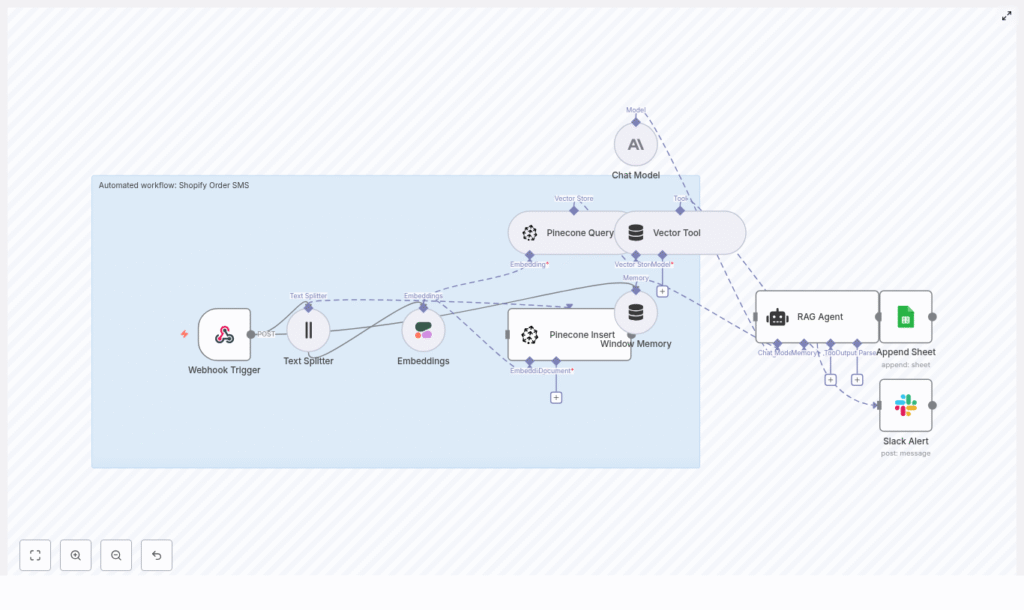
The template uses a chain of tools in n8n to go from “Shopify fired a webhook” to “customer received a helpful SMS” plus logs and alerts. At a high level, it includes:
- Webhook Trigger (n8n) – receives Shopify order events via POST
- Text Splitter – breaks long text into manageable chunks
- Embeddings (Cohere) – turns text chunks into vectors
- Pinecone Insert & Query – stores and retrieves those vectors as a knowledge base
- Vector Tool – exposes retrieved vector data to the RAG agent
- Window Memory – gives the agent short-term memory of recent context
- Chat Model (Anthropic) + RAG Agent – generates the actual SMS content using context
- Append Sheet (Google Sheets) – logs outputs for auditing and analysis
- Slack Alert – sends error notifications to your ops team
Now let us walk through what each part does, then we will get into how to configure the template.
Inside the workflow: node-by-node breakdown
Webhook Trigger: catching Shopify events
The workflow starts with a Webhook Trigger node in n8n. You configure Shopify to send order events to this webhook path, for example:
/shopify-order-sms
When Shopify fires an event, the webhook receives a payload that can include:
- Customer name and phone number
- Order items and quantities
- Order status and timestamps
- Any metadata or notes attached to the order
This payload is the raw material the rest of the workflow will use to generate a smart SMS.
Text Splitter: breaking things into bite-sized chunks
Long text fields like order notes, multi-item descriptions, or policy pages are not ideal for direct embedding. The Text Splitter node solves that by slicing them into smaller pieces.
The template uses:
chunkSize = 400chunkOverlap = 40
This improves embedding quality and makes retrieval more accurate. Instead of one giant blob of text, you get neatly chunked segments that are easier for the vector store to work with.
Embeddings (Cohere): turning text into vectors
Each chunk from the Text Splitter is passed to the Cohere Embeddings node. The template uses the embed-english-v3.0 model to convert text into semantic vectors.
These vectors represent the meaning of the text, which allows the workflow to perform similarity search in Pinecone. That is how the system later finds relevant snippets to include in the SMS, such as common order issues or reference policies.
Pinecone Insert & Query: your evolving knowledge base
Pinecone is used as the vector store in this template. It plays two roles:
- Insert: New text chunks are stored as vectors in Pinecone, along with metadata. Over time, your knowledge base grows with useful content like policy text, example messages, or frequently asked questions.
- Query: When a new Shopify order event arrives, the workflow queries Pinecone for relevant vectors based on the generated embeddings. This retrieves the right context for the RAG agent to use when writing the SMS.
The template expects a Pinecone index such as shopify_order_sms, with metadata fields like order_id and event_type that help with filtering and retrieval.
Vector Tool & Window Memory: giving the agent tools and memory
Once Pinecone returns relevant vectors, the Vector Tool node exposes these results as a callable tool for the RAG agent. That means the agent can actively request and use this context while generating an SMS.
Alongside this, the Window Memory node provides short-term memory of recent interactions. This helps the agent handle multi-step logic or sequences of related messages without losing track of what just happened.
Chat Model (Anthropic) + RAG Agent: writing the SMS
At the heart of the workflow is the RAG agent, powered by a chat model from Anthropic. The agent:
- Takes the Shopify webhook data as input
- Uses the Vector Tool to pull in relevant context from Pinecone
- Combines everything to craft an SMS that is accurate, helpful, and aligned with your policies
The agent is configured with a system message that frames it as an assistant for “Shopify Order SMS” processing. You can tweak this system prompt to adjust tone, level of detail, or compliance rules, such as whether promotional language is allowed.
Append Sheet (Google Sheets): logging what was sent
After the RAG agent generates its output, the chosen content (for example the final SMS text or an internal status) is appended to a Google Sheet via the Append Sheet node.
This log is extremely useful for:
- Auditing what messages were sent
- Debugging weird outputs or edge cases
- Verifying compliance and consistency over time
Slack Alert: when things go sideways
Automation is great until something breaks silently. To avoid that, the workflow includes a Slack Alert node that fires when errors occur.
If something fails, the node posts error details into a Slack channel so your ops or engineering team can quickly investigate and fix the issue. It keeps your automation visible and maintainable instead of becoming a mysterious black box.
How to configure the Shopify SMS template in n8n
Once you are ready to stop sending manual updates, here is how to get the template running in your own environment.
- Connect Shopify to your n8n webhook
In Shopify, create a webhook that POSTs order events to your n8n instance. Use a path like:
/shopify-order-sms
Make sure your n8n URL is accessible over HTTPS and not blocked by firewalls. - Import the template into n8n
In your n8n workspace, import the “Shopify Order SMS” template. Once imported, open the workflow and plug in your credentials for:- Cohere (for embeddings)
- Pinecone (for vector storage and search)
- Anthropic (for the chat model)
- Google Sheets (for logging)
- Slack (for error notifications)
- Tune the Text Splitter settings
The default values are:chunkSize = 400chunkOverlap = 40
You can adjust these based on how long your typical policy docs or order notes are. Shorter chunks can improve retrieval precision, while larger ones keep more context together.
- Configure your Pinecone index
Set up or confirm your Pinecone index, for example:
shopify_order_sms
Ensure your vectors include helpful metadata such as:order_idevent_type(for example “created”, “shipped”, “canceled”)
This metadata makes it easier to filter and refine retrieval later.
- Review and adjust the RAG agent system prompt
Open the RAG agent node and review the system message. This is where you define:- Preferred tone for SMS messages
- What to always include (for example order number, status)
- What to avoid (for example no promotional links unless the user opted in)
Small prompt tweaks can significantly change how your SMS content feels.
- Test with sample Shopify payloads
Trigger the workflow using sample Shopify events or test orders. While testing:- Check the Google Sheets log to confirm the SMS text looks correct
- Monitor Slack for any error alerts
- Verify that Pinecone is being populated and queried as expected
Best practices so your automation behaves nicely
Before you send this into the wild, a few practical tips will help you avoid unpleasant surprises.
- Phone number verification
Always validate and standardize phone numbers before sending SMS. Use E.164 format so carriers are more likely to accept the messages and you do not end up sending texts into the void. - Privacy and compliance
Treat order data as sensitive. Avoid storing unnecessary PII in Pinecone metadata or embeddings. Make sure your SMS content respects local regulations such as TCPA and GDPR, especially around consent and opt-outs. - Monitoring in production
Keep both the Google Sheets log and Slack alerts enabled, especially during the first few weeks. This is when edge cases will show up, and you will want full visibility into what the workflow is doing. - Rate limits
APIs like Cohere, Pinecone, and your SMS provider will have rate limits. Respect them. Consider batching inserts and using backoff strategies if you are processing a large volume of orders. - Prompt design
Be explicit in your RAG agent system message. Spell out:- What every SMS must include
- What it must never include
- How to handle sensitive topics or exceptions
This reduces the chance of the agent producing unexpected or off-brand content.
Troubleshooting common issues
Webhook not firing
- Double-check Shopify webhook settings
- Verify your n8n URL is publicly reachable and uses HTTPS
- Confirm that firewalls or proxies are not blocking requests
No vectors showing up in Pinecone
- Check that the Embeddings node is successfully returning vectors
- Verify Pinecone credentials and index name in the Insert node
- Confirm that the data is actually being sent to the Insert node in the workflow
Poor retrieval or irrelevant context
- Experiment with different chunk sizes or overlaps in the Text Splitter
- Ensure high quality source text is being embedded
- Add or refine metadata fields to improve filtering in Pinecone
Agent producing weird or unexpected SMS text
- Tighten the system prompt for the RAG agent
- Add clear examples of acceptable SMS outputs in the prompt
- Specify disallowed content such as certain phrases or links
Security and data handling guidelines
Since you are dealing with customer orders and phone numbers, treat the data with care.
- Encrypt API credentials and use secure secrets management in your environment
- Limit what you store in Pinecone metadata and embeddings, and avoid full PII where it is not needed
- Restrict access to the Google Sheet and Slack channel that hold logs and alerts
Where to go from here
This n8n template takes Shopify order events, enriches them with embeddings and vector search, and uses a RAG agent to generate intelligent SMS updates. It is a scalable pattern you can build on:
- Add more knowledge documents to Pinecone, such as FAQs or detailed policies
- Refine prompts to match your brand voice and compliance needs
- Extend the workflow to other channels like email, in-app notifications, or CRM updates
To recap your next steps:
- Import the “Shopify Order SMS” template into your n8n workspace
- Connect your Cohere, Pinecone, Anthropic, Google Sheets, and Slack credentials
- Run test orders from a staging Shopify store
- Monitor logs, review SMS outputs, and iterate on prompts and vector data
Call to action: Import the “Shopify Order SMS” template into your n8n workspace, hook it up to a staging Shopify store, and start testing. Then subscribe for more workflow templates and best practices so your future self never has to manually type “Your order is on the way” again.
