


Automate Shopify Product Announcements with n8n, X & Telegram
Ever launched a shiny new product on Shopify, then realized you still have to:
- Write a post for X
- Write a message for Telegram
- Paste the same link three times
- Check if you already posted it or just dreamed about doing it
If that routine feels a bit like manual labor in the age of robots, this guide is for you. We are going to set up an n8n workflow that quietly watches your Shopify store, and every time you create a product, it automatically:
- Posts a short announcement on X (Twitter)
- Sends a matching message to your Telegram group or channel
No more copy-paste marathons. Just create the product and let automation do the boring bits.
Why bother automating product announcements?
Because you have better things to do than manually shouting “New product!” on every platform, every time. With an n8n workflow running this for you, you:
- Save time by skipping repetitive posting tasks
- Stay consistent so every new product actually gets announced
- Reach customers faster as soon as the product is created
- Keep channels in sync so X and Telegram stay on-brand and up to date
In short, automation handles the “I’ll post it later” part that never quite happens.
What this n8n workflow actually does
This template is simple but effective. It connects three main pieces:
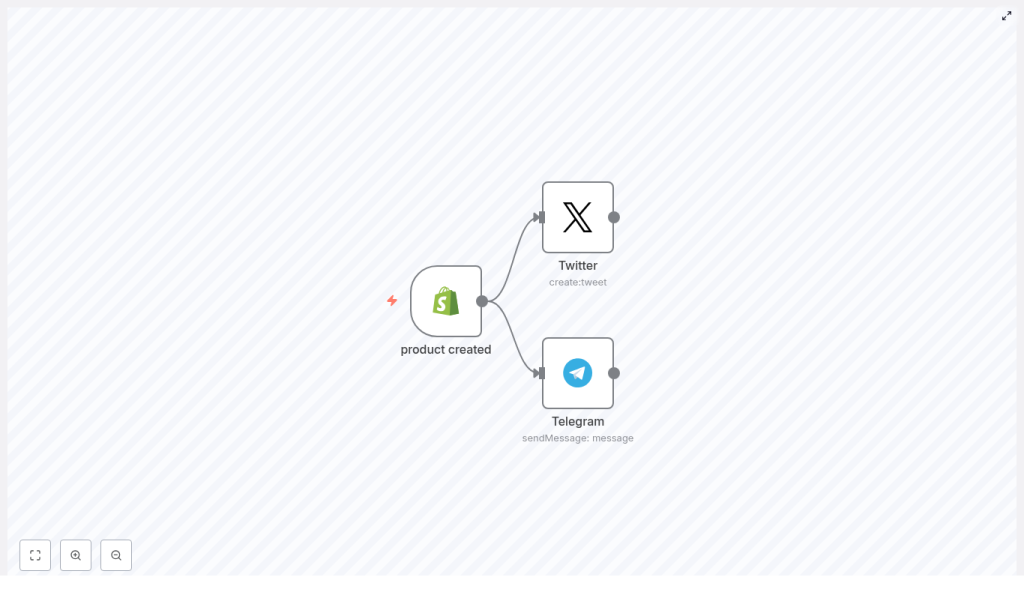
- Shopify Trigger (products/create) – wakes up whenever a new product is created in your Shopify store
- X (Twitter) create tweet – publishes a tweet (or post on X) with product info
- Telegram sendMessage – sends a similar message to a Telegram chat, group, or channel
In the n8n editor, the flow looks like:
Shopify Trigger -> X Node -> Telegram Node
Both social nodes get their data from the Shopify webhook payload, so your messages stay tied to the actual product details.
What you need before you start
Before building the workflow, make sure you have:
- An n8n instance (self-hosted or n8n cloud)
- Shopify admin access to the store where products are created
- X (Twitter) credentials – either developer or OAuth credentials connected to n8n
- A Telegram bot token and the chat ID for your group or channel
Once those are in place, you are ready to let n8n take over the announcement chores.
Quick setup guide: from “new product” to auto-announcement
Here is the whole process broken down into four steps. You can follow along with the template or recreate it manually in your n8n instance.
Step 1 – Add the Shopify Trigger node
First, tell n8n to listen to your store:
- Add a Shopify Trigger node to your workflow
- Set the Topic to
products/create
When you activate the workflow, n8n will register a webhook with Shopify. From that point on, every time a product is created, Shopify will send a payload directly to this node. That payload includes fields like title, vendor, product_type, images, handle and more.
Step 2 – Configure the X (Twitter) node
Next, let X handle the public excitement so you do not have to type the same sentence over and over.
- Add an X (Twitter) node and connect it to the Shopify Trigger
- Set the operation to create:tweet
- Use an expression to build the message using data from the Shopify payload
Example tweet template:
=Hey there, my design is now on a new product ✨
Visit my {{$json["vendor"]}} shop to get this cool {{$json["title"]}} (and check out more {{$json["product_type"]}}) 🛍️
A few X-specific tips:
- Stay under 280 characters. Product names can get long, so test your template with a few real examples.
- If you want to include a link, use a short URL or build one from the Shopify
handleto keep it compact. - If your brand talks about “X” instead of “Twitter” now, make sure your copy reflects that tone too.
Step 3 – Configure the Telegram node
Now for Telegram, your loyal broadcast channel for fans, customers, and that one friend who reacts to every post.
- Add a Telegram node and connect it to the same Shopify Trigger
- Choose the sendMessage operation
- Set the chatId to your target group or channel, for example
-1001234567890for a channel - Paste the same expression as your X message, or tweak it to be slightly more detailed
Example Telegram message:
=Hey there, my design is now on a new product!
Visit my {{$json["vendor"]}} shop to get this cool {{$json["title"]}} (and check out more {{$json["product_type"]}})
The nice part is that both X and Telegram messages are powered by the same Shopify data, so you only maintain one source of truth.
Step 4 – Test the workflow
Before you unleash this on your real audience, give it a safe test run:
- Create a test product in Shopify, ideally as a draft or hidden product
- Check that:
- The X node posts the announcement correctly
- The Telegram node sends the message to the right chat or channel
- Open n8n’s execution log and inspect the Shopify node output to see exactly which fields are available:
titlevendorproduct_typeimageshandle- and more
If both platforms receive the message, you are ready to let automation handle your next real launch.
Going further: make your announcements smarter and prettier
Once the basic text-only version works, you can start upgrading the workflow so it feels less like a robot and more like a social media assistant who actually tries.
Include product images
Plain text works, but images sell. To add product images to your X or Telegram posts:
- Use an HTTP Request node to fetch the product image URL, or
- Use the image URL directly from the Shopify payload if it is already available
- Attach the media in your X and Telegram nodes according to their media upload settings
Keep in mind that:
- The X API and Telegram API handle media uploads differently
- You should check their documentation and the n8n docs for the exact steps to upload and attach images
Shorten product links
If your carefully crafted message keeps bumping into character limits, your URLs might be the culprit. A couple of options:
- Build a short link using your store and the product handle, for example:
https://your-shop.com/products/{{$json["handle"]}} - Integrate a link shortener like Bitly or Rebrandly using an HTTP Request node
Your posts stay neat, readable, and less “giant blue link with 40 tracking parameters.”
Add error handling and basic logic
Not every product needs a big public announcement. You can use n8n’s control nodes to add some brains to the flow:
- Use Retry options to automatically reattempt failed posts
- Add an If node to:
- Skip certain
product_typevalues - Exclude specific vendors
- Skip certain
- Use a Set node to:
- Clean up product titles
- Strip out HTML
- Normalize text before posting
This way, your workflow does not just blast everything, it behaves more like a curated marketing assistant.
Security, rate limits, and other “grown up” details
Automation is fun until an API says “no.” Here are some guardrails to keep things healthy.
- Protect your tokens
Do not hardcode API keys or tokens inside nodes. Store them using n8n credentials so they are handled securely. - Watch X (Twitter) rate limits
X has limits on how often you can post and upload media. If you plan to announce frequently, consider:- Using n8n’s retry options
- Adding exponential backoff logic
- Check Telegram permissions
Make sure your Telegram bot:- Is added to the correct group or channel
- Has permission to post messages there
Common issues and how to fix them
If something does not work on the first try, it is usually a small detail. Here are some quick checks:
- No webhook events from Shopify?
Confirm the workflow is active and that the webhook registration succeeded. You can check n8n logs to see if the webhook was created properly. - Conditions not matching or fields missing?
Open the raw JSON payload from the Shopify node in the execution log. Verify the exact field paths you are using in expressions and conditionals. - Media upload errors?
Make sure:- The image URL is publicly accessible
- The URL format matches what the X or Telegram API expects
Helpful n8n expressions for Shopify product data
Here are some common expressions you might use in your X or Telegram messages:
- Title:
{{$json["title"]}} - Vendor:
{{$json["vendor"]}} - Product type:
{{$json["product_type"]}} - Product URL:
https://your-shop.com/products/{{$json["handle"]}}
These let you turn Shopify data into human friendly messages without manual editing.
Bringing it all together
With this n8n workflow in place, every new Shopify product can automatically trigger announcements on X and Telegram. No more “I forgot to tweet that new launch” moments, and no more copying the same text into multiple apps.
Start with a simple text-only setup, then gradually:
- Add images for visual impact
- Use link shorteners for cleaner URLs
- Introduce conditional logic to announce only specific products
Final checklist before going live
- Shopify, X, and Telegram credentials are correctly set up in n8n
- You have tested with a draft or hidden product
- Workflow logs are clean and you have basic retry logic in place
- Your posts follow X and Telegram content and rate policies
Once that is done, you can spend less time posting and more time creating products worth announcing.
Call to action: Try this n8n workflow template in your own environment, subscribe for more automation templates, or share your Shopify store URL and preferred message format so I can help you generate a customized, ready-to-import n8n workflow JSON with exactly the fields you want.
