


Automate Slack: Create a Channel, Invite Users, Post a Message & Upload a File with n8n
Imagine this: it is Monday morning, you have coffee in hand, and instead of doing something fun or at least mildly interesting, you are creating yet another Slack channel, inviting the same group of people, posting the same welcome message, and uploading the same file. Again. For the 27th time.
If that scenario hits a little too close to home, this n8n workflow template is here to rescue you from Slack Groundhog Day. In this guide, you will learn how to set up an automated n8n workflow that:
- Creates a Slack channel
- Invites one or more users
- Posts a welcome message with an image attachment
- Downloads a file from an external URL
- Uploads that file into the new Slack channel
Perfect for onboarding, project kickoffs, or any situation where you are tired of clicking the same buttons over and over. Let the workflow do the boring parts so you can focus on things that are slightly more exciting than typing “Welcome to the channel!” for the hundredth time.
What this n8n + Slack workflow actually does
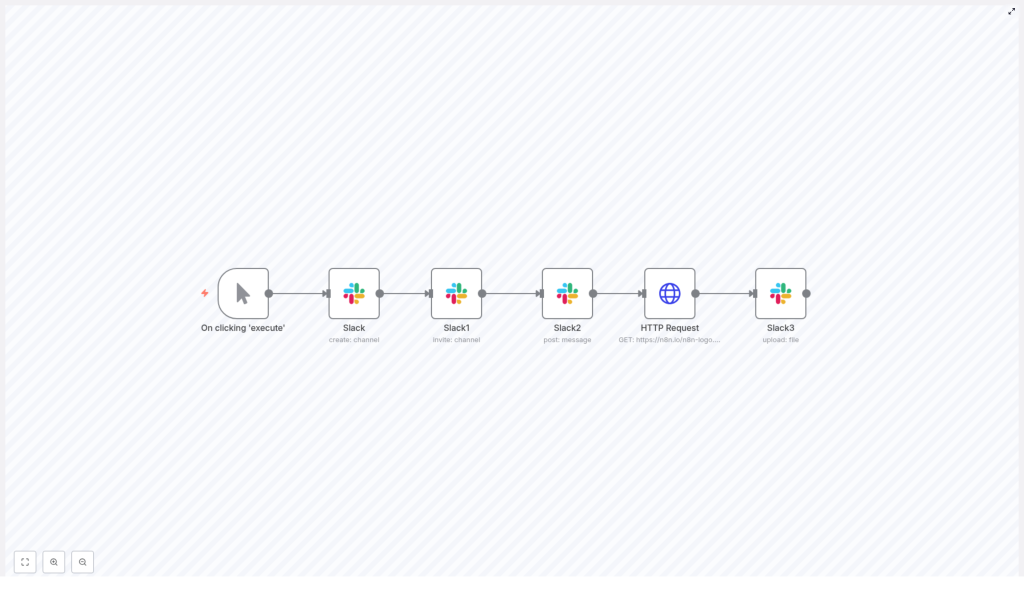
This n8n workflow is a compact, end-to-end automation that handles the full lifecycle of a fresh Slack channel. From left to right, the workflow uses the following nodes:
- Manual Trigger – to kick things off while you test
- Slack (create channel) – spins up a brand new channel
- Slack (invite users) – adds your teammates or new hires
- Slack (post message with attachment) – sends a welcome message, optionally with an image
- HTTP Request – downloads an external file or image
- Slack (upload file) – uploads that file into the new channel
Once it is configured, you can trigger it from anything you like, for example:
- A webhook from your project management tool when a new project is created
- An HR system when a new hire is added
- A calendar event for recurring reports or updates
The result is a standardized, repeatable Slack setup flow that behaves the same way every time, without you needing to remember which channel name format you used last week.
Before you start: Slack API scopes and credentials
Before n8n can work its magic, Slack needs to know your bot is allowed to do things. That means creating a Slack App, giving it the right scopes, and connecting it to n8n.
Required Slack scopes for this workflow
Create a Slack App with a Bot token and add these scopes, depending on whether you are working with public or private channels:
- conversations:write – create and manage channels
- conversations:read – read channel metadata
- chat:write – post messages as the app
- users:read – resolve or fetch user IDs if needed
- files:write – upload files into Slack
After adding or changing scopes, install (or reinstall) the app into your Slack workspace. Then:
- Copy the Bot User OAuth Token
- In n8n, create Slack credentials and paste that token there (for example, name it
Slack Bot Access Token)
Once this is done, the workflow can create channels, invite users, post messages, and upload files on your behalf without you lifting another finger.
Quick setup guide: building the n8n workflow
Let us walk through the workflow configuration step by step. You will keep all the power of the original setup, just with fewer clicks in your life.
1. Manual Trigger – for easy testing
Start with a Manual Trigger node. This is your test button so you can run the workflow on demand while building it.
Later, you can replace it or connect it to a real trigger, for example:
- A webhook
- A calendar event
- An HR or CRM system trigger
2. Create a Slack channel
Next, add a Slack node and configure it to create a channel. Use your Slack bot credentials and set the following:
resource: channel
operation: create
channelName: n8n-docs  (or use an expression to generate names dynamically)
The output of this node is the freshly created channel object. The important part is the channel id, which you will reuse in later nodes. You can reference it in expressions like:
={{$node["Slack"].json["id"]}}
This is the key that connects all the later channel-related actions.
3. Invite users to the new channel
Now that the channel exists, it is time to invite some humans into it. Add another Slack node and configure it for the invite operation:
resource: channel
operation: invite
userIds: ["U01797FGD6J"]
channelId: ={{$node["Slack"].json["id"]}}
Some notes so you do not get stuck:
- User IDs, not emails – the invite operation expects user IDs that look like
U... - If you only have emails, use Slack APIs like
users.lookupByEmailorusers.listfirst to translate email to user ID - Use expressions in n8n to grab the channel id from the create-channel node:
={{$node["Slack"].json["id"]}}
Once configured, your workflow will automatically invite the right users to each new channel, no more manual searching for usernames.
4. Post a welcome message with an attachment
With the channel created and users invited, add another Slack node to post a welcome message. Configure it like this:
resource: message
operation: post
channel: ={{$node["Slack"].json["id"]}}
text: "Welcome to the channel!"
attachments: [{"title":"Logo","image_url":"https://n8n.io/n8n-logo.png"}]
You can customize the text, add emojis, or use attachments and Block Kit to include richer content such as:
- Images or logos
- Buttons or links
- Additional formatted sections
The message will appear in the newly created channel, giving everyone a friendly hello and a bit of context as soon as they join.
5. Download an external file with HTTP Request
If you want to upload a file that lives outside Slack, for example a logo, onboarding PDF, or report, add an HTTP Request node.
Configure it like this:
Method: GET
URL: https://n8n.io/n8n-logo.png
Response Format: file
The crucial part is setting the Response Format to file. This tells n8n to treat the response as binary data, which the Slack upload node needs later.
The node will output a binary property (often called data, or whatever key n8n shows for that file) that you will map into the Slack file upload node.
6. Upload the file into Slack
Finally, add a Slack node to upload the file into the channel. Configure it with:
- resource: file
- binaryData: true
- options: set
channelIdsto the channel id
Example configuration:
resource: file
binaryData: true
options: {"channelIds":["C01FZ3TJR5L"]}  // or use ={{$node["Slack"].json["id"]}}
Then, in the node’s binary mapping, select the binary property from the HTTP Request node output, for example data or whichever key is shown in n8n.
Once this is mapped correctly, the workflow will pull a file from the external URL and drop it straight into your new Slack channel, no manual upload required.
Common gotchas and how to fix them
Even with automation, a few things can still trip you up. Here are the usual suspects.
- Permission errors If Slack complains about permissions, double check:
- Your app has all required scopes (
conversations:write,chat:write,files:write, etc.) - You reinstalled the app after adding new scopes
- Your app has all required scopes (
- Private channel invites Bots can invite users to private channels only if:
- The bot is a member of that channel, or
- It has appropriate permissions to manage members
A simple pattern is to let the bot create the channel, then invite users through the workflow.
- Emails vs user IDs The invite operation wants user IDs like
U123..., not emails. If you only have emails, use:users.lookupByEmailto get a single userusers.listto fetch and map users in bulk
- Binary mapping issues If the file upload fails, check that:
- The HTTP Request node Response Format is set to
file - You selected the correct binary property in the Slack upload node
- The HTTP Request node Response Format is set to
- Rate limits Slack has rate limits, especially if you create many channels or send a lot of invites. Add:
- Delays between operations
- Retries or error handling paths
so your workflow behaves nicely under load.
Security and best practices
Automation is fun until a token leaks, so keep things tidy and secure.
- Store tokens in n8n credentials Never hard code your Slack bot token directly in nodes or expressions. Use n8n credentials so secrets stay protected.
- Separate dev and prod Use different Slack apps and workspaces for development and production. This prevents “test” channels and messages from surprising real users.
- Log important responses Store or log channel IDs, file IDs, and error messages. It makes debugging and audits much easier when something goes wrong.
- Add error handling Use n8n’s Error Trigger or Catch nodes to gracefully handle Slack API failures, rate limits, or invalid data.
Taking it further: ideas to extend the workflow
Once the basic pattern is in place, you can plug it into almost any process that touches Slack. Some ideas:
- Project-based channels Automatically create a new Slack channel whenever a project is created in your PM tool, then invite the project team and upload kickoff docs.
- New hire onboarding For each new employee, create a private channel, invite HR and the manager, post a welcome message, and attach training material or company docs.
- Daily or weekly reports Generate PDFs or images elsewhere, fetch them via HTTP, and upload them into a reporting channel on a schedule.
This template is a solid base that you can mix with other triggers, branches, and conditions to match your exact workflow.
Helpful n8n expressions for this template
Here are some commonly used expressions you will likely need:
Channel ID from create-channel node:
={{$node["Slack"].json["id"]}}

Use channel ID in file upload:
={{$node["Slack"].json["id"]}}
These expressions keep your workflow dynamic, so the same logic works for every new channel without manual adjustments.
Wrapping up: from repetitive clicks to one-click automation
With just a handful of n8n nodes, you can fully automate:
- Channel creation
- User invitations
- Welcome messages
- File uploads
All inside Slack, all triggered by whatever event makes sense for your team. The result is a repeatable, auditable, and far less annoying setup process for onboarding, project creation, or recurring updates.
If you want, this workflow can be exported as JSON and tailored to your workspace, or extended with conditions, branching, and more advanced error handling. Once you have it running, you might start wondering why you ever created channels manually in the first place.
Call to action: Import this template into your n8n instance, plug in your Slack Bot token, and give it a spin. Need the exported workflow file or help with Slack scopes and configuration? Ask, and it can be generated or explained step by step.
