


Automate a Slack to Linear Bug Reporting Workflow with n8n
Why Automate Bug Reporting Between Slack and Linear
For engineering teams that rely on Slack for day-to-day communication and Linear for issue tracking, manually copying bug reports from one system to the other is inefficient and prone to mistakes. Important details are often lost, formatting is inconsistent, and developers spend time on administrative work instead of resolving issues.
This article explains how to implement a robust n8n workflow that converts a simple Slack slash command into a fully structured Linear issue. The workflow also sends automated reminders in Slack so reporters can enrich the ticket with key diagnostic information.
Workflow Architecture at a Glance
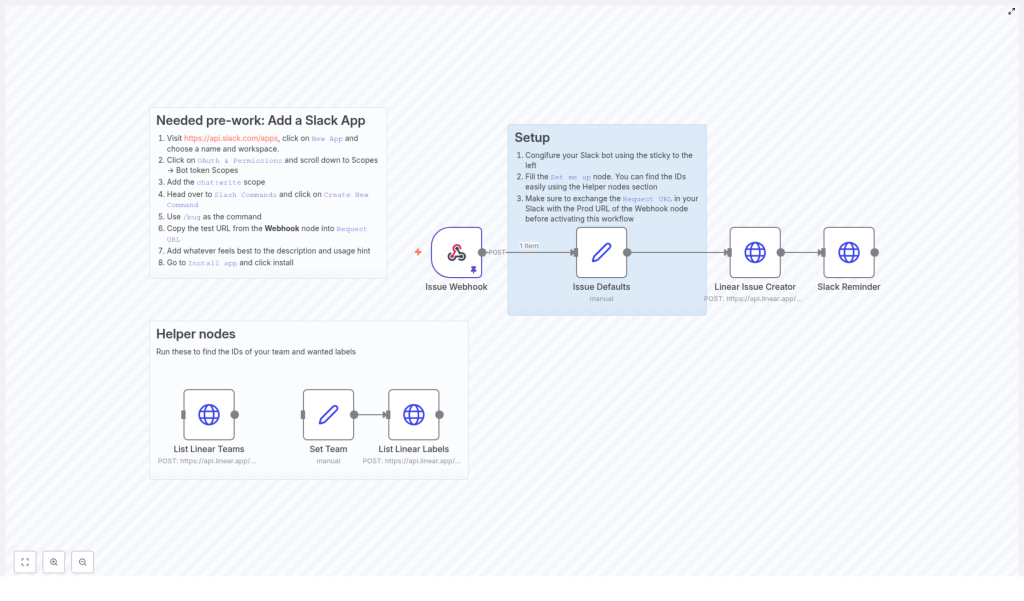
The solution uses n8n as the automation layer between Slack and Linear. At a high level, the workflow performs the following actions:
- Slack Slash Command – Team members submit a bug using
/bugfollowed by a short description. - Webhook Node – n8n receives the HTTP POST payload from Slack and parses the bug text and metadata.
- Issue Defaults Node – The workflow enriches the incoming data with required Linear attributes such as team ID and label IDs.
- Linear Issue Creator Node – n8n calls the Linear API to create a new issue with a standardized, templated description.
- Slack Reminder Node – After the issue is created, the workflow posts a follow-up message in Slack that tags the reporter and prompts them to add more detailed information.
- Helper Nodes – Additional nodes assist with discovering Linear team and label IDs during initial configuration.
This architecture keeps the user interaction in Slack extremely lightweight while ensuring that issues in Linear are created with consistent structure and metadata.
Step 1 – Configure the Slack App and Slash Command
Begin by creating and configuring a Slack app that will power the /bug command. This app authorizes n8n to receive commands and send messages back to users.
- Navigate to https://api.slack.com/apps, click New App, then choose an appropriate name and the target workspace.
- In the app configuration, open OAuth & Permissions. Under Scopes in the Bot Token Scopes section, add the
chat:writepermission so the app can post messages in Slack. - Go to the Slash Commands section and create a new command named
/bug. This is the entry point for users to submit bug reports. - In the command configuration, set the Request URL to the test URL provided by the n8n Webhook node that will receive the Slack payload.
- Add a clear description and usage hint so users understand how to use the command, for example, “Report a bug to Linear, usage:
/bug <short description>.” - Install the app into your Slack workspace so the command becomes available to your team.
Once configured, every invocation of /bug will trigger an HTTP request to your n8n workflow.
Step 2 – Prepare Linear Configuration with Helper Nodes
Linear requires specific identifiers for teams and labels when creating issues via the API. To simplify setup, the workflow includes helper nodes that query these values directly from Linear.
- List Linear Teams – This node uses the Linear API to retrieve all teams associated with your account. Review the output to identify the team where new bug reports should be created.
- Set Team – Once you select the correct team, this node stores the chosen team ID so it can be reused consistently across the workflow.
- List Linear Labels – After the team is set, this node queries the labels available for that team. You can then select the appropriate label IDs to tag bug reports (for example, “Bug,” “Regression,” or “High Priority”).
By using these helper nodes during initial configuration, you avoid manual lookups and ensure that your Linear team and label references are accurate.
Step 3 – Main Workflow Execution Flow
With Slack and Linear configured, the main n8n workflow handles the end-to-end process of converting a Slack command into a well-structured Linear issue.
1. Capture the Slack Slash Command
When a user types /bug <description> in Slack, Slack sends an HTTP POST request to the n8n Issue Webhook node. This node:
- Receives the full payload from Slack, including the text after the command, user information, and channel details.
- Parses the bug description that will be used as the Linear issue title or part of the issue content.
2. Apply Default Issue Metadata
The Issue Defaults node enriches the raw Slack data with the necessary Linear configuration. It typically:
- Assigns the predefined Linear team ID obtained from the helper nodes.
- Applies one or more label IDs to categorize the issue as a bug or according to your internal taxonomy.
- Prepares a payload structure that is compatible with the Linear GraphQL API.
This step ensures every issue created from Slack adheres to your team’s standards for project, team, and labeling.
3. Create the Issue in Linear via API
The Linear Issue Creator node performs the actual issue creation. Using the enriched data from the previous step, it sends a GraphQL mutation to Linear. The node typically:
- Sets the issue title based on the initial Slack description or a processed variant.
- Applies the configured team and label IDs.
- Builds a templated description that includes structured sections, for example:
- Expected behavior
- Actual behavior
- Steps to reproduce
- Version or environment information
This template encourages reporters and developers to collect consistent diagnostic data for every bug, which improves triage and resolution times.
4. Notify the Reporter in Slack
After Linear confirms that the issue has been created, the Slack Reminder node sends a follow-up message back to the original reporter. This message typically:
- Mentions the user who submitted the bug via Slack.
- Includes the URL of the newly created Linear issue.
- Prompts the user to add or refine details such as reproduction steps, expected versus actual behavior, and any relevant version or environment notes.
This automated feedback loop keeps the conversation in Slack while ensuring that the canonical record of the bug in Linear is fully documented.
Best Practices for Using This Automation
- Standardize your templates – Adjust the Linear issue description template so it matches your team’s debugging workflow. Clear sections reduce back-and-forth questions.
- Refine labels and teams – Use the helper nodes periodically to review and update team and label assignments as your Linear configuration evolves.
- Educate your team – Provide short internal documentation on how to use the
/bugcommand and what information is expected in follow-up comments. - Monitor usage – Track how often the workflow is triggered and whether additional fields or validations would improve data quality.
Get Started With the Slack to Linear Bug Reporter Template
Connecting Slack, n8n, and Linear transforms an ad hoc bug reporting process into a disciplined, low-friction workflow. Your team can capture issues directly from conversations, while n8n handles the structured creation of Linear issues and automated reminders for complete documentation.
Customize the template by adjusting team IDs, labels, and message copy to fit your environment and governance standards. Once deployed, this automation reduces manual overhead and aligns communication channels with your issue tracking system.
If you would like further guidance or a walkthrough of the setup, reach out and explore how to scale your development workflow with n8n-driven automation.
