


Automate Stripe Payments To Invoice Email Workflow
Imagine never sending another manual invoice again
You know that moment when a Stripe payment comes in and you think, “Nice!” followed immediately by “Ugh, now I need to send the invoice”? If you are still copying amounts, formatting invoices, exporting PDFs, and attaching them to emails like it is 2009, this workflow is here to rescue your sanity.
With n8n, Stripe, and Gmail working together, you can automate the entire “payment received – send invoice” process. No more repetitive clicking, no more “Did I forget to send that invoice?”, and definitely no more digging through spreadsheets to find customer details.
In this guide, you will see how an n8n workflow template:
- Listens to successful Stripe payments
- Normalizes and cleans up the payment data
- Generates a professional HTML invoice
- Emails that invoice as a PDF using Gmail
All on autopilot, while you do literally anything else.
What this n8n workflow actually does
At its core, this is an automated Stripe payments to invoice email workflow. Once a payment succeeds, the workflow kicks in, grabs the payment data, turns it into a nicely formatted invoice, converts that to a PDF, and emails it to your customer using Gmail.
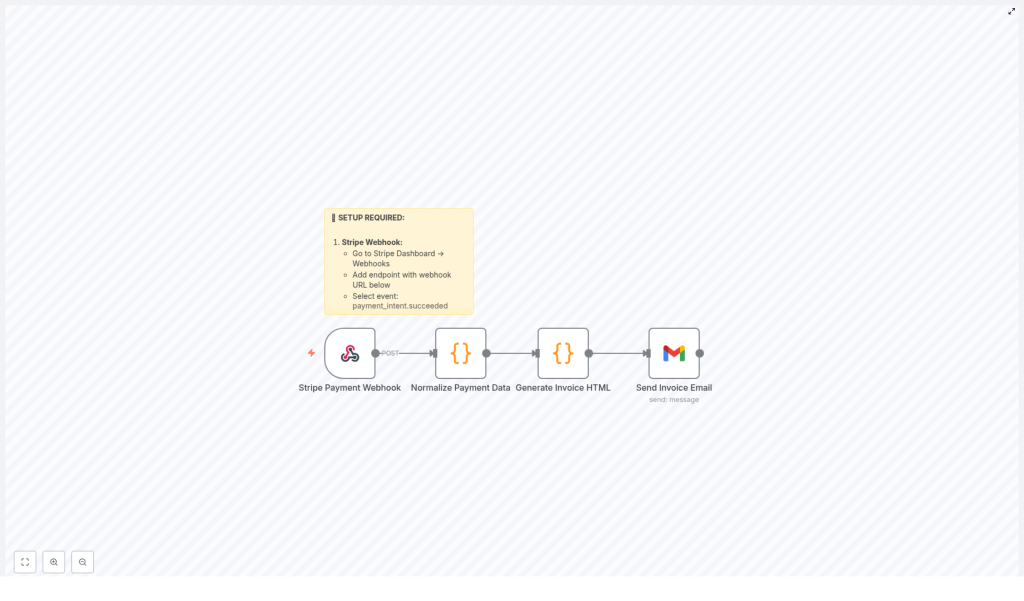
Here is the high-level flow in plain language:
- Stripe Payment Webhook – Stripe sends an event to your n8n webhook whenever a payment is successful.
- Normalize Payment Data – The messy, nested Stripe payload is cleaned up and transformed into a neat, consistent data structure.
- Generate Invoice HTML – That clean data is dropped into an HTML invoice template that looks professional and clearly says “Paid”.
- Send Invoice Email via Gmail – The HTML invoice is turned into a PDF and sent as an email attachment to your customer.
The result is a fully automated invoice workflow that makes you look organized without you actually having to be there every time a payment lands.
Step-by-step: from Stripe payment to email inbox
Let us walk through each part of the workflow so you know exactly what is happening behind the scenes.
1. Catch successful payments with a Stripe webhook
First, you need Stripe to tell n8n when money shows up.
In your Stripe dashboard, you set up a webhook that listens for the payment_intent.succeeded event. This is Stripe’s way of saying, “Payment went through, we are good.”
That webhook sends a POST request to your n8n webhook URL, which is the starting point of this workflow. Each time a payment succeeds, n8n receives all the related data automatically, no refreshing dashboards required.
2. Normalize the Stripe payment data so it makes sense
Stripe’s event payload is powerful, but it can also look like a small jungle of nested objects. The workflow includes a normalization step that picks out the useful bits and puts them into a consistent format.
The normalized data usually includes:
- Payment ID – The unique identifier of the payment.
- Amount paid – Converted from cents to dollars (or your chosen currency unit) so you do not have to divide by 100 in your head.
- Currency – So your invoice clearly shows whether it is USD, EUR, etc.
- Customer email and name – Used for the invoice and for sending the email.
- Payment date – When the transaction actually happened.
- Description and invoice number – Helpful for bookkeeping and customer clarity.
- Status – Confirmed as paid, so the invoice reflects that.
This normalization step is what makes the rest of the workflow smooth. With everything in a predictable structure, generating invoices becomes easy and consistent.
3. Turn that data into a polished HTML invoice
Once the payment data is normalized, it flows into an HTML template node in n8n. This is where the magic of “raw JSON” turning into “actual invoice” happens.
The HTML template is designed to include all the essentials:
- Your company name and branding details
- The customer name and contact information
- The payment amount and currency
- The payment date, description, and invoice number
- A clear payment status field marked as “Paid”
The result is a clean, readable invoice layout that looks professional in any inbox. No more last minute “let me just fix this alignment in Word” moments.
4. Email the invoice as a PDF using Gmail
Finally, the workflow converts the HTML invoice into a PDF file and attaches it to an email sent via Gmail.
The Gmail integration in n8n uses OAuth, so your account is connected securely. The workflow sends the invoice to the customer’s email address captured from Stripe, includes a polite thank you message, and confirms that their payment has been received.
This closes the loop on the transaction and gives your customer instant proof of payment without you lifting a finger.
Quick setup checklist
Here is a simplified checklist to get this Stripe to invoice email workflow up and running with n8n:
- Stripe Webhook:
- Go to your Stripe Dashboard → Webhooks
- Add a new endpoint pointing to your n8n webhook URL
- Subscribe to the
payment_intent.succeededevent
- Gmail Integration:
- In n8n, connect your Gmail account using OAuth
- Grant permissions so the workflow can send emails on your behalf
- Invoice Customization:
- Edit the HTML invoice template in the workflow
- Update your company name, branding, and any layout or text you want to change
- Adjust invoice fields if you want to show extra details like tax info or notes
Why automate Stripe payment invoices with n8n
Besides saving you from repetitive invoice chores, this workflow brings a few very practical benefits:
- Less manual work, fewer mistakes
Automated invoicing means no more copying amounts by hand, no wrong decimals, and no forgotten emails. - Instant payment confirmation
Customers get an email with a PDF invoice right after payment, which builds trust and reduces “Can you send me the invoice?” follow ups. - Professional looking invoices
A consistent, branded HTML invoice that converts to PDF makes your business look sharp and organized. - Scales with your business
Whether you have 5 payments a month or 5,000, the workflow handles them the same way, without needing extra hands.
Next steps and ideas for improvement
Once you have this Stripe to Gmail invoice workflow running, you can extend it with more n8n automation, for example:
- Log each invoice into a Google Sheet or database for reporting
- Send a copy of the invoice to your internal finance or accounting email
- Trigger follow up workflows, like adding the customer to a CRM or sending onboarding emails
If you want to go deeper with customization, tweak the HTML invoice template, adjust the email copy, or add more payment details. The core structure remains the same, you just layer on the extras you need.
Ready to stop sending invoices by hand?
If you are tired of repetitive invoicing tasks, this n8n workflow template gives you a simple way to automate the entire process from Stripe payment to invoice email.
Set it up once, customize your invoice, and let automation quietly handle the boring parts while you focus on the work that actually needs a human.
Streamline your payment workflow and delight your customers with automatic invoice emails, without burning time on manual admin.
