


Automate Trello Cards with n8n & a RAG Agent (So You Never Manually Copy-Paste Again)
Picture this: you are staring at yet another bug report, copying the title into Trello, trimming the description, hunting for similar past issues, trying to guess labels and priority. By the fifth ticket, your soul quietly leaves your body.
Good news: you can hand most of that drudgery to an automation that actually reads your issues, looks up related context, and drafts smart Trello card content for you. This n8n workflow template uses a vector-backed RAG (retrieval-augmented generation) agent, Supabase, Cohere embeddings, and Anthropic to do just that, with Google Sheets for auditing and Slack for “something broke” alerts.
Below is a fresh walkthrough of what the template does, how it works, and how to set it up without losing your weekend.
What this n8n workflow actually does
This automation is built to take incoming issue payloads from any external system, enrich them with past context, and output Trello-ready card content. Under the hood, it:
- Receives issue data via an HTTP webhook
- Splits long descriptions into chunks for better semantic search
- Creates vector embeddings with Cohere
- Stores and queries those embeddings in a Supabase vector index
- Uses a window-based memory to keep short-term context
- Calls a RAG agent (Anthropic + Supabase vector tool) to generate Trello card content
- Logs the final result into Google Sheets for auditing and analytics
- Sends Slack alerts if anything explodes along the way
The end result: smarter, context-aware Trello cards that feel like someone actually read the issue, without you doing the reading every single time.
Why you might want this workflow in your life
This setup combines classic workflow automation with modern LLM tooling, so you get more than just “if X then create card Y.” You get:
- Automatic Trello card creation from incoming issues Issues, bug reports, feature requests, or form submissions can be turned into Trello card drafts with context-aware titles, descriptions, labels, and priority suggestions.
- A searchable vector index of past issues Every issue you send through is embedded and stored in Supabase, so the RAG agent can pull similar past problems and avoid reinventing the wheel.
- Audit trails and observability Google Sheets keeps a log of what the agent produced, and Slack alerts immediately tell you when something goes wrong instead of silently failing at 2 a.m.
If you are tired of manual triage, repetitive copy-paste, and “didn’t we already fix this?” moments, this workflow helps you reclaim that time.
How the architecture fits together
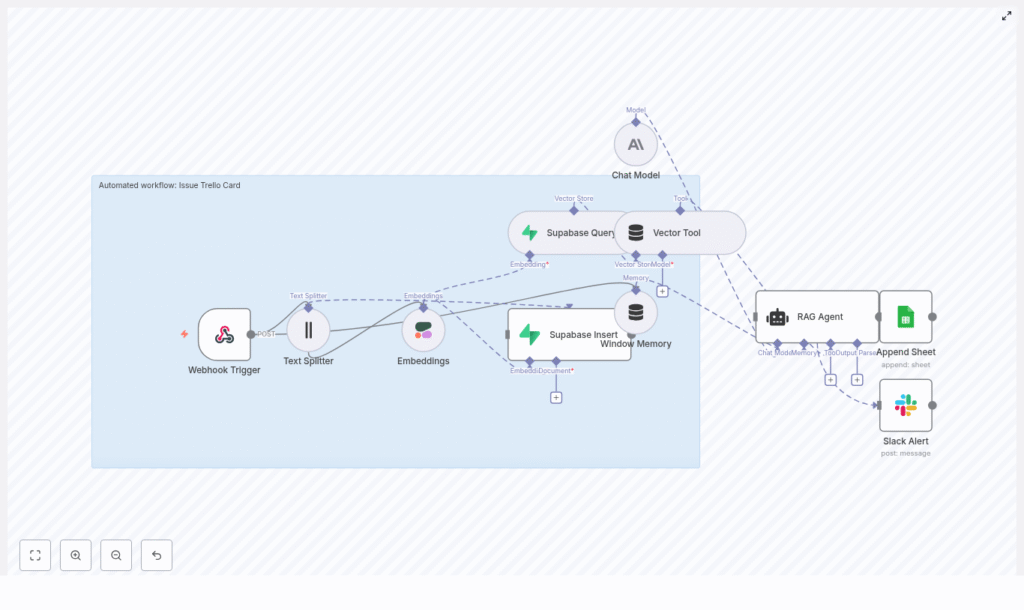
Here is the high-level map of the template’s building blocks:
- Webhook Trigger – receives incoming POST requests with issue payloads
- Text Splitter – chops large descriptions into overlapping chunks
- Embeddings (Cohere) – converts those chunks into vector embeddings
- Supabase Insert & Query – stores embeddings and runs vector similarity search
- Window Memory – keeps short-term context available for the agent
- RAG Agent (Anthropic + Vector Tool) – retrieves relevant context and generates Trello-ready content
- Append Sheet (Google Sheets) – logs results for auditing and metrics
- Slack Alert – sends error notifications for quick debugging
Think of it as a little assembly line: data comes in, gets chopped, embedded, stored, retrieved, generated, logged, and monitored. You just see the Trello content at the end.
Quick setup guide: from webhook to Trello-ready content
Step 1 – Accept issues with a Webhook Trigger
First, the workflow needs something to chew on. That is where the Webhook Trigger node comes in.
- Configure an HTTP POST webhook in n8n.
- Set a path, for example
/issue-trello-card. - Secure it with either:
- a secret token in the headers, or
- an IP-restricted gateway in front of n8n.
The incoming JSON payload (from GitHub, a form, an internal tool, or any other system) becomes the starting input for the flow.
Step 2 – Split long descriptions with Text Splitter
Issue descriptions are often novels in disguise. To make them usable for semantic search, the template uses a Text Splitter node.
- Use a character-based splitter.
- Set a chunk size of about 400 characters.
- Add an overlap of about 40 characters to preserve context across chunks.
This chunking strategy helps the RAG agent retrieve relevant bits later, instead of missing important details that got buried in a massive blob of text.
Step 3 – Turn text into vectors with Cohere Embeddings
Next, each text chunk is sent to an embeddings model. The template uses Cohere’s embed-english-v3.0 model.
- Each chunk is converted into a vector embedding.
- Those vectors allow you to perform semantic similarity queries later on.
Embeddings are what make it possible to say “find me past issues that are like this one in meaning, not just keyword.” That context is crucial for the RAG agent to generate better, more informed Trello content.
Step 4 – Store and search context with Supabase Insert & Query
Once you have embeddings, you need somewhere to put them. That is where Supabase comes in.
- Insert each embedding into a Supabase vector index. In the template, the index is named
issue_trello_card. - Use Supabase’s vector query capabilities to:
- retrieve similar past issues when a new one arrives, and
- feed that context to the agent.
Supabase gives you Postgres-backed persistence and scaling options, so your context store can grow with your issue volume without turning into a science experiment.
Step 5 – Keep short-term context with Window Memory
The Window Memory node acts like a short-term brain for the workflow. It can:
- keep track of recent interactions or runs, and
- provide the agent with incremental state within a defined time window.
This is useful if the same issue or user flows through the system multiple times and you want the agent to remember what just happened, instead of starting from zero each time.
Step 6 – Generate Trello content with a RAG Agent
Now for the star of the show: the RAG agent.
In this template, the agent is configured with:
- Chat model: Anthropic as the generative core
- Vector tool: a tool that queries Supabase for relevant context
- System prompt: something like “You are an assistant for Issue Trello Card” to guide style and formatting
The agent receives three key ingredients:
- The original webhook JSON (the current issue)
- Relevant context retrieved from Supabase
- Window memory for recent state
Using all of that, it outputs a structured result that typically includes:
- Card title
- Description
- Suggested labels
- Priority
- Other metadata you define in the prompt
In other words, it drafts the Trello card content for you, using both the current issue and similar past issues as reference.
Step 7 – Log results in Google Sheets and alert on errors in Slack
Finally, the workflow keeps everything auditable and observable.
- Google Sheets Append: The agent’s final output is appended to a Google Sheet. This gives you:
- a record of what the agent produced,
- data for analytics, and
- a safe way to review results before wiring up automatic Trello card creation.
- Slack Alert: An
onErrorpath sends a message to a Slack alerts channel if something in the workflow fails. You find out quickly, instead of via a mysterious drop in new Trello cards.
Configuration and security tips (so this does not become a public issue firehose)
- Secure the webhook Validate an HMAC signature or require an API key in the headers so random bots cannot spam your workflow.
- Lock down Supabase access Use service roles and restrict query capabilities to your n8n server or a known IP range.
- Watch your costs Embeddings and LLM calls are incredibly helpful, but they are not free. Batch requests where possible and add rate limits for high-volume sources.
- Use retries and idempotency Make the webhook consumer idempotent so retries do not create duplicate Trello cards or duplicate logs.
Customization ideas to level up the template
Once the base workflow is running smoothly, you can start adding quality-of-life upgrades.
- Automatically create Trello cards The template focuses on generating card content and logging it. Add a Trello node that:
- reads the agent’s output, and
- creates Trello cards automatically with the generated title, description, labels, and due dates.
- Automatic deduplication Use the Supabase query step to detect high-similarity matches. If a new issue is basically a clone of an old one, you can:
- link them,
- merge them, or
- flag them as duplicates before creating a new card.
- Multi-channel inputs Point different sources to the same webhook:
- email-to-webhook services,
- web forms,
- Slack slash commands, or
- internal tools.
All roads lead to the same smart card generation process.
- More advanced prompts For consistent output, give the agent a stricter schema. For example, ask for JSON with keys like:
titledescriptionlabelschecklistdueDate
This makes it easier to plug into Trello or other tools later.
Testing and safe rollout
Before you let this automation loose on your production issues, give it a proper shakedown.
- Send varied test payloads Try:
- short, simple issues,
- long descriptions with logs,
- edge cases like stack traces or very large attachments.
- Log everything in staging Keep raw inputs and agent outputs in a staging Google Sheet. This helps you:
- audit what the agent is doing,
- tune prompts,
- adjust chunk size or overlap if retrieval is off.
- Canary rollout Start by sending a small percentage of production traffic through the workflow. Once you are happy with the results, gradually increase the share until the manual process is the exception, not the rule.
Troubleshooting common “what is this doing?” moments
- Empty or irrelevant context from Supabase Try:
- increasing chunk overlap, or
- expanding the retrieval window size.
This helps the agent see more of the original issue when searching for related content.
- Model hallucinations If the agent starts confidently inventing details:
- tighten the system prompt,
- explicitly instruct it to rely only on retrieved facts,
- feed the retrieved context into the prompt in a clearly marked section.
- Rate limits and timeouts When APIs push back:
- add exponential backoff for retries,
- break large jobs into smaller, asynchronous batches,
- offload heavy embedding generation to a worker queue so the webhook does not time out.
Costs and scaling considerations
As usage grows, two cost centers will stand out first: embeddings and LLM calls.
- Cache aggressively Only embed new or meaningfully changed content. Reuse embeddings whenever possible.
- Scale Supabase smartly Use Supabase’s scaling options or other vector stores as your corpus grows, so queries stay fast and reliable.
- Move heavy work off the webhook path If throughput increases, shift embedding generation and other heavy tasks into a worker queue to avoid webhook timeouts and keep things snappy.
Wrapping up: from manual triage to smart automation
This n8n workflow template shows how you can combine webhooks, embeddings, vector storage, and a RAG agent to generate smarter, context-aware Trello cards, while keeping a clear audit trail and robust error alerts.
Instead of manually triaging every issue, you get an automated assistant that:
- reads incoming payloads,
- remembers similar past issues,
- drafts Trello card content, and
- logs everything for future review.
Your team keeps visibility, loses repetitive busywork, and gains a more consistent triage process.
Ready to try it? Import the template into n8n, secure your webhook, and plug in your own Cohere, Supabase, Anthropic, Google Sheets, and Slack credentials. Once you have customized it, you can export your workflow and share it on GitHub, or reach out if you want a walkthrough or extra customization help.
