


Automate Upwork Proposals with n8n + OpenAI
Imagine opening Upwork, spotting a great job, and having a tailored, human-sounding proposal ready in seconds. No more staring at a blank text box, no more copy-pasting the same generic pitch.
That is exactly what this n8n workflow template does. It takes an Upwork job description, runs it through OpenAI with your personal details, and gives you a customized proposal you can send as-is or lightly edit. It is fast, repeatable, and easy to tweak as your freelance business grows.
What this n8n workflow actually does
Let us start with the big picture. This workflow is a compact automation that:
- Takes in an Upwork job description as input.
- Adds your personal “about me” info for context.
- Sends everything to OpenAI using the OpenAI (Message Model) node.
- Returns a polished proposal, mapped into a clean field that is ready to send to email, Slack, a CRM, or anywhere else.
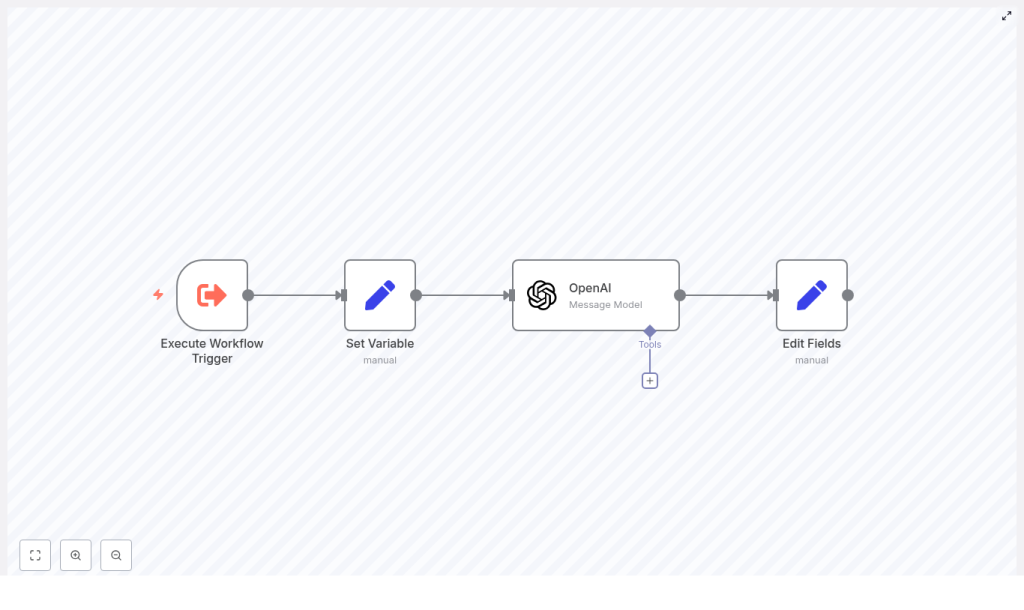
The workflow is built around four main nodes:
- Execute Workflow Trigger – kicks off the workflow manually, on a schedule, or via webhook.
- Set Variable – stores your personal pitch in a variable called
aboutMe. - OpenAI (Message Model) – generates the proposal based on the job description and your context.
- Edit Fields – cleans up and structures the AI response so you can send or store it easily.
In other words, you drop in a job description and get back a proposal that sounds like you, not a robot.
Why bother automating proposal writing?
If you have ever tried to scale your Upwork outreach, you know the pain. Writing every proposal from scratch is exhausting, and reusing the same boilerplate text quickly starts to hurt your win rate.
Automation with n8n and OpenAI helps you:
- Respond faster – generate tailored proposals in seconds instead of minutes.
- Stay consistent – keep your messaging aligned with your personal brand and past wins.
- Experiment easily – test different tones, structures, and prompts to see what converts best.
- Scale outreach – plug this into your CRM, spreadsheets, or lead tracking systems to handle more opportunities without burning out.
Think of it as a proposal co-pilot. You are still in control, but you are no longer doing all the typing yourself.
How the workflow is structured
Let us walk through each node and how to configure it so you can get from “idea” to “working automation” as quickly as possible.
1. Execute Workflow Trigger – how the process starts
The first step is deciding how you want to trigger the workflow. n8n gives you a few flexible options, depending on your setup:
- Manual trigger while you are testing or just starting out.
- Webhook trigger if you want to send job descriptions from a scraper, another automation tool, or a custom script.
- Schedule trigger if you are polling a job board, Google Sheet, or Airtable base for new listings.
Pick the one that fits your current workflow. You can always switch later as you scale.
2. Set Variable node – storing your “about me”
Next comes the personalization part. You do not want every proposal to sound generic, so this workflow uses a Set Variable node to store a short block of text about you in a variable called aboutMe.
This text is injected into the OpenAI prompt so the model can write as if it is you. Here is the example used in the template:
I'm an AI and automation freelancer that builds outreach systems, CRM systems, project management systems, no-code systems, and integrations.|Some notable things I've done:- End to end project management for a $1M/yr copywriting agency- Outbound acquisition system that grew a content company from $10K/mo to $92K/mo in 12 mo ...A few tips for this section:
- Keep it concise, about 3-6 lines is usually enough.
- Highlight specific wins, numbers, or results.
- Update it over time as you get better case studies.
This one variable goes a long way in making your proposals feel like they are coming from a real person with real experience.
3. OpenAI (Message Model) node – generating the proposal
This node is the core of the workflow. It takes the job description plus your aboutMe text and turns that into a tailored proposal using OpenAI.
In the template, the node is configured to use the gpt-4o-mini model with a temperature around 0.7. That gives you a good balance between creativity and consistency.
The conversation structure looks like this:
- System message – sets the role and behavior of the assistant.
Example:You are a helpful, intelligent Upwork application writer. - User message – includes instructions, the job description, and your personal info.
- Optional data – your
aboutMevariable is pulled in for personalization.
Here is a simplified version of the prompt structure used in the workflow:
{  "system": "You are a helpful, intelligent Upwork application writer.",  "user": "=I'm an automation specialist applying to jobs on freelance platforms.\n\nYour task is to take as input an Upwork job description and return as output a customized proposal...\n\nSome facts about me for the personalization: {{ $json.aboutMe }}\n\n{\"jobDescription\":\"{{ $('Execute Workflow Trigger').item.json.query }}\"}"
}
There are a few important rules baked into this prompt that you will want to keep intact:
- Do not touch
$$$in the output. It is a placeholder where you will later inject a link, such as a workflow diagram or demo. - Keep the tone casual and straightforward with no emojis or overly flowery language.
- Use the client’s name when available. If the job description mentions a name, the proposal should start with “Hi [Name]”. If not, a simple “Hi” is fine.
You can always tweak the instructions or tone, but keeping these core rules helps the proposals stay consistent and easy to post.
4. Edit Fields node – preparing the final output
Once OpenAI returns a proposal, the Edit Fields node steps in to clean and structure the result.
Typically, you will map the AI output into a field such as response. That way, the rest of your workflow can easily reference response when sending emails, posting to Slack, or saving to a database.
From this node, you can:
- Write proposals to Google Sheets or Airtable for tracking.
- Send them to Slack, Gmail, or your CRM for review or follow-up.
- Insert a human review step before anything is submitted to Upwork.
Think of this as the “staging area” where the raw AI text is turned into a structured, reusable data field.
Example input and output
Curious what this looks like in practice? Here is a simple example.
Job description input:
Looking for a Make.com expert to automate lead routing from Typeform to Airtable and Slack. Must create error handling and reporting.Example generated proposal (trimmed):
Hi - I build automation for lead routing and error handling all the time. Am so confident I'm the right fit for you that I just created a workflow diagram + a demo of your lead routing in no-code: $$$

About me: I'm an AI and automation freelancer that builds outreach, CRM, and integrations. I recently built an outbound acquisition system that scaled a content company from $10K/mo to $92K/mo.

Happy to do this for you anytime-just respond to this proposal.

Thank you!
Notice how it mentions your background, connects directly to the problem (lead routing, error handling), and leaves the $$$ placeholder untouched so you can inject a link later.
Best practices to get better proposals
Once the basic workflow is running, a few small tweaks can make your results much stronger.
- Keep your
aboutMetight and consistent so your “voice” does not drift too much between proposals. - Experiment with temperature and max tokens. Lower temperature values give more predictable outputs, higher values add creativity.
- Preserve placeholders like
$$$if you plan to add links programmatically later. - Add a name-detection step using a small JS or regex node so you can reliably generate greetings like “Hi Sarah,” when the client’s name appears in the job post.
Little adjustments like these can noticeably improve the feel and performance of your proposals.
Error handling and reliability
No automation is perfect, and API calls fail sometimes. To keep this workflow stable and trustworthy, it is worth adding a bit of resilience.
- Retry logic for transient OpenAI errors so a single timeout does not break your whole pipeline.
- Logging of inputs and outputs to a spreadsheet or database so you can review, debug, and run A/B tests.
- Human review queues where proposals are generated automatically but a person gives them a quick check before submission.
This way you get the speed of automation without sacrificing quality or control.
Scaling your outreach with integrations
Once you are happy with the core workflow, you can start plugging it into the rest of your stack to really scale things up.
- Google Sheets or Airtable to store job posts and generated proposals side by side.
- Gmail or the Gmail Send node to email proposals or notifications automatically, if you are comfortable with automated submissions.
- Slack or Discord to ping you or your team when a high-potential job is found and a proposal is ready.
- CRMs like HubSpot, Pipedrive, or Monday.com to create opportunities or deals whenever a good-fit job appears.
The template is a great starting point, and n8n makes it easy to bolt on extra steps as your process evolves.
Security, costs, and staying compliant
A quick but important note on the “boring” parts that matter long term.
- Store your OpenAI API keys in n8n credentials, not in plain text inside the workflow.
- Monitor token usage and costs. Models like
gpt-4o-miniare a good balance, but you can test cheaper variants if you are doing high volume. - Respect platform terms of service. Make sure you are not scraping or automating actions in ways that violate Upwork or other freelance marketplaces.
Handled well, this setup can be both powerful and safe.
Testing checklist before you go live
Before you fully trust the workflow, run through this quick checklist:
- Trigger the workflow manually with a sample job description.
- Check that your
aboutMevariable is injected correctly into the OpenAI prompt. - Open the execution log and inspect the OpenAI node input and output to confirm it looks right.
- Verify that the final proposal is mapped into the correct field (such as
response) and that it is being stored or sent to the right place.
Once all of that looks good, you can start connecting real job sources.
How to roll this out in stages
You do not need to jump straight into full automation. A simple phased approach works best:
- Phase 1: Use a manual trigger and review every proposal yourself.
- Phase 2: Connect job sources (like a spreadsheet or scraper) but still keep human approval before submission.
- Phase 3: When you are confident in the outputs, automate more of the pipeline and reserve manual review for high-value opportunities.
This lets you build trust in the system while still catching any weird outputs early on.
Call to action
If you would like to skip the setup work, you can grab my ready-to-import n8n workflow and a tested OpenAI prompt that drops straight into your instance. Reach out to get the template or subscribe for weekly automation templates and walkthroughs.
Want to see it in action? Paste a sample job description and I can show you a preview of the kind of proposal this workflow would generate.
Note: Remember to replace the $$$ placeholder with your workflow diagram or demo link only after the proposal has been generated.
