


Automate Weekly HubSpot Lead Reports to Slack
What You Will Learn
In this guide, you will learn how to use an n8n workflow template to:
- Schedule a weekly automation that runs at a specific time.
- Fetch contacts from HubSpot and identify which ones became leads in the last 7 days.
- Count those new leads and send a summary report to a Slack channel.
- Optionally, pull closed-won deals from HubSpot for the same period and sum their values.
- Customize the workflow to match your team’s reporting needs.
This tutorial is designed as a step-by-step learning path, so you can understand not only what to configure in n8n, but also why each node is used.
Concepts You Need Before You Start
1. What This n8n Workflow Does
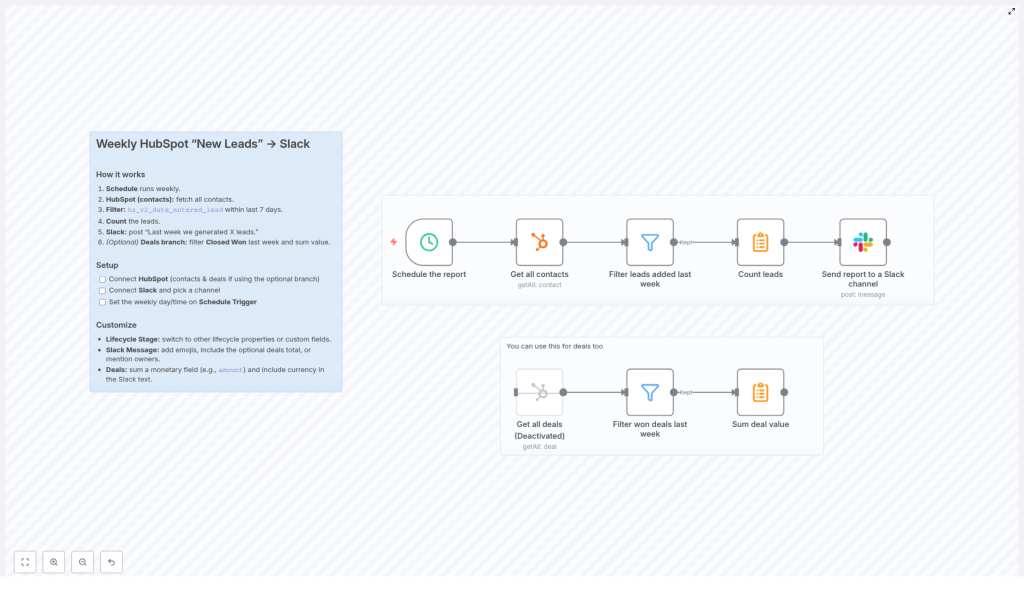
This n8n template automates a weekly report based on your HubSpot data and delivers it to Slack. At a high level, it:
- Runs once a week using a Schedule Trigger.
- Retrieves all contacts from HubSpot.
- Filters those contacts to find only the ones that became leads in the last 7 days, using the property
hs_v2_date_entered_lead. - Counts how many leads match that condition.
- Sends a Slack message such as: “Last week we generated X leads.”
- Optionally, follows an additional branch that:
- Gets deals from HubSpot.
- Filters for deals that are closed-won in the last week.
- Sums their values and includes that total in the Slack report.
2. Key HubSpot Property Used
The workflow relies on one important HubSpot contact property:
hs_v2_date_entered_lead– This property indicates when a contact entered the lead lifecycle stage. The workflow uses it to determine which contacts became leads in the last 7 days.
3. How the Date Filter Works
The date filtering logic is simple but important:
- We only want contacts whose
hs_v2_date_entered_leadvalue is between:- Today minus 7 days (the start of the reporting window)
- Today (the end of the reporting window)
- This gives you a rolling 7-day window, which works perfectly for a weekly report.
4. Optional Deals Branch
The optional branch of the workflow focuses on revenue insights:
- It fetches deals from HubSpot.
- Filters for deals that are closed-won in the last week.
- Sums the monetary value of those deals.
- Lets you include that total in your Slack report, so your team sees both lead volume and revenue impact.
Step-by-Step Setup in n8n
Follow these steps in order. Each step corresponds to one or more nodes in your n8n workflow.
Step 1: Connect Your HubSpot Account
First, you need to give n8n permission to read your HubSpot data.
- Open the template in n8n.
- Locate the HubSpot nodes (for contacts and, if you use it, deals).
- In a HubSpot node, click to configure credentials.
- Authorize n8n to access your HubSpot account so it can:
- Fetch all contacts, including the
hs_v2_date_entered_leadproperty. - Optionally fetch deals, if you enable the deals branch.
- Fetch all contacts, including the
Step 2: Connect Your Slack Account
Next, allow n8n to send messages into Slack.
- Find the Slack node that sends the weekly report.
- Open the node and choose or create Slack credentials.
- Authorize n8n with your Slack workspace.
- Select the specific channel where you want the report to be posted, for example
#salesor#marketing.
Step 3: Configure the Schedule Trigger
The Schedule Trigger controls when the workflow runs.
- Open the Schedule Trigger node.
- Set the trigger type to run on a weekly basis.
- Choose your preferred day and time, for example:
- Day: Monday
- Time: 7:00 AM
- Save the node so the workflow will automatically start each week at the chosen time.
Step 4: Get All Contacts From HubSpot
Now you will pull in HubSpot contacts so that n8n can filter new leads.
- Open the Get Contacts HubSpot node.
- Configure it to retrieve all contacts that you want to consider for your report.
- Make sure the property
hs_v2_date_entered_leadis included in the fields returned by this node. This property is required for the next filtering step.
At this point, the workflow has a list of contacts, each with its lead entry date.
Step 5: Filter Contacts Added as Leads in the Last Week
The next node filters only those contacts that became leads in the last 7 days.
- Open the Filter (or similar conditional) node that follows the Get Contacts node.
- Add a condition based on the contact property
hs_v2_date_entered_lead. - Configure the condition so that:
hs_v2_date_entered_leadis greater than or equal to “today minus 7 days”.hs_v2_date_entered_leadis less than or equal to “today”.
- Save the node. Only contacts that meet this date range will move forward in the workflow.
This filtered set of contacts represents your new leads for the last week.
Step 6: Count the Number of New Leads
Once you have the filtered list, the next step is to count how many leads are in it.
- Use a node that can summarize or count items, such as an Item Lists or Function node, depending on the template implementation.
- Configure the node to:
- Take all filtered contacts as input.
- Output a single value representing the total count of leads.
The result will be a numeric value that you can reference when building the Slack message, for example {{ $json.totalLeads }} depending on how the node is set up.
Step 7: Send the Weekly Report to Slack
Now you can send your summary to Slack using the lead count.
- Open the Slack message node.
- Select the channel you configured earlier, or adjust it if needed.
- Write a message that includes the lead count from the previous node. For example:
Last week we generated {{ $json.leadCount }} new leads.
- Test the node to confirm that the message appears correctly in Slack with a real number in place of the placeholder.
Once this is working, your team will automatically receive a weekly update on new leads without any manual reporting.
Optional: Add Closed-Won Deals and Revenue to the Report
Step 8: Get All Deals From HubSpot (Optional Branch)
If you want your report to include revenue, enable and configure the optional deals branch.
- Locate the deals branch in the workflow, which usually runs in parallel after the Schedule Trigger.
- Open the Get Deals HubSpot node.
- Configure it to fetch all deals relevant to your reporting, typically all deals or those with certain stages.
Step 9: Filter Deals to Closed-Won in the Last Week
Next, narrow down the deals to only those that were closed-won in the same 7-day window as your leads.
- Open the filter or condition node that follows the Get Deals node.
- Set conditions to:
- Include only deals whose stage is closed-won.
- Restrict to deals where the close date is between “today minus 7 days” and “today”.
This gives you a list of deals that were successfully closed in the last week.
Step 10: Sum the Value of Closed-Won Deals
To calculate weekly revenue, you need to sum a monetary field from these deals.
- Use a node that can perform aggregation or a small code snippet, depending on the template.
- Configure it to:
- Take all filtered closed-won deals as input.
- Sum the value field (for example, the deal amount or a similar numeric property).
- Output a single total, such as
totalRevenue.
You can then reference this total in your Slack message, along with the lead count.
Step 11: Include Deal Revenue in the Slack Message
Finally, extend your Slack report to mention closed-won deals and revenue.
- Return to the Slack node that sends the weekly report.
- Update the message text to include both metrics. For example:
Last week we generated {{ $json.leadCount }} new leads and closed deals worth {{ $json.totalRevenue }} {{ $json.currency }}.
- Make sure the values from the deals branch are correctly passed into the Slack node, either by merging branches or using a common node that combines the data.
Customization Ideas for Your Workflow
1. Track Different Lifecycle Stages or Segments
You are not limited to leads only. You can:
- Swap
hs_v2_date_entered_leadfor another lifecycle property if you want to track a different stage. - Use custom properties from HubSpot to focus on specific segments, such as MQLs, SQLs, or a custom lead type.
2. Personalize the Slack Message
Make the report more engaging and relevant to your team:
- Add custom emojis that your team uses for celebrations.
- Mention specific team members or roles using Slack mentions (for example,
@sales-team). - Include both lead count and optional deal totals in a short, clear summary.
3. Display Currency and Formatting for Deal Values
When reporting revenue, clarity matters:
- Include the currency code or symbol along with the total deal value.
- Ensure that the field you sum is stored consistently in HubSpot, so the total is accurate.
Why This Automation Is Valuable
- Reduces manual work: No more pulling weekly HubSpot reports by hand or copying numbers into Slack.
- Keeps your team aligned: Everyone in the Slack channel sees the latest lead and deal numbers at the same time.
- Easy to extend: You can add more metrics, such as conversion rates or other lifecycle stages, without changing your core process.
- Flexible for your organization: Adjust properties, filters, and message content so the workflow reflects how your sales and marketing teams actually operate.
Quick Recap
To automate weekly HubSpot lead reports to Slack with n8n, you:
- Connect HubSpot and Slack accounts in n8n.
- Set a weekly Schedule Trigger, for example Monday at 7 AM.
- Use a HubSpot node to get all contacts, including
hs_v2_date_entered_lead. - Filter contacts to those that became leads in the last 7 days.
- Count the filtered leads.
- Send the count to a Slack channel as a weekly summary message.
- (Optional) Fetch deals, filter closed-won deals from the last week, sum their values, and include that total in the Slack message.
FAQ
Can I change the reporting period?
Yes. Adjust the date conditions in your filter nodes. For example, instead of “today minus 7 days”, you could use a different range to match your reporting cycle.
Do I have to include the deals branch?
No. The deals branch is optional. You can run the workflow with only contact-based lead reporting if that is all you need.
What if my lead property is different from hs_v2_date_entered_lead?
If your HubSpot setup uses a different property, simply update the filter node to use that property instead. The rest of the workflow logic stays the same.
Can I post the report in multiple Slack channels?
Yes. You can duplicate the Slack node or add more Slack nodes that send the same or slightly modified messages to other channels.
Get Started With the Template
You are now ready to set up your own automated weekly lead report in n8n. Connect your HubSpot and Slack accounts, customize the filters and message content, and let the workflow handle your reporting every week.
