


Automated Candidate Shortlisting with n8n & ERPNext
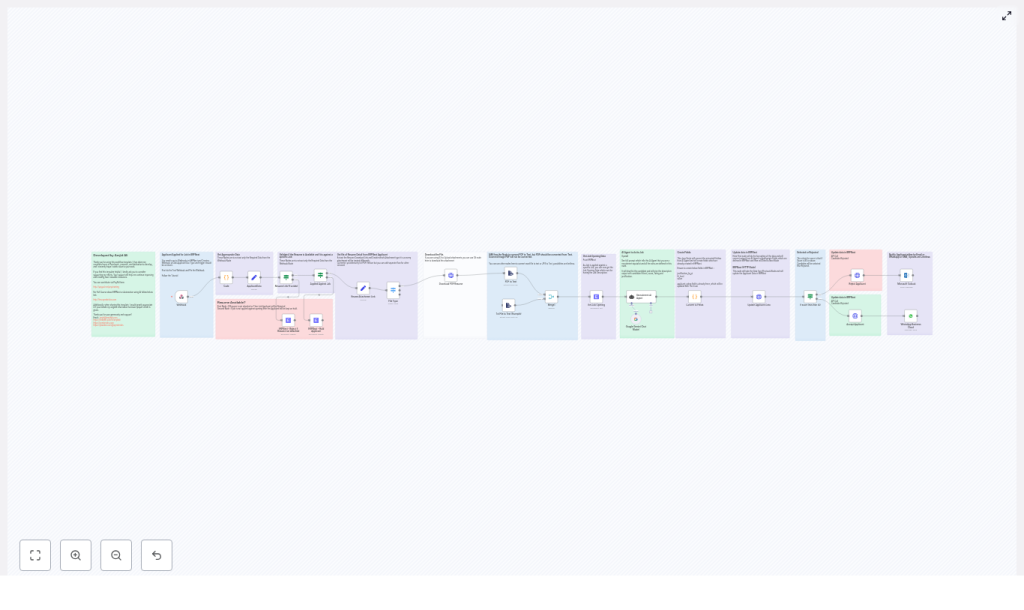
Automate the first stage of recruitment by combining n8n workflows, ERPNext, and an AI-based scoring agent. This reference guide explains an n8n template that validates incoming job applicants, retrieves and parses resumes, evaluates candidate fit with an AI model, and updates ERPNext Job Applicant records, with optional notifications to candidates.
1. Workflow overview
This n8n workflow template is designed to plug directly into ERPNext and handle the initial candidate screening pipeline. At a high level, the workflow:
- Receives Job Applicant insert events from ERPNext through a Webhook node.
- Validates that a resume is available and that the application is linked to a specific Job Opening.
- Downloads the resume file and identifies its type.
- Extracts plain text from supported file types (PDF, text).
- Combines the job description with the resume text and sends them to an AI agent for scoring.
- Maps the AI output to ERPNext custom fields and updates the Job Applicant record via the ERPNext API.
- Applies an acceptance or rejection decision based on a score threshold and optionally notifies the candidate (email or WhatsApp).
The template focuses on robust data flow between ERPNext and n8n, clear field mappings, and repeatable AI-driven scoring logic.
2. Architecture & data flow
2.1 Core components
- Source system: ERPNext (Job Applicant doctype with webhook on insert)
- Orchestration: n8n workflow (self-hosted or n8n Cloud)
- AI scoring: LLM provider such as Google Gemini or OpenAI configured in n8n
- Persistence: ERPNext Job Applicant document fields, including custom fields for AI results
2.2 Event & payload flow
- ERPNext triggers a webhook when a new Job Applicant document is inserted.
- The n8n Webhook node receives the JSON payload, which typically includes:
- Applicant name and contact details
resume_linkor an attachment URL- Reference to the related Job Opening (e.g., job opening name or ID)
- Validation logic checks the presence of a resume and a linked Job Opening.
- The workflow downloads the resume file and identifies its type (PDF, text, etc.).
- Supported file types are converted to plain text for analysis.
- Job Opening details (especially the job description) are fetched or read from the incoming payload.
- Resume text and job description are combined and passed to the AI node.
- The AI response is normalized into a structured JSON object.
- ERPNext is updated via REST API with status and AI scoring fields.
- Optional notification nodes send acceptance or rejection messages to the candidate.
3. Node-by-node breakdown
3.1 Webhook node – receive Job Applicant events
Purpose: Entry point for ERPNext events.
Configuration highlights:
- HTTP Method: Typically
POST. - Path: Custom endpoint path, referenced in ERPNext webhook configuration.
- Response: You can return a simple acknowledgment (e.g.,
{"status":"received"}) to ERPNext.
ERPNext setup:
- Create a webhook on the Job Applicant doctype.
- Trigger on Insert events.
- Set the webhook URL to the n8n Webhook node URL.
- Include fields such as:
- Applicant name
resume_linkor attachment URL- Job Opening reference
Edge cases: If ERPNext does not send the expected fields, downstream nodes may fail. For safer operation, add checks (e.g., IF nodes or Code nodes) to verify presence and format of critical fields before proceeding.
3.2 Validation nodes – resume availability & job assignment
Purpose: Ensure that the candidate has provided a resume and that the application is tied to a specific Job Opening.
Typical implementation:
- IF / Conditional node:
- Condition:
resume_linkor attachment URL is present and non-empty. - If false, branch to logic that updates ERPNext with status Rejected.
- Condition:
- Second IF / Conditional node:
- Condition: Job Opening reference field is present.
- If false, set status to Hold for manual review.
ERPNext status handling:
- No resume attached: set Job Applicant status to Rejected.
- No specific Job Opening: set Job Applicant status to Hold (or similar) so a recruiter can review manually.
Error handling note: If status updates fail (for example due to invalid credentials or network issues), ensure the workflow logs the error and optionally sends an internal alert, so no applicant remains in an inconsistent state.
3.3 File download & type detection
Purpose: Retrieve the resume file and route it through the correct parsing path.
Typical node usage:
- HTTP Request / Binary Data node: Downloads the resume from
resume_linkor attachment URL into binary data. - Switch / Router node: Inspects file extension or MIME type to determine the processing path, for example:
- Plain text
- Other formats (DOC, DOCX, JPG, etc.)
Included template paths:
- PDF: Routed to PDF text extraction.
- Text-based files: Routed to a text extraction node.
Extensibility: You can extend the Switch/Router logic to handle:
- DOC / DOCX: Add a conversion step (for example, using a document conversion service) before text extraction.
- Image formats (JPG, PNG, scanned PDFs): Integrate OCR (such as Tesseract or a cloud OCR API).
3.4 Resume text extraction
Purpose: Convert the resume into plain text for AI analysis.
Nodes commonly used:
- PDF to Text node: For text-based PDFs.
- Text Extract node: For plain text files or other supported text formats.
Important limitation:
- Scanned PDFs are image-based and will not yield text with the standard PDF to Text node.
- To handle scanned resumes, add an OCR step (for example:
- Tesseract via a custom integration
- Cloud OCR APIs exposed through HTTP Request nodes
Best practice: Normalize the extracted text (trim whitespace, remove binary artifacts) in a Code or Set node before passing it to the AI agent.
3.5 Job description retrieval & AI scoring
Purpose: Combine the job description with the resume text and obtain a structured evaluation from an AI model.
Data inputs:
- Job Opening details from ERPNext (for example via:
- Job description field from the webhook payload, or
- Additional ERPNext API call using the Job Opening reference
- Plain text representation of the candidate’s resume.
AI node configuration:
- Use an LLM node in n8n, such as:
- Google Gemini
- OpenAI (GPT-based)
- Another supported provider
- Define the system or instruction prompt to act as a recruitment specialist that:
- Compares candidate skills, experience, and education against the job description.
- Identifies relevant keywords and domain-specific expertise.
Expected AI output structure:
- Fit Level: e.g.,
Strong,Moderate,Weak - Score: numeric score from
0to100 - Rating: numeric rating from
0to5 - Justification: concise textual explanation of the score
Implementation note: Format the AI response as JSON where possible. This simplifies parsing and reduces the risk of errors compared to free-form text parsing.
3.6 Mapping AI output to ERPNext fields
Purpose: Transform the AI response into the exact field structure required by the ERPNext Job Applicant doctype.
Typical nodes:
- Code node or Set node:
- Parse AI response (JSON or text) into discrete variables.
- Map variables to ERPNext custom fields, for example:
custom_scoreorscorecustom_fit_levelorfit_levelcustom_justification_by_aiorjustification_by_aiapplicant_rating
- Prepare a JSON body suitable for the ERPNext REST API
PUTorPATCHrequest.
Field naming considerations:
- The template assumes certain custom fields exist in ERPNext, such as:
justification_by_aifit_levelscoreapplicant_rating
- If your field names differ, adjust the mapping in the Code/Set node accordingly.
3.7 ERPNext update & automatic decisioning
Purpose: Persist AI results and set candidate status based on a configurable score threshold.
Decision logic:
- Use an IF or Code node to compare the AI Score against a threshold.
- The template uses a default threshold of 80 (out of 100):
Score >= 80→ Status set to AcceptedScore < 80→ Status set to Rejected
ERPNext API update:
- Use an HTTP Request node configured with ERPNext credentials.
- Perform an update on the specific Job Applicant document, including:
- Status (
AcceptedorRejected) - Score
- Fit level
- Rating
- AI justification
- Status (
Optional notifications:
- Add Email or WhatsApp nodes to inform candidates about:
- Acceptance for further stages, or
- Rejection with a polite standardized message
Error handling: If the ERPNext update fails, log the error and consider adding a retry mechanism or a fallback branch that flags the candidate for manual review to avoid silent failures.
4. Prerequisites & configuration requirements
4.1 Platform & accounts
- n8n instance: Self-hosted or n8n Cloud.
- ERPNext instance: With API access enabled.
- AI model provider: OpenAI, Google PaLM/Gemini, or another LLM provider supported by n8n.
4.2 Credentials in n8n
- ERPNext credentials:
- API key and secret, or
- Configured credentials object in n8n with base URL and authentication details
- AI provider credentials:
- API key or service account depending on provider
- Configured in the corresponding n8n credentials type (e.g., OpenAI, Google Gemini)
4.3 ERPNext configuration
- Webhook: On Job Applicant insert events, pointing to the n8n Webhook URL.
- Custom fields (recommended):
justification_by_aifit_levelscoreapplicant_rating(or adapt the mapping if the field name differs)
5. Best practices & operational guidance
5.1 Data privacy & compliance
- Resume content is personal data. Treat it as sensitive information.
- Transfer only the data required for scoring to external AI providers.
- Ensure compliance with regulations such as GDPR or CCPA where applicable.
- Consider masking or minimizing personal identifiers before sending data to third-party services.
5.2 AI model tuning & bias control
- Iteratively refine prompts and scoring rules based on historical hiring outcomes.
- Monitor the distribution of scores to detect potential bias against specific groups or profiles.
- Use the justification field to understand and audit model behavior.
5.3 Logging, auditability & transparency
- Log AI outputs, prompts, and decision criteria for each applicant.
- Retain workflow execution logs in n8n for traceability.
- Ensure you can reconstruct how a decision was made if challenged by stakeholders or regulators.
5.4 Fallbacks & manual review
- Provide a manual review path for:
- Borderline scores (for example, near the threshold).
- Parsing or extraction failures.
- Unsupported file types.
- Use a dedicated status in ERPNext (for example, Hold
