


Automated Facebook Ad Cloning with AI & n8n
What You Will Learn
In this guide, you will learn how to use an n8n workflow template to:
- Automatically scrape competitor ads from the Facebook Ad Library
- Analyze their design and messaging using Google Gemini
- Generate new ad creatives that keep the original style but feature your own product
- Save both the reference ads and the AI-generated versions to Google Drive
- Customize and extend the workflow for your own campaigns
This article is organized as a step-by-step teaching resource, so you can understand how the template works and then confidently adapt it to your needs.
Concept Overview
This n8n template connects several tools into one automated ad-creation pipeline:
- Facebook Ad Library URL – You provide a URL that lists competitor ads.
- Your product image – You upload an image that clearly shows your branding and packaging.
- Apify Facebook Ad Library Scraper – Extracts up to 20 ads from the provided URL.
- Google Gemini 2.5 Pro – Analyzes both the competitor ad image and your product image to build a detailed cloning prompt.
- Google Gemini 2.5 Flash – Generates new ad images that copy the style but replace the product with yours.
- Google Drive – Stores all original competitor ads and the generated clones in organized folders.
The result is an automated workflow that lets you adapt successful competitor creatives for your own product, while keeping a consistent visual style and messaging approach.
Key Use Cases
This n8n template is especially useful if you want to:
- Adapt proven competitor ad creatives for your own products
- Test high-performing ad formats without designing from scratch
- Quickly generate multiple ad variations inspired by successful brands
- Scale ad creative production using competitor insights and AI
- Run A/B tests on different visual approaches used by market leaders
Important Details Before You Start
- The workflow processes up to 20 ads from the Facebook Ad Library URL you provide.
- Image generation with Gemini typically takes about 10 to 30 seconds per ad.
- Generated ads aim to preserve the original style while swapping in your product branding and packaging.
- All competitor reference ads and the AI-generated clones are automatically stored in Google Drive.
- Gemini’s image generation may sometimes flag content as prohibited. The workflow already includes logic to detect and handle such cases.
Prerequisites and Requirements
To run this Facebook ad cloning automation in n8n, you will need:
- Apify account with access to the Facebook Ad Library Scraper.
- Google Gemini API account for both analysis (Pro) and image generation (Flash).
- Google Drive account to store original and generated ad images.
- A valid Facebook Ad Library URL that lists accessible competitor ads.
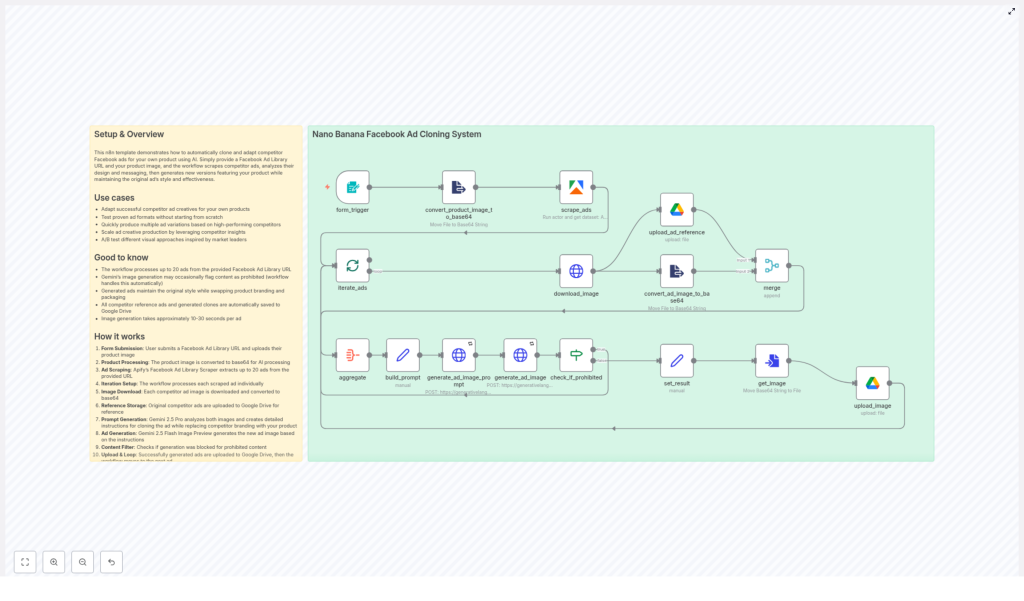
High-Level Workflow: How the Template Works
Here is the full process from input to final output, broken into clear stages.
1. Collecting Inputs via Form
The workflow starts with a form trigger in n8n:
- You open a form URL provided by the template.
- You enter a Facebook Ad Library URL that shows competitor ads you want to study.
- You upload your product image, ideally with clear branding and packaging visible.
- Submitting the form triggers the rest of the workflow automatically.
2. Preparing Your Product Image
Once the form is submitted:
- The workflow takes the product image file you uploaded.
- It converts the image to base64. This format is required so that the Gemini model can process the image content as part of the prompt.
3. Scraping Competitor Ads with Apify
Next, the workflow calls Apify’s Facebook Ad Library Scraper:
- It uses the URL you provided to scrape the ad listing.
- The scraper extracts data for up to 20 ads, including image URLs.
- These results are then passed into n8n for further processing.
4. Setting Up Iteration for Each Ad
After scraping, n8n sets up a loop:
- Each ad from the scraper is handled one by one.
- This iteration ensures that every competitor ad is processed separately, including image download, analysis, and generation.
5. Downloading and Encoding Competitor Ad Images
For each individual ad in the loop:
- n8n downloads the competitor ad image using the image URL from Apify.
- The image is then converted to base64, similar to your product image.
- This base64 version is used as visual input for Gemini’s analysis.
6. Saving Original Reference Ads to Google Drive
Before any cloning happens, the workflow saves the original ads:
- The downloaded competitor ad image is uploaded to a Google Drive folder dedicated to reference ads.
- This gives you a clear archive of which ads were used as inspiration.
7. Building a Detailed Cloning Prompt with Gemini 2.5 Pro
Now the AI analysis begins:
- Gemini 2.5 Pro receives both images:
- The base64-encoded competitor ad image.
- The base64-encoded your product image.
- Gemini analyzes the competitor ad’s:
- Visual layout and composition
- Color scheme and style
- Branding placement and key elements
- Based on this analysis, it generates a detailed prompt that describes how to recreate the ad while inserting your product instead of the competitor’s.
This prompt is then used as instructions for the image generation step.
8. Generating New Ad Images with Gemini 2.5 Flash
With the prompt ready, the workflow calls Gemini 2.5 Flash:
- Gemini Flash uses the prompt and your product image reference to generate a new ad image.
- The goal is to preserve:
- The overall style and layout of the original ad
- The visual impact and messaging structure
while replacing the product and branding with your own.
9. Handling Content Filters and Prohibited Outputs
Sometimes Gemini may flag certain content as prohibited or unsafe:
- The workflow includes a content filter check.
- If a generated image is flagged, the workflow handles it gracefully instead of failing silently.
- This helps you understand which ads could not be cloned due to policy restrictions.
10. Uploading Generated Ads and Looping
For each successfully generated ad:
- The new image is uploaded to a Google Drive folder dedicated to generated ad creatives.
- Once that ad is processed, the workflow continues to the next competitor ad in the list.
- This loop continues until all scraped ads (up to 20) have been processed.
How to Use the Template Step by Step
Follow these steps to run the template from start to finish:
- Open the form URL provided by the n8n template to access the submission form.
- Paste a Facebook Ad Library URL that lists the competitor ads you want to clone or learn from.
- Upload your product image, making sure the branding and packaging are clearly visible.
- Submit the form and let the workflow run. Depending on the number of ads, this may take several minutes.
- Check your Google Drive:
- One folder will contain the original competitor reference ads.
- Another folder will contain the AI-generated cloned ads featuring your product.
- Review and select the best creatives for your campaigns, and use them for testing and optimization.
Customization Tips and Advanced Ideas
Once you understand the default behavior, you can tailor the template to your workflow.
Control How Many Ads Are Scraped
- Adjust the scrape_ads node in n8n to change the maximum number of ads pulled from the Facebook Ad Library URL.
Refine the AI Prompt for Your Style
- Edit the build_prompt node to emphasize:
- Specific design styles (minimalist, bold, premium, etc.)
- Preferred color schemes or brand colors
- Text emphasis, such as focusing on offers, benefits, or social proof
Organize Google Drive More Effectively
- Change the target folders in the Google Drive nodes to:
- Group ads by campaign name
- Separate folders by product line or region
Add Text Overlays and Messaging
- Extend the workflow to generate headline or CTA text overlays.
- You can use Gemini to propose ad copy and then combine it with the generated images using additional tools or nodes.
Score and Filter Generated Ads
- Implement a quality scoring step to:
- Evaluate each generated ad based on certain criteria
- Automatically keep only the highest scoring creatives
Notifications and Monitoring
- Add notification nodes to:
- Alert you when the workflow finishes
- Warn you about errors or content filter issues
Extract Metadata for Deeper Insights
- Include metadata extraction from the scraped ads to:
- Analyze which formats, placements, or messages are used most often
- Feed this data into your broader marketing analytics
Quick Recap
This n8n template lets you:
- Input a Facebook Ad Library URL and your product image
- Automatically scrape up to 20 competitor ads with Apify
- Analyze and clone their style using Gemini 2.5 Pro and Flash
- Generate new ads that feature your product while mimicking proven designs
- Store everything in Google Drive for easy review and selection
By combining automation with AI, you can rapidly test ad concepts inspired by top performers and scale your creative production.
FAQ
How many ads can this workflow process at once?
The template is configured to handle up to 20 ads from a single Facebook Ad Library URL. You can adjust this limit in the scrape_ads node.
How long does the whole process take?
Image generation with Gemini typically takes around 10 to 30 seconds per ad. Overall runtime depends on the number of ads you scrape and your n8n environment.
What happens if Gemini flags content as prohibited?
The workflow includes a content filter check. If an image is flagged, the workflow handles it automatically so it does not break the whole run. You may see fewer generated ads than scraped references in such cases.
Can I change where files are stored in Google Drive?
Yes. You can edit the Google Drive nodes to point to different folders, or to create a more detailed folder structure by campaign, product, or date.
Is this template only for Facebook ads?
The template is designed around the Facebook Ad Library, but the general approach of scraping reference creatives, analyzing them with AI, and generating similar ads could be adapted to other channels with the right data sources.
Get Started
If you want to streamline your Facebook ad creative process and use competitor insights more effectively, this n8n template gives you a complete, automated workflow. Provide a Facebook Ad Library URL and your product image, then let AI and automation do the heavy lifting for you.
