


Automated Image Extraction with Google Drive & VLM Run
What You Will Learn
In this tutorial, you will learn how to build an automated image extraction workflow in n8n that connects Google Drive and VLM Run. By the end, you will know how to:
- Automatically detect new files in a Google Drive folder
- Send those files to a VLM Run agent for image extraction
- Receive the extracted image URLs in n8n via a webhook
- Split, download, and save each image into a dedicated Google Drive folder
This is especially useful if you regularly handle PDFs or documents containing receipts, reports, or machine learning image assets and want to remove manual steps from your workflow.
When to Use This Image Extraction Workflow
This n8n template is ideal if you want to:
- Extract receipt images from PDFs so you can process them in accounting or expense tools
- Capture report images for documentation, presentations, or analysis
- Automatically harvest images from documents to build machine learning datasets
Instead of manually opening each file, copying images, and uploading them, this pipeline handles everything automatically in the background.
What You Need Before You Start
Make sure you have the following in place before configuring the n8n workflow:
- VLM Run API credentials with Execute Agent permission so you can run the image extraction agent
- Google Drive OAuth2 credentials to:
- Monitor a folder for new files
- Download the source documents
- Upload the extracted images to a destination folder
- An n8n Webhook URL that VLM Run can call to send back extracted image URLs
Example name in n8n:image-extract-via-agent - Two Google Drive folder IDs:
- A source folder ID that n8n will watch for new files
- A destination folder ID where extracted images will be saved (for example a folder called Extracted Image)
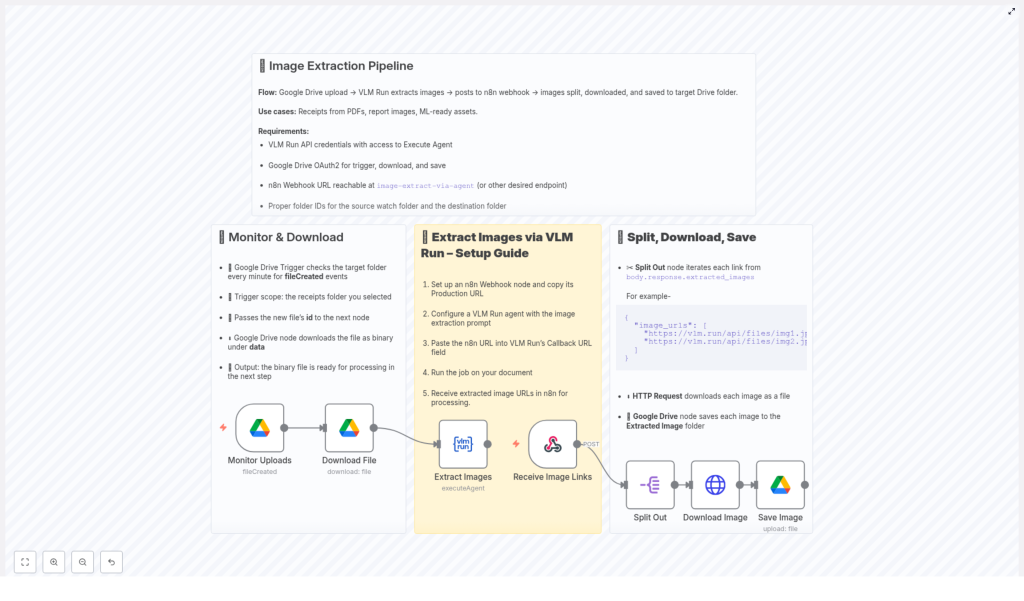
Conceptual Overview: How the Pipeline Works
Before diving into the step-by-step setup, it helps to understand the full flow at a high level.
Overall flow:
- A new file is uploaded to a specific Google Drive folder that n8n is monitoring.
- n8n detects the new file, downloads it as binary data, and passes it to VLM Run.
- VLM Run processes the document and extracts image URLs.
- VLM Run sends those extracted image URLs to your n8n Webhook URL.
- n8n receives the list of image URLs, splits them into separate items, downloads each image, and saves them into a destination folder in Google Drive.
This creates a complete automated pipeline from document upload to organized image storage.
Step 1 – Monitor and Download Files from Google Drive
1.1 Configure the Google Drive Trigger
The first part of the automation is to detect when a new file appears in a specific Google Drive folder.
- Use a Google Drive Trigger node in n8n.
- Set it to watch a particular folder, such as your receipts or reports folder.
- Configure the trigger to check for new files at a regular interval, for example every minute.
When a new file is created in that folder, the trigger node will fire and pass data about the file to the next node in your workflow.
1.2 Pass the File ID and Download the File
From the trigger, you will receive the file’s id. This id is used to download the actual document.
- Add a regular Google Drive node after the trigger.
- Use the operation that downloads the file using the file
idfrom the trigger. - Make sure the file is downloaded as binary data, which is the format VLM Run will need for processing.
At this point, your workflow can automatically fetch any new document that appears in your watch folder and prepare it for image extraction.
Step 2 – Extract Images with VLM Run Agent
2.1 What the VLM Run Agent Does
The VLM Run agent is responsible for analyzing the downloaded document and identifying any images inside it. It then returns:
- A list of image URLs extracted from the document
- These URLs are sent as a JSON payload to your n8n Webhook endpoint
2.2 Configure the n8n Webhook Node
Before you set up the VLM Run agent, you need an endpoint where it can send results.
- Add a Webhook node in n8n.
- Switch the node to use its production URL (or the URL you will expose externally).
- Copy the Webhook URL. You will paste this into VLM Run as the callback URL.
This Webhook node will later receive a JSON body that includes the extracted images, typically in a field like body.response.extracted_images.
2.3 Set Up the VLM Run Agent
Now you can configure the VLM Run agent that will process your documents.
- In VLM Run, create or configure an agent with an image extraction prompt. The prompt should instruct the agent to analyze the document and return image URLs.
- In the agent settings, locate the callback or webhook field.
- Paste the n8n Webhook URL that you copied from the Webhook node.
- Make sure your VLM Run API credentials have Execute Agent permission so the agent can run.
2.4 Run the Agent from the Workflow
Next, connect n8n to VLM Run so the downloaded document is actually sent for processing.
- Add a VLM Run Agent node after the Google Drive download node.
- Configure it with:
- Your VLM Run API credentials
- The specific agent you configured for image extraction
- The binary file data from the previous node
- When this node runs, it will:
- Send the document to VLM Run
- Trigger the agent job
- Cause VLM Run to send the extracted image URLs back to your n8n Webhook endpoint
Once the agent finishes, n8n will receive a callback to the Webhook node with the image URLs ready for further processing.
Step 3 – Process, Download, and Save Extracted Images
3.1 Understand the Webhook Payload
When VLM Run finishes extracting images, it sends a JSON payload to your Webhook node. This payload typically contains a field similar to:
body.response.extracted_images
This field holds a list of image URLs that point to each extracted image.
3.2 Split the Image URLs into Individual Items
To handle each image separately, you need to split the list of URLs into single items.
- Use a node in n8n (such as Item Lists or a similar node) to split out the array of URLs.
- After this step, each workflow item will represent one image URL.
This splitting is crucial for scalability because it lets you process large numbers of images efficiently, one per item.
3.3 Download Each Image via HTTP Request
With individual image URLs available, you can now download each image.
- Add an HTTP Request node after the split step.
- Set the HTTP method to GET.
- Use the image URL from the current item as the request URL.
- Configure the node to download the response as binary data so you get the actual image file.
Each execution of this node will download one image file based on its URL.
3.4 Save the Downloaded Images to Google Drive
The final part of the pipeline is to store the downloaded images in your chosen Google Drive folder.
- Add a Google Drive node after the HTTP Request node.
- Use the operation that uploads a file from binary data.
- Set the binary property to the one coming from the HTTP Request node.
- Specify the destination folder ID, for example the folder named Extracted Image that you prepared earlier.
Now, each extracted image will be saved as a separate file in your target Google Drive folder, fully automatically.
Why This n8n Workflow Is So Effective
- High automation No more manual downloading, copying, or uploading images from PDFs or other documents. The entire process runs hands free once a file is uploaded.
- Scalable handling of many images The split step allows the workflow to process multiple images per document efficiently, even when there are dozens of images.
- Powerful integrations You combine the strengths of Google Drive for storage, n8n for orchestration, and VLM Run for AI-driven image extraction.
Quick Recap
Here is a short recap of the full pipeline:
- Google Drive Trigger watches a folder for new files.
- A Google Drive node downloads each new file as binary data.
- The VLM Run Agent node sends the file to VLM Run for image extraction.
- VLM Run calls back your n8n Webhook with a JSON list of extracted image URLs (for example
body.response.extracted_images). - A node splits the array of URLs into separate items.
- An HTTP Request node downloads each image by URL as binary data.
- A final Google Drive node uploads each binary image to a destination folder such as Extracted Image.
FAQ
Do I need coding skills to use this template?
No. The entire pipeline is built with n8n nodes and configuration. You only need to set credentials, folder IDs, and URLs.
Where do I get the folder IDs for Google Drive?
Open the folder in Google Drive and look at the URL in your browser. The long string after folders/ is the folder ID. Use that in your Google Drive nodes.
Can I use this with file types other than PDFs?
Yes, as long as VLM Run can process the file type and extract images from it. The n8n part of the workflow does not depend on the document type, only on the image URLs returned by VLM Run.
What happens if a document has no images?
If no images are found, the extracted_images list will be empty. In that case, the split step will not create any items and the download and upload steps will simply not run for that file.
Start Using the Template
To put this into action:
- Create or choose your source and destination folders in Google Drive.
- Set up your Google Drive OAuth2 credentials in n8n.
- Configure your n8n Webhook node and copy its production URL.
- Set up your VLM Run agent with the image extraction prompt and paste the Webhook URL as the callback.
- Import and customize the n8n template, then run the workflow.
Once configured, you will have a fully automated image extraction system that turns document uploads into neatly organized image files in Google Drive.
