


Automated Invoice Processing with n8n: Folder & AI Workflow
What You Will Learn
In this guide, you will learn how to use an n8n workflow template to fully automate your invoice processing with Google Drive and AI. By the end, you will understand how to:
- Automatically create and maintain a year and month based folder structure in Google Drive
- Watch a Google Drive folder for new PDF invoices and process each file
- Use AI to extract structured invoice data from PDFs, including scanned documents
- Move and rename invoices intelligently based on their content
- Log all invoice data into a Google Sheets document for reporting and auditing
This article walks through the concepts first, then gives you a clear step by step explanation of how the n8n template works.
Concept Overview: How the Workflow Works
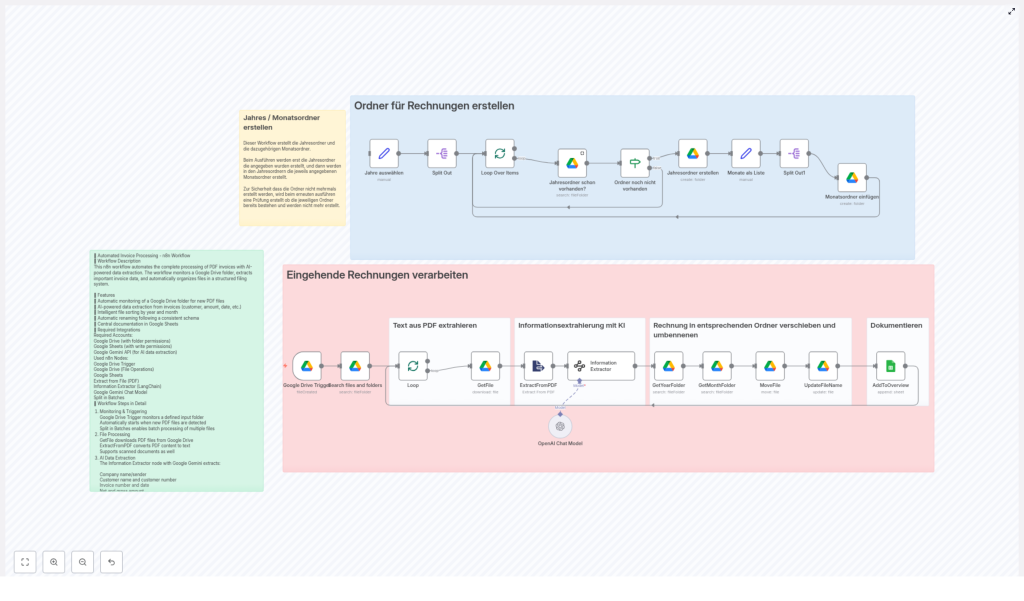
This n8n workflow connects Google Drive, AI tools, and Google Sheets to create a complete automated invoice pipeline:
- Folder structure management – Ensures that your Google Drive has a consistent folder hierarchy like
Buchhaltung / Rechnungen / 2024 / 01. - Incoming invoice processing – Detects new PDF invoices in an input folder and processes each one automatically.
- AI powered data extraction – Uses Google Gemini with LangChain to read the invoice and extract key fields such as invoice number, customer, dates, and amounts.
- Intelligent filing & renaming – Moves each invoice into the correct year and month folder and renames the file based on its contents.
- Documentation & reporting – Appends all extracted data into a Google Sheets spreadsheet for accounting and tracking.
In practical terms, you drop a PDF invoice into a Google Drive folder, and the workflow takes care of the rest: reading, organizing, and documenting it.
Prerequisites
Before using the template, make sure you have:
- An n8n instance where you can import and run workflows
- A Google Drive account with:
- A main folder for invoices, for example:
Buchhaltung / Rechnungen - An input folder where new invoices will arrive
- A main folder for invoices, for example:
- A Google Sheets spreadsheet that will store invoice records
- Access to Google Gemini and LangChain through n8n for AI based extraction
Step 1 – Folder Structure Management in Google Drive
The first part of the workflow ensures that your Google Drive has a clean, predictable folder structure for invoices. This structure is important because later steps rely on year and month folders to file invoices correctly.
1.1 Define the years to manage
The workflow starts with a Set node that defines which years should exist in your invoice archive. For example, you might specify 2023, 2024, and 2025.
This list is then split so that each year is processed individually.
1.2 Loop through each year
A Split Out node (or similar iteration node) takes the list of years and loops through them one by one. For each year, the workflow:
- Checks if a folder with that year already exists inside
Buchhaltung / Rechnungenon Google Drive - Creates the year folder if it does not exist
1.3 Create month subfolders
Once the year folder is confirmed or created, the workflow ensures that all 12 month subfolders exist inside that year:
01for January02for February- …
12for December
For each month, the workflow performs a preventative check to avoid duplicates. If a month folder is missing, it creates it. If it is already there, it skips creation.
1.4 Key nodes used for folder management
- Set node – Lists the years that should exist
- Split Out (or similar) – Iterates through each year
- Google Drive nodes – Search for existing folders and create new ones when needed
- Conditional node – Checks whether a folder already exists before creating it
After this step, your Google Drive has a stable folder structure ready for automatic filing of invoices.
Step 2 – Monitoring & Processing Incoming Invoices
The second part of the workflow handles new incoming PDF invoices. It uses a trigger to watch a specific Google Drive folder and then processes each invoice file in turn.
2.1 Watch the input folder with Google Drive Trigger
The workflow starts reacting when a new file is added to your designated input folder in Google Drive. This is done with the Google Drive Trigger node, which automatically starts the workflow whenever a new PDF invoice appears.
2.2 List and loop through invoice files
- Search Files – A Google Drive node searches the input folder and lists the invoice PDFs that need to be processed.
- Loop through files – The workflow then loops over this list so that each invoice file is processed one by one in a controlled manner.
2.3 Download and read the PDF
- Get File – For each invoice, a Google Drive node downloads the PDF file so that n8n can work with its content.
- Extract From PDF – A PDF extraction node converts the PDF into readable text. This step is designed to handle both digital PDFs and scanned documents, so even image based invoices can be processed.
2.4 Use AI to extract structured invoice data
- Information Extractor – This is where AI comes in. Using Google Gemini and LangChain, the workflow analyzes the extracted text and identifies key invoice fields, such as:
- Company name
- Customer name
- Invoice number
- Invoice date and other relevant dates
- Net amount
- VAT (tax) amount
- Total amount if needed
- Month and year of the invoice
- List of articles or line items
- Customer number
The result is a structured data object that can be used for filing, renaming, and reporting.
Step 3 – Intelligent Filing & Renaming
Once the invoice data has been extracted, the workflow uses it to decide where the file should be stored and what it should be called.
3.1 Determine the correct year and month
Using the extracted month and year, the workflow identifies which folders on Google Drive should contain this invoice. It then:
- Searches for the correct year folder
- Searches for the correct month folder inside that year
- Creates the folder if, for some reason, it does not exist yet
3.2 Move the invoice into the right folder
After confirming the folder path, the workflow moves the original invoice file from the input folder into the corresponding year and month subfolder, for example:
Buchhaltung / Rechnungen / 2024 / 03
3.3 Rename the invoice file based on its content
To keep files easy to search and understand at a glance, the workflow renames each invoice using a logical naming convention. A typical pattern might include:
- Customer name
- Invoice month
- Invoice year
For example: CustomerName_2024-03_Invoice.pdf
This makes it much easier to identify invoices directly from the file name without opening each PDF.
Step 4 – Documentation & Reporting in Google Sheets
The final part of the workflow focuses on record keeping and reporting. All the structured data extracted by the AI is written into a Google Sheets document.
4.1 Append invoice data to a tracking sheet
A Google Sheets node takes the extracted fields and appends them as a new row in your chosen spreadsheet. Typical columns might include:
- Date of invoice
- Customer name
- Invoice number
- Net amount
- VAT amount
- Total amount
- Month and year
- Customer number
- File path or link to the stored PDF
This creates a centralized, always up to date record of all invoices that can be used for accounting, audits, and internal reporting.
Benefits of This n8n Invoice Workflow
By combining Google Drive, AI, and Google Sheets, this n8n template delivers:
- Full automation – Incoming invoices are handled from start to finish without manual steps.
- AI powered data extraction – Google Gemini and LangChain provide accurate and fast extraction of invoice details, even from scanned PDFs.
- Consistent file organization – Year and month folders keep your invoices neatly sorted for easy navigation.
- Centralized documentation – A single Google Sheets document gives you a complete overview of all processed invoices.
- Reduced human error – Automated steps minimize the risk of misfiling or missing important invoice data.
How to Get Started
- Prepare Google Drive
- Create a main folder for invoices, for example:
Buchhaltung / Rechnungen - Set up an input folder where new PDF invoices will be uploaded or received
- Create a main folder for invoices, for example:
- Set up Google Sheets
- Create a spreadsheet for invoice tracking
- Add columns for the fields you want to store, such as dates, amounts, and invoice numbers
- Import the n8n template
- Open your n8n instance
- Import the provided workflow template from the link below
- Configure credentials
- Connect your Google Drive account in n8n
- Connect your Google Sheets account
- Configure access to Google Gemini and LangChain for the Information Extractor node
- Customize the workflow
- Adjust the list of years in the Set node if needed
- Point the Google Drive Trigger to your chosen input folder
- Adapt the naming convention and sheet columns to match your accounting format
- Test with sample invoices
- Upload a few test PDF invoices to the input folder
- Confirm that folders are created, files are moved and renamed, and data appears correctly in Google Sheets
Quick FAQ
Do I need to create all year and month folders manually?
No. The workflow automatically checks for missing year and month folders and creates them as needed, based on the years you define in the Set node.
Can this workflow handle scanned PDF invoices?
Yes. The Extract From PDF node is designed to handle scanned documents, and the AI based Information Extractor uses the resulting text to identify key invoice fields.
What if my invoice format is different?
You can customize the AI prompt or configuration in the Information Extractor node to better match your invoice layout. You can also adjust the fields that are written to Google Sheets.
Is it possible to change the file naming convention?
Yes. The renaming logic can be edited in the relevant n8n node. You can include or remove elements like customer name, invoice number, month, or year to fit your internal standards.
Next Steps
Automating invoice processing with n8n helps streamline your accounting, reduce manual work, and improve accuracy. Once your Google Drive and Sheets are prepared, you can import this template, connect your accounts, and adapt the workflow to your exact needs.
Start exploring what else you can automate with n8n to make your business processes more efficient and intelligent.
