


Automated Mailchimp Campaign Tracking with n8n
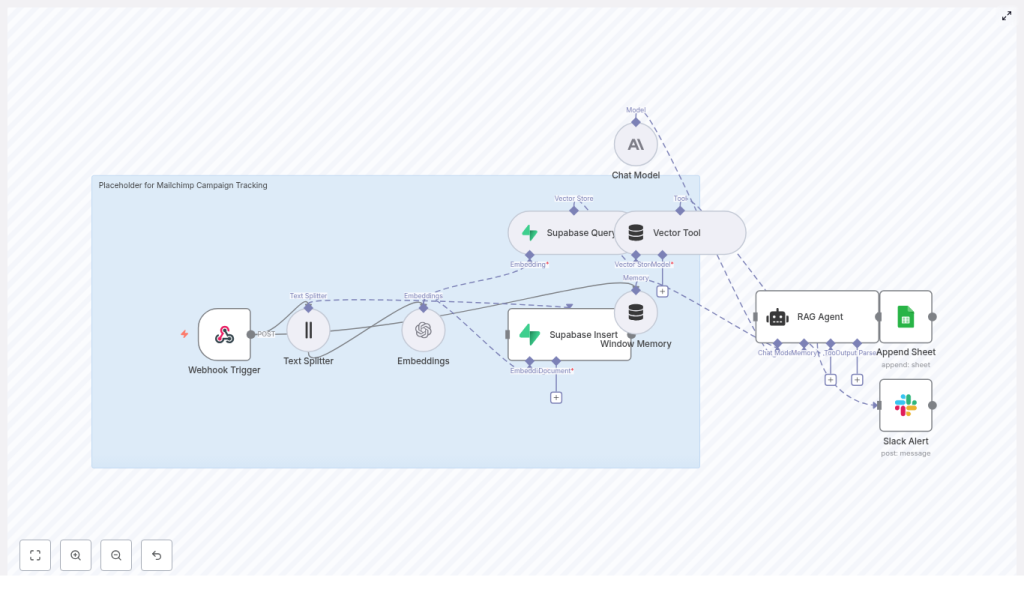
This guide walks you through an n8n workflow template that automatically tracks Mailchimp campaigns, stores their semantic context, and generates useful reports. You will learn how the workflow works, how each node fits together, and how to set it up step by step.
What you will learn
By the end of this tutorial-style article, you will be able to:
- Connect Mailchimp to n8n using webhooks for campaign tracking.
- Split long campaign content into chunks and generate embeddings for semantic search.
- Store and query embeddings in Supabase as a vector database.
- Use a RAG (Retrieval Augmented Generation) agent with an Anthropic chat model in n8n.
- Log status and insights to Google Sheets and send error alerts to Slack.
Why use n8n for Mailchimp campaign tracking?
Traditional campaign tracking focuses on raw events and basic metrics. This template goes further by capturing the meaning of your campaign content and making it searchable for future AI workflows.
By extracting semantic context and storing it in a vector store, you can:
- Search campaigns semantically instead of relying only on exact keyword matches.
- Use a RAG-enabled assistant to summarize, compare, or analyze campaigns.
- Automate reporting into Google Sheets and send notifications to Slack.
- Scale your history so that future AI tools can reuse past campaigns as context.
The result is a resilient Mailchimp campaign tracking system that turns your email history into a searchable knowledge base.
How the n8n Mailchimp tracking template works
At a high level, the workflow follows this path:
- Mailchimp sends a webhook to n8n when a campaign event occurs.
- n8n splits the campaign content into chunks and creates embeddings using OpenAI.
- Those embeddings are stored in a Supabase vector store for later retrieval.
- A RAG agent (using an Anthropic chat model) uses those stored vectors as context.
- The agent writes structured results to Google Sheets.
- If something fails, n8n sends an alert to Slack.
Next, we will break down each component so you can understand the full flow and then set it up yourself.
Core concepts and components
1. Webhook Trigger – receiving Mailchimp events
The Webhook Trigger node is the entry point of the workflow. Mailchimp sends POST requests to this webhook whenever specific events occur, such as:
campaignSentcampaignUpdate
You configure Mailchimp to POST to a path like /mailchimp-campaign-tracking on your n8n instance. Every time Mailchimp fires the webhook, n8n starts the workflow and passes along the campaign data.
2. Text Splitter – preparing content for embeddings
Mailchimp campaign bodies are often long. Most embedding models work best when text is broken into smaller pieces, so the template includes a Text Splitter node.
In the template, recommended settings are:
chunkSize: 400chunkOverlap: 40
This means each chunk is about 400 tokens, with a 40 token overlap to preserve context between chunks. You can adjust these values if your content is shorter, longer, or if your embedding model has different token limits.
3. Embeddings – turning text into vectors
The Embeddings node converts each text chunk into a numerical vector. These vectors capture semantic meaning, which is what enables:
- Semantic search
- Context retrieval for the RAG agent
The template uses the OpenAI model text-embedding-3-small by default. You can replace it with another embedding model, as long as you update any related configuration (like vector dimensions in Supabase).
4. Supabase Insert & Supabase Query – your vector store
Once embeddings are created, they need to be stored in a database that supports vector similarity search. This template uses Supabase as the vector store.
- Supabase Insert Stores each embedding and its metadata (such as campaign ID, content chunk, timestamps) in a vector index named
mailchimp_campaign_tracking. - Supabase Query Later, when the RAG agent needs context, this node retrieves the most relevant vectors from the
mailchimp_campaign_trackingtable using similarity search.
Correct configuration of the vector column and index in Supabase is essential for fast and accurate retrieval.
5. Vector Tool – connecting Supabase to the RAG agent
The Vector Tool node exposes Supabase as a tool that the RAG agent can call during its reasoning process. Instead of manually wiring queries, the agent can request relevant campaign chunks through this tool, which simplifies the flow.
6. Window Memory – short term context
The Window Memory node stores a rolling window of recent messages or context. In this template, it gives the agent access to short term state between calls, which can be helpful if the agent needs to refer back to earlier prompts or intermediate steps.
7. Chat Model (Anthropic) – the reasoning engine
The Chat Model node is the language model that interprets the retrieved context and generates structured outputs. The template uses an Anthropic chat model, but you can swap in another supported provider if you prefer.
The model:
- Takes the retrieved campaign chunks as context.
- Applies the system prompt instructions.
- Generates summaries, statuses, or insights that will later be logged.
8. RAG Agent – combining tools, memory, and model
The RAG Agent node brings everything together:
- It uses the Anthropic chat model.
- It uses the Window Memory for short term context.
- It calls the Vector Tool to retrieve relevant campaign chunks from Supabase.
The agent is guided by a system message such as:
“You are an assistant for Mailchimp Campaign Tracking”
Based on this instruction, the agent can:
- Parse campaign details.
- Summarize content.
- Generate a status or result that will be written to Google Sheets.
9. Append Sheet (Google Sheets) – logging results
When the RAG agent completes successfully, the workflow continues to the Append Sheet node. This node writes a new row to a specific sheet in a Google Sheets document.
In the template configuration:
- The sheet name is
Log. - At least one column named
Statusis appended.
You can extend this to include additional columns, such as campaign ID, subject line, summary, or risk score. This sheet becomes your audit log and reporting source for stakeholders.
10. Slack Alert – catching and surfacing errors
If the RAG agent fails or another critical error occurs, the workflow routes to a Slack Alert node.
This node sends a message to a Slack channel, for example #alerts, containing error details so your team is aware that something went wrong. This reduces silent failures and helps you maintain trust in the automation.
Step-by-step setup guide
Step 1: Prepare your n8n environment
- Use n8n.cloud or a self-hosted n8n instance.
- Ensure it has SSL and a public URL, which is required for Mailchimp webhooks to reach it.
Step 2: Create and collect required credentials
You will need the following credentials before importing the template:
- OpenAI API key (or another embedding provider) Used by the Embeddings node to generate vector representations of text.
- Anthropic API key (or another chat model provider) Used by the Chat Model node that powers the RAG agent.
- Supabase project and API key Set up a Supabase project and create a vector table or index named
mailchimp_campaign_tracking. Configure the vector column according to the embedding model dimensions. - Google Sheets OAuth2 credentials Grant access to the spreadsheet you will use for logging, including the
Logsheet. - Slack app token Give the workflow permission to post messages to your alert channel, such as
#alerts.
Step 3: Import the n8n template
- Open your n8n instance.
- Import the Automated Mailchimp Campaign Tracking template.
- Open each node that requires credentials and select the correct credential from the dropdown (OpenAI, Anthropic, Supabase, Google Sheets, Slack).
Step 4: Configure the Mailchimp webhook
- In Mailchimp, go to your audience or campaign settings where webhooks are configured.
- Create a new webhook and set the POST URL to your n8n webhook endpoint, for example:
https://your-n8n-domain.com/webhook/mailchimp-campaign-tracking - Select the events you want to track, such as
campaignSentandcampaignUpdate. - Save the webhook configuration.
Step 5: Test the full workflow
- Trigger a sample campaign event in Mailchimp (for example, send a test campaign or update an existing one).
- Check n8n to confirm that the Webhook Trigger node fires and the workflow runs.
- Verify that:
- Text is split into chunks correctly.
- Embeddings are created without errors.
- Supabase contains new entries in the
mailchimp_campaign_trackingvector table. - A new row is added to the Google Sheets
Logsheet with aStatusvalue and any other configured fields. - No Slack error alerts are sent. If they are, inspect the error message and adjust configuration.
Troubleshooting and optimization tips
Embedding issues
- Embeddings fail or are missing Check that your embedding API key is valid, the model name is correct, and you are not hitting rate limits. Look at the node execution logs in n8n for specific error messages.
Chunk size tuning
- Chunks too small If your chunks are tiny, you may store more vectors than necessary and lose broader context. Increase
chunkSize. - Chunks too large If chunks are too long, you might hit token limits and reduce retrieval precision. Decrease
chunkSizeor adjustchunkOverlapto balance context and efficiency.
Supabase vector configuration
- Confirm that your vector column type and similarity index match the embedding dimension of your chosen model.
- Follow Supabase documentation to configure indexes for fast similarity search.
Cost and rate limits
- Embedding every draft and version can increase both cost and API load. Consider:
- Embedding only final or sent campaigns.
- Sampling drafts instead of storing every minor change.
Security considerations
- Protect your webhook endpoint with a secret token or signature validation.
- Use Mailchimp’s webhook secret and verify the signature in the Webhook Trigger or a preliminary node in n8n.
- Store all API keys securely using n8n credentials storage rather than hard coding them.
Practical use cases for this template
- Campaign retrospectives Query similar past campaigns from the vector store and have the RAG agent generate summaries or lessons learned automatically.
- Creative and subject line research During planning for a new campaign, semantically search for past campaigns with similar topics or styles and review their performance.
- Automated reporting and audit trails Use the Google Sheets
Logsheet as a living dashboard for stakeholders, with status, summaries, and key metadata appended automatically. - Risk or sensitivity monitoring Extend the RAG agent prompt so it checks for risky or sensitive content patterns and sends Slack alerts when it detects them.
Best practices for reliable automation
- Monitoring and alerting Keep the Slack alert node active and consider adding additional checks so you are notified about failed embeddings, Supabase insert errors, or model issues.
- Credential hygiene Rotate API keys regularly and manage them through n8n’s secure credential storage.
- Vector database management Archive or downsample older embeddings if your Supabase vector table grows too large. You can keep only key campaigns or summaries to control cost.
- Prompt versioning Track changes to your RAG agent system message and prompts. Versioning makes it easier to reproduce past behavior and understand why outputs changed over time.
Recap
This n8n template transforms Mailchimp campaign tracking from static logs into a dynamic, AI-ready knowledge base. By combining:
- Mailchimp webhooks
- Text chunking and embeddings
- A Supabase vector store
- A RAG agent powered by an Anthropic chat model
- Google Sheets logging
- Slack alerts for failures
you gain a robust system that not only records campaign activity but also makes it searchable and actionable for future workflows, summaries, and reports.
FAQ
Can I use a different embedding or chat model provider?
Yes. You can swap out the OpenAI embedding model or the Anthropic chat model for any provider supported by n8n, as long as you update the credentials and adjust your Supabase vector configuration to match the new embedding dimensions.
Do I have to use Supabase as the vector store?
This template is built around Supabase, but the concept is portable. If you use another vector database, you would need to replace the Supabase nodes and adjust the Vector Tool configuration accordingly.
Can I customize what gets written to Google Sheets?
Yes. The template appends a Status column to a sheet named Log, but you can add more columns, such as campaign ID, subject line, summary, risk score, or any other structured data the RAG agent produces.
How do I extend the RAG agent behavior?
Modify the system message and prompts in the RAG Agent node. For example, instruct it to check for compliance issues, sentiment, or brand guideline violations, then log those details or trigger Slack alerts.
Get started with the template
Ready to use automated Mailchimp campaign tracking in n8n?
- Import the template into your n8n instance.
