


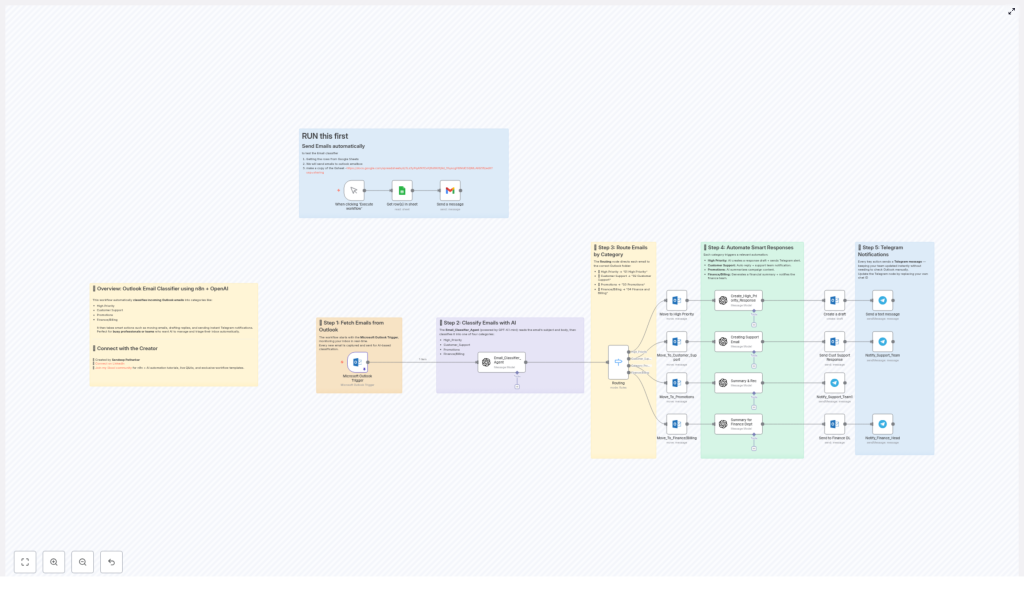
Automated Outlook Email Classifier Workflow with AI
From Overwhelmed Inbox To Focused Workday
Your inbox should support your goals, not steal your attention.
If you are constantly jumping between Outlook emails, trying to decide what matters most, you already know how much energy that decision-making drains. High priority messages get buried under promotions, finance updates mix with customer requests, and important follow-ups slip through the cracks.
Automation gives you another option. Instead of reacting to every email, you can design a system that thinks for you, sorts for you, and even drafts replies for you. That is exactly what this n8n workflow template is built to do.
This automated Outlook email classifier workflow uses AI to intelligently triage your inbox in real time, so you can focus on deep work, serve your customers faster, and give your team the clarity they need to move.
Shifting Your Mindset: Let Automation Do The First Pass
Before we dive into the details, it helps to reframe how you think about email.
Instead of treating every incoming message as a task you must personally manage, imagine a smart assistant that:
- Reads each new Outlook email as it arrives
- Understands what type of email it is
- Sorts it into the right folder automatically
- Drafts or sends responses on your behalf
- Alerts the right people instantly on Telegram
With n8n and AI, that assistant is no longer a fantasy. It is a repeatable workflow you can set up once, refine over time, and use as a foundation for even more powerful automations.
This template is not just a tool, it is a starting point for building a more intentional, automated way of working.
What This Intelligent Email Workflow Actually Does
At its core, this n8n workflow automatically classifies incoming Outlook emails into four meaningful categories using AI:
- High Priority
- Customer Support
- Promotions
- Finance/Billing
Once classified, it takes smart, targeted actions for you:
- Moves emails into the right Outlook folders
- Drafts or sends AI-powered responses
- Sends instant Telegram notifications to you or your team
- Uses Google Sheets to help you test and validate the workflow
The result is an inbox that organizes itself, so you spend less time sorting and more time acting on what truly matters.
How The Workflow Flows: A Step-by-Step Journey
Step 1 – Capture Emails From Outlook In Real Time
The journey begins with the Microsoft Outlook Trigger node in n8n. This node continuously monitors your Outlook inbox and reacts the moment a new email lands.
Every new message is automatically captured, including its subject and body content, and passed into the workflow. No manual refresh, no extra clicks, just a constant stream of emails ready for intelligent processing.
Step 2 – Classify Each Email With AI
Next, the workflow hands off the email to an AI-powered agent named Email_Classifier_Agent, which uses the GPT-4.1-mini model.
This agent reads the subject line and email body, then decides which of the four categories best fits the content:
- High Priority
- Customer Support
- Promotions
- Finance/Billing
Instead of you scanning and guessing, the AI takes care of the first layer of decision-making. Over time, this small shift can save hours each week and dramatically reduce mental load.
Step 3 – Route Emails To The Right Outlook Folders
Once the classification is complete, a Routing node takes over. This node uses the AI result to move the email into a specific Outlook folder so your inbox stays clean and structured.
The workflow routes messages as follows:
- High Priority →
01 High Priority - Customer Support →
02 Customer Support - Promotions →
03 Promotions - Finance/Billing →
04 Finance and Billing
With this in place, you can open Outlook and instantly see what needs attention first, instead of hunting through a long list of mixed messages.
Step 4 – Trigger Smart, Category-Based Automations
Classification and routing are only the beginning. The real power comes from what happens next. For each category, the workflow triggers tailored actions that move work forward automatically.
- High Priority
For mission-critical messages, the workflow:- Automatically drafts a response email so you are never starting from a blank page
- Sends a Telegram alert to you or your team so high impact emails get immediate attention
- Customer Support
For support-related emails, the workflow:- Generates an AI-powered reply to the customer, helping you respond faster and more consistently
- Notifies the support team via Telegram so they can follow up or take over when needed
- Promotions
For marketing, newsletters, and promotional content, the workflow:- Summarizes the key points of incoming promotional emails
- Sends those summaries and notifications to the relevant team so they can decide what is worth acting on
- Finance/Billing
For financial or billing messages, the workflow:- Creates a concise financial summary that highlights what matters
- Notifies the finance team promptly through Telegram so important invoices or billing updates are not missed
Each branch of this workflow is an opportunity to reclaim time, reduce manual effort, and keep your team aligned.
Step 5 – Stay In Sync With Telegram Notifications
Throughout the workflow, key events trigger Telegram messages. You can choose who gets notified and for which categories, but by default the workflow keeps you updated on:
- New high priority emails
- Customer support replies
- Important promotional summaries
- Finance and billing updates
This means you and your team do not need to live inside Outlook to stay informed. Telegram becomes your real-time alert channel, freeing your inbox from being your main notification system.
Step 6 – Validate And Experiment With Google Sheets
To help you test and refine your setup, the workflow includes a Google Sheets integration that sends test emails through the system.
This is particularly useful when you are:
- Verifying that classification into the four categories is accurate
- Checking that routing to Outlook folders works as expected
- Confirming that Telegram notifications are reaching the correct chat IDs
By running controlled tests from Google Sheets, you can confidently tweak and improve the workflow before fully relying on it for your daily email load.
Why This n8n Workflow Can Transform Your Day
This Outlook email classifier template is more than a neat automation. It is a practical step toward a more focused, less reactive way of working.
- Saves valuable time by taking over tedious inbox triage so you can invest your energy in higher value work.
- Increases responsiveness with instant Telegram notifications and AI-generated drafts that speed up replies.
- Improves organization through automatic sorting into clearly named Outlook folders, which makes priorities obvious at a glance.
- Supports your team by streamlining communication and distributing workload across support, finance, and other stakeholders.
As you use it, you can extend it with more categories, extra conditions, or integrations with your CRM, project management tools, or internal dashboards. This template is a foundation you can build on, not a fixed endpoint.
Customize It For Your World
To make this workflow truly yours, you will want to adapt a few details to match your environment:
- Update your Telegram chat IDs so alerts go to the correct users or groups
- Configure your Outlook credentials and folders if you use different naming conventions
- Adjust the AI prompts or logic in the Email_Classifier_Agent if your categories or tone need fine tuning
Once these are set, you can gradually iterate. Start simple, observe how the workflow behaves, and keep refining. Every small improvement compounds into more clarity and more saved time.
Your Next Step: Start Automating, Then Keep Evolving
You do not have to overhaul your entire tech stack to feel the benefits of automation. Sometimes a single, well designed workflow can change how you experience your workday.
This Outlook email classifier powered by n8n and OpenAI is one of those workflows. It quietly handles the repetitive parts of email management so you can stay present for the work that really moves your business or career forward.
Set it up, experiment, tweak, and let it grow alongside you. Every improvement you make here is an investment in a more focused, less distracted future.
Note: Remember to update your Telegram chat IDs and email credentials to match your own setup before putting the workflow into full production.
