


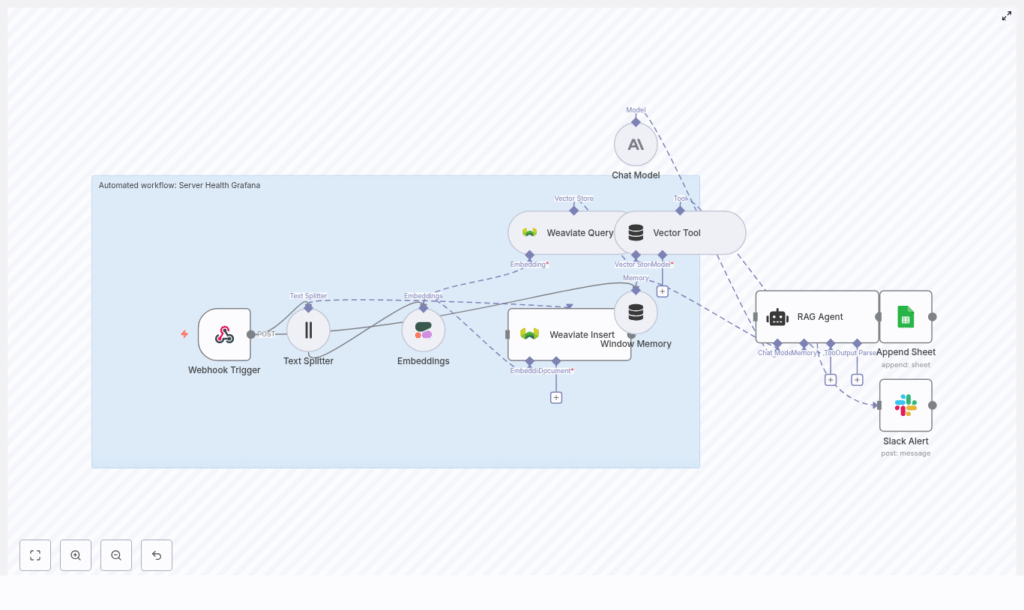
Automated Server Health with Grafana + n8n RAG
Monitoring server health at scale requires more than basic alerts. To respond effectively, you need context, memory of past incidents, and automated actions that work together.
This guide walks you through an n8n workflow template that connects Grafana alerts, Cohere embeddings, Weaviate vector search, and an Anthropic LLM RAG agent, with results logged to Google Sheets and failures reported to Slack.
The article is structured for learning, so you can both understand and implement the workflow:
- What you will learn and what the workflow does
- Key concepts: n8n, Grafana alerts, vector search, and RAG
- Step-by-step walkthrough of each n8n node in the template
- Configuration tips, scaling advice, and troubleshooting
- Example RAG prompt template and next steps
Learning goals
By the end of this guide, you will be able to:
- Explain how Grafana, n8n, and RAG (retrieval-augmented generation) work together for server health monitoring
- Configure a Grafana webhook that triggers an n8n workflow
- Use Cohere embeddings and Weaviate to store and search historical incidents
- Set up an Anthropic LLM RAG agent in n8n to generate summaries and recommendations
- Log outcomes to Google Sheets and handle failures with Slack alerts
Core idea: Why combine n8n, Grafana, and RAG?
This workflow template turns raw alerts into contextual, actionable insights. It does that by combining three main ideas:
1. Event-driven automation with n8n and Grafana
Grafana detects issues and sends alerts. n8n receives these alerts via a webhook and automatically starts a workflow. This gives you:
- Immediate reaction to server incidents
- Automated downstream processing, logging, and notifications
2. Vectorized historical context with Cohere and Weaviate
Instead of treating each alert as a one-off event, the workflow:
- Uses Cohere embeddings to convert alert text into vectors
- Stores them in a Weaviate vector database, along with metadata such as severity and timestamps
- Queries Weaviate for similar past incidents whenever a new alert arrives
This gives your system a memory of previous alerts and patterns.
3. RAG with an Anthropic LLM
RAG (retrieval-augmented generation) means the LLM does not work in isolation. Instead, it:
- Receives the current alert payload
- Uses retrieved historical incidents as context
- Generates a summary, likely causes, and recommended actions
The LLM here is an Anthropic model, orchestrated by n8n as a RAG agent.
End-to-end architecture overview
At a high level, the n8n workflow template implements this pipeline:
- Webhook Trigger – Receives a POST request from Grafana with alert data.
- Text Splitter – Breaks long alert messages into smaller chunks.
- Cohere Embeddings – Converts each chunk into a vector representation.
- Weaviate Insert – Stores vectors and metadata in a Weaviate index.
- Weaviate Query + Vector Tool – Fetches similar past incidents when a new alert arrives.
- Window Memory – Maintains short-term context in n8n for related alerts.
- Chat Model & RAG Agent (Anthropic) – Uses the alert and retrieved context to generate summaries and recommendations.
- Append to Google Sheets – Logs the outcome for auditing and analytics.
- Slack Alert on Error – Sends a message if any node fails.
Next, we will walk through these steps in detail so you can understand and configure each node in n8n.
Step-by-step n8n workflow walkthrough
Step 1: Webhook Trigger – receive Grafana alerts
The workflow starts with a Webhook node in n8n.
What it does
- Listens for POST requests from Grafana when an alert fires
- Captures the alert payload (for example JSON with alert name, message, severity, and links)
How to configure
- In n8n, create a Webhook node and set the HTTP method to
POST. - Choose a path, for example:
/server-health-grafana. - In Grafana, configure a notification channel of type Webhook, and set the URL to your n8n webhook endpoint.
- Secure the webhook using:
- A secret header, or
- IP allowlisting, or
- Mutual TLS, depending on your environment.
Once this is set up, any new Grafana alert will trigger the n8n workflow automatically.
Step 2: Text Splitter – prepare alert text for embeddings
Long alert descriptions can cause issues for embedding models and vector databases. The Text Splitter node solves this.
What it does
- Splits long alert messages into smaller chunks
- Uses configurable chunk size and overlap to preserve context
Recommended settings
- Chunk size: around 300-500 characters
- Overlap: about 10-50 characters
The overlap ensures that important context at the boundaries of chunks is not lost, which improves the quality of the embeddings later.
Step 3: Embeddings (Cohere) – convert text to vectors
Next, the workflow uses a Cohere Embeddings node to convert each text chunk into a numerical vector.
What it does
- Calls a Cohere embedding model, for example
embed-english-v3.0 - Outputs a dense vector for each chunk
Metadata to store
Alongside each vector, include metadata fields such as:
timestampof the alertalert_idor unique identifierseveritylevelsourceor origin (service, cluster, etc.)original textorraw_text
This metadata is critical later for filtering and understanding search results in Weaviate.
Step 4: Weaviate Insert – build your incident memory
Once you have vectors, the next step is to store them in Weaviate, a vector database that supports semantic search.
What it does
- Inserts each chunk’s vector and metadata into a Weaviate collection
- Creates a persistent, searchable history of incidents
Example setup
- Create a Weaviate class or collection, for example:
server_health_grafana - Define a schema with fields like:
alert_idseveritydashboard_urlraw_text
The n8n Weaviate node will use this schema to insert data. Make sure your Weaviate endpoint and API keys are configured securely and are not exposed publicly.
Step 5: Weaviate Query + Vector Tool – retrieve similar incidents
Now that you have a history of incidents, you can use it as context whenever a new alert arrives.
What it does
- Queries Weaviate with the new alert’s embedding
- Retrieves the most similar past incidents using semantic search
- Returns a top
Nlist of matches, typically:- 3 to 10 results, depending on your use case
These retrieved incidents become the knowledge base for the RAG agent. They help the LLM identify patterns, recurring issues, and likely root causes.
Step 6: Window Memory – maintain short-term context
In many environments, alerts are not isolated. You might see multiple related alerts from the same cluster or service in a short period.
What it does
- The Window Memory node in n8n keeps a rolling window of recent context
- Stores information from the last few alerts or interactions
- Makes that context available to the RAG agent
This is especially useful when you expect follow-up alerts or want the LLM to understand a short sequence of related events.
Step 7: Chat Model & RAG Agent (Anthropic) – generate insights
At this stage, you have:
- The current alert payload
- Retrieved similar incidents from Weaviate
- Optional short-term context from Window Memory
The Chat Model node uses an Anthropic LLM configured as a RAG agent to process all this information.
What it does
- Summarizes the incident in clear language
- Suggests likely causes and next steps
- Produces a concise log entry that can be written to Google Sheets
System prompt design
Use a system prompt that clearly defines the assistant’s role and the required output structure. For example:
- Set a role like:
You are an assistant for Server Health Grafana. - Specify strict output formatting so that downstream nodes can parse it easily.
In the example later in this guide, the model returns a JSON object with keys such as summary, probable_causes, recommended_actions, and log_entry.
Step 8: Append to Google Sheets – build an incident log
To keep a human-readable history, the workflow logs each processed alert to Google Sheets.
What it does
- Uses an Append Sheet node to add a new row for each incident
- Stores both structured data and the RAG agent’s summary
Typical columns
timestampalert_idseverityRAG_summaryrecommended_actionraw_payload
This sheet becomes a simple but effective tool for:
- Audits and compliance
- Reporting and trend analysis
- Sharing incident summaries with non-technical stakeholders
Step 9: Slack Alerting on Errors – handle failures
Even automated workflows can fail, especially when they rely on external APIs or network calls. To avoid silent failures, the template includes Slack error notifications.
What it does
- Uses n8n’s onError handling to catch node failures
- Sends a message to a dedicated Slack channel when errors occur
- Includes the error message and the alert_id so engineers can triage quickly
This ensures that issues in the automation pipeline are visible and can be addressed promptly.
Configuration tips and best practices
Security
- Protect your n8n webhook with:
- A secret header
- IP allowlisting
- Or mutual TLS
- Never expose Weaviate, Cohere, Anthropic, or other API credentials in public code or logs.
Schema design in Weaviate
- Store both:
- Raw text (for reference)
- Structured metadata (for filtering and analytics)
- Include fields like
alert_id,severity,dashboard_url, andraw_text.
Chunking strategy
- Use overlapping chunks to avoid cutting important sentences in half.
- Adjust chunk size and overlap based on your typical alert length.
Cost control
- Batch embedding calls where possible to reduce overhead.
- Limit retention of low-value events in Weaviate to control storage and query costs.
- Consider pruning or archiving old vectors periodically.
Rate limits and reliability
- Respect Cohere and Anthropic API rate limits.
- Implement retry and backoff patterns in n8n for transient errors.
Scaling and resilience for production
When you move this workflow into production, think about availability, monitoring, and data retention.
High availability
- Run Weaviate using a managed cluster or a cloud provider setup that supports redundancy.
- Deploy n8n in a clustered configuration or use a reliable queue backend, such as Redis, to handle spikes in alert volume.
Monitoring the pipeline
- Track embedding latency and LLM
