


Automated WordPress Content Workflow with n8n
Ever opened WordPress, stared at the “Add New Post” button, and felt your soul quietly leave your body at the thought of doing this again and again and again? If writing, formatting, hunting for images, and scheduling posts feels like a full-time job on top of your actual full-time job, this setup is for you.
In this guide, you will see how an n8n workflow can do the boring parts for you. It connects OpenAI, Google Sheets, Pexels, and WordPress so your blog keeps publishing SEO-ready posts while you do something more exciting, like literally anything else.
This automated WordPress content workflow will:
- Generate long-form SEO content with OpenAI (GPT-4o)
- Store and stage everything in Google Sheets
- Pull high-quality images from Pexels
- Publish posts in WordPress with a featured image
- Add a random delay so your posting schedule looks human, not robotic
Why bother automating your WordPress content workflow?
Manually creating every post is like washing dishes by hand when you own a perfectly good dishwasher. It works, but why?
With an automated n8n workflow for WordPress content, you get:
- Speed: Use AI to generate full-length articles in minutes instead of hours.
- Consistency: Keep a steady publishing schedule with scheduled posts and randomized delays that mimic natural posting patterns.
- Scalability: Increase your content output without cloning yourself or hiring an army of interns.
- Visual quality: Automatically grab high-quality, landscape images from Pexels and use them as featured media.
- Organization: Use Google Sheets as a central content staging area where you can review, tweak, and track everything.
In short, you let automation handle the repetition, while you focus on strategy, ideas, and quality control.
What this n8n workflow actually does (high-level overview)
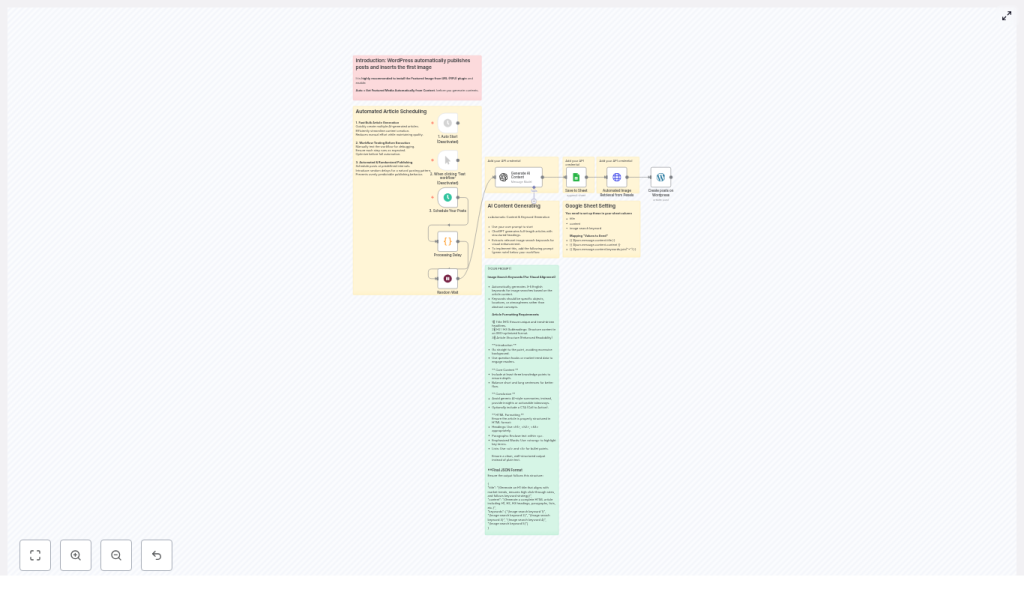
This workflow strings together several tools into one smooth content pipeline:
- OpenAI (GPT-4o): Writes the article and generates image search keywords.
- Google Sheets: Stores the article title, HTML content, and a combined image keyword string.
- Pexels API: Fetches a suitable landscape image based on the keywords.
- WordPress API: Creates and publishes the post with the content and image URL.
- Random wait: Adds a 0-6 hour randomized delay before publishing so your posts do not look like a bot dropped them all at once.
The end result is a fully automated WordPress content workflow that takes an idea, turns it into a post, attaches an image, schedules it, and hits publish – without you needing to babysit every step.
Inside the workflow: key n8n nodes and their jobs
1. OpenAI node – Generate AI content
This is the brain of the operation. The OpenAI node receives a structured prompt and returns a JSON object with three key elements:
- title – a trend-aware H1 that targets relevant keywords
- content – full HTML-formatted article, including H1, H2, H3, paragraphs, lists, and a CTA
- keywords – an array of 3-5 concrete English image search keywords
To keep your life easy, your prompt should clearly say: output HTML, wrap everything in JSON, and follow a specific structure. That way, you avoid painful post-processing and can pass the data straight into Google Sheets and WordPress.
2. Google Sheets node – Save to Sheet
Next, the content is parked in Google Sheets, which acts as your staging area and content log. The workflow appends the following columns:
- title
- content (HTML)
- Image search keyword
The image keywords array from OpenAI is joined using the + symbol so it becomes a single search query string. That combined keyword string is what the Pexels node uses to find an image.
3. HTTP Request node – Automated image retrieval from Pexels
Now we give your post something nice to look at. The HTTP request node calls the Pexels API with the joined keyword string and fetches the top matching landscape photo.
Do not forget to:
- Add your Pexels API key to the request headers
- Request landscape orientation so your images fit nicely into blog layouts
4. WordPress node – Create posts on WordPress
Once the content and image URL are ready, the WordPress node creates a new post. The HTML content is inserted into the post body, and the image URL is added inline in the content.
To turn that inline image into a featured image automatically, install and configure the Featured Image from URL (FIFU) plugin in WordPress. In the FIFU settings, enable the option that sets featured media automatically from content. That way, you do not have to manually set featured images for every single post.
5. Wait node – Scheduling and random delay
To make your posting pattern look human instead of “I am a script running on a server”, you can add a randomized wait node before the publishing step. This workflow uses a 0-6 hour random delay.
You can combine this with:
- A Schedule Trigger for recurring weekly or daily publishing
- A Manual Trigger while testing and tweaking your workflow
The result is a blog that steadily publishes over time, without obvious “I just batch-ran my automation” spikes.
Step-by-step setup checklist
Ready to escape the repetitive content grind? Here is a practical setup checklist for this n8n WordPress workflow.
- Install the required WordPress plugin
In your WordPress site, install a plugin such as Featured Image from URL (FIFU). Enable the setting that automatically sets the featured image from content so that any image URL you place in the post body can become the featured media. - Create your API credentials
Gather the keys and tokens you need:- OpenAI API key
- Pexels API key
- Google Sheets access via OAuth
- WordPress authentication, such as an application password or API key
- Build the n8n workflow
In n8n, add and connect nodes for:- Trigger (Schedule or Manual)
- OpenAI (content generation)
- Google Sheets (append new rows)
- Pexels (HTTP request node)
- Wait node with randomized delay
- WordPress (create post)
- Design your OpenAI prompt
Your prompt should:- Ask for HTML output with H1, H2, H3, lists, conclusion, and CTA
- Request a JSON wrapper with
title,content, andkeywords - Include SEO instructions, such as meta suggestions and keyword focus
- Ask for 3-5 short, concrete English image keywords
- Map your sheet columns correctly
In the Google Sheets node, make sure the headers match exactly:titlecontentImage search keyword
Tiny typos here can cause big headaches later, so double-check the spelling.
- Test thoroughly before going live
Use a manual trigger and run a few test posts. Confirm that:- Rows are added correctly in Google Sheets
- Pexels returns a valid image URL
- WordPress creates posts with proper HTML formatting
- The featured image is set automatically via FIFU
Once everything looks good, then you can safely enable your schedule.
Best practices for SEO and content quality
Automation is powerful, but you still want content that ranks and reads like a human wrote it. Here is how to keep your automated WordPress workflow SEO friendly and on-brand:
- Write strong, keyword-focused titles: Keep H1 titles under 60 characters and place primary keywords near the beginning.
- Use H2 and H3 subheadings wisely: Include long-tail keywords and question-style headings to capture more search intent.
- Optimize meta data: Add meta descriptions and excerpts when publishing. You can even extend this workflow later to generate and set meta tags via WordPress fields.
- Review and edit AI content: Use the Google Sheets staging area to skim, fact-check, and tweak tone so posts match your brand voice.
- Leverage internal links: Add a post-processing step to insert links to your main pillar content, improving both SEO and user experience.
Troubleshooting and pro tips
Image not showing as featured?
If your post has an inline image but no featured image, check your FIFU settings. Make sure the option under “Auto” to Set Featured Media Automatically from Content is enabled.
If you prefer more control, you can also call the WordPress media endpoints directly via API and explicitly set the featured image instead of relying on a plugin.
Weird HTML or formatting issues?
If your content shows escaped HTML or broken formatting in WordPress, verify that:
- The OpenAI node returns HTML in a string field without extra escaping.
- The Google Sheets node stores the HTML as-is, without modifying or escaping it.
- The WordPress node is mapped to the correct field and is not double-encoding anything.
Run a few small test cycles to confirm the full path from OpenAI to WordPress before scaling up.
Running into rate limits or quotas?
APIs like OpenAI and Pexels have usage limits. If you are generating a lot of posts, keep an eye on:
- OpenAI request quotas and cost
- Pexels API rate limits
The randomized wait in this workflow already spreads out requests a bit. For higher volumes, consider adding more advanced throttling and error-handling nodes to pause, retry, or queue requests when limits are hit.
Security and maintenance tips
Automation is fun until a leaked API key ruins your day. Keep your workflow secure and maintainable with a few simple habits:
- Store credentials securely: Use n8n’s credential manager or your own secrets manager for API keys and tokens.
- Rotate keys regularly: Update and rotate API keys on a schedule to reduce risk.
- Log what you publish: Save each WordPress post ID alongside the source Google Sheets row so you can trace, audit, or roll back content if needed.
- Keep backups: Maintain backup copies of your post content in Google Sheets or an external storage service.
Example OpenAI prompt you can start with
Here is a simple starter prompt that works well with this n8n workflow:
Generate an SEO-optimized article in HTML. Output must be a JSON object with keys: title, content, keywords.
- title: H1 title under 60 characters
- content: full HTML (H1, intro, H2/H3 headings, lists, conclusion, CTA)
- keywords: array of 3-5 short English image search keywords (concrete nouns or locations)

Write about: "Automated WordPress content workflows with n8n"
You can customize the topic, tone, and structure, but keep the JSON format and keys consistent so the rest of your workflow does not break.
Wrapping up: from repetitive tasks to automated publishing
With this automated WordPress content workflow in n8n, you trade copy-paste drudgery for a smooth, scalable pipeline. OpenAI handles the writing, Pexels supplies the visuals, Google Sheets keeps everything organized, and WordPress publishes on autopilot.
The result is a blog that stays fresh and SEO-friendly without you constantly fighting with editors, uploads, and schedules.
Ready to automate? Start by setting up a small test workflow, connect your API keys, and run a few sample posts. When you are happy with the output, scale it up and let automation do the heavy lifting. If you would like a copy of the example n8n workflow or a tailored prompt for your niche, contact us or grab the starter template below.
