

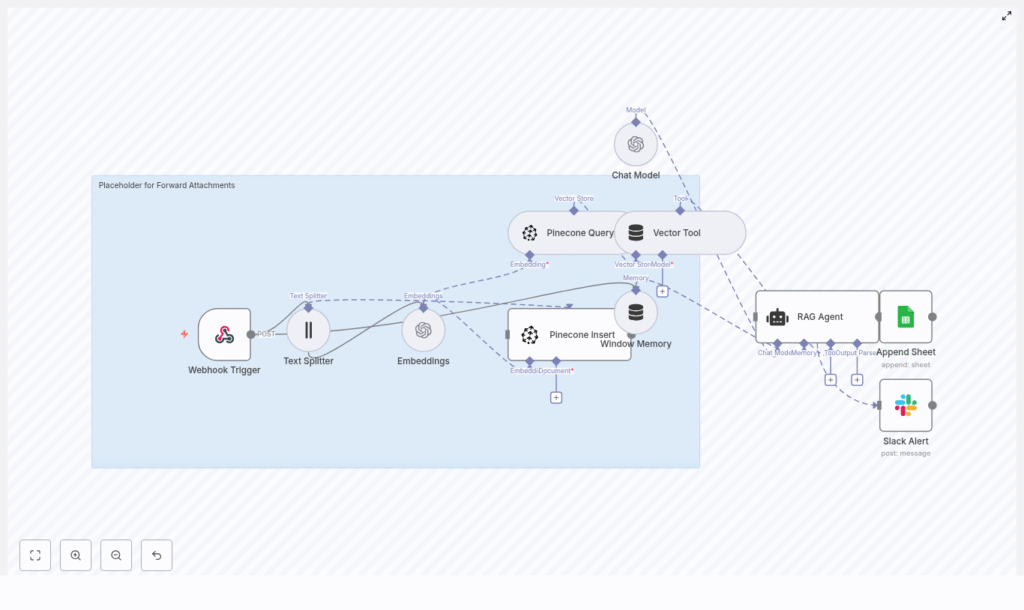
Automating Attachment Forwarding with n8n & LangChain
This guide walks you through an n8n workflow template that automatically forwards, indexes, and tracks attachments using LangChain components, OpenAI embeddings, Pinecone, Google Sheets, and Slack. You will learn not just how to install the template, but also how the logic works, why each tool is used, and how to adapt it for your own automation needs.
What you will learn
By the end of this tutorial, you will be able to:
- Set up an n8n workflow that receives attachments or text through a webhook.
- Split long documents into chunks that are suitable for embeddings.
- Create OpenAI embeddings and store them in a Pinecone vector index.
- Use a LangChain RAG Agent in n8n to retrieve relevant context and generate responses.
- Log workflow activity to Google Sheets and send error alerts to Slack.
- Apply best practices for chunking, metadata, cost control, and security.
Concept overview: How the workflow fits together
Why use this workflow?
This automation pattern is designed for teams that receive many attachments or text documents and want:
- A searchable archive backed by vector search.
- Automatic logging of what was processed and when.
- Alerts when something goes wrong, without manual monitoring.
To achieve this, the workflow combines several specialized tools:
- n8n Webhook to receive incoming files or text.
- LangChain Text Splitter to normalize and chunk long content.
- OpenAI embeddings (
text-embedding-3-small) for semantic search. - Pinecone as a vector database for fast similarity search.
- LangChain RAG Agent and a Chat Model for context-aware reasoning.
- Google Sheets to log processing results.
- Slack to send alerts when the workflow fails.
High-level architecture
Here is the core flow in simplified form:
- A Webhook Trigger node receives a POST request that contains attachments or raw text.
- A Text Splitter node chunks the content into manageable pieces.
- An Embeddings node sends each chunk to OpenAI using the
text-embedding-3-smallmodel. - A Pinecone Insert node stores the resulting vectors and metadata in a Pinecone index called
forward_attachments. - A Pinecone Query node, wrapped by a Vector Tool, allows the RAG Agent to retrieve relevant chunks later.
- Window Memory provides short-term conversation memory to the agent.
- A Chat Model and RAG Agent generate outputs (such as summaries or classifications) using retrieved context and memory.
- An Append Sheet node logs the outcome in a Google Sheet named
Log. - A Slack Alert node posts to
#alertswhen the workflow encounters errors.
Prerequisites and credentials
Required accounts and keys
Before you configure the n8n template, make sure you have:
- OpenAI API key for embeddings and the chat model.
- Pinecone API key and environment with an index named
forward_attachments. - Google Sheets OAuth2 credentials with edit access to the target spreadsheet (you will need its
SHEET_ID). - Slack Bot token with permission to post messages to the alerts channel (for example
#alerts).
Creating the Pinecone index
For Pinecone, ensure that:
- The index is named
forward_attachments. - The vector dimension matches the embedding model you use. For OpenAI models, check the official documentation for the correct dimensionality of
text-embedding-3-smallor any alternative you choose. - You select pod types and configuration that match your expected throughput and storage needs.
Step-by-step: Setting up the n8n workflow
Step 1: Import or create the workflow in n8n
You can either import the provided workflow JSON template into n8n or recreate it manually. Once imported, open the workflow to review and adjust the node configuration.
Step 2: Configure the Webhook Trigger
The webhook is the entry point for all incoming attachments or text.
- Node: Webhook Trigger
- HTTP Method:
POST - Path:
forward-attachments
When you send a POST request to this path, the payload (including attachments or text) will start the workflow.
Step 3: Set up the Text Splitter
The Text Splitter node breaks large content into smaller chunks so that embeddings and the context window remain efficient.
- Node: Text Splitter
- chunkSize:
400 - chunkOverlap:
40
The template uses 400 tokens per chunk with 40 tokens overlap. This is a balance between:
- Keeping enough context in each chunk.
- Avoiding very long inputs that increase token usage.
You can adjust these values later based on the nature of your documents.
Step 4: Configure the Embeddings node
The Embeddings node sends each chunk to OpenAI to produce vector representations.
- Node: Embeddings
- Model:
text-embedding-3-small(or another OpenAI embedding model) - Credentials: your OpenAI API key configured in n8n
Each chunk from the Text Splitter becomes a vector that can be stored and searched later.
Step 5: Insert vectors into Pinecone
Next, the workflow stores embeddings in Pinecone along with useful metadata.
- Node: Pinecone Insert
- Index name:
forward_attachments
When configuring this node, add metadata fields to each record, for example:
filenamesource(such as email, form, or system)timestamp
This metadata allows you to filter and understand results when you query the index.
Step 6: Set up Pinecone Query and Vector Tool
To support retrieval-augmented generation (RAG), the agent needs a way to query Pinecone.
- Node: Pinecone Query
- Wrapper: Vector Tool (used by the RAG Agent)
The Vector Tool encapsulates the Pinecone Query node so the agent can request similar vectors based on a user query or internal reasoning. This is how the agent retrieves context relevant to a particular question or task.
Step 7: Configure Window Memory
Window Memory gives the agent short-term memory of recent messages or actions.
- Node: Window Memory
Attach this memory to the agent so it can maintain continuity across multiple steps, while still staying within context limits.
Step 8: Set up the Chat Model and RAG Agent
The RAG Agent is the reasoning engine of the workflow. It combines:
- The Chat Model (OpenAI or another supported model).
- The Vector Tool for retrieval from Pinecone.
- Window Memory for short-term context.
Key configuration details:
- System message:
You are an assistant for Forward Attachments - Tools: include the Vector Tool so the agent can fetch relevant chunks.
- Memory: attach Window Memory for a short history of interactions.
The agent can then generate structured outputs such as summaries, classifications, or log entries based on the retrieved document chunks.
Step 9: Log results to Google Sheets
To keep a record of each processed attachment or text payload, the workflow logs to a Google Sheet.
- Node: Append Sheet (Google Sheets)
- Spreadsheet ID:
SHEET_IDof your document - Sheet name:
Log
Map the fields from your workflow to columns such as:
Status(for example, success or error)FilenameProcessedAt(timestamp)
This gives you an auditable history of all processed items.
Step 10: Configure Slack alerts for errors
Finally, the workflow includes a Slack node that notifies you when something fails.
- Node: Slack Alert
- Channel:
#alerts(or another monitoring channel) - Message template: include the error details and any useful context, such as filename or timestamp.
In n8n, connect this node to your error paths so that any failure in the agent or other nodes triggers a Slack message.
How the processing flow works in practice
Once everything is configured, a typical request flows through the workflow like this:
- Receive input A client sends a POST request with attachments or text to the
/forward-attachmentswebhook. - Split content The Text Splitter node divides long documents into overlapping chunks to avoid context window issues and improve retrieval quality.
- Create embeddings Each chunk is passed to the Embeddings node, which calls OpenAI and returns a vector representation.
- Store in Pinecone The Pinecone Insert node stores vectors plus metadata such as filename, source, and timestamp in the
forward_attachmentsindex. - Retrieve relevant context When the RAG Agent needs information, it uses the Vector Tool and Pinecone Query to fetch the most similar chunks.
- Generate output The agent calls the Chat Model with the retrieved context and Window Memory, then produces structured outputs (for example summaries, classifications, or other custom responses).
- Log and alert On success, the Append Sheet node writes a log entry to the
Logsheet. If any error occurs, the Slack Alert node posts a message to#alertswith the error details.
Best practices and tuning tips
1. Text chunking
The choice of chunkSize and chunkOverlap has a direct impact on both cost and search quality.
- Typical ranges: chunkSize between 200 and 800 tokens, chunkOverlap between 20 and 100 tokens.
- Larger chunks: fewer vectors and lower storage cost, but less precise retrieval.
- Smaller chunks: more precise retrieval, but more vectors and higher embedding costs.
Start with the template values (400/40) and adjust based on your document length and the type of questions you expect.
2. Metadata strategy
Good metadata makes your vector search results actionable. Consider including:
- Source filename or document ID.
- URL or origin system.
- Uploader or user ID.
- Timestamp or version.
Use these fields later to filter search results or to route documents by category or source.
3. Vector namespaces and index hygiene
For multi-tenant or multi-source environments:
- Use namespaces in Pinecone to isolate data by team, client, or project.
- Regularly remove stale vectors that are no longer needed.
- If you change embedding models, consider reindexing your data to maintain consistency.
4. Rate limits and batching
To keep your workflow stable and cost effective:
- Batch embedding calls where possible instead of sending one chunk at a time.
- Observe OpenAI and Pinecone rate limits and add exponential backoff or retry logic on failures.
- Monitor usage and adjust chunk sizes or processing frequency if you approach rate limits.
Security and compliance considerations
When processing attachments, especially those that may contain sensitive data, keep these points in mind:
- Avoid logging raw secrets or sensitive content in plain text logs.
- Use n8n credential stores and environment variables instead of hard coding keys.
- Encrypt data in transit and at rest, especially if documents contain PII or confidential information.
- Apply retention policies for both the vector store and original attachments.
- Restrict access to the Google Sheet and Slack channel to authorized team members only.
Troubleshooting common issues
- Blank vectors or strange embedding output Check that the model name is correct and that the returned vector dimension matches your Pinecone index dimension.
- Pinecone insertion errors Verify the index name (
forward_attachments), API key, region, and dimension. Mismatched dimensions are a frequent cause of errors. - Irrelevant RAG Agent responses Try increasing the number of retrieved chunks, adjusting chunkSize/chunkOverlap, or improving metadata filters. Verify that the correct namespace or index is being queried.
- Workflow failures in n8n Ensure the Slack Alert node is enabled. Check the error message posted to
#alertsand inspect the failing node in n8n for more details.
Cost management
Embedding, chat, and vector storage all have associated costs. To keep them under control:
- Use smaller embedding models like
text-embedding-3-smallwhen quality is sufficient. - Avoid re-embedding unchanged data. Only re-embed when the content actually changes or when you intentionally switch models.
- Apply retention policies, and delete old or unused vectors from Pinecone.
Extending and customizing the workflow
Once the base template is running, you can extend it to fit your specific use cases:
- Add file parsing nodes to convert PDFs, images (with OCR), and Office documents into text before they reach the Text Splitter.
- Use the Chat Model for advanced classification or tagging, and store labels back in Pinecone metadata or Google Sheets.
- Expose a separate search endpoint that queries Pinecone, allowing users to search the indexed attachments directly.
- Use role-based namespaces in Pinecone to separate data by team or permission level.
Quick reference: Sample node parameters

