


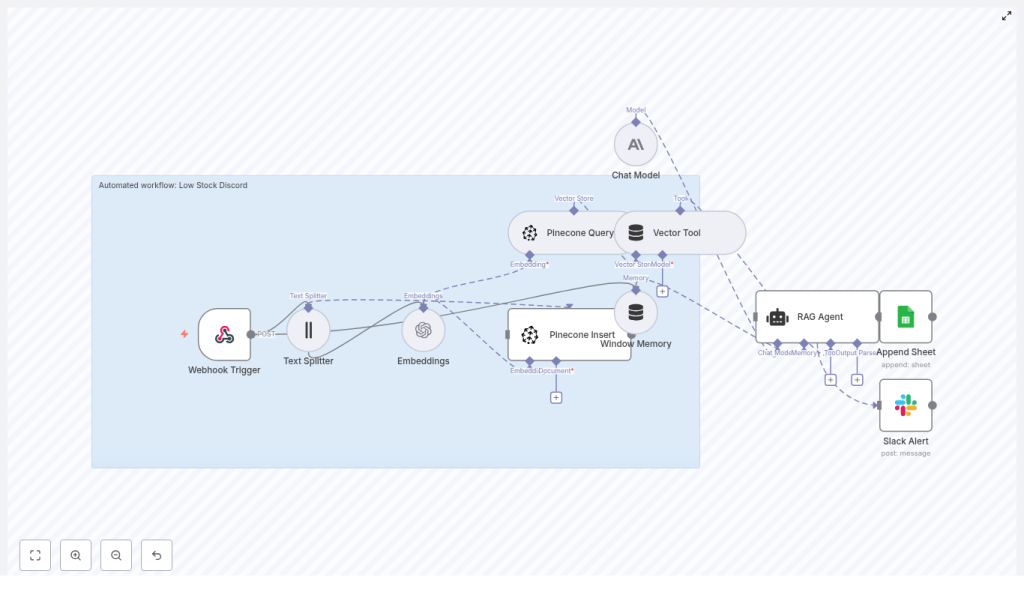
Automating Low Stock Alerts to Discord with n8n
Managing product inventory in real time is critical for e-commerce, retail, and manufacturing teams. This n8n workflow template helps you automate low stock alerts, enrich them with AI, and send human-friendly summaries to tools like Discord or Slack while logging everything in Google Sheets.
In this guide you will learn:
- How the low stock to Discord workflow is structured inside n8n
- How to configure each node step by step
- How embeddings, Pinecone, and a RAG agent work together
- How to extend the workflow with Discord, automated reorders, and dashboards
What this n8n workflow does
This template listens for low stock events from your inventory system, converts them into vector embeddings, retrieves related history, and then lets a RAG (retrieval-augmented generation) agent generate a concise summary and recommendation. Finally, it logs the result in Google Sheets and notifies your team in Slack or Discord.
In practical terms, the workflow:
- Receives low stock webhooks from your inventory or monitoring system
- Splits and embeds the text payload using OpenAI
- Saves those vectors in a Pinecone index for later semantic search
- Uses a RAG agent to combine current and past events into a clear status message
- Appends that status to a Google Sheet for auditing and reporting
- Sends alerts to Slack or Discord, and raises a Slack error if something fails
This is especially useful when you want more than a raw alert. You get context-aware, consistent summaries like: “SKU-123 has hit low stock for the third time this month, recommend immediate reorder.”
How the workflow is structured in n8n
The workflow is built from several key nodes that work together:
- Webhook Trigger – receives low stock events on the path
/low-stock-discord - Text Splitter – breaks long text into chunks for better embeddings
- Embeddings – uses OpenAI model
text-embedding-3-smallto create vector representations - Pinecone Insert – stores vectors in a Pinecone index called
low_stock_discord - Pinecone Query + Vector Tool – retrieves related historical events for context
- Window Memory – keeps short-term state for the RAG agent within a run
- RAG Agent – uses a chat model (Anthropic in this template) plus retrieved vectors to generate a summary
- Append Sheet – writes the final status to a Google Sheet named
Log - Slack Alert (onError) – sends a Slack message if the AI or Sheets steps fail
Next, we will walk through how to configure each of these nodes in order, starting from the incoming webhook and ending with alerts and logging.
Step-by-step setup in n8n
1. Configure the Webhook Trigger
The Webhook Trigger is the entry point. It receives low stock events as HTTP POST requests.
- In n8n, add a Webhook node.
- Set the path to
low-stock-discordso the full endpoint looks like:https://<your-n8n-url>/webhook/low-stock-discord(or similar, depending on your deployment). - Set the HTTP method to POST.
- Configure your inventory system, monitoring tool, or webhook relay to send JSON payloads to this endpoint.
A typical payload might look like:
{  "product_id": "SKU-123",  "name": "Blue Hoodie",  "current_stock": 4,  "threshold": 5,  "location": "Warehouse A",  "timestamp": "2025-07-01T12:34:56Z"
}
You can extend this with fields like category, supplier, or notes. The rest of the workflow will still function as long as it receives valid JSON.
2. Prepare content with the Text Splitter
Before creating embeddings, it is helpful to split long text into smaller chunks. This improves both performance and semantic quality.
Add a Text Splitter node right after the Webhook:
- Set chunkSize to
400 - Set chunkOverlap to
40
These settings mean each text chunk will contain up to 400 characters with a 40 character overlap to preserve context between chunks.
When is this useful?
- If your payload includes long descriptions or notes about the product
- If you attach historical comments or investigation logs
You can adjust chunk size and overlap based on your typical payload length. For shorter events, the Text Splitter will simply pass through smaller chunks.
3. Generate embeddings with OpenAI
Next, we convert text chunks into vectors that can be stored in a vector database and searched semantically.
- Add an Embeddings node after the Text Splitter.
- Configure the node to use OpenAI as the provider.
- Set the model to
text-embedding-3-small. - In n8n, add your OpenAI API key in the credentials section and select it in this node.
The embeddings node will output vectors for each text chunk. These vectors are what you will store and later query in Pinecone.
You can swap to a different embedding model if you prefer, as long as it is supported by your provider and you update the configuration in n8n.
4. Store and retrieve context with Pinecone
4.1 Insert vectors into Pinecone
To make events searchable, you store their embeddings in a Pinecone index.
- Add a Pinecone Insert node after the Embeddings node.
- Configure credentials for Pinecone in n8n (API key and environment).
- Set the index name to
low_stock_discord. - Map the vector data and any useful metadata (like
product_id,name,location,timestamp).
Each low stock event will now be saved as a vector in Pinecone, which lets you later search for “similar” situations using semantic similarity rather than exact keyword matches.
4.2 Query Pinecone for related events
To give your RAG agent context, you need to retrieve relevant past events for the same SKU or similar situations.
- Add a Pinecone Query node.
- Use the same index name:
low_stock_discord. - Feed it the current event’s embedding or another representation of the current text.
- Configure the number of results to return (for example, top 3 or top 5 similar events).
The retrieved vectors and their metadata will be passed to the RAG agent through a Vector Tool node. The Vector Tool wraps the query results so the agent can easily call them as part of its reasoning process.
Example of how this helps:
- If the same SKU has hit low stock multiple times in the past month, the agent can see that pattern and recommend a larger reorder.
5. Maintain context with Window Memory
The Window Memory node holds short-term context during a single workflow execution. It does not store data permanently like Pinecone, but it gives the agent access to intermediate information within the current run.
Place a Window Memory node before the RAG agent and configure it to:
- Store recent messages or steps that are relevant to the agent
- Limit the “window” size so the context stays focused and token usage is controlled
This is useful when the agent needs to combine:
- The original low stock payload
- The Pinecone query results
- Any additional notes or pre-processing you might add later
6. Set up the RAG Agent
The RAG agent is the brain of the workflow. It takes the current event, the retrieved context, and the short-term memory, then produces a concise status summary and recommendation.
- Add a RAG Agent node.
- Configure it to use:
- The Vector Tool that wraps the Pinecone Query results
- A chat model such as Anthropic (as in the template) or another supported LLM
- Set a clear system message to define the agent’s role. For example:
You are an assistant for Low Stock Discord - generate a short alert summary and next-action recommendation. - Map the inputs so the agent has:
- The original low stock event data
- The retrieved Pinecone context
- Any relevant memory from the Window Memory node
The agent’s output should be a human-readable status message, something like:
Low stock alert for SKU-123 (Blue Hoodie) at Warehouse A.
Current stock: 4, threshold: 5.
This SKU has hit low stock 3 times in the last 30 days.
Recommendation: reorder 50 units and review forecast for this item.
This status message is what you will log to Google Sheets and post to Slack or Discord.
7. Log results in Google Sheets with Append Sheet
To keep an auditable record of all low stock events and AI-generated recommendations, the template uses Google Sheets.
- Add a Google Sheets node configured for Append.
- Set:
- sheetId to
SHEET_ID(replace with your real sheet ID) - sheetName to
Log
- sheetId to
- Create columns in the
Logsheet, for example:TimestampProduct IDNameLocationCurrent StockThresholdStatus(for the RAG agent output)Error CodeorNotesif you want extra observability
- Map the RAG agent output to the
Statuscolumn.
This gives you a growing log of every low stock alert, what the AI recommended, and when it happened.
8. Add error handling with Slack alerts
Sometimes the RAG agent might fail, or the Google Sheets append might hit an error. To avoid silent failures, the template includes a Slack alert path.
- Add a Slack node configured for sending messages.
- Set your Slack credentials in n8n and select them in the node.
- Choose a channel such as
#alerts. - Configure the workflow so that:
- If the RAG Agent node fails, the error route goes to this Slack node.
- If the Append Sheet node fails, its error route also goes to this Slack node.
- Include details in the Slack message, such as:
- Which node failed
- The product ID or name
- Any error message returned by the node
This ensures your operations team is immediately notified when something goes wrong in the automation.
Best practices for tuning this workflow
Index and data management
- Use descriptive Pinecone index names such as
low_stock_discordso it is easy to understand what each index stores. - Implement a retention policy. Periodically prune old or irrelevant vectors to control cost and keep searches fast.
Choosing and tuning embedding models
- Start with
text-embedding-3-smallfor a good balance of cost and performance. - Experiment with other embedding models if you need better semantic recall for your data.
- Remember that larger models can be more accurate but will usually cost more.
Optimizing chunk sizes
- If your payloads are mostly structured fields, consider splitting text on field boundaries rather than fixed character counts.
- Keep chunks large enough to hold meaningful context but small enough to respect token limits and keep queries efficient.
Security and observability
- Protect your webhook with a secret token or signature validation so only trusted systems can send events.
- Use n8n credentials storage for API keys (OpenAI, Anthropic, Pinecone, Google, Slack) and set appropriate usage limits.
- Log timestamps, error codes, and possibly latency in Google Sheets or another store so you can monitor performance.
Example use cases for low stock alerts with n8n
- E-commerce: When SKUs fall below a threshold, automatically post a clear message to a Discord or Slack channel where the purchasing team works.
- Retail chains: Aggregate low stock events from multiple stores, then use the RAG summaries to build a weekly digest of recurring shortages.
- Manufacturing: Combine part inventory signals with historical incidents so the agent can suggest preventive orders before production is affected.
Extending the template: Discord, reorders, and dashboards
Send alerts directly to Discord
- Add a Discord webhook node after the RAG Agent.
- Paste your Discord webhook URL and map the agent’s status text to the message body.
- Use a dedicated channel like
#low-stock-alertsfor your operations team.
You can run Slack and Discord alerts in parallel if different teams prefer different tools.
Automate reorder actions
- After the RAG agent, add an HTTP Request node that calls your purchasing or ERP API.
- Use the agent’s recommendation (for example, “reorder 50 units”) as input to the API payload.
- Include safeguards like minimum and maximum reorder quantities or manual approval steps if needed.
Build dashboards from the log
- Feed the Google Sheet into a BI or dashboard tool to visualize:
- Most frequently low-stock SKUs
- Locations with recurring issues
- Lead times between low stock and reorder
- Alternatively, sync the data to an analytics database and build real time dashboards.
Security and cost considerations
Because this workflow uses embeddings and vector storage, it is important to manage both security and cost carefully.
- Cost control:
- Limit how long you keep vectors in Pinecone
- Limit how long you keep vectors in Pinecone
