


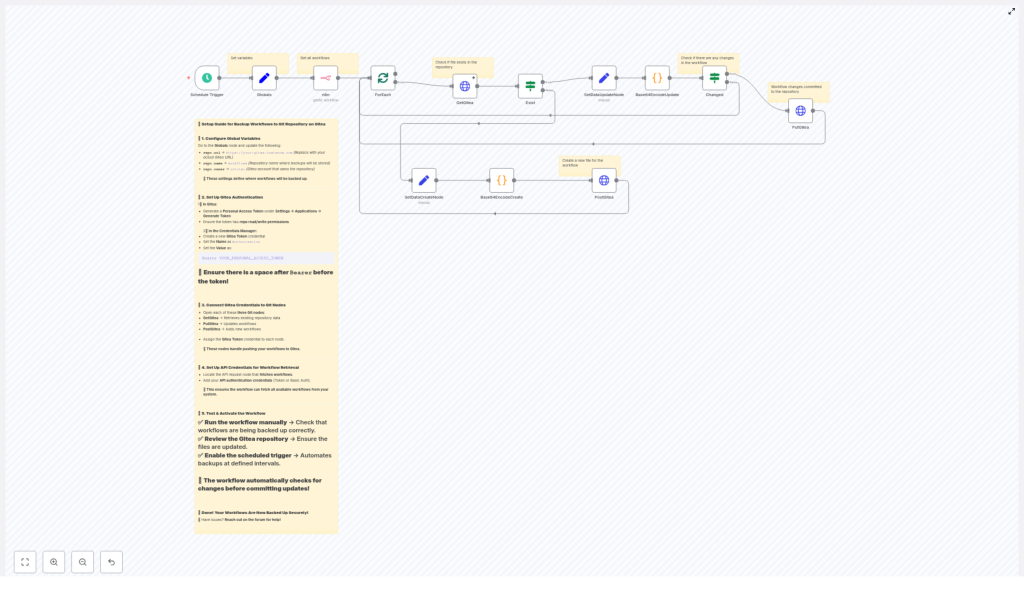
Backup n8n Workflows to Gitea: Automated Git Backups
Automating backups for your n8n workflows is one of the easiest ways to protect your automations and keep them reproducible. This guide walks you step by step through an n8n workflow template that automatically backs up all your workflows to a Gitea Git repository.
You will learn:
- Why backing up n8n workflows to Gitea (or any Git repo) is useful
- How the n8n-to-Gitea backup workflow works behind the scenes
- How to configure globals, credentials, and nodes in n8n
- How the workflow decides when to create or update files in Gitea
- Best practices for security, troubleshooting, and going live
Why back up n8n workflows to Gitea?
Using a Git repository as your backup destination gives you more than just a copy of your workflows. It also adds version control and collaboration features on top.
Backing up n8n workflows to Git (with Gitea in this example) provides:
- Version history – every change to a workflow is stored as a commit you can inspect or roll back
- Centralized storage – all workflows live in a single repository, easy to restore or clone
- Team collaboration – use branches, pull requests, and reviews around your automation logic
- Automated, scheduled backups – no manual exporting, the workflow runs on a schedule
In practice, this means you can treat your automations like code, with all the benefits of Git-based workflows.
How the n8n-to-Gitea backup workflow works
The provided n8n template automates the full backup process. At a high level, it:
- Triggers on a schedule (default: every 45 minutes)
- Fetches all workflows from your n8n instance
- Loops through each workflow one by one
- Checks if a matching JSON file already exists in your Gitea repository
- Creates a new file in Gitea if it does not exist
- Updates the file if it exists and the content has changed
- Stores each workflow as prettified JSON, base64-encoded as required by the Gitea API
To understand how to configure and customize this template, it helps to look at the main building blocks in n8n.
Key n8n nodes used in the template
Schedule Trigger
The Schedule Trigger node starts the backup workflow automatically.
- Default interval: every 45 minutes
- You can change this to any interval that fits your backup needs (for example hourly, daily, or custom cron)
Globals (configuration variables)
The Globals node holds configuration values that are reused across multiple nodes. This keeps URLs and repo details in one place.
It typically defines:
repo.url– your Gitea base URL, for examplehttps://git.yourdomain.comrepo.name– the name of the target repository, for exampleworkflowsrepo.owner– the user or organization that owns the repository
Other nodes will reference these variables when building API URLs.
n8n node (API request to list workflows)
The n8n API node retrieves all workflows from your n8n instance.
- It uses your n8n API (token or Basic Auth) to list workflows
- The output is a collection of workflow objects that will be processed one by one
Make sure this node has valid credentials and permission to list workflows.
ForEach / splitInBatches
The combination of ForEach and splitInBatches nodes is used to iterate over the workflows safely.
- splitInBatches controls how many workflows are processed at a time
- ForEach lets you handle each workflow individually
This approach helps avoid rate limits and keeps each API call to Gitea atomic. It is especially useful when you have many workflows.
GetGitea (HTTP Request)
The GetGitea node checks if a file already exists in your Gitea repository for the current workflow.
- It performs a
GETrequest to a URL like:
{repo.url}/api/v1/repos/{owner}/{repo}/contents/{workflow-name}.json - If the file exists, Gitea returns the file metadata and content, including the current
sha - If the file does not exist, Gitea returns an HTTP 404, which the workflow uses to trigger the create path
Exist, SetDataCreateNode, SetDataUpdateNode
These logic and helper nodes decide whether the workflow should create a new file or update an existing one.
- Exist interprets the result of GetGitea (for example 404 vs success)
- SetDataCreateNode prepares the data structure for creating a new file
- SetDataUpdateNode prepares the data for updating an existing file, including the required
sha
The output of these nodes is then sent to the encoding and HTTP request nodes.
Base64EncodeCreate / Base64EncodeUpdate
Gitea expects file content to be base64-encoded when using the repository contents API. The template uses two code nodes to handle this:
- Base64EncodeCreate – used when a file is created for the first time
- Base64EncodeUpdate – used when a file already exists and may be updated
Each of these nodes:
- Takes the workflow object
- Converts it to prettified JSON for readability in Git
- Converts the JSON string to UTF-8 bytes
- Encodes those bytes as base64
This base64 string becomes the content field in the Gitea API calls.
PostGitea and PutGitea (HTTP Request)
Two HTTP Request nodes handle the actual write operations to Gitea:
- PostGitea uses
POSTto create a new file when it does not exist - PutGitea uses
PUTto update an existing file, and must include the currentsha
The template wires these nodes so that they receive the correct base64 content and metadata from the previous steps.
Step-by-step setup in n8n
The following steps guide you through configuring this template in your own environment.
Step 1: Configure global variables
Open the Globals node and set the values for your Gitea instance:
repo.url– for examplehttps://git.your-gitea.comrepo.name– for exampleworkflowsrepo.owner– the username or organization that owns the repository
These values will be reused in the HTTP Request nodes to construct API URLs.
Step 2: Create a Gitea personal access token
The workflow authenticates to Gitea using a personal access token. Create one as follows:
- Log in to your Gitea instance
- Go to Settings → Applications → Generate Token
- Give the token read/write permissions for repositories (or the narrowest scope that still allows file creation and updates)
Next, store this token securely in n8n:
- Open Credentials in n8n
- Create a new credential of type HTTP Header Auth
- Name it something like
Gitea Token - Set the header to:
Authorization: Bearer YOUR_PERSONAL_ACCESS_TOKEN
Important: there must be a space after Bearer.
Step 3: Assign credentials to the Gitea HTTP Request nodes
Now connect the token to the nodes that talk to Gitea:
- Open the GetGitea node and select the
Gitea Tokencredential - Repeat for PostGitea and PutGitea
All Gitea API requests are now authenticated through this credential.
Step 4: Configure n8n API credentials
The node that retrieves workflows from n8n also needs valid authentication.
- Open the n8n API node in the workflow
- Provide either an API token or Basic Auth credentials
- Confirm that the account used has permission to list workflows
Once this is set, the node will be able to fetch all workflows for backup.
Step 5: Adjust the schedule (optional)
If the default 45-minute interval does not fit your needs, edit the Schedule Trigger node:
- Change the interval to the frequency you want
- Or switch to a cron expression if you need more precise control
How the workflow chooses between create and update
For each workflow, the template follows a clear decision path to avoid unnecessary commits.
1. Check if the file exists in Gitea
The GetGitea node performs a GET request to the Gitea contents API for a file named:
{workflow-name}.json
Two outcomes are possible:
- File not found (HTTP 404) – the workflow has never been backed up to this repo
- File found (HTTP 200) – the workflow already exists as a JSON file in the repo
2. Route to create or update logic
The Exist node looks at the HTTP status:
- If 404, it triggers the create path
- If successful, it triggers the update path
The two paths look like this:
- Create path:
Base64EncodeCreate → PostGitea - Update path:
Base64EncodeUpdate → Changed? → PutGitea
3. Compare content before updating
On the update path, the workflow does not blindly send a PUT request. Instead, a Changed node performs a strict string comparison:
- It compares the current base64-encoded content generated from the latest workflow
- With the base64-encoded content already stored in Gitea
Only if these two strings differ does the workflow proceed to call PutGitea. That way, no unnecessary commits are created when nothing has changed.
When updating, the PutGitea node includes:
- The new base64-encoded
content - The existing file
shafrom the GetGitea response - A commit message such as
Update workflow {name}
Example Gitea API call patterns
The template uses the standard Gitea repository contents API. The calls look like this:
Get file (used in GetGitea):
GET {repo.url}/api/v1/repos/{owner}/{repo}/contents/{filename}.json
Create file (used in PostGitea):
POST {repo.url}/api/v1/repos/{owner}/{repo}/contents/{filename}.json
Body: {  "content": "<base64-encoded-content>",  "message": "Add workflow {name}"
}
Update file (used in PutGitea, requires sha):
PUT {repo.url}/api/v1/repos/{owner}/{repo}/contents/{filename}.json
Body: {  "content": "<base64>",  "sha": "<current-sha>",  "message": "Update workflow {name}"
}
Troubleshooting and optimization tips
Common issues and how to fix them
- Authorization errors
Check that:- Your Gitea token is valid and not expired
- The header is exactly
Authorization: Bearer <token> - The token has the required repository read/write scope
- 404 errors when the repository exists
This usually indicates a URL or variable issue:- Verify
repo.ownerandrepo.namein the Globals node - Confirm that these values are correctly inserted into the HTTP Request URLs
- Make sure any special characters are properly URL-encoded if needed
- Verify
- PUT failures or missing
sha
When updating a file, Gitea requires the currentsha:- Ensure the GetGitea node is returning the
sha - Check that the SetDataUpdateNode passes this
shainto the PutGitea body
- Ensure the GetGitea node is returning the
- Encoding or corrupted content
Gitea expects base64-encoded UTF-8 bytes of the file content:- Confirm the Base64Encode nodes convert the workflow to prettified JSON first
- Then ensure that JSON is encoded as UTF-8 bytes and finally as base64
- Do not send raw JSON directly to the
contentfield
Operational best practices
- Test manually before scheduling
Run the workflow manually from n8n and:- Watch the execution log for any errors
- Check the Gitea repository for newly created workflow JSON files
- Use batches for large instances
If you have many workflows
