


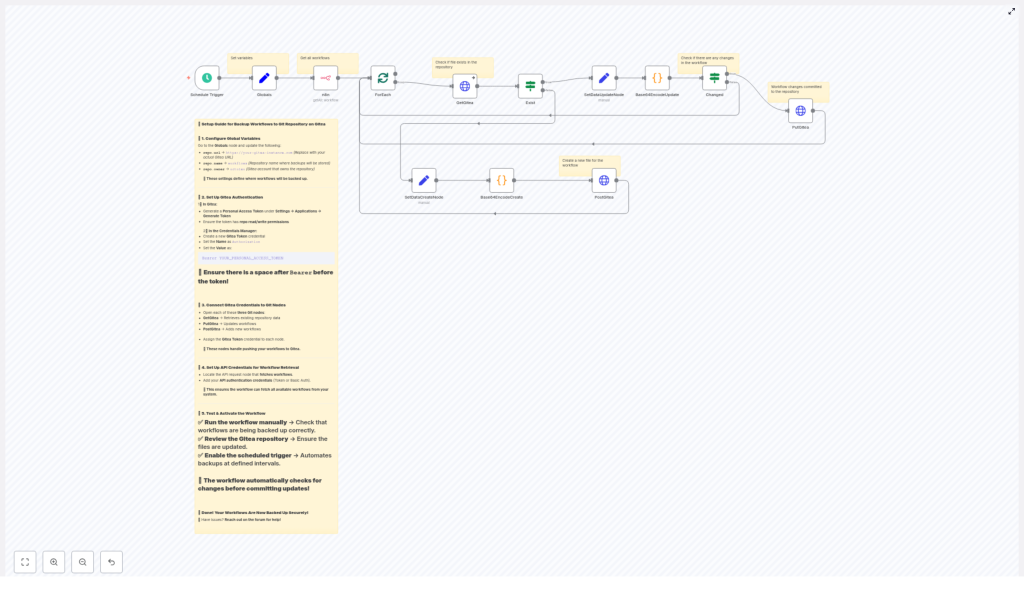
Backup n8n Workflows to Gitea (Automated Guide)
Imagine spending hours perfecting your n8n workflows, only to lose them because of a bad update, accidental deletion, or a migration gone wrong. Not fun, right?
This is exactly where an automated backup to Gitea saves the day. In this guide, we will walk through a ready-to-use n8n workflow template that regularly exports all your workflows and commits them to a Gitea repository. You will see what the template does, when to use it, and how to set it up step by step, all in a practical and friendly way.
By the end, you will have a production-ready backup system that quietly runs in the background and keeps your workflows safe, versioned, and easy to restore.
What This n8n – Gitea Backup Template Actually Does
Let us start with the big picture. This n8n template:
- Automatically pulls all workflows from your n8n instance using the n8n API
- Iterates over each workflow and converts it into a JSON file
- Checks your Gitea repository to see if that workflow file already exists
- Creates a new file if it is missing, or updates it only when there are real changes
- Commits everything to Git so you get a full version history of your workflows
Everything runs on a schedule you control, so once it is configured, you can mostly forget about it and enjoy automatic, versioned backups.
Why Back Up n8n Workflows to Gitea?
You might be wondering, why Gitea specifically? If you are already using Git for code, backing up n8n workflows to a Git-based system like Gitea feels very natural.
Gitea is a lightweight, self-hosted Git service that is perfect for storing workflow JSON files. Combined with this n8n automation, you get:
- Versioned history – Every workflow change is tracked, so you can roll back or audit changes easily.
- Automatic backups on a schedule – No more manual exports or “oops, I forgot to back that up”.
- Self-hosted control – Keep everything on your own infrastructure with Gitea access management.
- Team-friendly – Share, review, and protect workflows with Git workflows and permissions.
- Cost-effective – Gitea is lightweight and great for teams that want control without heavy overhead.
In short, this template turns your n8n instance into something that behaves more like a codebase, with proper version control and safety nets.
How the Workflow Template Works Behind the Scenes
Now let us peek under the hood. The backup flow is built using standard n8n nodes plus a bit of logic to keep things efficient and clean.
High-level flow
On a regular schedule, the workflow:
- Triggers at the configured interval.
- Calls the n8n API to fetch all workflows.
- Loops through each workflow one by one.
- Builds a file name for that workflow (for example,
My Workflow.json). - Checks Gitea to see if that file already exists in the repo.
- If it does not exist, creates a new file with base64-encoded JSON.
- If it exists, compares the content and only commits an update if something has changed.
Core nodes and what they handle
- Schedule Trigger – Starts the backup every X minutes or on whatever schedule you choose.
- n8n (API Request) – Calls your n8n instance to retrieve all workflows.
- ForEach / splitInBatches – Iterates through each workflow item so you can process them individually.
- GetGitea – Uses the Gitea Contents API to check if a file already exists at a given path.
- Exist (IF) – Branches the logic to either create a file or update an existing one based on the HTTP response.
- Base64Encode (Code) – Pretty-prints the workflow JSON and encodes it in base64, which is what the Gitea API expects.
- PostGitea / PutGitea – Sends POST requests to create new files or PUT requests to update existing ones.
- Changed (IF) – For updates, compares the base64 content in Gitea with the new base64 content so you avoid unnecessary commits.
The result is a clean Git history with one commit per actual change, not one per run.
Before You Start: What You Need
To use this n8n workflow template effectively, you will need:
- A running n8n instance with access to the Credentials Manager
- A Gitea server you can reach from n8n
- Permissions to create repositories and personal access tokens in Gitea
Once you have those, you are ready to set things up.
Step-by-step Setup Guide
1. Create a repository in Gitea
First, you need a place to store your backups.
- In Gitea, create a new repository, for example:
workflows. - Choose the appropriate owner (your user or an organization).
- If your workflows are sensitive, set the repository to private.
This repo will end up with one JSON file per workflow, plus any extra metadata you decide to add later.
2. Generate a Gitea Personal Access Token
The workflow will authenticate to Gitea using a personal access token.
- In Gitea, go to Settings → Applications.
- Click Generate Token.
- Give it a descriptive name, such as
n8n-backup. - Grant it repository read/write (repo) permissions.
- Generate the token and copy it right away. You will not be able to view it again later.
3. Store the token in n8n credentials
Never hardcode tokens in workflows. Instead, store them as credentials in n8n.
In the n8n Credentials Manager, create a new credential of type HTTP Header Auth (or a similar type that fits your setup):
Name: Gitea Token
Header: Authorization
Value: Bearer YOUR_PERSONAL_ACCESS_TOKEN

Note: Include a space after "Bearer".
You will reference this credential from your HTTP nodes that talk to Gitea.
4. Configure global repository variables
The template uses a Globals (or similar configuration) node to store values used across multiple nodes. This keeps your setup clean and easy to maintain.
Set the following variables:
repo.url = https://git.example.com
repo.owner = your-user-or-org
repo.name = workflows
Replace these with your actual Gitea URL, owner, and repository name. Other nodes can then reference repo.url, repo.owner, and repo.name instead of repeating them.
5. Wire up the workflow nodes
Now connect everything according to the provided template. While you do not have to reinvent the structure, there are a few important details to watch out for:
- n8n API node
Configure it to authenticate against your n8n instance and retrieve all workflows. Make sure the base URL and credentials are correct. - File naming
For each workflow, build a safe file name. A simple pattern is:{{ $json.name }}.jsonor similar, depending on how you reference the workflow name in the node. Avoid characters that do not work well in file paths.
- Gitea Contents API call
To check if a file exists, use:GET /api/v1/repos/{owner}/{repo}/contents/{path}The
{path}is usually your workflow JSON file path, for exampleMy Workflow.jsonor a nested path likeworkflows/My Workflow.json. - Handling existing files
When the file exists, read thecontent(base64-encoded) and thesha. Theshais required for updates, and thecontentlets you compare old vs new versions. - Encoding workflow JSON
Before sending workflow data to Gitea, pretty-print the JSON and base64-encode it. This is handled by a Code node in the template, so you get readable diffs in Git. - Skip unchanged content
On updates, compare the new base64 content with the existing base64 content. If they match, you can skip committing to avoid cluttering your history.
Once everything is wired and credentials are attached, your workflow is structurally ready.
Gitea API Requests Used by the Template
The template talks to Gitea using the Contents API. If you ever need to debug or extend it, it helps to know the exact endpoints.
Create a new workflow file (POST)
POST /api/v1/repos/:owner/:repo/contents/:path
Body: { "content": "<base64>", "message": "Add workflow: my-workflow.json" }
Here:
:owneris your user or organization:repois the repository name, for exampleworkflows:pathis the file path inside the repo, likemy-workflow.jsoncontentis the base64-encoded JSONmessageis the commit message
Update an existing workflow file (PUT)
PUT /api/v1/repos/:owner/:repo/contents/:path
Body: { "content": "<base64>", "sha": "<file-sha>", "message": "Update workflow: my-workflow.json" }
When updating, the sha of the existing file is required. This is why the GetGitea node first fetches the current file metadata.
How the Workflow Handles JSON Encoding
Plain JSON is not enough for the Gitea contents endpoint. It expects the file content as base64-encoded text. To make your Git diffs readable, the template does two small but important things:
- Pretty-prints the workflow JSON with consistent indentation (for example, 2 or 4 spaces). This makes Git diffs easy to review.
- Base64-encodes the UTF-8 bytes of that pretty-printed JSON string so it matches what Gitea expects.
A small Code node in the workflow is responsible for this. As long as you keep the indentation consistent, your diffs will be clean and your content comparisons reliable.
Testing Your Backup Workflow
Before you switch on the schedule and walk away, it is worth running a few quick checks.
- Manual test run
Execute the workflow manually in n8n and verify that a file appears in your Gitea repo for each workflow. - Check commit messages and timestamps
Make sure the commit messages are informative. You can include workflow ID, name, or version in the message if you like. - Change detection
Edit one of your n8n workflows, then run the backup workflow again. Confirm that:- A new commit is created for the changed workflow
- Unchanged workflows do not get new commits
- Enable the Schedule Trigger
Once you are happy with the behavior, turn on the Schedule Trigger so the backup runs automatically.
Troubleshooting Common Issues
If something does not work on the first try, you are not alone. Here are some frequent issues and how to handle them.
- 401 or 403 errors
Authentication issues usually mean the token header is not quite right. Double-check that you are using:Authorization: Bearer YOUR_TOKENand that your token has the required repo permissions.
- 404 from GetGitea
A 404 often just means the file does not exist yet, which is fine on the first run. If you expected it to exist, verify:- The filename and path match exactly what you see in the repo
- Your
repo.owner,repo.name, andrepo.urlare correct
- Encoding problems
Make sure you are base64-encoding the UTF-8 bytes of the pretty-printed JSON. If the content comparison seems off, confirm that the same formatting is used every time. - Very large workflows
Gitea has file size limits. If your workflows are extremely large, consider:- Splitting them into smaller parts
- Compressing or pruning non-essential data before backup
- Rate limits with many workflows
If you have hundreds of workflows, you might hit API throttling. In that case, try:- Using
splitInBatchesto process smaller groups - Adding small delays between requests
- Using
Security & Best Practices
Since this workflow touches both your automations and your Git server, it is worth setting it up with security in mind.
- Keep tokens in credentials
Always store your Gitea token in n8n credentials, not in plain workflow variables or code. - Use a dedicated service account
In Gitea, create a user or service account specifically for n8n backups with only the repo access it needs. - Limit repository visibility
Set the backup repo to private and use branch protection rules if you are working with multiple branches. - Rotate tokens periodically
Regenerate your personal access token from time to time and keep track of where it is used.
Ideas for Extending the Backup Workflow
Once you have the basic backup flow working, you can easily build on top of it. Here are a few ideas:
- Metadata index file
Maintain anindex.jsonfile that lists workflow IDs, names, timestamps, and last commit SHAs for quick reference. - Use a dedicated backups branch
Instead of committing directly tomain, push changes to abackupsbranch and open pull requests for review. - Handle sensitive data carefully
If your workflows contain secrets, consider encrypting the JSON before storing it, or better, stripping out secrets before export. - Notifications on failures or
