


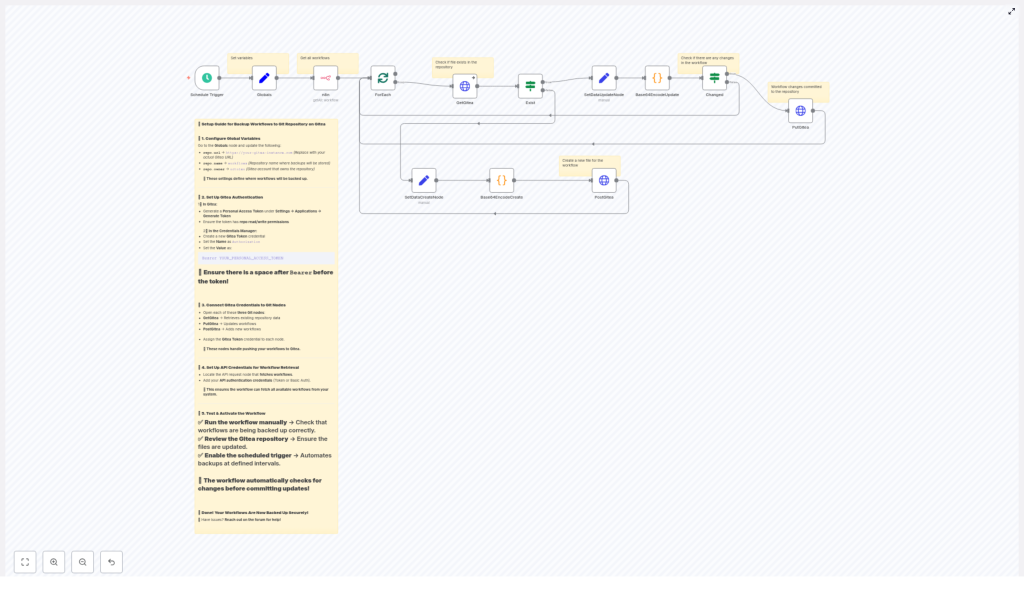
Reliable backups are a critical part of any automation strategy. For n8n users, treating workflows as versioned, auditable assets is essential for resilience, disaster recovery, and team collaboration. This guide explains a production-ready n8n workflow template that automatically exports all workflows and commits them to a Gitea Git repository. You will learn how the template operates, how to configure Gitea authentication, and how to apply automation best practices for secure, incremental backups.
Why store n8n workflows in Gitea?
Persisting workflows only in the n8n database introduces risk and limits collaboration. By backing up n8n workflows to a Git repository such as Gitea, you gain the benefits of modern software lifecycle management for your automations.
Key advantages of using Gitea for n8n workflow backups include:
- Full version history and diffs for every workflow change
- Rollback capability through Git commits and branches
- Centralized, access-controlled storage for teams and service accounts
- Integration with CI/CD, code review, and governance workflows
- Automated, scheduled backups that reduce manual export and import tasks
Architecture of the n8n-to-Gitea backup workflow
The provided n8n template implements a scheduled backup pipeline that synchronizes your n8n workflows with a Gitea repository. At a high level, the workflow:
- Runs on a defined schedule via a trigger
- Retrieves all workflows from the n8n instance
- Iterates over each workflow individually
- Checks whether a corresponding JSON file exists in Gitea
- Creates the file if it does not exist, or updates it only when content has changed
File contents are pretty-printed JSON, then base64 encoded to comply with the Gitea Content API. To avoid unnecessary commits, the workflow compares content and uses the file SHA from Gitea to ensure safe, conditional updates.
Core components and n8n nodes
The workflow is built from a set of reusable, clearly scoped nodes. Understanding each node will help you customize or extend the template for your environment.
1. Schedule Trigger – controlling backup frequency
The Schedule Trigger node initiates the backup at regular intervals, for example every 45 minutes. You can align this interval with your operational policies, such as:
- Frequent backups for rapidly changing development environments
- Less frequent backups for stable production instances
Adjust the cron or interval configuration directly in the Schedule Trigger node to match your backup strategy.
2. Globals (Set) – centralized repository configuration
The Globals (Set) node acts as a configuration hub. It stores repository-related metadata that is reused across the workflow:
repo.url– base URL of your Gitea instancerepo.name– repository name (for example,workflows)repo.owner– owner of the repository (user or organization)
Keeping these values in a single node simplifies maintenance and makes it easier to migrate between environments or repositories.
3. n8n API request – retrieving workflows
A dedicated n8n API request node fetches the list of workflows from your n8n instance. This node must be configured with valid API credentials, such as:
- An n8n API token
- Basic authentication credentials
Ensure that the credentials have sufficient permissions to read all workflows that you intend to back up. The node output is then used as the input for the iteration logic.
4. ForEach (Split In Batches) – iterating through workflows
The ForEach (Split In Batches) node processes each workflow individually. For each item in the list of workflows, the flow:
- Builds the target file name in Gitea, typically
<workflow-name>.json - Checks whether the file already exists in the repository
- Prepares the workflow JSON for storage
- Either creates a new file or updates an existing one
This pattern provides clear isolation per workflow and simplifies debugging, since each iteration represents a single workflow backup operation.
5. GetGitea (HTTP Request) – detecting existing files
The GetGitea node is an HTTP Request node configured to call the Gitea Content API. It attempts to retrieve the file that corresponds to the current workflow. Behavior:
- If the file exists, the node returns the file metadata and content, including the SHA
- If the file does not exist, Gitea returns a 404 response
This node uses a Personal Access Token via HTTP Header authentication so that all requests are properly authorized.
6. Exist (If) – branching on presence in the repository
The Exist (If) node inspects the result of the GetGitea call and branches the logic:
- File missing (404) – route to the branch that creates a new file in Gitea
- File present – route to the branch that compares contents and updates the file only when necessary
This conditional split ensures that the workflow handles initial backup and subsequent updates in a controlled manner.
7. Base64EncodeCreate / Base64EncodeUpdate (Code) – preparing content
Two Code nodes, typically named Base64EncodeCreate and Base64EncodeUpdate, handle content preparation:
- Convert the workflow object into a pretty-printed JSON string
- Encode the JSON string as base64
The Gitea Content API requires file content to be base64 encoded for both create and update operations. Pretty-printing ensures that the stored JSON is human-readable, which improves code review and troubleshooting.
8. Changed (If) – avoiding unnecessary commits
The Changed (If) node compares the newly encoded workflow content with the content currently stored in Gitea. If the base64 payloads differ, the workflow proceeds to update the file. If they are identical, the update is skipped.
This approach prevents noisy commit histories and reduces load on the Git server, resulting in a clean and meaningful version history.
9. PostGitea and PutGitea (HTTP Request) – creating and updating files
The workflow uses two HTTP Request nodes to write data to Gitea:
- PostGitea – creates a new
.jsonfile in the repository when no file exists for the workflow - PutGitea – updates an existing file, including passing the file SHA returned from GetGitea to perform a safe, concurrent-aware update
Both nodes use the same HTTP Header Auth credential and send the base64-encoded content along with commit metadata (such as commit message and branch, depending on your configuration).
Configuring Gitea authentication
Secure integration with Gitea is handled via Personal Access Tokens and HTTP Header authentication in n8n. Follow these steps:
- In Gitea, create a Personal Access Token with repository read and write permissions:
Settings → Applications → Generate Token. - In n8n, create a new credential of type HTTP Header Auth and define a header:
Authorization: Bearer YOUR_PERSONAL_ACCESS_TOKEN
Ensure there is a space betweenBearerand the token value. - Attach this credential to the GetGitea, PostGitea, and PutGitea nodes so all Gitea API calls use the same authentication mechanism.
Deployment workflow and validation checklist
Before enabling the schedule in a production environment, validate the full backup pipeline end to end. A recommended checklist:
- Run the workflow manually and confirm that the n8n API node successfully retrieves workflows.
- Verify that GetGitea returns either the existing file content or a 404 when the file does not exist.
- Check that PostGitea correctly creates new JSON files in the target repository by inspecting the Gitea web UI.
- Modify one of your n8n workflows, then run the backup workflow again and verify that PutGitea updates the corresponding file only when the content has changed.
- Review the Gitea commit history to confirm that commits have clear timestamps, meaningful changes, and no redundant updates.
Security considerations and best practices
When automating backups of production workflows, adhere to common security and governance practices:
- Store Personal Access Tokens exclusively in n8n credentials, not in plain text within workflow variables or code nodes.
- Restrict token scope to the minimum required permissions, ideally read and write access only to the specific backup repository.
- Use a dedicated service account as
repo.ownerfor automated backups instead of a personal user account, to improve traceability and reduce risk. - Adopt a branch strategy that aligns with your CI/CD and review processes, for example using a protected main branch and committing backups to a dedicated branch.
- Keep workflow JSON human-readable via pretty-printing, but avoid storing secrets directly in workflows. If secrets are unavoidable, consider additional obfuscation or encryption strategies.
Troubleshooting common issues
Frequent error responses
- 401 or 403 from Gitea – typically caused by invalid or missing credentials, or insufficient token scope. Recheck the
Authorizationheader and confirm the token has the correct permissions. - 404 from GetGitea – expected behavior when a file does not yet exist. If unexpected, validate the repository path, branch, and constructed filename.
- SHA mismatch on update – occurs when the SHA provided to PutGitea does not match the current file version in Gitea. Ensure the workflow uses the latest SHA returned from GetGitea for each update.
Debugging techniques
For accurate diagnosis, use n8n’s execution data and node outputs:
- Enable full output on relevant nodes and execute the workflow manually.
- Start with a small subset of workflows or a test repository to simplify inspection.
- Inspect the base64-encoded payload and decode it to verify that it matches the expected pretty-printed JSON before committing to Gitea.
Extending and customizing the template
The template provides a robust foundation, but many teams extend it to meet specific compliance, governance, or resilience requirements. Common enhancements include:
- Organizing backups into timestamped directories or including metadata files that record author, export time, and environment details.
- Mirroring backups to multiple Git providers, such as GitHub or GitLab, for additional redundancy.
- Integrating a diff or comparison step that generates a human-readable summary and includes it in commit messages or notifications.
- Encrypting sensitive fields before storing workflows in Git and managing encryption keys outside of n8n.
Conclusion and recommended next steps
Automating n8n workflow backups to a Gitea repository transforms your automations into fully versioned, auditable assets. With the described template, a properly scoped token, and a clear schedule, you gain reliable, incremental backups that only commit when workflows change.
To implement this in your environment:
- Import the template into your n8n instance.
- Configure the Globals node with
repo.url,repo.name, andrepo.owner. - Create the Gitea Personal Access Token and set up the HTTP Header Auth credential.
- Attach the credential to the Gitea-related nodes and run the workflow manually to validate behavior.
- Once validated, enable the Schedule Trigger to activate automated backups.
If you require more advanced customization, consult the Gitea API documentation for additional repository operations or engage with the n8n community forum for patterns and best practices used by other automation teams.
Call to action: Import the template today, put your n8n workflows under version control, and subscribe for more expert n8n automation patterns and templates.
