


Backup n8n Workflows to a Gitea Git Repository (Without Thinking About It)
If you have a bunch of n8n workflows running important automations, you probably do not want to lose them. Manually exporting and backing them up gets old fast, right?
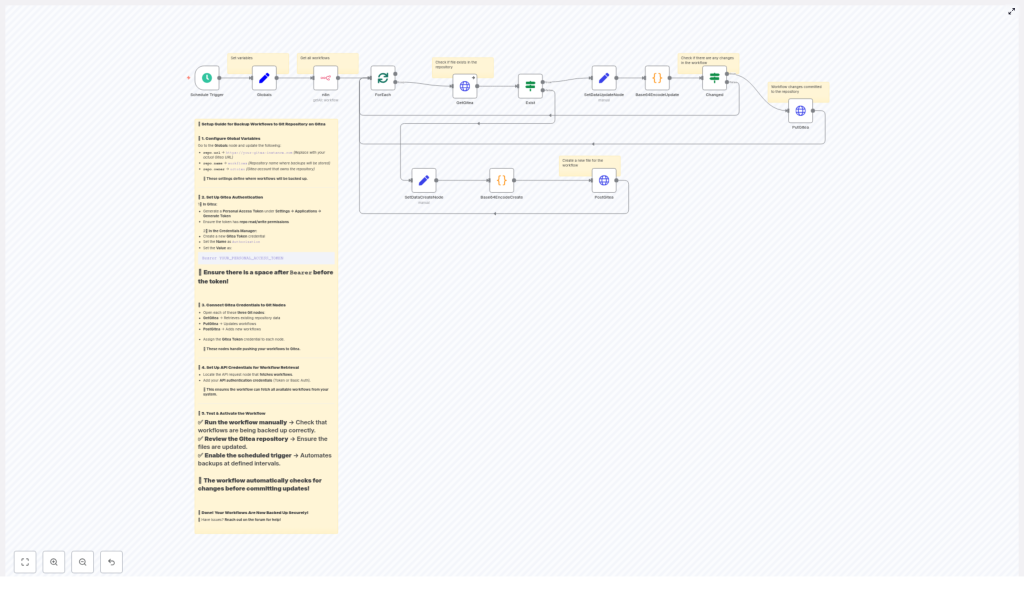
This n8n workflow template takes that off your plate. It automatically pulls your workflows from n8n, turns them into JSON files, and syncs them to a Gitea repository on a schedule. It checks what changed, creates new files when needed, and updates existing ones only when there is a real difference.
In this guide, we will walk through what the template does, why you might want it, and how to set it up step by step. Think of it as version control and backup for your automations, running quietly in the background.
Why back up n8n workflows to Gitea?
Before diving into nodes and tokens, let us talk about why this is worth setting up at all.
- Git-based versioning – Every change to a workflow becomes a commit, so you can see who changed what and when, and roll back if something breaks.
- Off-site safety net – Your workflows live somewhere other than your n8n instance. If you lose the instance or a database, you still have the JSON files in Gitea.
- Hands-off automation – A scheduled n8n workflow keeps your backups fresh without you having to remember anything.
- Great for self-hosting – Gitea is lightweight, easy to self-host, and perfect for private repositories and internal automations.
So if you care about auditability, rollback, or just sleeping better at night, this template is a simple win.
What this n8n-Gitea backup template actually does
At a high level, the template:
- Runs on a schedule using a Schedule Trigger.
- Fetches all workflows from your n8n instance via the n8n (API request) node.
- Processes each workflow one by one using ForEach / splitInBatches.
- Checks Gitea to see if a corresponding JSON file already exists with GetGitea.
- Decides whether to create or update the file using the Exist and Changed logic.
- Base64-encodes pretty-printed JSON through Base64EncodeCreate and Base64EncodeUpdate nodes.
- Creates or updates the file in Gitea via PostGitea and PutGitea using the Gitea contents API.
The end result: each workflow in n8n gets a matching .json file in your Gitea repo, and only real changes result in new commits.
When should you use this template?
This template is a great fit if you:
- Run production or business-critical workflows in n8n.
- Want Git-style history for your automations.
- Already use Gitea or want a private, self-hosted Git solution.
- Prefer automated backups over manual exports and imports.
If you are experimenting casually with n8n, you might not need this right away. But once your workflows start doing real work for your team, this kind of backup becomes very handy.
Key nodes in the template, explained like a human
Let us break down the main pieces of the workflow and what each one is responsible for.
Schedule Trigger
This node decides when the backup runs. You can set it to run hourly, daily, weekly, or whatever fits your needs. Once enabled, it kicks off the entire process automatically.
Globals node
The Globals node is where you store your Gitea repository details in one place so you do not have to hardcode them all over the workflow:
repo.url– your base Gitea URL, for example https://git.example.com.repo.owner– the user or organization that owns the repository.repo.name– the name of the repository that will store your workflow JSON files, for example workflows.
n8n (API request) node
This node talks to the n8n API and pulls down all your workflows. The template expects an array of workflows, each with a name and a JSON body. That JSON is exactly what ends up in your Git repository.
ForEach / splitInBatches
Instead of processing everything in one big lump, the workflow loops through each workflow individually. That keeps things manageable and lets the template handle each workflow file separately in Gitea.
GetGitea and Exist logic
The GetGitea node checks if there is already a file in the repository for the current workflow. The Exist node then branches the flow:
- If the file does not exist (404 from Gitea), it goes down the “create” path.
- If the file does exist, it heads to the “compare and maybe update” path.
Changed logic, PostGitea and PutGitea
When the file already exists, the template does not blindly overwrite it. Instead, it:
- Base64-encodes the current workflow JSON.
- Compares it with the existing file content using the Changed IF node.
- If the content is different, PutGitea updates the file using the
shathat Gitea returned from GetGitea. - If nothing changed, it simply skips the update, avoiding unnecessary commits.
For new workflows, the PostGitea node is used to create a fresh file in the repository.
Base64EncodeCreate / Base64EncodeUpdate
Gitea’s contents API expects file content in base64 format. These nodes handle the conversion:
- They pretty-print the workflow JSON so it is readable in Git.
- They convert that JSON string to bytes.
- They encode those bytes as base64 and return a payload ready for the HTTP Request nodes.
Each workflow is stored as workflow-name.json, for example my-workflow.json.
Step-by-step setup guide
Ready to get it running? Here is how to configure the template in a few steps.
1. Import the template and set your globals
- Import the n8n template into your n8n instance.
- Open the
Globalsnode and fill in:repo.url– your Gitea base URL, such as https://git.example.com.repo.owner– the user or organization that owns the repo.repo.name– the repository name that will store the workflow JSON files.
2. Create a Gitea personal access token and credential
Next, you need to give n8n permission to talk to your Gitea instance.
- In Gitea, create a Personal Access Token with repo read/write permissions.
- In n8n, create a new credential (for example an HTTP Header or generic credential).
- Add the following header:
Authorization: Bearer YOUR_PERSONAL_ACCESS_TOKEN - Assign this credential to the
GetGitea,PostGitea, andPutGiteaHTTP Request nodes.
3. Configure the n8n API node that retrieves workflows
The template includes an n8n API Request node that fetches all workflows from your instance. You just need to make sure it can authenticate correctly.
- Configure the node with the right base URL and authentication (API token or other n8n credentials).
- Confirm that the node returns an array of workflows, each with a name and JSON body.
Once this is set, the rest of the workflow can loop over and back up each workflow.
4. Understand and verify the create vs update behavior
It is helpful to know exactly what happens for each workflow, especially when testing:
- The workflow tries a GET request in Gitea for the corresponding file via
GetGitea. - If Gitea responds with 404, the
Existnode routes to the “create” path, andPostGiteacreates a new file. - If Gitea finds the file, the content is fetched and compared:
- The new workflow JSON is base64-encoded.
- The
ChangedIF node checks if the encoded content differs from what is already in the repository.
- If it changed,
PutGiteaupdates the file using the existing file’sshafromGetGitea. - If it did not change, no update is performed, and no new commit is created.
5. Run a manual test, then enable the schedule
- Run the workflow manually once.
- Inspect the node outputs to confirm:
- The n8n API node is returning workflows correctly.
- The Base64 encoding nodes are generating the right payload.
- The Gitea HTTP nodes are returning success responses.
- Check your Gitea repository to see the new or updated
.jsonfiles. - Once everything looks good, enable the Schedule Trigger so backups run automatically.
From this point on, the template quietly keeps your Gitea repo in sync with your n8n workflows and only commits when something actually changes.
Security tips and best practices
Since this workflow touches tokens and potentially sensitive automation logic, a bit of security hygiene goes a long way.
- Always store tokens as n8n credentials, not as plain text in variables or nodes.
- Use the minimum required scopes for your Gitea token, typically repo read/write only.
- Limit access to the backup repository, especially if workflow JSON contains sensitive logic or references.
- Avoid storing secrets directly inside workflows when possible, or consider encrypting sensitive environment variables or secrets before they end up in Git.
Troubleshooting common issues
If something is not working as expected, here are the most common problems and how to think about them.
Typical error codes and what they mean
- 401 / Unauthorized – Usually a credential issue. Double-check that:
- The Authorization header looks like
Bearer YOUR_TOKEN. - The token is valid and has repo read/write permissions.
- The Authorization header looks like
- 404 on GetGitea – This is often
an error. It simply means the file does not exist yet. The template treats this as the “create” path for new workflows. - Encoding mismatches – If updates keep happening when you do not expect them, make sure the Base64 encoding nodes are using the same pretty-printed JSON string each time. Even whitespace or formatting changes can affect comparisons.
Debugging tips inside n8n
- Run the workflow manually and inspect each node’s output to see exactly what is being sent to and returned from Gitea.
- Check the response bodies from the Gitea HTTP Request nodes. They often include detailed error messages.
- Temporarily adjust nodes to return raw content or extra fields so you can compare what n8n thinks the file looks like versus what Gitea has stored.
Ideas to customize the backup workflow
Once the basic setup is running, you can extend the template to better match your team’s workflow.
- Use subfolders per environment – Store files under paths like
prod/,staging/, ordev/to keep things organized. - Snapshot with timestamps – Instead of overwriting a single file, include a timestamp in the filename to keep a history of snapshots, for example
my-workflow-2025-01-01.json. - Branch-based workflow – Push changes to a feature or backup branch and open an automated pull request, instead of committing directly to the main branch.
- Integrate with CI or Git hooks – Trigger tests, validation scripts, or linters on workflow JSON before merging into your main branch.
Quick start checklist: how to use this template
- Import the backup template into your n8n instance.
- Fill in the
Globalsnode with your Gitea URL, owner, and repository name. - Create a Gitea Personal Access Token with repo read/write scope.
- Set up an HTTP Header (or generic) credential in n8n with:
Authorization: Bearer YOUR_PERSONAL_ACCESS_TOKEN - Attach that credential to the
GetGitea,PostGitea, andPutGiteanodes. - Configure the n8n API node so it can fetch your workflows from your n8n instance.
- Run the workflow manually once and check Gitea to confirm the JSON files are created or updated.
- Enable the Schedule Trigger so backups run automatically on your chosen interval.
After that, you can mostly forget about it. Your workflows will be versioned, backed up, and easy to restore if needed.
Ready to secure your automations?
If you are using n8n in any serious way, having your workflows backed up to Gitea is a low-effort, high-value safety measure.
Import the template, plug in your Gitea details and token, run a test backup, and you are done. If you get stuck at any point, you can always ask for help in the n8n community forum or check the official n8n and Gitea documentation for more API details.
Tip: If this template saves you time, consider sharing your tweaks or improvements with the community, or building out a more advanced versioned backup strategy that fits how your team works.
Note: This guide assumes you are at least somewhat familiar with n8n nodes and Gitea. The template itself includes sticky notes and an internal setup guide inside the workflow, so you will have hints right where you need them while configuring.
