


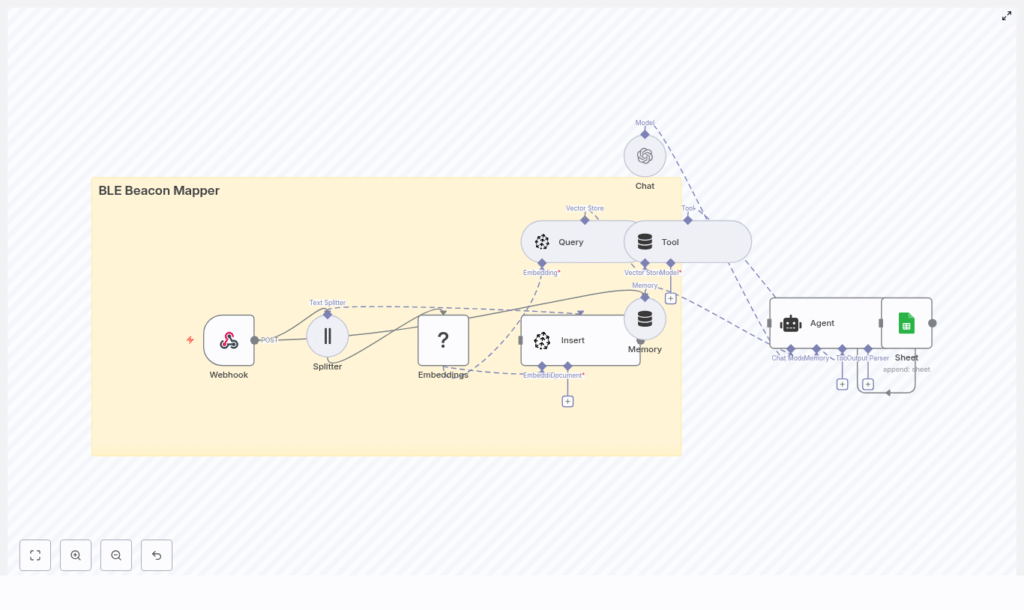
BLE Beacon Mapper: n8n Workflow Guide
Imagine turning a noisy stream of BLE beacon signals into clear, searchable insights that actually move your work forward. With the BLE Beacon Mapper n8n workflow, you can transform raw telemetry into structured knowledge, ready for search, analytics, and conversational queries. Instead of manually digging through logs, you get a system that learns, organizes, and answers questions for you.
This guide walks you through that transformation. You will see how the BLE Beacon Mapper template ingests beacon data, creates embeddings, stores them in Pinecone, and connects everything to a conversational agent. By the end, you will not just have a working workflow, you will have a foundation you can extend, experiment with, and adapt to your own automation journey.
From raw signals to meaningful insight
BLE (Bluetooth Low Energy) beacons are everywhere: in buildings, warehouses, retail spaces, campuses, and smart environments. They quietly broadcast proximity and presence data that can power:
- Indoor positioning and navigation
- Asset tracking and inventory visibility
- Footfall analytics and space utilization
The challenge is not collecting this data. The challenge is making sense of it at scale. Raw telemetry is hard to search, difficult to connect with context, and time-consuming to analyze manually.
That is where mapping telemetry into a vector store becomes a breakthrough. By converting beacon events into embeddings and storing them in Pinecone, you unlock the ability to:
- Search historical beacon events by context, such as location, device, or time
- Ask natural language questions about beacon activity
- Feed location-aware agents, dashboards, and automations with rich context
The BLE Beacon Mapper template uses n8n, Hugging Face embeddings, Pinecone, and an OpenAI-powered agent to create a modern BLE telemetry pipeline that works for you instead of against you.
Mindset: treating automation as a growth multiplier
Before diving into nodes and configuration, it helps to adopt the right mindset. This workflow is not just a technical recipe, it is a starting point for a more focused, automated way of working.
When you automate:
- You free time for higher-value work instead of repetitive querying and manual log analysis.
- You reduce human error and gain confidence that your data is consistently processed.
- You create a foundation that can grow with your business, your telemetry volume, and your ideas.
Think of this BLE Beacon Mapper as your first step toward a larger automation ecosystem. Once you see how easily you can capture, store, and query beacon data, it becomes natural to ask: What else can I automate? That question is where real transformation begins.
The BLE Beacon Mapper at a glance
The workflow is built around a simple but powerful flow:
- Receive BLE telemetry through a webhook.
- Prepare and split the data into chunks.
- Generate embeddings using Hugging Face.
- Store vectors and metadata in a Pinecone index.
- Query Pinecone when you need context.
- Let an agent (OpenAI) reason over that context in natural language.
- Log events and outputs to Google Sheets for visibility.
Each step is handled by a dedicated n8n node, which you can configure, extend, and combine with your existing systems. Below, you will walk through the workflow stage by stage, so you can fully understand, customize, and build on it.
Stage 1: Ingesting BLE telemetry with a webhook
Webhook node: your gateway for beacon data
The journey starts with the Webhook node. This is your public endpoint where BLE gateways or aggregators send telemetry.
Key configuration:
httpMethod: POSTpath: ble_beacon_mapper
Typical JSON payloads look like this:
{  "beacon_id": "beacon-123",  "rssi": -67,  "timestamp": "2025-08-31T12:34:56Z",  "gateway_id": "gw-01",  "metadata": { "floor": "2", "room": "A3" }
}
This is raw signal data. The workflow will turn it into something you can search and ask questions about.
Security tip: Protect this endpoint with an API key or signature verification on the gateway side, and ensure TLS is enforced. A secure webhook is a solid foundation for any production-grade automation.
Stage 2: Preparing data for embeddings
Splitter node: managing payload size intelligently
Once the webhook receives data, the Splitter node ensures that the payload is sized correctly for embedding. This becomes especially important when you ingest batched reports or telemetry with rich metadata.
Parameters used in the template:
chunkSize: 400chunkOverlap: 40
For single-event messages, this node has minimal visible impact, but as your setup grows and you send larger batches, it helps you stay efficient and avoids hitting limits in downstream services.
Over time, you can tune these values to balance cost and recall, especially if you start embedding longer textual logs or enriched descriptions.
Stage 3: Turning telemetry into vectors
Embeddings (Hugging Face) node: creating a searchable representation
The Embeddings node is where your telemetry becomes machine-understandable. Each chunk of text is converted into a vector embedding using a Hugging Face model.
Key points:
- The template uses the default Hugging Face model.
- You can switch to a specialized or compact model optimized for short IoT telemetry.
- Provide your Hugging Face API key using n8n credentials.
This step is what enables semantic search later. Instead of relying on exact string matches, you can find events that are similar in meaning or context, which is a huge step up from traditional log searches.
As your use case evolves, you can experiment with different models, measure search quality, and optimize for cost or performance. This is one of the easiest places to iterate and improve the workflow over time.
Stage 4: Persisting knowledge in Pinecone
Insert (Pinecone) node: building your vector index
After embeddings are generated, the Insert node writes them into a Pinecone index. In this template, the index is named ble_beacon_mapper.
Each document inserted into Pinecone should include rich metadata, such as:
beacon_idtimestampgateway_idrssi- Location tags like
floor,room, or asset type
This metadata unlocks powerful filtered queries. For example, you can search only for events on floor 2 or from a specific gateway, which keeps your results relevant and fast.
In n8n, you configure your Pinecone credentials and index details in the Insert node. Once this is set up, every incoming beacon event becomes part of a growing, searchable knowledge base.
Stage 5: Querying Pinecone and exposing it as a tool
Query node: retrieving relevant events
When you need context, the Query node reads from your Pinecone index. It can perform semantic nearest neighbor searches and apply metadata filters.
Typical usage includes:
- Fetching the last N semantically similar events to a query.
- Restricting results by location, gateway, or time window.
- Providing a focused context set for the agent to reason over.
Tool node (Pinecone): connecting the agent to your data
The Tool node, named Pinecone in the template, wraps the vector store as an actionable tool for the agent. This means your conversational model can call the Pinecone tool when it needs more context, then use the retrieved events to craft a better answer.
Instead of a static chatbot, you get a context-aware agent that can reference your actual BLE telemetry in real time.
Stage 6: Conversational reasoning with memory
Memory, Chat, and Agent nodes: turning data into answers
This stage is where your automation becomes truly interactive. The combination of Memory, Chat, and Agent nodes allows an LLM (OpenAI in the template) to reason over the retrieved context and respond in natural language.
The agent can answer questions like:
- “Where was beacon-123 most often detected this week?”
- “Show me unusual signal patterns for gateway gw-01 today.”
The Memory node keeps short-term conversational context, so you can ask follow-up questions without repeating everything. This makes your beacon data accessible not just to engineers, but to anyone who can ask a question.
As you grow more comfortable, you can swap models, add guardrails, or extend the agent with additional tools, turning this into a powerful conversational analytics layer.
Stage 7: Logging to Google Sheets for visibility
Google Sheets (Sheet) node: creating a human-friendly log
To keep a simple, human-readable trail, the template includes a Google Sheets node that appends events or agent outputs to a spreadsheet.
Default configuration:
- Sheet name:
Log
This gives you:
- A quick audit trail of processed events.
- Fast reporting or sharing with non-technical stakeholders.
- A place to store summaries generated by the agent alongside raw telemetry.
Over time, you can branch from this node to other destinations, such as BI tools, dashboards, or alerting systems, depending on how you want to grow your automation stack.
Deploying the BLE Beacon Mapper: step-by-step
Ready to make this workflow your own? Follow these steps to get the BLE Beacon Mapper running in your environment.
- Install n8n
Use n8n Cloud, Docker, or a self-hosted installation, depending on your infrastructure and preferences. - Import the workflow
Load the supplied workflow JSON into your n8n instance. This gives you the complete BLE Beacon Mapper template. - Configure credentials
In n8n, set up the required credentials:- Hugging Face API key for the Embeddings node.
- Pinecone API key and environment for the Insert and Query nodes.
- OpenAI API key for the Chat node, or another supported LLM provider.
- Google Sheets OAuth2 credentials for the Sheet node.
- Create your Pinecone index
In Pinecone, create an index namedble_beacon_mapperwith a dimension that matches your chosen embedding model. - Expose and secure the webhook
Ensure the webhook path is set toble_beacon_mapper, secure it with API keys or signatures, and test connectivity using a sample POST request. - Verify vector insertion and queries
Monitor the Insert node to confirm that vectors are being written to Pinecone. Run test queries to validate that your index returns meaningful results.
Quick webhook test with curl
Use this command to verify your webhook is receiving data correctly:
curl -X POST https://your-n8n-instance/webhook/ble_beacon_mapper \ -H "Content-Type: application/json" \ -d '{"beacon_id":"beacon-123","rssi":-65,"timestamp":"2025-08-31T12:00:00Z","gateway_id":"gw-01","metadata":{"floor":"2"}}'
If everything is configured correctly, this event will flow through the workflow, be embedded, stored in Pinecone, and optionally logged to Google Sheets.
Tuning, best practices, and staying secure
Once the template is running, you can refine it so it fits your scale, budget, and security requirements. Think of this phase as iterating toward a workflow that truly matches how you work.
- Chunk size
For short telemetry, consider loweringchunkSizeto 128-256 to reduce embedding cost. Increase it only if you start embedding longer textual logs. - Embedding model choice
Use a compact Hugging Face model if cost or speed is a concern. Periodically evaluate recall and accuracy to ensure you are getting the insights you need. - Pinecone metadata filters
Add metadata fields like floor, gateway, or asset type. This makes filtered queries faster and reduces irrelevant matches. - Retention strategy
For high-volume telemetry, consider a TTL or regular pruning to keep index size manageable and costs predictable. - Webhook security
Use HMAC or API keys, enforce TLS, and rate-limit the webhook to protect your n8n instance from abuse. - Observability
Add logs or metrics, such as pushing counts to Prometheus or appending more details to Google Sheets, to help with troubleshooting and capacity planning.
Ideas to extend and evolve your workflow
The real power of n8n appears when you start customizing and extending templates. Once your BLE Beacon Mapper is live, you can gradually add new capabilities that align with your goals.
- Geospatial visualization
Map beacon IDs to coordinates, then feed that data into a mapping tool to visualize hotspots, traffic patterns, or asset locations. - Real-time alerts
Combine this workflow with a rules engine to trigger notifications when a beacon enters or exits a zone, or when RSSI crosses a threshold. - Batch ingestion
Accept batched telemetry from gateways and let the Splitter node intelligently chunk the data for embeddings and storage. - Model-assisted enrichment
Use the Chat and Agent nodes to generate human-readable summaries of unusual beacon patterns and log those summaries automatically to Sheets or other systems.
Each small improvement compounds over time. Start with the core template, then let your real-world needs guide the next iteration.
Troubleshooting common issues
As you experiment, you might encounter a few common issues. Use these checks to get back on track quickly.
- No vectors in Pinecone
Confirm that the Embeddings node is returning vectors and that your Pinecone credentials and index name are correct. - Poor search results
Try a different embedding model, adjust chunk size, or enrich your documents with more descriptive metadata. - Rate limits
Stagger ingestion, use batching, or upgrade your API plans if you are consistently hitting provider limits.
Bringing it all together: your next step in automation
The BLE Beacon Mapper turns raw proximity events into a searchable knowledge base and a conversational interface. With n8n orchestrating Hugging Face embeddings, Pinecone vector search, and an OpenAI agent, you gain a flexible foundation for location-aware automation, analytics, and reporting that people can actually talk to.
This template is more than
