


Build a Confluence Page AI Chatbot with n8n
This guide walks you through how to build an AI chatbot that can answer questions using your Confluence pages as the source of truth. You will learn how to connect Atlassian Confluence, n8n, and an LLM such as OpenAI, then turn page content into Markdown that an AI model can understand and respond to accurately.
What you will learn
By the end of this tutorial, you will know how to:
- Connect Confluence Cloud to n8n using API tokens
- Search for and retrieve Confluence page content via the REST API
- Convert Confluence storage format (HTML-like) into clean Markdown
- Feed that Markdown to an AI model (OpenAI, LangChain) as context
- Return accurate answers to users through a chat interface such as Telegram
- Apply best practices for security, scaling, and troubleshooting
Why build a Confluence chatbot?
Confluence is often the central place for internal documentation, but it can be slow for teammates to find what they need. An AI chatbot on top of Confluence can:
- Provide faster access to documentation through natural language questions
- Deliver context-aware answers based on actual Confluence page content
- Integrate with chat tools such as Telegram, Slack, or your internal web chat
Instead of searching manually and scanning long pages, users can ask questions like, “How do we deploy to staging?” and receive concise answers directly pulled from your Confluence pages.
How the n8n Confluence chatbot works
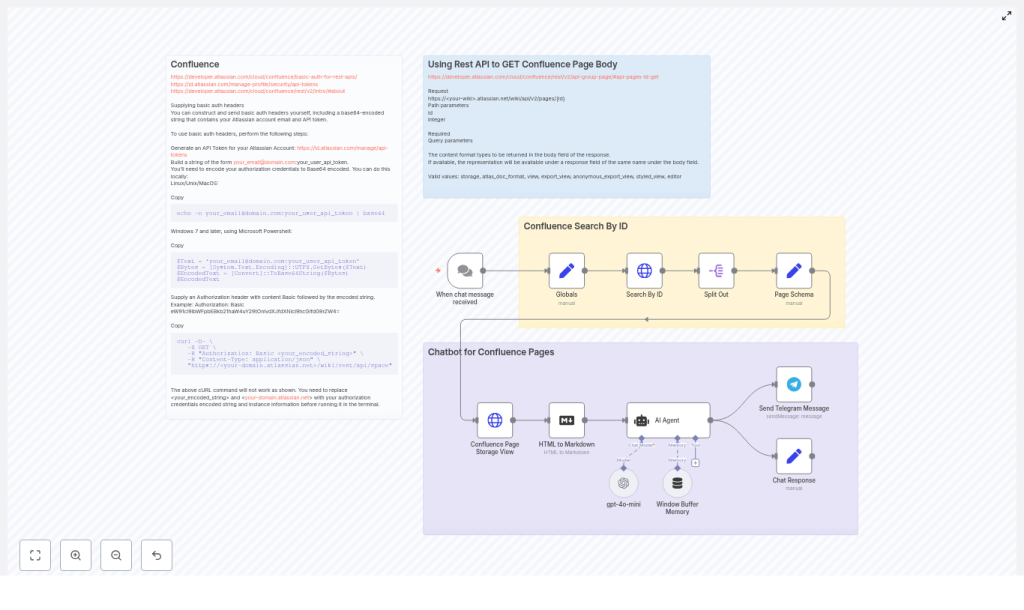
At a high level, n8n orchestrates all the steps between the user, Confluence, and the AI model. The typical flow looks like this:
- A user sends a chat message (trigger node or webhook)
- n8n determines which Confluence page to use (by ID or search)
- Confluence REST API returns the page body in storage format
- n8n converts that HTML-like storage format into Markdown
- The Markdown plus the user’s question are passed to an LLM node
- The AI model generates an answer based only on the provided context
- n8n sends the answer back to the user in their chat app
Prerequisites
Before you start, make sure you have:
- An Atlassian account with access to Confluence Cloud
- An Atlassian API token
Generate at: https://id.atlassian.com/manage-profile/security/api-tokens - An n8n instance (cloud or self-hosted)
- An OpenAI API key or another LLM provider configured in n8n
- Basic familiarity with HTTP APIs and Confluence REST API concepts
Step-by-step: Building the Confluence AI chatbot in n8n
Step 1 – Create your Atlassian API token and configure authentication
First, you need an API token that n8n will use to authenticate with Confluence.
1.1 Create an Atlassian API token
- Go to Atlassian API tokens.
- Create a new token and copy it. Treat it like a password.
1.2 Build the Basic Auth header
Confluence Cloud uses Basic authentication with your email and the API token. Combine them as email:api_token, then Base64 encode the string.
# Linux / macOS
echo -n "your_email@domain.com:your_api_token" | base64

# PowerShell (Windows)
$Text = 'your_email@domain.com:your_api_token'
$Bytes = [System.Text.Encoding]::UTF8.GetBytes($Text)
[Convert]::ToBase64String($Bytes)
Use the resulting string in the HTTP Authorization header:
Authorization: Basic <base64-string>
1.3 Store credentials securely in n8n
In n8n, create a credential (for example, HTTP Header Auth) that stores this Authorization header value. This keeps your token out of workflow code and helps prevent accidental leaks.
Step 2 – Search and retrieve Confluence page content
Next, you need a way to fetch the right Confluence page based on the user’s request. There are two main parts:
- Find the page ID (using search or a known ID)
- Retrieve the page body in storage format
2.1 Search for a page by ID or CQL
If you already know the page ID, you can search by ID directly. Otherwise, you can use Confluence Query Language (CQL) to search by title, space, or other properties.
Example request to search by ID:
GET https://your-domain.atlassian.net/wiki/rest/api/search?limit=1&cql=id=491546
Headers:  Authorization: Basic <encoded_string>  Content-Type: application/json
In n8n, you can implement this with an HTTP Request node using your Confluence credentials. If the response contains multiple results, use a SplitOut or similar node to handle the array and pick the first matching page.
2.2 Fetch the page body in storage format
Once you know the page ID, call the Confluence pages API to get the full page body. You must request the storage format so that the body is returned in a consistent HTML-like structure.
GET https://your-domain.atlassian.net/wiki/api/v2/pages/{id}?body-format=storage
Headers:  Authorization: Basic <encoded_string>  Content-Type: application/json
Key detail: using body-format=storage ensures the content is available under body.storage.value in the JSON response. This field contains the HTML-like representation of the page, including Confluence macros and structure.
Step 3 – Convert Confluence storage HTML to Markdown
LLMs generally work better with clean text or Markdown than with raw HTML. The next step is to convert body.storage.value into Markdown inside n8n.
3.1 Why convert to Markdown?
- Reduces noise from HTML tags and Confluence-specific markup
- Makes the context more readable for both you and the model
- Helps the LLM focus on the actual documentation content
3.2 Perform the conversion in n8n
In your workflow, add a node that converts HTML to Markdown. This can be:
- An HTML-to-Markdown node (if available)
- A Code node that uses a conversion library or custom logic
Example of how the input might look conceptually:
// n8n: Markdown node input
{{ $json.body.storage.value }}

// output: Markdown string to pass to the LLM
The result is a Markdown string that you will pass as “context” to your AI model in the next step.
Step 4 – Use an AI model to answer questions from Confluence context
Now that you have the page content in Markdown, you can connect it to an LLM node (for example, OpenAI or a LangChain agent) and instruct the model to answer questions using only that context.
4.1 Designing the prompt
Use a clear prompt that:
- Tells the model to rely only on the provided context
Example prompt template:
Answer the user's question using only the context below.
If the answer is not in the context, respond: "I don't know.".

User question: <user question>

Context:
<page markdown>
4.2 Configuring the LLM node in n8n
In n8n you can:
- Use the OpenAI node directly, passing the prompt and the Markdown as input
- Use a LangChain agent node if you want tools, chains, or more advanced behavior
If you want a multi-turn conversation, add a memory buffer (for example, window buffer memory) so that previous messages are kept and the chatbot feels more conversational.
Step 5 – Deliver the chatbot response to the user
Once the LLM returns an answer, the final step is to send it back to the user through your preferred channel.
5.1 Example: Telegram chatbot
Using the n8n Telegram node, you can:
- Trigger the workflow when a new message is received
- Send the AI-generated answer back to the same chat
5.2 Other delivery channels
You can also integrate with:
- Slack or Microsoft Teams
- A custom web chat UI
- Internal tools connected via webhooks or APIs
The core logic of the workflow stays the same. Only the trigger and response nodes change depending on your chat platform.
Putting it together: Example n8n node sequence
The full workflow in n8n typically includes the following nodes and steps:
- Chat Trigger
Receive a user message (for example, Telegram trigger or webhook). - Map User Request
Use a Set or Function node to map the user’s question to a specific Confluence page ID or a search query (CQL). - Confluence Search (REST API)
HTTP Request node calling the search endpoint to find the page. - Split and Extract Page Data
UseSplitOutor similar to handle arrays, then extractcontent.idandcontent._links.webuias needed. - Confluence Page Storage View
HTTP Request node to/wiki/api/v2/pages/{id}?body-format=storageto getbody.storage.value. - HTML to Markdown Conversion
Convert the storage HTML into clean Markdown. - AI Agent / OpenAI Node
Send the user question and Markdown context to the model, optionally with window buffer memory for conversation history. - Send Chat Response
Use Telegram, Slack, or another chat node to send the answer back to the user.
Best practices for n8n Confluence workflows
Use credentials for security
- Store the Confluence API token in n8n credentials (for example, HTTP Header Auth).
- Avoid hardcoding tokens directly in nodes or code.
Handle search results safely
- When Confluence search returns multiple results, use
SplitOutto process each item. - Pick the best match or the first result as your
page_id.
Control context size
- For very long pages, truncate or chunk the content before sending to the LLM.
- Sending only the relevant parts reduces token usage and improves answer quality.
Improve answer reliability
- Always convert HTML to Markdown or plain text to reduce hallucinations.
- Use a strict prompt that tells the model to rely only on the provided context.
Security and rate limits
Confluence Cloud APIs are subject to rate limits, and your workflow should handle this gracefully.
- Rate limiting: If you receive HTTP 429 responses, implement retry and backoff logic in n8n.
- Caching: Cache frequently requested pages so you do not hit the API every time.
- Secret management: Never commit API tokens to source control. Use n8n’s credentials vault or environment variables to store sensitive keys.
Example cURL request to fetch page storage
If you want to test your Confluence API access outside n8n, you can use cURL:
curl -D- \ -X GET \ -H "Authorization: Basic <your_encoded_string>" \ -H "Content-Type: application/json" \ "https://your-domain.atlassian.net/wiki/api/v2/pages/491546?body-format=storage"
If this request returns a JSON object with body.storage.value, you are ready to connect the same logic inside n8n.
Handling Confluence macros and attachments
Confluence’s storage format can contain macros, attachments, and other advanced elements. Some things to keep in mind:
- Macros such as draw.io or
includemacros may not render well when converted directly to Markdown. - If your documentation relies heavily on macros, consider preprocessing them server-side or expanding them before conversion.
- Store attachments separately if needed and make them searchable by metadata. You can then surface links or references in the chatbot’s answers.
Debugging your n8n Confluence chatbot
If the workflow is not behaving as expected, use these checks:
- Empty page body: If
body.storage.valueis empty, confirm that:- You included
body-format=storagein the query. - Your API token has permission to view that page.
- You included
- Inspect raw JSON: Use a
Setnode to expose fields like:content._links.webui(web URL of the page)content.id(page ID)body.storage.value(HTML-like body)
- Check HTTP responses: Log headers and status codes for failed requests to quickly spot auth issues or 403/404 errors.
Scaling up: chunking and retrieval (RAG)
For a larger documentation base, you may outgrow the simple “single page as context” approach. In that case, consider a retrieval-augmented generation (RAG) pattern:
- Index your Confluence content (for example, using embeddings and a vector store).
- When a user asks a question, run a semantic search to find the most relevant chunks.
- Pass only those chunks as context to the LLM.
This approach keeps token usage under control and often improves answer accuracy across many pages.
Quick recap
To build a Confluence page AI chatbot with n8n you:
- Created an Atlassian API token and configured Basic Auth in n8n.
- Used the Confluence REST API to search for pages and retrieve page bodies in storage format.
- Converted
body.storage.valuefrom HTML-like storage to Markdown. - Sent the Markdown plus the user’s question to an AI model with a strict context-based prompt.
- Returned the AI’s response to users through Telegram or another chat integration.
- Applied security, debugging, and scaling best practices for a robust chatbot.
