


Build a Deep Research Agent with n8n, OpenAI, and Perplexity
This guide describes how to implement a Deep Research Agent in n8n that connects a Telegram bot to an AI Agent node. The workflow integrates OpenAI for natural language generation and Perplexity Sonar / Sonar Pro for information retrieval and research. The result is a Telegram-based assistant that returns concise, source-backed answers directly to end users.
1. Solution Overview
The Deep Research Agent is an n8n workflow that:
- Receives user questions from Telegram
- Optionally validates and filters incoming requests
- Uses Perplexity Sonar for fast lookups and Perplexity Sonar Pro for deeper multi-source research
- Uses OpenAI to synthesize a structured answer with citations
- Sends the final response back to the user via Telegram
This pattern is particularly useful for research-heavy roles such as product teams, journalists, researchers, and knowledge workers who need rapid answers with traceable sources, without building a custom backend.
2. Workflow Architecture
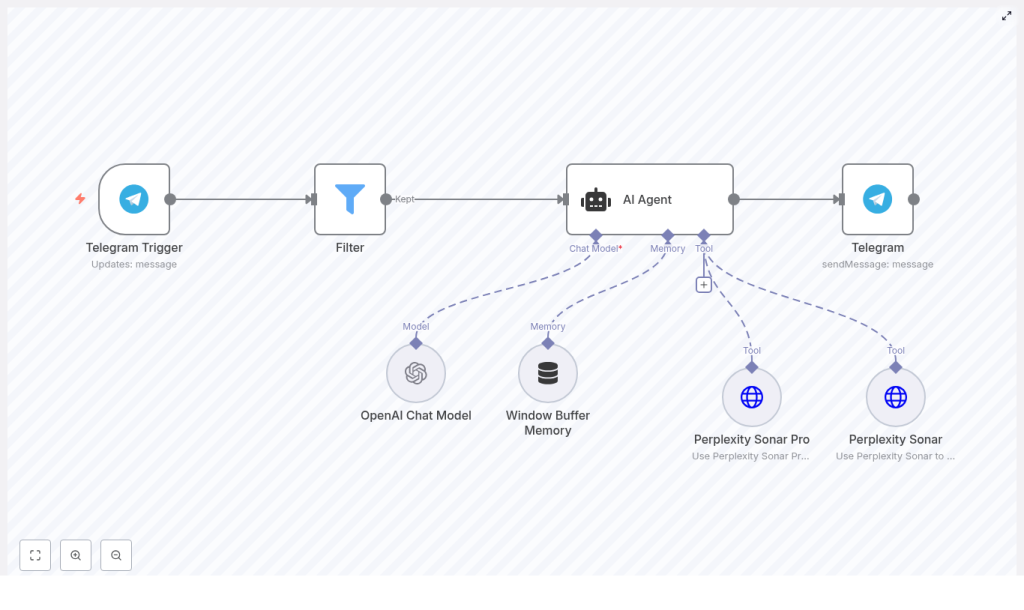
At a high level, the workflow follows this sequence of nodes:
- Telegram Trigger – Ingests user messages from a Telegram bot
- Filter – Optionally restricts access and validates input
- AI Agent – Central orchestrator that decides when and how to use tools
- Window Buffer Memory – Maintains short-term conversation context
- Perplexity Sonar – Fast retrieval for quick facts and simple queries
- Perplexity Sonar Pro – Deep research across multiple sources
- OpenAI Chat Model – Generates the final answer text with citations
- Telegram (send) – Returns the response to the user
The AI Agent node coordinates calls to the Perplexity tools and the OpenAI Chat Model, using the Window Buffer Memory node to provide conversational context. The Telegram nodes handle inbound and outbound communication.
3. Node-by-Node Breakdown
3.1 Telegram Trigger
The Telegram Trigger node is responsible for receiving messages sent to your Telegram bot.
- Trigger mode: configure either webhook or polling, depending on your n8n deployment and network constraints.
- Chat filtering: optionally specify a chat ID if the workflow should only react to a particular chat or group.
- Security: combine with the Filter node to restrict usage to specific user IDs or commands.
Typical configuration steps in n8n:
- Attach Telegram credentials using the bot token obtained from
@BotFather. - Choose the update types you want to receive (for this use case, standard text messages are sufficient).
- Ensure your n8n instance is reachable if you use webhooks.
3.2 Filter Node
The Filter node (or an equivalent conditional node) is used to gate access and validate the incoming payload before the AI Agent is invoked.
Common checks include:
- User authorization: allow only specific Telegram user IDs or groups.
- Command routing: process messages that start with commands such as
/researchor/summarize, and ignore others. - Input validation: reject empty messages or malformed requests (for example, messages below a minimum length).
In practice, this node should output only valid, authorized requests to the AI Agent node. For rejected requests, you can either drop them silently or respond with a brief error message via a separate Telegram send branch.
3.3 AI Agent (Central Orchestrator)
The AI Agent node is the core of the workflow. It orchestrates:
- OpenAI Chat Model – for language generation and answer composition
- Window Buffer Memory – for short-term conversation history
- Perplexity Sonar and Perplexity Sonar Pro – as external research tools
Key responsibilities of the AI Agent:
- Interpret the user query and determine whether a quick lookup or deep research is needed.
- Call Perplexity Sonar for short, fact-based questions.
- Call Perplexity Sonar Pro when the query requires multi-source synthesis, comparison, or more in-depth analysis.
- Pass retrieved snippets and source URLs into the OpenAI Chat Model for final synthesis.
- Use Window Buffer Memory to maintain context for follow-up questions.
The AI Agent node can be configured with tool usage rules that encode this decision logic. It effectively acts as a tool-using agent that chooses between Sonar and Sonar Pro based on the query type.
3.4 Perplexity Sonar and Sonar Pro
Both Perplexity tools are integrated as dedicated nodes in the workflow and are accessed via a Perplexity API key.
Perplexity Sonar
- Optimized for quick lookups and
. - Useful for definitions, simple factual questions, and concise summaries.
- Typically returns a small set of sources, often suitable when a single or limited number of citations is enough.
Perplexity Sonar Pro
- Designed for deeper research and multi-source synthesis.
- Appropriate for market research, competitor analysis, academic-style overviews, and structured extraction tasks.
- Returns richer, more comprehensive results that can be combined into longer, more nuanced answers.
In the AI Agent configuration, you can encode rules such as:
- Short, fact-oriented queries → Sonar
- Comparisons, analyses, or broad-topic research → Sonar Pro
3.5 Window Buffer Memory
The Window Buffer Memory node maintains a sliding window of recent messages to provide conversational context to the AI Agent and OpenAI Chat Model.
- Configure it to store the last N messages (for example, 6 recent interactions).
- Include both user messages and assistant responses to preserve the dialogue.
- Attach it to the AI Agent so that follow-up questions can reference earlier parts of the conversation.
This is particularly important for multi-turn queries where users refine their questions or ask for clarification.
3.6 OpenAI Chat Model
The OpenAI Chat Model node is responsible for transforming raw retrieved content into a coherent, well-structured answer.
- Input: snippets and source URLs from Perplexity Sonar / Sonar Pro, plus contextual prompts and memory.
- Output: a concise answer, typically 3 to 6 short paragraphs, with clickable citations.
- Controls: temperature, maximum tokens, and other generation parameters for precision vs creativity.
The node should be configured with a system prompt that clearly instructs the model to use only retrieved information and to include explicit citations.
3.7 Telegram (send) Node
The final Telegram node sends the synthesized answer back to the user.
- Use the same Telegram credentials as the Trigger node.
- Map the chat ID from the incoming message to ensure the response is routed to the correct user or group.
- Format the answer text to include clickable links for sources, consistent with Telegram’s supported formatting (for example, Markdown or HTML modes, depending on your preference and configuration).
4. Configuration & Setup Steps
4.1 Create a Telegram Bot
- Open Telegram and start a conversation with @BotFather.
- Create a new bot and follow the prompts.
- Copy the generated API token, which you will use later in n8n Telegram credentials.
4.2 Prepare n8n Environment
- Install n8n locally or use a hosted instance, depending on your infrastructure requirements.
- In the workflow editor, add the following nodes:
- Telegram Trigger
- Filter (or equivalent conditional node)
- AI Agent
- OpenAI Chat Model
- Window Buffer Memory
- Perplexity Sonar
- Perplexity Sonar Pro
- Telegram (send)
- Connect the nodes in this order:
- Telegram Trigger → Filter → AI Agent → Telegram (send)
Within the AI Agent configuration, attach:
- Window Buffer Memory
- Perplexity Sonar
- Perplexity Sonar Pro
- OpenAI Chat Model
4.3 Add Required API Credentials
In n8n’s credentials section, configure:
- OpenAI:
- Set your OpenAI API key.
- Reference it from the OpenAI Chat Model node.
- Perplexity:
- Set your Perplexity API key.
- Use it in both Perplexity Sonar and Perplexity Sonar Pro nodes.
- Telegram:
- Use the bot token from
@BotFatherto create Telegram credentials. - Attach these credentials to both Telegram Trigger and Telegram (send) nodes.
- Use the bot token from
4.4 Configure AI Agent Tool Logic
Within the AI Agent node:
- Define when to call Perplexity Sonar vs Sonar Pro. Example rules:
- If the user asks for a definition, quick fact, or short summary → use Sonar.
- If the user requests multi-source comparisons, market analysis, or broad-topic overviews → use Sonar Pro.
- Ensure that all retrieved source URLs and relevant snippets are passed as input to the OpenAI Chat Model node.
- Connect the Window Buffer Memory node to the Agent so that it can retrieve recent conversation context.
4.5 Prompt Template Design
Craft clear, concise prompts for the OpenAI Chat Model. A typical system prompt might look like:
"You are a research assistant. Given retrieved snippets and source links, produce a concise answer (3-6 short paragraphs) and include clickable source citations."Guidelines for prompt configuration:
- Explicitly instruct the model to rely on the provided snippets and sources.
- Specify the desired length and structure of the answer.
- Require inclusion of source URLs in a consistent citation format.
4.6 Testing and Iteration
After initial configuration:
- Send a range of queries via Telegram to verify:
- Filter node behavior and access control.
- Correct routing between Sonar and Sonar Pro based on query type.
- That Perplexity returns expected sources and Sonar Pro provides comprehensive results.
- Adjust OpenAI parameters:
- Lower temperature for more deterministic, research-focused answers.
- Adjust maximum tokens to balance completeness with cost.
- Iterate on prompts to improve clarity, citation quality, and answer style.
5. Best Practices & Operational Considerations
- Rate limiting:
- Implement per-user or global rate limits to avoid excessive API usage.
- Use conditional logic or additional nodes to enforce throttling if necessary.
- Caching:
- Cache frequently requested answers to reduce latency and API costs.
- Consider caching by normalized query text.
- Citation formatting:
- Define a consistent citation style (for example, numbered links at the end or inline links).
- Ensure source URLs are always included for traceability and verification.
- Logging and auditing:
- Log queries and responses securely for quality monitoring and prompt tuning.
- Avoid logging sensitive data in plain text where not required.
- Cost monitoring:
- Track API usage for both OpenAI and Perplexity.
- Prefer Sonar for lightweight queries and reserve Sonar Pro for high-value, deep research requests.
6. Common Use Cases
This Deep Research Agent template can support multiple workflows:
- Journalism:
- On-demand research summaries, background checks, and quick fact validation.
- Product management:
- Competitor one-pagers, feature comparisons, and market snapshots.
- Academic research:
- High-level literature scans and topic overviews for initial exploration.
- Customer support:
- Knowledge lookups across documentation, FAQs, and public web sources.
7. Troubleshooting & Edge Cases
7.1 Perplexity Returns Incomplete Sources
If Sonar or Sonar Pro returns limited or incomplete sources:
- Increase the depth or coverage settings in Sonar Pro if available in your configuration.
- Run multiple Sonar queries with slightly different phrasings of the question.
- Verify that your Perplexity API key is valid and has the required access level for Sonar Pro.
7.2 OpenAI Responses Contain Hallucinations
To reduce hallucinations in OpenAI answers:
- Always pass the relevant retrieved snippets and URLs to the OpenAI Chat Model node.
- Reinforce in the system prompt that the model should:
- Rely on the provided sources.
- Avoid speculating beyond the retrieved information.
- Indicate when information is not available.
- Lower the temperature setting to prioritize factual consistency over creativity.
- Emphasize a “source-first” approach in the prompt, instructing the model to base its answer strictly on the retrieved content.
7.3 Excessive API Calls or High Cost
If you observe too many API calls
