


Build a Drink Water Reminder with n8n & LangChain
On a Tuesday afternoon, Mia stared at her screen and rubbed her temples. As the marketing lead for a fully remote team, she spent hours in back-to-back calls, writing campaigns, and answering Slack messages. By 4 p.m., she would realize she had barely moved and had forgotten to drink water again.
Her team was no different. Burnout, headaches, and fatigue were creeping in. Everyone agreed they needed healthier habits, but no one had the time or mental bandwidth to track something as simple as water intake.
So Mia decided to do what any automation-minded marketer would do: build a smart, context-aware “Drink Water Reminder” workflow using n8n, LangChain, OpenAI, Supabase, Google Sheets, and Slack.
The problem: reminders that feel spammy, not supportive
Mia had tried basic reminder apps before. They pinged people every hour, regardless of timezone, schedule, or workload. Her team quickly muted them.
What she really needed was a system that:
- Understood user preferences and schedules
- Could remember past interactions and adjust over time
- Logged everything for analytics and optimization
- Alerted her if something broke
- Was easy to scale without rewriting logic from scratch
While searching for a solution, Mia discovered an n8n workflow template built exactly for this use case: a drink water reminder powered by LangChain, OpenAI embeddings, Supabase vector storage, Google Sheets logging, and Slack alerts.
Instead of a rigid reminder bot, she could build a context-aware agent using Retrieval-Augmented Generation (RAG) that actually “understood” the team’s habits and preferences.
Discovering the architecture behind the reminder
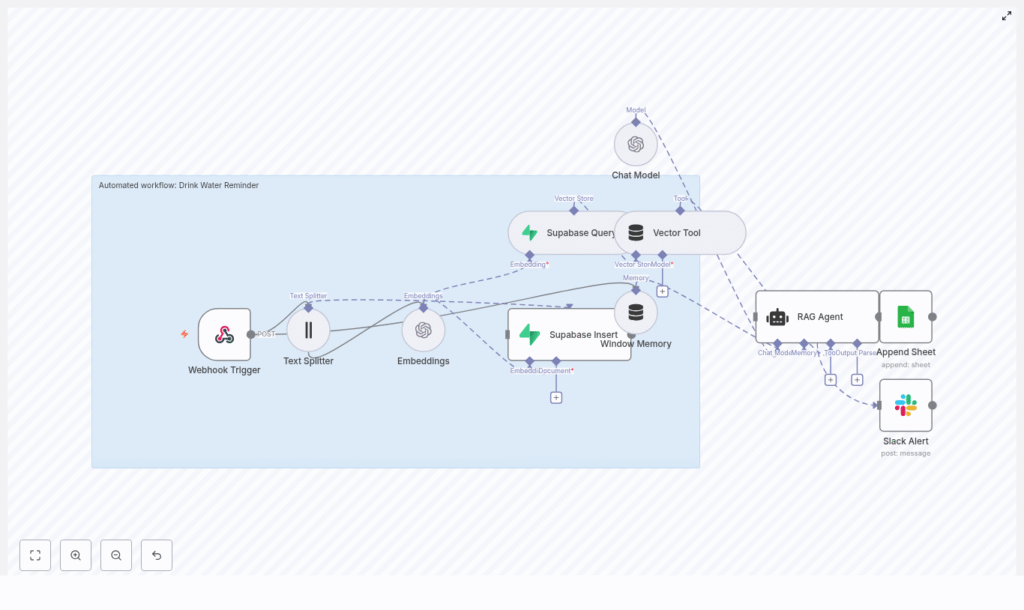
Before she customized anything, Mia explored how the template worked. The architecture was surprisingly elegant. At its core, the workflow used:
- Webhook Trigger to receive external requests
- Text Splitter to break long inputs into chunks
- Embeddings (OpenAI) to convert text into vectors using
text-embedding-3-small - Supabase Insert / Query to store and retrieve those embeddings in a vector index called
drink_water_reminder - Vector Tool to expose that vector store to LangChain
- Window Memory to keep short-term conversational context
- Chat Model using OpenAI’s GPT-based chat completions
- RAG Agent to orchestrate retrieval and generate personalized responses
- Append Sheet to log every reminder in Google Sheets
- Slack Alert to notify her team if anything failed
This was not just a “ping every hour” script. It was a small, intelligent system that could learn from previous messages and tailor its behavior over time.
Rising action: Mia starts building her reminder agent
Mia opened her n8n instance, imported the template, and started walking through each node. Her goal was simple: set up a robust, automated drink water reminder that her team would not hate.
1. Giving the workflow an entry point with Webhook Trigger
First, she configured the Webhook Trigger node. This would be the front door of the entire system, accepting POST requests from an external scheduler or other services.
She set the path to:
/drink-water-reminder
Each request would include a payload with fields like user_id, timezone, and any custom preferences her team wanted, such as preferred reminder frequency or working hours.
Now, whenever a scheduler hit that URL, the workflow would start.
2. Preparing content with the Text Splitter
Mia realized that some requests might contain longer instructions or context, not just a single line like “Remind me to drink water every hour.” To make sure the system could understand and store this information effectively, she turned to the Text Splitter node.
She configured it with character-based splitting using these settings:
chunkSize: 400
chunkOverlap: 40
This way, the content was broken into manageable chunks, with enough overlap to preserve meaning for semantic search. No chunk was too large to embed efficiently, and none lost important context.
3. Turning text into semantic memory with OpenAI embeddings
Next came the Embeddings (OpenAI) node. This is where the text chunks became vectors that the system could search and compare later.
She configured it to use the model:
text-embedding-3-small
After adding her OpenAI API credentials in n8n’s credential store, each chunk from the Text Splitter flowed into this node and came out as a vector representation, ready for storage in Supabase.
4. Storing context in Supabase: Insert node
To give the agent a long-term memory, Mia created a Supabase vector table and index named drink_water_reminder. This is where embeddings, along with helpful metadata, would live.
In the Supabase Insert node, she set the mode to insert and made sure each entry included:
user_idto tie data to a specific persontimestamporcreated_atfor tracking when it was storedtextcontaining the original chunk- Additional JSON metadata for any extra preferences
This structure would later allow the agent to retrieve relevant context, such as “Mia prefers reminders only between 9 a.m. and 6 p.m.”
5. Letting the agent “look things up” with Supabase Query and Vector Tool
Storing data is one thing. Using it intelligently is another. To make the agent capable of retrieving useful context, Mia configured the Supabase Query node to search the same drink_water_reminder index.
Then she added the Vector Tool node, which wrapped the Supabase vector store as a LangChain tool. This meant that when the RAG agent needed more information, it could call this tool and retrieve the most relevant entries.
In plain terms, the agent would not just guess. It would look up previous data and respond based on history.
6. Keeping conversations coherent with Window Memory
Mia wanted the system to handle follow-up prompts gracefully. For example, if a user said “Remind me every 2 hours” and then later added “But skip weekends,” the agent should understand that these messages belonged together.
To achieve this, she connected Window Memory to the RAG agent. This node buffers recent conversation pieces and provides short-lived context during a session. It does not store everything forever, but it helps the agent keep track of what just happened.
7. Giving the agent a voice: Chat Model and RAG Agent
Now it was time to define how the agent would actually respond.
Mia configured the Chat Model node to use OpenAI chat completions (GPT-based) and added her credentials. This model would generate natural language responses that felt friendly and helpful.
Then she moved to the heart of the system: the RAG Agent. This agent orchestrates three key elements:
- Retrieval from the Vector Tool (long-term memory)
- Short-term context from Window Memory
- Generation of structured responses via the Chat Model
To define its behavior, she set a system message and prompt configuration like this:
systemMessage: "You are an assistant for Drink Water Reminder"
promptType: "define"
text: "Process the following data for task 'Drink Water Reminder':\n\n{{ $json }}"
This told the agent exactly what role it should play and how to treat the incoming data. The agent would then output structured status text, which could be logged and analyzed later.
8. Logging everything in Google Sheets with Append Sheet
As a marketer, Mia loved data. She wanted to know how often reminders were sent, how they performed, and whether the team was actually engaging with them.
To make this easy, she connected an Append Sheet node to a Google Sheet named Log. Each time the RAG agent produced an output, the workflow appended a new row with a Status column that captured the agent’s response.
She configured OAuth for Google Sheets in n8n, so credentials stayed secure and easy to manage.
9. Staying ahead of issues with Slack Alert
The final piece was resilience. Mia did not want a silent failure where reminders simply stopped working without anyone noticing.
She added a Slack Alert node and connected it to the RAG Agent’s onError path. Whenever the workflow encountered an error, a message would be posted to the #alerts channel in Slack.
This way, if Supabase, OpenAI, or Google Sheets had an issue, her team would know quickly and could respond.
Turning point: testing the drink water reminder in real life
With the architecture in place, it was time for the moment of truth. Mia ran a full test of the workflow.
Step 1: Sending a test POST request
She sent a POST request to her n8n webhook URL with a payload like:
{  "user_id": "mia",  "text": "Remind me to drink water every hour",  "timezone": "Europe/Berlin"
}
Step 2: Watching the nodes execute
In the n8n editor, she watched the execution flow:
- The Webhook Trigger received the request
- The Text Splitter broke the text into chunks
- The Embeddings node generated vectors
- The Supabase Insert node stored them in the
drink_water_reminderindex
No errors. So far, so good.
Step 3: Simulating a query and agent response
Next, she triggered a query flow to simulate the agent retrieving context for Mia’s reminders. The Supabase Query and Vector Tool located relevant entries, and the RAG Agent used them to generate a helpful message tailored to her preferences.
The response felt surprisingly personal, referencing her hourly preference and timezone.
Step 4: Verifying logs and alerts
Finally, she checked the Google Sheet. A new row had been added to the Log sheet, with the agent’s output neatly stored in the Status column.
She also confirmed that if she forced an error (for example, by temporarily misconfiguring a node), the Slack Alert fired correctly and posted a message to #alerts.
The system was working end-to-end.
Behind the scenes: practical tips Mia followed
To keep the workflow secure, scalable, and cost-effective, Mia applied a few best practices while setting everything up.
Securing credentials and schema design
- Secure credentials: All OpenAI, Supabase, Google Sheets, and Slack credentials were stored in n8n’s credential store. She never hardcoded API keys in the workflow.
- Schema design in Supabase: Her vector table included fields like
user_id,text,created_at, and a JSON metadata column. This made search results more actionable and easier to filter.
Managing costs, retries, and monitoring
- Rate limits and costs: Since embeddings and chat completions incur costs, she kept chunk sizes reasonable and batched writes where possible.
- Idempotency: To guard against duplicate inserts when schedulers retried the webhook, she implemented idempotency keys on the incoming requests.
- Monitoring: She enabled execution logs in n8n and relied on Slack alerts to catch failed runs or sudden spikes in error rates.
Expanding the vision: future use cases and enhancements
Once the basic reminder system was live, Mia started imagining how far she could take it.
- Personalized cadence: Adjust reminder frequency based on each user’s history in Supabase, such as sending fewer reminders if they consistently acknowledge them.
- Multi-channel reminders: Extend the workflow to send messages via email, SMS, Slack DM, or push notifications, depending on user preference.
- Analytics dashboard: Build a dashboard on top of the Google Sheets data or Supabase to visualize how often reminders are sent, accepted, or ignored.
- Smart nudges: Introduce escalation logic that only increases reminders when users repeatedly ignore them, making the system helpful instead of nagging.
Keeping data safe: security and privacy considerations
Mia knew that even something as simple as a water reminder could include personal details like schedules and habits. She took extra care to protect her team’s data.
She made sure to:
- Minimize stored personal data to what was truly necessary
- Enforce row-level security in Supabase so users could only access their own records
- Rotate API keys regularly and avoid exposing them in logs or code
If the system ever expanded to include more health-related data, she planned to review applicable privacy laws and adjust accordingly.
When things go wrong: Mia’s troubleshooting checklist
To make future debugging easier, Mia documented a quick troubleshooting list for herself and her team.
- Webhook returns 404: Confirm the path is correct and deployed, for example
/webhook/drink-water-reminderin n8n. - Embeddings fail: Check that the OpenAI key is valid and the model name is correctly set to
text-embedding-3-small. - Supabase insert/query errors: Verify the table schema, ensure the vector extension is enabled, and confirm the index name
drink_water_reminder. - RAG Agent output is poorly formatted: Refine the
systemMessageand prompt template so the agent consistently returns structured output.
Resolution: a small habit, a big impact
A few weeks after deploying the workflow, Mia noticed a quiet shift in her team. People started joking in Slack about “their water bot,” but they also reported fewer headaches and more energy in afternoon meetings.
The reminders felt personal, not spammy. The system respected timezones, remembered preferences, and adapted over time. And when something broke, the Slack alerts let her fix it before anyone complained.
Under the hood, it was all powered by n8n, LangChain, OpenAI embeddings, Supabase vector storage, Google Sheets logging, and Slack alerts. On the surface, it was just a friendly nudge to drink water.
For Mia, it proved a bigger point: with the right automation and a bit of semantic intelligence, even the smallest habits can be supported at scale.
Ready to build your own drink water reminder?
If you want to create a similar experience for your team, you do not need to start from scratch. This n8n + LangChain template gives you a robust foundation for context-aware reminders that feel genuinely helpful.
- Use embeddings and vector search to store and retrieve user context
- Leverage Window Memory and a RAG agent for smarter, personalized responses
- Log everything to Google Sheets for analytics and optimization
- Wire Slack alerts so you never miss a failure
Next steps: Deploy the workflow in your n8n instance, connect your credentials, and run a few test requests. Then iterate on the prompts, channels, and cadence to match your users.
Call to action: Try this template today in your n8n environment and share the results with your team. If you need help customizing it, reach out to a
