


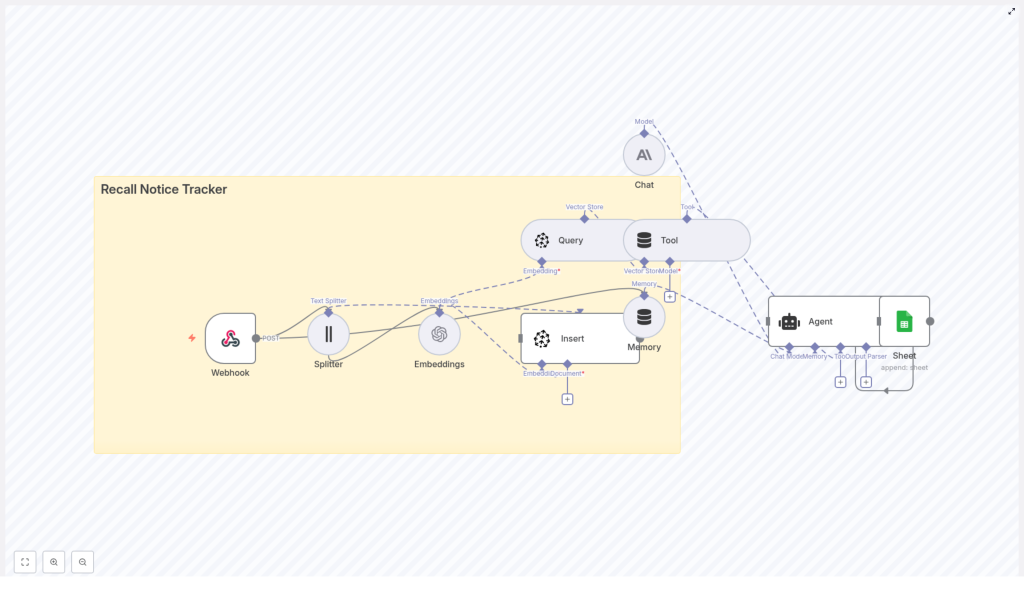
Build a Recall Notice Tracker with n8n & Pinecone
Automating recall notice monitoring reduces manual effort, improves coverage, and makes it easier to act on critical safety information. This reference-style guide documents a complete n8n workflow template that uses a webhook, OpenAI embeddings, Pinecone as a vector database, an AI agent, and Google Sheets to ingest, index, summarize, and log product recall notices.
The goal of this documentation is to explain the workflow architecture, node-by-node configuration, and data flow so you can deploy, adapt, and extend the template in your own n8n environment.
1. Solution Overview
The Recall Notice Tracker workflow turns unstructured recall notices into structured, searchable records. It:
- Accepts incoming recall payloads via an HTTP webhook.
- Splits long notice bodies into overlapping text chunks.
- Generates vector embeddings for each chunk using OpenAI.
- Persists embeddings in a Pinecone index for semantic retrieval.
- Uses an AI agent that can query Pinecone as a tool, then summarize and extract key fields.
- Appends a structured row to a Google Sheet for human review and reporting.
This architecture is designed for:
- Real-time ingestion from regulatory feeds, suppliers, or scrapers.
- Semantic search across historical recall content.
- Automated summarization and normalization into a consistent schema.
2. Architecture & Data Flow
The workflow is built around a linear ingestion pipeline plus an AI-agent summarization step that leverages the vector store. At a high level:
- Webhook node receives a JSON payload for each recall notice.
- Splitter node transforms the notice body into smaller text segments.
- Embeddings node sends each segment to OpenAI to obtain vector embeddings.
- Insert node writes the resulting vectors into a Pinecone index named
recall_notice_tracker. - Query & Tool nodes expose Pinecone as a semantic search tool that the AI agent can call.
- Memory node maintains short-term conversational context for the agent.
- Chat / Agent node uses the vector context and memory to produce a structured summary.
- Google Sheets node appends the structured data as a new row to a sheet named
Log.
All nodes are orchestrated inside n8n. External services are accessed through configured credentials and API keys.
3. Prerequisites
Before importing and configuring the template, ensure you have:
- An n8n instance (n8n Cloud or self-hosted).
- An OpenAI API key, or a compatible embeddings provider that n8n supports.
- A Pinecone account with an API key and environment.
- An Anthropic API key, or another LLM provider for the agent step.
- A Google account with Google Sheets API credentials and access to the target spreadsheet.
4. Node-by-Node Breakdown
4.1 Webhook Node
- Endpoint:
POST /recall_notice_tracker - Purpose: Entry point for recall notices from publishers, scrapers, or integration platforms such as Zapier or Make.
- Expected payload: JSON with at least a title and body, plus optional metadata.
Sample payload:
{  "title": "Toy recall - lead paint",  "body": "Company X is recalling a batch of toy cars due to lead-based paint found in samples...",  "source": "https://example.gov/recall/123",  "published_at": "2025-10-01T12:00:00Z"
}
The node should be configured to accept JSON and map fields such as title, body, source, and published_at into the workflow data.
4.2 Splitter Node (Text Splitter)
- Type: Character-based text splitter.
- Parameters:
chunkSize: 400chunkOverlap: 40
- Input: The full recall notice body (and optionally title or other text fields).
- Output: An array of text chunks with overlapping content.
The splitter converts a long notice into segments that are easier to embed and retrieve. Chunk overlap of 40 characters helps preserve context across boundaries. You can tune these values later based on recall length and retrieval quality.
4.3 Embeddings Node (OpenAI)
- Service: OpenAI embeddings API.
- Credentials: OpenAI (e.g.,
OPENAI_APIin n8n credentials). - Model example:
text-embedding-3-small. - Input: Each text chunk from the Splitter node.
- Output: A vector embedding per chunk, plus reference to the original text.
Dimensionality must match the Pinecone index configuration. For text-embedding-3-small, this is typically 1536 dimensions. Ensure the model you select is compatible with your Pinecone index.
4.4 Insert Node (Pinecone Vector Store)
- Service: Pinecone.
- Index name:
recall_notice_tracker. - Credentials: Pinecone API key and environment (e.g.,
PINECONE_APIin n8n). - Input: Embeddings and associated metadata (text, title, source, timestamps).
- Output: Stored vectors in the Pinecone index, keyed by unique IDs.
Each embedding is inserted with metadata that can include:
- Original text chunk.
- Recall title.
- Source URL.
- Publication date.
- Any other relevant attributes from the webhook payload.
Make sure the index dimensionality matches the embedding model (for example, 1536 for text-embedding-3-small). Mismatched dimensionality will cause Pinecone write failures.
4.5 Query & Tool Nodes (Semantic Search Integration)
- Purpose: Allow the AI agent to run semantic queries against Pinecone.
- Input: Agent-generated queries or recall-related search terms.
- Output: Relevant recall chunks retrieved from the vector store.
The Query node is configured to search the recall_notice_tracker index using the same embedding model as the Insert node. The Tool node exposes this query capability to the agent, so the agent can call Pinecone as a tool when generating summaries.
4.6 Memory Node
- Purpose: Maintain short-term conversational or workflow context for the agent.
- Usage: Stores recent notices or prior agent outputs so the agent can reference them when answering or summarizing.
This node is optional but useful if you extend the workflow into a multi-step conversation or need the agent to consider several recalls together. In the base template, it functions as short-term context for the Chat / Agent node.
4.7 Chat / Agent Node
- Service: Anthropic or another LLM provider.
- Credentials: Anthropic API key (e.g.,
ANTHROPIC_API) or equivalent. - Inputs:
- Recall notice content (title, body, metadata).
- Context retrieved from Pinecone via the Query & Tool nodes.
- Memory context from the Memory node.
- Output: A structured JSON-like object with normalized recall fields.
The agent is configured to summarize each recall and extract fields such as:
- Product name.
- Manufacturer.
- Recall date.
- Hazard description.
- Recommended action.
- Source URL.
- Raw excerpt for reference.
The agent response is expected to conform to a schema similar to:
{  "product": "...",  "manufacturer": "...",  "recall_date": "YYYY-MM-DD",  "hazard": "...",  "recommended_action": "...",  "source_url": "...",  "raw_excerpt": "..."
}
When crafting the agent prompt, instruct the model to:
- Use only information that appears in the notice or retrieved context.
- Return a single JSON object with the exact keys shown above.
- Use clear, concise text for human readability.
4.8 Google Sheets Node (Sheet)
- Service: Google Sheets.
- Credentials: Google Sheets OAuth2 credentials (e.g.,
SHEETS_APIin n8n). - Target sheet: Worksheet named
Logwithin your spreadsheet. - Input: The JSON fields produced by the Chat / Agent node.
- Output: A new row appended to the
Logsheet per recall notice.
Map each JSON field from the agent output to a column in the Google Sheet. For example:
product→ “Product”manufacturer→ “Manufacturer”recall_date→ “Recall Date”hazard→ “Hazard”recommended_action→ “Recommended Action”source_url→ “Source URL”raw_excerpt→ “Raw Excerpt”
5. Initial Configuration Steps
5.1 Configure API Credentials in n8n
In the n8n credentials section, add:
- OpenAI: API key for embeddings (e.g.,
OPENAI_API). - Pinecone: API key and environment (e.g.,
PINECONE_API). - Anthropic: API key for the agent (e.g.,
ANTHROPIC_API). - Google Sheets: OAuth2 credentials with permission to edit the target spreadsheet.
Assign these credentials to the corresponding nodes in the imported workflow.
5.2 Create the Pinecone Index
In your Pinecone console or via API:
- Create an index named
recall_notice_tracker. - Set dimension to match your embedding model (for example, 1536 for
text-embedding-3-small). - Configure pods and replicas based on expected read/write volume.
Index configuration cannot be changed easily after creation, so verify dimensionality and region before you start writing data.
5.3 Import the n8n Workflow Template
Use the provided JSON template to import the workflow into your n8n workspace:
- Open n8n.
- Import the JSON file containing the Recall Notice Tracker template.
- Connect the Webhook node to your external sources such as:
- Regulatory feeds.
- Supplier notifications.
- Custom scrapers.
- Zapier, Make, or other integration tools.
5.4 Tune Splitter and Embeddings Parameters
In the Splitter node:
- Start with
chunkSize: 400andchunkOverlap: 40. - Increase
chunkSizeif you want fewer vectors and lower cost, at the expense of more diffuse retrieval. - Decrease
chunkSizeif notices are very long or you need more precise context windows.
In the Embeddings node:
- Select the embeddings model that matches your Pinecone index dimension.
- Ensure the node uses the correct OpenAI credentials.
5.5 Configure Agent Prompt and Output Parsing
In the Chat / Agent node:
- Reference the Pinecone Tool so the agent can retrieve related recall text.
- Pass in the notice content and any metadata from the webhook.
- Define a prompt that instructs the agent to:
- Identify product, manufacturer, affected batches (if present), date, hazard, and recommended action.
- Include the source URL and a short raw excerpt.
- Return output in a strict JSON-like structure with the keys:
product,manufacturer,recall_date,hazard,recommended_action,source_url,raw_excerpt.
Keep the schema consistent with what the Google Sheets node expects. If the agent occasionally returns malformed JSON, tighten the instructions and provide an explicit example in the prompt.
6. Testing & Validation
After basic configuration, validate the workflow end to end:
- Webhook test: Send a POST request to the webhook URL using the sample payload or a real recall notice.
- Splitter verification: Inspect the Splitter node output to ensure chunks are coherent and not cutting off mid-word excessively.
- Embeddings & Pinecone: Confirm that the Embeddings node runs without errors and that new vectors appear in the
recall_notice_trackerindex. - Agent output: Run through the Chat / Agent node and verify that the returned JSON matches the expected schema and values.
- Google Sheets append: Check that a new row appears in the
Logsheet with correctly mapped fields.
6.1 Validation Tips
- Use small batches of test messages to validate Insert and Query behavior before scaling up.
- Query Pinecone manually for phrases from your notices to verify semantic similarity and vector quality.
- Initially, direct agent outputs to a dedicated debug sheet so you can review formatting and content before sending them to a production log.
7. Security & Privacy Considerations
When running this workflow in production, pay attention to:
- Webhook access: Limit who can POST to the webhook using shared secrets, IP allowlists, or mutual TLS where possible.
- PII handling: If recall data includes personally identifiable information, consider masking or redacting it before sending content to OpenAI, Pinecone, or the agent provider to comply with privacy requirements.
- Access control: Use role-based permissions for your n8n instance and Pinecone project so only authorized users can view or modify recall data.
