


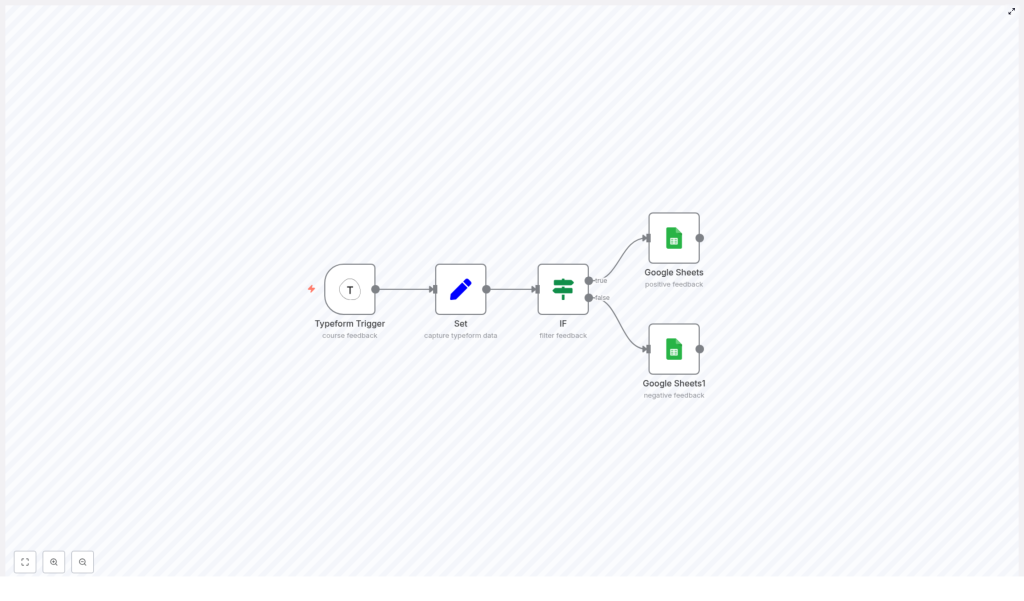
Build a Typeform Feedback Workflow in n8n
Collecting course feedback is critical for continuous improvement, but copying Typeform responses into Google Sheets by hand is slow and error prone. This guide explains, in a technical and implementation-focused way, how to build an n8n workflow that listens to Typeform submissions, normalizes the payload, evaluates a numeric rating, and appends positive and negative feedback to separate Google Sheets tabs automatically.
Workflow overview
This n8n workflow automates the full feedback pipeline from Typeform to Google Sheets. It:
- Subscribes to a specific Typeform form using a Typeform Trigger node (webhook-based).
- Normalizes the raw JSON into concise, reusable fields with a Set node.
- Routes each response into a positive or negative branch using an IF node based on a numeric rating.
- Appends positive feedback to one Google Sheets tab and negative feedback to another using two dedicated Google Sheets nodes.
The reference workflow consists of exactly five nodes:
- Typeform Trigger – Receives new submissions as JSON via webhook.
- Set – Extracts and renames relevant fields such as rating and opinion text.
- IF – Evaluates the rating against a threshold (for example, greater than or equal to 3).
- Google Sheets (positive) – Appends rows for responses classified as positive.
- Google Sheets (negative) – Appends rows for responses classified as negative.
This structure is intentionally simple and is a good starting point for more advanced n8n automation around feedback, sentiment analysis, and reporting.
Architecture and data flow
The automation follows a linear flow with a single branching decision:
- Incoming webhook
The Typeform Trigger node exposes a webhook URL. When a participant submits the form, Typeform sends a structured JSON payload to this URL. n8n starts a new execution for each submission. - Field normalization
The Set node reads values from the incoming JSON using question labels as keys, then writes them to shorter, canonical field names. All downstream logic uses these normalized keys. - Conditional routing
The IF node evaluates the normalized numeric rating field. If the value meets or exceeds a configured threshold, the execution flows through the “true” output. Otherwise, it follows the “false” output. - Persistence in Google Sheets
Two separate Google Sheets nodes receive the routed items. One appends to a “positive” sheet or tab, the other to a “negative” sheet or tab. Both map fields such as timestamp, rating, and free-text opinion into columns.
No additional transformation or external services are required for the core template. All logic is contained within these five nodes.
Node-by-node configuration
1. Typeform Trigger node
The Typeform Trigger node is responsible for connecting n8n to the Typeform form you want to monitor. It operates via a webhook endpoint that Typeform calls on each new submission.
Key parameters
- Form ID
Set this to the identifier of your Typeform, for exampleyxcvbnm. You can find this ID in the Typeform URL or in the Typeform dashboard. - Webhook URL
Once you activate the node or the workflow, n8n generates a webhook URL. You can:- Register this URL manually in your Typeform form’s webhook settings, or
- Use the built-in integration from within the Typeform Trigger node if available in your n8n version.
The webhook must be active and reachable for submissions to trigger the workflow.
- Credentials
Configure and select your Typeform API credentials in n8n. These credentials allow n8n to validate the webhook and, if needed, fetch related form data. Ensure:- The access token is valid and has the required scopes for webhooks and responses.
- The credentials are selected in the Typeform Trigger node.
Runtime behavior
On each submission, Typeform sends a JSON payload to n8n. This payload typically includes:
- Metadata such as submission ID and timestamps.
- Answers keyed by question identifiers or labels.
The node passes the raw JSON to the next node as $json. All subsequent nodes read from this structure.
Edge cases
- Webhook not firing – Confirm that the webhook URL is correctly registered in Typeform and that the n8n workflow is active. If you change the workflow environment (for example, URL or tunnel), you need to re-register the webhook.
- Changed form structure – If you modify questions or labels in Typeform, the JSON shape may change. You will need to update expressions in downstream nodes, especially the Set node.
2. Set node – normalize answers
The Set node standardizes the incoming payload into concise keys that are easier to work with in conditions and expressions. Instead of referencing long question texts repeatedly, you map them once in this node.
Example field mappings
In the template, the Set node defines at least two fields:
usefulness→{{$json["How useful was the course?"]}}This is expected to be a numeric rating (for example, on a 1-5 scale).opinion→{{$json["Your opinion on the course:"]}}This is a free-text feedback field.
You can add more fields in the Set node if your Typeform includes additional questions that you want to store in Google Sheets or use for routing.
Configuration notes
- Keep Key-Value Mode enabled so that each new property is defined explicitly.
- Data types – Ensure that the rating field is stored as a number. If Typeform sends it as a string, n8n usually handles numeric comparison correctly, but you should verify the value in the execution preview.
- Field naming – Use short, stable keys such as
usefulnessorratinginstead of full question labels to make expressions and conditions easier to maintain.
Impact of question label changes
The expressions in this node rely on exact question labels like "How useful was the course?". If you update the question text in Typeform, the path $json["How useful was the course?"] may no longer resolve. In that case:
- Trigger a new test submission.
- Inspect the raw JSON in n8n’s execution log.
- Update the expressions in the Set node accordingly.
3. IF node – route by rating
The IF node splits the workflow into two branches based on the rating captured in the Set node. This is the core decision point that determines whether a response is handled as positive or negative feedback.
Condition configuration
Use the following example condition:
Number: value1 = {{$json["usefulness"]}} operation = largerEqual value2 = 3
This configuration means:
- The node reads the numeric value from
$json["usefulness"]. - It compares this value using the
largerEqualoperation. - If the rating is greater than or equal to
3, the condition evaluates to true. - Otherwise, it evaluates to false.
Branch semantics
In n8n, the IF node has two outputs:
- Output 1 (index 0) – The “true” branch. All items that satisfy the condition are passed here.
- Output 2 (index 1) – The “false” branch. All items that do not satisfy the condition are passed here.
Connect these outputs as follows:
- True branch (index 0) → Google Sheets node for positive feedback.
- False branch (index 1) → Google Sheets node for negative feedback.
Potential pitfalls
- Incorrect connections – If you accidentally swap the outputs, positive ratings may be stored as negative and vice versa. Double check the node connections visually and verify with test submissions.
- Null or missing values – If the
usefulnessfield is missing or not numeric, the condition may behave unexpectedly. Use the execution preview to confirm that the Set node always produces a valid numeric value.
4. Google Sheets nodes – append rows
The workflow uses two separate Google Sheets nodes to persist feedback. One handles positive responses, the other handles negative responses. Both are configured similarly, with only the target range or sheet differing.
Common configuration parameters
- Operation
Set toappend. This adds each new feedback record as a new row at the end of the specified range or sheet. - Range
Use the format<sheet_tab_name>!<column_range>. For example:- Positive feedback:
positive_feedback!A:C - Negative feedback:
negative_feedback!A:C
If you omit the range, Google Sheets appends to the default sheet, but using explicit ranges makes the behavior more predictable.
- Positive feedback:
- Spreadsheet ID
Set the Sheet ID to the ID from your Google Sheets URL. It is the long string between/d/and/editin the URL. Ensure the ID matches the spreadsheet that contains your positive and negative tabs. - Authentication
Select youroAuth2credentials configured in n8n. The associated Google account must have write access to the target spreadsheet.
Field mapping
Within each Google Sheets node, map the fields you want to store. Typical mappings include:
- Timestamp – For example,
{{ new Date().toISOString() }}for an ISO 8601 timestamp. - Rating –
{{$json["usefulness"]}} - Opinion text –
{{$json["opinion"]}}
If your sheet includes a header row, configure the keyRow parameter so that n8n aligns values with the correct columns. The header names should match the keys you map in the node.
Positive vs negative nodes
The two Google Sheets nodes are logically identical except for:
- The tab name and range, for example:
positive_feedback!A:Cnegative_feedback!A:C
- The branch they are connected to:
- Positive node receives items from the IF node’s true output.
- Negative node receives items from the IF node’s false output.
Configuration checklist
Before running the workflow in production, verify the following:
- Typeform Trigger:
- Correct Form ID set.
- Webhook URL registered and active in Typeform.
- Typeform credentials valid and selected.
- Set node:
- Expressions reference the correct question labels.
- Rating field resolves to a numeric value.
- IF node:
- Threshold value set as intended (for example, 3).
- True and false outputs connected to the correct Google Sheets nodes.
- Google Sheets nodes:
- Spreadsheet ID matches your target document.
- Ranges use correct tab names and column ranges.
- OAuth2 credentials have write access.
- Header row configuration (keyRow) matches your sheet layout.
Expressions and common n8n patterns
This workflow relies heavily on n8n expressions to access JSON fields and generate dynamic values. Some useful patterns:
- Access a specific question’s answer directly from the Typeform payload
{{$json["Your opinion on the course:"]}} - Use normalized fields from the Set node
{{$json["usefulness"]}}and{{$json["opinion"]}} - Generate a timestamp
{{ new Date().toISOString() }}
When building more complex automations, you can reuse the same patterns to enrich data, build conditional logic, or integrate with other APIs.
Testing and validation
Validate the workflow end to end before relying on it in production. A typical test process:
- Submit test responses in Typeform
Use different rating values, including both below and above the threshold (for example, 2 and 4), to exercise both branches of the IF node. - Inspect n8n execution logs
Open the workflow executions in n8n and:- Check the payload received by the Typeform Trigger node.
- Verify that the Set node outputs the expected
usefulnessandopinionfields. - Confirm that the IF node routes each item to the correct branch.
- Verify Google Sheets output
Ensure that:- Positive ratings appear in the positive feedback tab.
- Lower ratings appear in the negative feedback tab.
- Columns are aligned with headers and no values are shifted.
If data does not appear as expected, review the configuration checklist and adjust node settings accordingly.
Troubleshooting and operational tips
- Wrong or missing field names
If the Set node expressions returnnullor undefined values:- Submit a fresh response.
- Open the execution and inspect the raw JSON.
- Update expressions like
$json["How useful was the course?"]to match the current payload.
- Authentication errors with Google Sheets
HTTP 401 or 403 errors typically indicate:- Expired or revoked OAuth2 credentials.
- Insufficient permissions for the Google account.
Reconnect the OAuth2 credentials in n8n and verify that the account has edit access to the spreadsheet.
- Range and tab issues
If rows are not appearing where expected:- Confirm that tab names in
positive_feedback!A:Candnegative_feedback!A:Cexactly match the sheet tabs
- Confirm that tab names in
