


Build an MES Log Analyzer with n8n & Weaviate
Picture this: it is 3 AM, the production line is down, alarms are screaming, and you are staring at a wall of MES logs that looks like the Matrix had a bad day. You copy, you paste, you search for the same five keywords again and again, and you swear you will automate this someday.
Good news: today is that day.
This guide walks you through building a scalable MES Log Analyzer using n8n, Hugging Face embeddings, Weaviate vector search, and an OpenAI chat interface. All tied together in a no-code / low-code workflow that lets you spend less time fighting logs and more time fixing real problems.
What this MES Log Analyzer actually does
Instead of forcing you to rely on brittle keyword searches, this setup converts your MES logs into embeddings (numeric vectors) and stores them in Weaviate. That means you can run semantic search, ask natural questions, and let an LLM agent help triage incidents, summarize issues, and suggest next steps.
In other words, you feed it noisy logs, and it gives you something that looks suspiciously like insight.
Why go vector-based for MES logs?
Traditional log parsing is like CTRL+F with extra steps. Vector-based search is closer to: “Find me anything that sounds like this error, even if the wording changed.” With embeddings and Weaviate, you get:
- Contextual search across different log formats and languages
- Faster root-cause discovery using similarity-based retrieval
- LLM-powered triage with conversational analysis and recommendations
- Easy integration via webhooks and APIs into your existing MES or logging stack
All of this is orchestrated in an n8n workflow template that you can import, tweak, and run without writing a full-blown backend service.
How the n8n workflow is wired
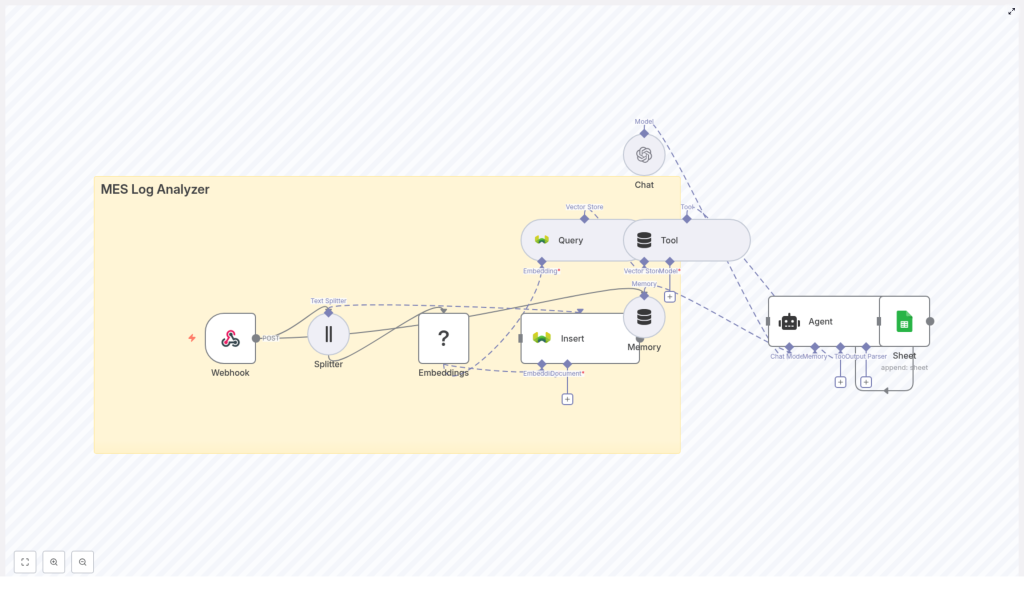
The n8n template implements a full pipeline from raw MES logs to AI-assisted analysis. At a high level, the workflow:
- Receives logs via an n8n Webhook node
- Splits big log messages into smaller chunks for better embeddings
- Embeds each chunk using a Hugging Face model
- Stores those embeddings and metadata in a Weaviate index
- Queries Weaviate when you need semantic search
- Uses a Tool + Agent so an LLM can call vector search as needed
- Maintains memory of recent context for better conversations
- Appends outputs to Google Sheets for reporting and audit
So instead of manually digging through logs, you can ask something like “Show me similar incidents to yesterday’s spindle error” and let the workflow do the heavy lifting.
Quick-start: from raw logs to AI-powered insights
Here is the simplified journey from MES log to “aha” moment using the template.
Step 1 – Receive logs via Webhook
First, set up an n8n Webhook node to accept POST requests from your MES, log forwarder (like Fluentd or Filebeat), or CI system. The payload should include key fields such as:
timestampmachine_idcomponentseveritymessage
Example JSON payload:
{  "timestamp": "2025-09-26T10:12:34Z",  "machine_id": "CNC-01",  "component": "spindle",  "severity": "ERROR",  "message": "Spindle speed dropped below threshold. Torque spike detected."
}
Once this webhook is live, your MES or log forwarder can start firing data into the workflow automatically. No more copy-paste log archaeology.
Step 2 – Split large log messages
Long logs are great for humans, not so great for embeddings. To fix that, the template uses a Text Splitter node that breaks big messages into smaller, overlapping chunks.
The recommended defaults in the template are:
- chunkSize =
400 - chunkOverlap =
40
These values work well for dense technical logs. You can adjust them based on how verbose your MES messages are. Too tiny and you lose context, too huge and the embeddings get noisy and inefficient.
Step 3 – Generate embeddings with Hugging Face
Each chunk then goes to a Hugging Face embedding model via a reusable Embeddings node in n8n. You plug in your Hugging Face API credential, choose a model that fits your latency and cost needs, and let it transform text into numeric vectors.
Key idea: pick a model that handles short, technical logs well. If you want to validate quality, you can test by computing cosine similarity between logs you know are related and see if they cluster as expected.
Step 4 – Store vectors in Weaviate
Next, each embedding plus its metadata lands in a Weaviate index, for example:
indexName: mes_log_analyzer
The workflow stores fields like:
raw_texttimestampmachine_idseveritychunk_index
This structure gives you fast semantic retrieval plus the ability to filter by metadata. You get the best of both worlds: “find similar logs” and “only show me critical errors from a specific machine.”
Step 5 – Query Weaviate and expose it as a tool
When you need to investigate an incident, the workflow uses a Query node to search Weaviate by embedding similarity. Those query results are then wrapped in a Tool node so that the LLM-based agent can call vector search as part of its reasoning process.
This is especially useful when the agent needs to:
- Look up historical incidents
- Compare a new error with similar past logs
- Pull in supporting context before making a recommendation
Step 6 – Memory, Chat, and Agent orchestration
On top of the vector search, the template layers a simple conversational agent using n8n’s AI nodes:
- Memory node keeps a short window of recent interactions or events so the agent does not forget what you just asked.
- Chat node uses an OpenAI model to compose prompts, interpret search results, and generate human-readable analysis.
- Agent node orchestrates everything, deciding when to call the vector search tool, how to use memory, and how to format the final answer or trigger follow-up actions.
The result is a workflow that can hold a brief conversation about your logs, not just spit out raw JSON.
Step 7 – Persist triage outputs in Google Sheets
Finally, the agent outputs are appended to Google Sheets so you have a simple reporting and audit trail. You can:
- Track incidents and suggested actions over time
- Share triage summaries with non-technical stakeholders
- Feed this data into BI dashboards later
If Sheets is not your thing, you can swap it out for a database, a ticketing system, or an alerting pipeline. The template keeps it simple, but n8n makes it easy to plug in whatever you already use.
Key configuration tips for a smoother experience
1. Chunk sizing: finding the sweet spot
Chunk size matters more than it should. Some quick rules of thumb:
- Too small: you lose context and increase query volume.
- Too large: embeddings become noisy and inefficient.
Start with the template defaults:
chunkSize = 400chunkOverlap = 40
Then tune based on the average length and structure of your logs.
2. Choosing the embedding model
For MES logs, you want a model that handles short, technical text well. Once you pick a candidate model, sanity check it by:
- Embedding logs from similar incidents
- Computing cosine similarity between them
- Verifying that related logs cluster closer than unrelated ones
If similar incidents are far apart in vector space, it is time to try a stronger model.
3. Designing your Weaviate schema
A clean Weaviate schema makes your life easier later. Include fields such as:
raw_text(string)timestamp(date)machine_id(string)severity(string)chunk_index(int)
Enable metadata filters so you can query like:
- “All
ERRORlogs fromCNC-01last week”
Then rerank those by vector similarity to the current incident.
4. Prompts and LLM safety
Good prompts turn your LLM from a chatty guesser into a useful assistant. In the Chat node, include clear instructions and constraints, for example:
Analyze these log excerpts and provide the most likely root cause, confidence score (0-100%), and suggested next steps. If evidence is insufficient, request additional logs or telemetry.
Also consider:
- Specifying output formats (for example JSON or bullet points)
- Reminding the model not to invent data that is not in the logs
- Including cited excerpts from the vector store to reduce hallucinations
What you can use this MES Log Analyzer for
Once this workflow is running, you can start using it in several practical ways:
- Automated incident triage Turn raw logs into suggested remediation steps or auto-generated tickets.
- Root-cause discovery Find similar past incidents using semantic similarity instead of brittle keyword search.
- Trend detection Aggregate embeddings over time to detect new or emerging failure modes.
- Knowledge augmentation Attach human-written remediation notes to embeddings so operators get faster, richer answers.
Basically, it turns your log history into a searchable knowledge base instead of a graveyard of text files.
Scaling, performance, and not melting your infrastructure
As log volume grows, you might want to harden the pipeline a bit. Some scaling tips:
- Batch embeddings if your provider supports it to reduce API calls and cost.
- Use Weaviate replicas and sharding for high-throughput search workloads.
- Archive or downsample older logs so your vector store stays lean while preserving representative examples.
- Add asynchronous queues between the webhook and embedding nodes if you experience heavy peaks.
Handled correctly, the system scales from “a few machines” to “entire factories” without turning your log analyzer into the bottleneck.
Security and data governance
MES logs often contain sensitive information, and your compliance team would like to keep their blood pressure under control. Some best practices:
- Mask or redact PII and commercial secrets before embedding.
- Use private Weaviate deployments or VPC networking, not random public endpoints.
- Rotate API keys regularly and apply least-privilege permissions.
- Log access and maintain an audit trail for model queries and agent outputs.
That way, you get powerful search and analysis without leaking sensitive data into places it should not be.
Troubleshooting common issues
Things not behaving as expected? Here are some quick fixes.
- Low-quality matches Try increasing chunkOverlap or switching to a stronger embedding model.
- High costs Batch embeddings, reduce log retention in the vector store, or use a more economical model for low-priority logs.
- Agent hallucinations Feed more relevant context from Weaviate, include cited excerpts in prompts, and tighten instructions so the model sticks to the evidence.
Next steps and customization ideas
Once the core template is running, you can extend it to match your environment.
- Integrate alerting Push high-severity or high-confidence matches to Slack, Microsoft Teams, or PagerDuty.
- Auto-create tickets Connect to your ITSM tool and open tickets when the agent’s confidence score is above a threshold.
- Visualize similarity clusters Export embeddings and render UMAP or t-SNE plots in operator dashboards.
- Enrich vectors Add sensor telemetry, OEE metrics, or other signals to power multimodal search.
This template is a solid foundation, not a finished product. You can grow it alongside your MES environment.
Wrapping up: from noisy logs to useful knowledge
By combining n8n, Hugging Face embeddings, Weaviate, and an OpenAI chat interface, you can turn noisy MES logs into a searchable, contextual knowledge base. The workflow template shows how to:
- Ingest logs via webhook
- Split and embed messages
- Store vectors with metadata in Weaviate
- Run semantic search as a tool
- Use an agent to analyze and summarize issues
- Persist results to Google Sheets for reporting
Whether your goal is faster incident resolution or a conversational assistant for operators, this architecture gives you a strong starting point without heavy custom development.
Ready to try it? Import the n8n template, plug in your Hugging Face, Weaviate, and OpenAI credentials, and point your MES logs at the webhook. From there, you can tune, extend, and integrate it into your existing workflows.
Call to action: Import this n8n template now, subscribe for updates, or request an implementation guide tailored to your MES environment.
Resources: n8n docs, Weaviate docs, Hugging Face embeddings, OpenAI prompt best practices.
