


Build an n8n YouTube Transcript Summarizer
Ever opened a YouTube video “just to get the gist” and suddenly it is 45 minutes later, your coffee is cold, and you still do not remember the key points? This workflow exists to stop that from happening.
In this guide, you will build an n8n automation that takes a YouTube URL via webhook, grabs the video details and transcript, sends the text to a language model (like GPT-4o-mini via LangChain), and returns a clean, structured summary. As a bonus, it can also ping you on Telegram so you do not even have to refresh a page to see the results.
We will walk through what the workflow does, how the nodes connect, and how to keep things stable and cost effective in production. All the key n8n steps and technical details are preserved, just with fewer yawns and more automation joy.
Why bother summarizing YouTube with n8n?
Manually skimming through video transcripts is the productivity equivalent of watching paint dry. Automating YouTube transcript summarization with n8n fixes that in a few ways:
- Massive time savings – Get the main ideas in a few paragraphs instead of watching entire videos.
- Better accessibility – Summaries help teams quickly scan content, share insights, and support people who prefer text.
- Scalable research – Process playlists, channels, or incoming links automatically instead of doing copy-paste gymnastics.
- LLM-powered insights – A modern language model via LangChain can extract structure, key terms, and action items, not just a wall of text.
In short, you get the value of the video without sacrificing your afternoon.
What this n8n YouTube transcript summarizer actually does
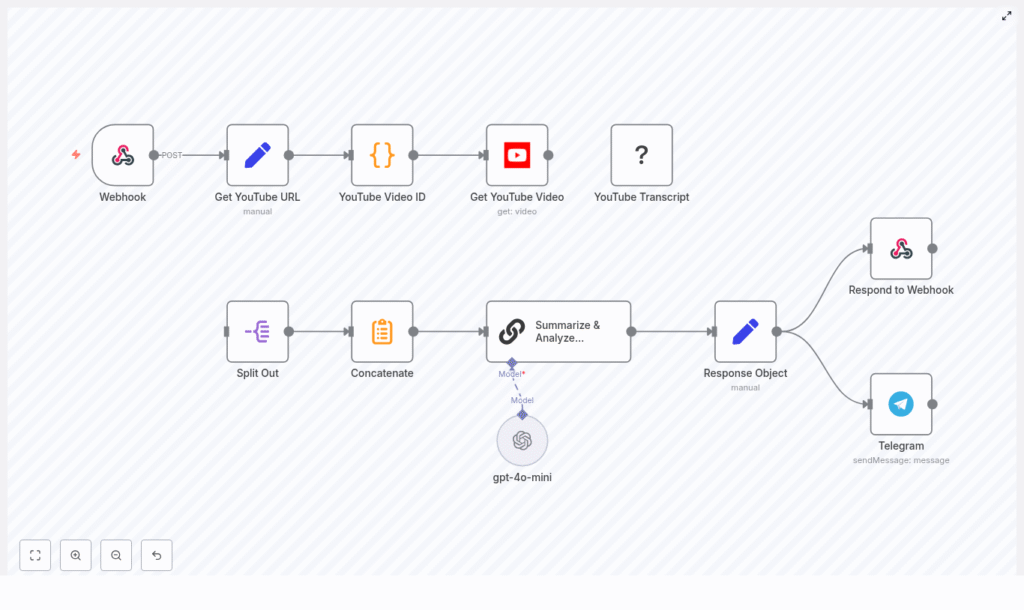
Here is the big picture of the workflow, from “someone sends a URL” to “you get a neat summary and a notification”:
- Webhook – Receives an HTTP POST with a JSON body that includes a YouTube URL.
- Get YouTube URL – Maps the incoming field to a clean
youtubeUrlvariable. - YouTube Video ID – Runs a Code node to extract the 11-character video ID from almost any YouTube link format.
- Get YouTube Video – Uses the YouTube node to fetch metadata like title, description, and thumbnails.
- YouTube Transcript – Pulls the transcript via a transcription node, YouTube API, or third-party service.
- Split Out & Concatenate – Normalizes transcript segments and merges them into a single text blob.
- Summarize & Analyze (LangChain + GPT) – Sends the full transcript to an LLM using LangChain and gets a structured markdown summary.
- Response Object – Packages the title, summary, video ID, and URL into a tidy JSON response.
- Respond to Webhook & Telegram – Returns the result to the caller and optionally drops a Telegram notification.
So each time you hit the webhook with a YouTube link, you get an instant “executive summary” of the video instead of another tab to babysit.
What you need before you start
Before wiring everything together in n8n, make sure you have these pieces ready:
- An n8n instance (cloud or self-hosted)
- YouTube API credentials or access to a YouTube transcription node
- An OpenAI API key (or another LLM provider) that you can use via the LangChain node
- A Telegram bot token if you want notifications (optional but very satisfying)
- Basic familiarity with webhooks and JSON so you know what is hitting your workflow
Quick setup walkthrough: from webhook to summary
Let us break the workflow into simple steps you can follow in n8n. This is the same logic as the original template, just rearranged and explained with fewer headaches.
Step 1 – Create the Webhook trigger
Start with a Webhook node and configure it to accept an HTTP POST request with JSON. Your incoming payload should include a field like:
{  "youtubeUrl": "https://www.youtube.com/watch?v=XXXXXXXXXXX"
}
Once this is set, you can trigger the workflow from any script, tool, or service that can send POST requests.
Step 2 – Normalize the URL with a Set node
Add a Set node (often named something like Get YouTube URL). Map the incoming field to a stable property called youtubeUrl. For example, if your webhook payload is messy or nested, this node cleans it up so all later nodes can just rely on json.youtubeUrl.
Step 3 – Extract the YouTube video ID with a Code node
Next, add a Code node to parse the 11-character video ID from the URL. This snippet handles common YouTube formats, including full links, short youtu.be links, and embed URLs:
const extractYoutubeId = (url) => {  const pattern = /(?:youtube\.com\/(?:[^\/]+\/.+\/|(?:v|e(?:mbed)?)\/|.*[?&]v=)|youtu\.be\/)([^"&?\/\s]{11})/;  const match = url.match(pattern);  return match ? match[1] : null;
};

const youtubeUrl = items[0].json.youtubeUrl;
return [{ json: { videoId: extractYoutubeId(youtubeUrl) } }];
Tip: Add validation here. If videoId is null, branch to an error path, send a helpful error message, or log the problem instead of confusing your future self.
Step 4 – Get YouTube video metadata
Now use the YouTube node to fetch information about the video. With the video ID from the previous step, request metadata like:
- Title
- Description
- Thumbnails
This metadata is useful for two things: giving the LLM more context in the prompt and making your final response object or Telegram message more readable.
Step 5 – Fetch the YouTube transcript
Next up is the YouTube Transcript step. Depending on your stack, you can:
- Use a dedicated transcription node that reads captions directly.
- Call the YouTube API if captions are available for the video.
- Use a third-party transcription service if you need extra coverage.
Typically, the transcript arrives as an array of timestamped segments, not one big text block. That is great for machines, slightly annoying for humans, and exactly what we will fix next.
Step 6 – Split and concatenate the transcript text
Use a combination of a Split Out node and a concatenation step to:
- Normalize the array of transcript segments.
- Combine all segments into one continuous text blob.
This gives you a single long string that is easy to send to the LLM. It also keeps the prompt logic simple and avoids weird gaps or out-of-order fragments in the summary.
Step 7 – Summarize & analyze with LangChain and GPT
Now for the fun part. Add a LangChain node configured with your preferred LLM, such as gpt-4o-mini, gpt-4, or another compatible model. The input should be your concatenated transcript text.
In your prompt, you can ask the model for a structured summary in markdown. For example, you might:
- Ask it to break content into main topics with headers.
- Request bullet points for key ideas.
- Highlight important terms.
- Limit the summary to a certain length, for example 200 to 400 words, to keep token usage under control.
Here is a sample prompt snippet similar to what you might use in the workflow:
=Please analyze the given text and create a structured summary following these guidelines:

1. Break down the content into main topics using Level 2 headers (##)
2. Under each header: list essential concepts as bullets, keep concise, preserve accuracy
3. Sequence: Definition, characteristics, implementation, pros/cons
4. Use markdown formatting and simple bullets

Here is the text: {{ $json.concatenated_text }}
You can tweak this prompt to match your use case, for example more action items, more technical detail, or a shorter summary.
Step 8 – Build a clean response object
Once the LLM responds, collect all the important pieces into a single JSON object. A typical Response Object node might include:
title– from the YouTube metadatayoutubeUrl– the original URL that was sent to the webhookvideoId– the parsed video IDsummary– the structured summary from the LLMrawTranscriptor a link to it (optional) – for deeper research or debugging
This is what you will return to the caller and use in your notifications or storage integrations.
Step 9 – Respond to the webhook and ping Telegram
Finally, add two output paths:
- Respond to Webhook – Return the full JSON response to whoever called the webhook. This usually includes the summary, title, URL, and any other fields you want to expose.
- Telegram notification (optional) – Use the Telegram node to send a short message, such as the video title and a link to the summary or the original video.
Keep the Telegram message concise so it is easy to skim on mobile. The full summary can stay in the webhook response or in a linked document or app.
Testing your n8n YouTube summarizer
Before you trust this workflow with your entire “Watch Later” list, give it a proper workout:
- Test with different link styles: standard
watch?v=, shortyoutu.be, and embed links. - Try videos with captions in different languages to be sure transcripts are handled correctly.
- Verify that the video ID extraction works and is never empty for valid URLs.
- Check that the transcript is not empty before sending it to the LLM to avoid wasting tokens.
- For long videos, make sure you are not hitting token limits. If you are, consider batching or trimming the text.
A bit of testing here saves a lot of “why is this empty?” debugging later.
Error handling and rate limiting
APIs sometimes misbehave, and rate limits are the universe’s way of telling you to slow down. Protect your workflow with a few safeguards:
- Add retry logic around YouTube and LLM calls for transient errors.
- Use a fallback model or a shortened transcript if your primary model hits token limits.
- Log errors to a database or log management tool so you can diagnose issues later.
- Send Telegram alerts to an admin or channel when items fail so you do not miss problems.
With good error handling, your workflow feels more like a reliable assistant and less like a moody script.
Managing cost, performance, and tokens
Long transcripts plus powerful models can get expensive quickly. A few strategies help keep costs sane:
- Pre-trim transcripts to the most relevant sections, for example the first 20 minutes or known highlight segments.
- Use a two-pass approach: first ask the LLM to identify key timestamps or sections, then summarize only those parts.
- Pick a model with a good cost-quality tradeoff. For many use cases, gpt-4o-mini is a solid, cheaper option for concise summaries.
Optimizing this part keeps your automation from turning into a surprise line item on your cloud bill.
Best practices and upgrade ideas
Once the basic workflow is working, there are plenty of ways to make it more powerful and more pleasant to use:
- Cache by video ID so you do not reprocess the same video every time someone sends the URL again.
- Detect and translate languages before summarization so non-English videos are still useful to your team.
- Build a simple UI that shows processed videos, their summaries, and current status.
- Store results in a database like Postgres or Airtable to enable search, analytics, or later reuse.
These enhancements turn a handy script into a small internal product for your team.
Security considerations for your webhook and keys
Since this workflow is triggered over HTTP and uses API keys, a bit of security hygiene goes a long way:
- Protect the webhook endpoint with a secret token or HMAC validation so only trusted callers can use it.
- Encrypt API keys and store them in n8n credentials or a dedicated secrets manager, not in plain text nodes.
- Limit webhook access to trusted systems, VPNs, or IP ranges where possible.
This keeps your summarizer helpful for you and not for random internet strangers.
Wrap-up: from endless videos to quick insights
This n8n workflow gives you a repeatable pattern for automating YouTube content extraction and summarization. It is ideal for research teams, content marketers, and anyone who needs fast video insights without watching every second.
Once it is in place, you can feed it URLs from internal tools, Slack bots, CRM systems, or browser extensions and get consistent, structured summaries every time.
Next steps you can take
- Add translation so multilingual transcripts get summarized in your preferred language.
- Integrate with Notion, Confluence, or Google Drive to automatically store summaries in your knowledge base.
- Build a small frontend that lists processed videos, shows summaries, and links back to the original YouTube content.
Call to action: Spin this workflow up on your n8n instance, tweak the LLM prompt to match your style, and iterate from there. If you want help refining the prompt or troubleshooting, you can paste your webhook payload and workflow details and we can adjust it together.
