

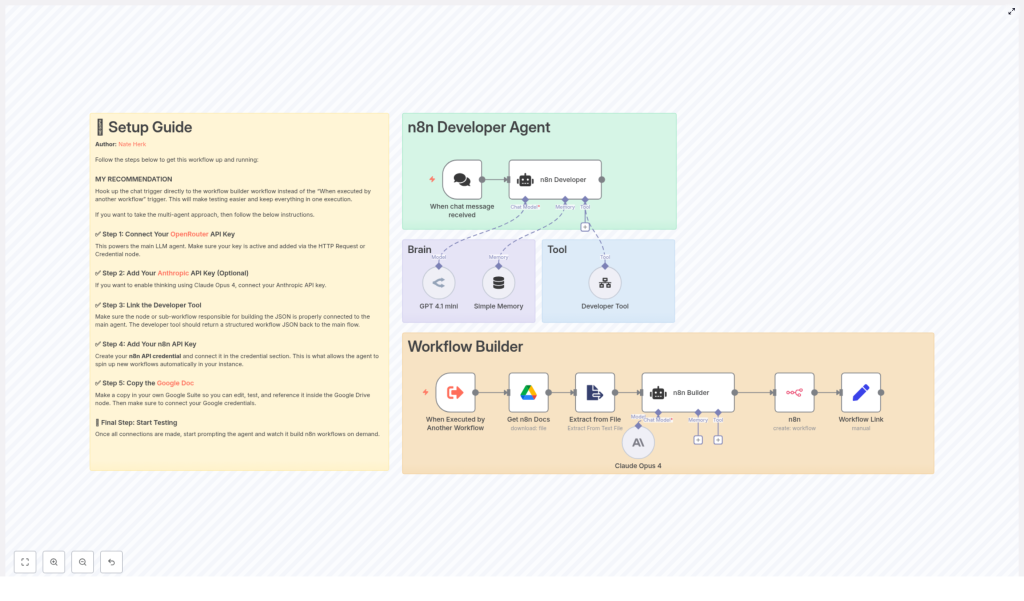
Build Automated n8n Workflows with the Developer Agent
The n8n Developer Agent is a multi-agent workflow template that helps you design, test, and deploy n8n workflows automatically using large language models (LLMs). Instead of manually wiring nodes together, you describe what you want in plain language, and the agent generates ready-to-import n8n workflow JSON for you.
This guide explains how the template works, how to configure it step by step, and how to use it safely in your own n8n instance.
What you will learn
By the end of this tutorial-style walkthrough, you will be able to:
- Explain the high-level architecture of the n8n Developer Agent template
- Identify the key nodes and what each one does in the workflow
- Connect the required API keys and configure LLMs and tools
- Use natural language prompts to generate new n8n workflows automatically
- Apply best practices, safety checks, and troubleshooting steps
Why use the n8n Developer Agent template?
Building production-grade automations in n8n usually involves a lot of iteration. You typically need to:
- Define triggers (webhooks, schedules, app events)
- Extract and transform data from payloads
- Connect to external APIs and services
- Document the workflow for your team
The n8n Developer Agent template speeds this up by combining:
- Language models that understand natural language requirements
- Memory and tools that turn those requirements into structured workflow designs
- A workflow builder that converts the design into importable n8n workflow JSON
In practice, you can use the template to:
- Prototype n8n workflows quickly from plain language prompts
- Automate repetitive workflow scaffolding and documentation
- Standardize how your team creates and documents workflows
Concept overview: How the template is structured
The template is organized into two main zones that work together:
1. n8n Developer Agent (the “brain”)
This part of the template interprets what you ask for and plans the workflow. It includes:
- Trigger node that starts the process when a message or event arrives
- LLM nodes such as GPT 4.1 mini or Claude Opus 4 that reason about your request
- Developer Tool that enforces strict JSON output rules and returns valid workflow JSON
2. Workflow Builder (the “hands”)
This secondary flow takes the JSON produced by the Developer Agent and turns it into an actual workflow inside your n8n instance. It can:
- Download supporting documentation (for example, from Google Drive)
- Extract relevant text or context if needed
- Use the n8n API to create a new workflow and return a Workflow Link
Thinking in these two layers makes it easier to understand and extend the template: first plan and generate the workflow, then create and store it.
Key components explained
Trigger: “When chat message received”
This trigger is the entry point for your prompts. When a user sends a message, the node:
- Captures the natural language request
- Passes the text to the n8n Developer Agent
You are not limited to chat. You can replace this with other triggers, for example:
- Webhook trigger to accept HTTP requests
- Schedule trigger to run regularly
- Execute Workflow trigger to call the agent from other workflows
n8n Developer (Agent) node
This is the central orchestrator. It:
- Receives the raw user prompt from the trigger
- Routes the request to the appropriate language model node or nodes
- Calls the Developer Tool to generate final n8n workflow JSON
The system messages inside this agent are preconfigured to instruct the LLMs to:
- Produce a single, valid n8n workflow JSON object
- Return JSON that can be imported directly into n8n or sent to the n8n API
Language model nodes
The template shows two example LLM configurations:
- GPT 4.1 mini via OpenRouter for general reasoning and coding tasks
- Claude Opus 4 via Anthropic for deeper planning or evaluation
These are examples only. You can:
- Swap them for different OpenAI-compatible models
- Use only one model if that suits your use case
- Adjust temperature, token limits, and prompts to match your workflow complexity
Developer Tool
The Developer Tool is either:
- An agent tool node inside the same workflow, or
- A sub-workflow that the agent calls
Its job is to:
- Take the structured request from the Developer Agent
- Apply strict formatting rules
- Return exactly one JSON object that starts with
{and ends with}
This strict formatting is important so that the output:
- Can be imported directly into n8n as a workflow
- Can be posted to the n8n API without extra cleanup
If the Developer Tool is implemented as a sub-workflow, configure its outputs so that the workflow JSON is returned as a single string field.
n8n API node (create workflow)
Once you have valid JSON, the template uses an n8n API node to:
- Send the workflow JSON to your n8n instance
- Create a new workflow programmatically
- Return a user-friendly Workflow Link so you can open it directly
This is part of the Workflow Builder zone that turns the agent’s design into a real, runnable automation.
Step-by-step setup in n8n
Step 1: Connect required credentials and API keys
Before you run the template, set up the necessary credentials in your n8n instance. At minimum, you will typically need:
- OpenRouter API key or another OpenAI-compatible LLM provider
- Anthropic API key if you want to use Claude Opus 4
- n8n API key to allow the workflow to create new workflows via the API
- Google Drive OAuth if you use the built-in documentation download node
Attach these credentials to the appropriate nodes in the template so the agent and builder can communicate with external services.
Step 2: Configure the Developer Tool output
The most important rule for the Developer Tool is that it must return exactly one JSON object. To achieve this:
- Use a system prompt that clearly instructs the LLM to output only JSON
- Ensure the response starts with
{and ends with}, with no extra text - If using a sub-workflow, configure the output so the JSON is provided in a single string field
The template already includes strict output rules in the system messages, but you can tighten or adapt them if you notice formatting issues.
Step 3: Connect the Developer Agent to the Workflow Builder
There are two main patterns you can follow when connecting the agent to the builder flow.
Option A: Single-flow pattern
In this simpler approach:
- The chat trigger receives the prompt
- The Developer Agent and Developer Tool generate workflow JSON
- The same workflow passes the JSON directly to the n8n API node to create the workflow
This is ideal for testing and smaller setups because everything happens in a single workflow.
Option B: Multi-agent pattern
In this more modular approach:
- The Developer Agent runs in one workflow
- The Workflow Builder runs in a separate workflow
- You connect them using the Execute Workflow node or trigger
This pattern is useful when you:
- Want to orchestrate multiple agents across sub-workflows
- Need clear separation of concerns between planning and creation
- Plan to reuse the builder flow for other automation-generating agents
Step 4: Test with small, simple prompts
Start with a narrow request so you can inspect the output easily. For example:
“Create a workflow that has a Webhook trigger and an HTTP Request node that sends form data to Slack.”
Then:
- Check the JSON that the Developer Tool returns
- Confirm that it is valid JSON and that the nodes match your request
- Let the template create the workflow in n8n and open the Workflow Link
The template often includes sticky note nodes inside the generated workflow. These notes explain:
- What each part of the workflow does
- Which credentials you need to configure (for example, Slack or HTTP credentials)
Example prompt and what to expect
Here is a more detailed example of how you might use the n8n Developer Agent.
Example prompt
“Build a workflow that listens to a webhook, parses incoming JSON, extracts customer email and order ID, and sends a formatted message to Slack. Include a sticky note documenting required credentials.”
Expected behavior of the agent
When you send this prompt to the chat trigger (or other entry point), the template should:
- Generate a valid n8n workflow JSON that includes:
- A Webhook node to receive the request
- A Set node or similar to extract
customer emailandorder ID - An HTTP Request node configured for Slack
- A Sticky Note node that explains which credentials and environment variables are required
- Return the JSON unwrapped, starting with
{and ending with} - If the builder is connected, create the workflow in your n8n instance and provide a clickable Workflow Link
Best practices and safety checks
Validate generated workflows before production
- Always test in a sandbox or staging environment first
- Preview the JSON, or import it into a test n8n instance, before enabling it in production
Use minimal and scoped permissions
- Configure the n8n API key with only the permissions it needs, such as creating workflows
- Apply scoped permissions to Google Drive and other external services to reduce risk
Version control your workflows
- Export generated workflows and store them in a code repository or backup system
- Consider having the agent include metadata in the JSON, such as author, timestamp, or project name
Manage LLM usage and cost
- Set sensible token limits in LLM nodes, especially for complex workflows
- Configure retry logic and rate limits to avoid unexpected costs or throttling
Troubleshooting common issues
Issue: Agent returns malformed or non-JSON output
If the Developer Tool sometimes returns invalid JSON:
- Double-check that the system prompt clearly states:
- Output only one JSON object
- No extra comments, markdown, or explanations
- Add an intermediate validation step:
- Use a node to parse the JSON string
- If parsing fails, stop execution and return a clear error message
Issue: Workflow creation fails with 401 or 403
Authentication or authorization errors usually mean:
- The n8n API credential is not configured correctly
- The API user does not have permission to create workflows
- The API base URL or token has changed or expired
Check the API node configuration, confirm the token is valid, and verify the user permissions inside your n8n instance.
Issue: LLM responses are low quality or incomplete
If the generated workflows are not meeting your expectations:
- Improve the system messages with clearer instructions and examples
- Increase token budgets for more complex prompts that need longer reasoning
- Optionally add a quality-check step, for example a second LLM node (such as Claude) that evaluates and refines the proposed workflow before creation
Extending the template for advanced use cases
The n8n Developer Agent template is intentionally modular, so you can adapt it to your own development workflow. Some ideas include:
- Git integration:
- Automatically tag generated workflows with git commit metadata
- Push exported workflow JSON to GitHub or another repository
- Organizational standards:
- Add a validation node that checks naming conventions, node types, or required notes
- Reject or flag workflows that do not meet your internal standards
- Automated testing:
- Run a dry-run execution of the new workflow in a sandbox instance
- Only promote workflows that pass basic checks
Quick recap
To summarize how to use the n8n Developer Agent template effectively:
- Understand the architecture: Separate the Developer Agent (planning) from the Workflow Builder (creation).
- Connect credentials: Configure LLM

