


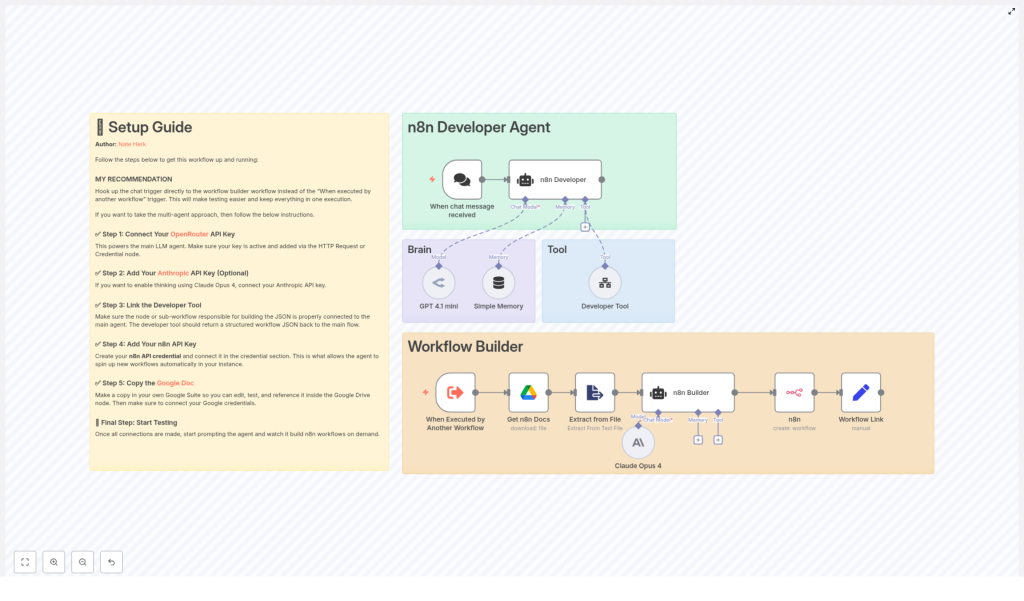
Build the n8n Developer Agent: Auto Workflow Builder
On a rainy Tuesday morning, Alex, a senior automation engineer, stared at yet another Slack message from a product manager.
“Can you spin up a quick workflow that takes new leads from our form, enriches them, and posts a summary to Slack? Should be simple, right?”
Alex had heard that line a hundred times. Each “simple” request meant opening n8n, dragging nodes, wiring connections, double checking credentials, and then documenting everything so the next person could reuse it. By lunchtime the day was gone, and Alex had barely touched the roadmap.
That was the day Alex decided there had to be a better way to build n8n workflows. Not by hand, but by describing what was needed in plain language and letting an AI agent do the heavy lifting.
That search led to the n8n Developer Agent, a multi-agent, AI-assisted workflow template that turns natural language prompts into fully importable n8n workflows. What started as frustration became the beginning of a new automation factory inside Alex’s n8n instance.
The problem: too many ideas, not enough time
Alex’s team was drowning in automation requests. Marketing wanted new lead routing workflows. Support wanted ticket triage. Operations wanted data syncs between tools that did not even have native integrations. Everyone agreed that n8n could do it all, but building each workflow manually was slow and error prone.
Worse, every engineer had their own style. Node names were inconsistent, connections got messy, and documentation lagged behind reality. Reusing workflows meant deciphering someone else’s logic days or months later.
Alex wrote out the pain points in a notebook:
- Too much manual work – every new workflow started from scratch.
- Inconsistent structure – node names, metadata, and patterns were all over the place.
- Slow prototyping – simple ideas took hours to test in n8n.
- Hard to collaborate – sharing workflows as clean, reusable artifacts was a constant struggle.
What Alex really needed was a developer-grade assistant inside n8n itself, something that could take a sentence like “Build a workflow that triggers hourly and posts a message to Slack” and return a ready-to-import JSON workflow.
The discovery: an AI-powered n8n Developer Agent
While exploring community resources, Alex found a template called the n8n Developer Agent: Auto Workflow Builder. It promised exactly what the team needed:
- Convert conversational prompts into importable n8n workflow JSON.
- Use LLMs like GPT-4.1 mini or Claude Opus 4 for reasoning and generation.
- Pull reference docs from Google Drive so the agent stayed aligned with internal standards.
- Optionally create workflows directly in the n8n instance via API.
Instead of building workflows by hand, Alex could describe the goal and let the Developer Agent assemble nodes, parameters, and connections. It sounded almost too good to be true.
To see if it was real, Alex imported the template and started exploring how it worked under the hood.
Behind the curtain: how the n8n Developer Agent thinks
What Alex found was not just a single workflow, but a small ecosystem of cooperating agents and tools, each with a clear responsibility.
The high-level architecture Alex uncovered
The template was built around several core components:
- Chat trigger – listens for user prompts from a chat interface or webhook and kicks off the process.
- Main agent (n8n Developer) – orchestrates the entire request and coordinates with sub-agents and tools.
- LLM brain – one or more LLM nodes, such as GPT-4.1 mini or Claude Opus 4, that handle reasoning and generation.
- Developer Tool – produces the final, importable n8n workflow JSON.
- Docs and file extraction – pulls reference documentation from Google Drive and converts it into text.
- n8n API node – optionally creates workflows directly in the n8n instance using the API.
Instead of a monolithic script, the Developer Agent behaved like a small team: one part listened, another thought, another wrote code-like JSON, and another deployed it.
Meet the cast: each node as a character in the story
As Alex stepped through the workflow, each node revealed its role in the story.
The Chat Trigger: where the story begins
The journey starts with the When chat message received node. This trigger listens for new prompts, either from a chat UI or a webhook. Whenever someone in Alex’s team typed a request, that raw text flowed into the Developer Agent.
For early testing, Alex swapped this out with an Execute Workflow node, so prompts could be entered directly from within n8n while fine tuning the setup.
The n8n Developer Agent: the orchestrator
Once a message arrives, the n8n Developer (Agent) steps in as the conductor. It does something important that Alex appreciated: it forwards the original prompt exactly as written to the Developer Tool, without rewriting or filtering it.
This agent also keeps track of context, tool outputs, and memory. After the Developer Tool returns the workflow JSON, the agent prepares a response that includes a link to the newly created workflow so the requester can open it instantly.
The LLM brain: GPT and Claude as architects
The real “thinking” happens in the LLM nodes. Alex configured nodes using:
- GPT-4.1 mini via OpenRouter for fast, cost effective generation.
- Claude Opus 4 via Anthropic for deep reasoning and complex structural decisions.
These nodes analyze the user’s request, choose node types, set parameters, and assemble the connections between them. Alex could tune model settings like:
- Model choice per step.
- Token limits for output size.
- Safety and temperature settings to reduce hallucinations.
By combining GPT for creativity and Claude for structure, Alex found a good balance between speed and reliability.
The Developer Tool: where JSON workflows are born
The Developer Tool became Alex’s favorite part. This tool is responsible for outputting a single, well formed JSON object that represents an entire n8n workflow.
Every output must include:
- name – the workflow name.
- nodes – a complete array of nodes with types and parameters.
- connections – how each node connects to others.
- settings – such as executionOrder or saveManualExecutions.
- staticData – usually
null, unless needed.
To make life easier for future users, Alex also had the tool include sticky notes inside the workflow JSON. These notes highlighted:
- Which credentials still needed to be configured.
- Any manual setup steps after import.
- Usage tips or assumptions made by the agent.
Because the JSON started with { and ended with } with no extra text, it could be imported directly into n8n, either via the UI or programmatically.
Google Drive and Extract from File: the library of knowledge
Alex knew that LLMs perform better when they have clear reference material. The template solved this with Google Drive and an Extract from File node.
By storing internal n8n docs and template examples in Google Drive, then converting them to plain text, the Developer Agent could:
- Read up-to-date node parameter examples.
- Follow approved patterns and best practices.
- Stay aligned with the team’s standard configurations.
For Alex, this meant the agent did not just generate “any” workflow. It generated workflows that matched how the team already worked.
The n8n API node: the deployment engine
Finally, Alex found the n8n node (create workflow). This node uses an n8n API credential to take the JSON from the Developer Tool and create a new workflow directly in the n8n instance.
A simple Set node then formats a clickable link, so whoever requested the workflow can open it with a single click.
In other words, a plain language sentence now turned into a live workflow inside n8n, without anyone dragging a single node manually.
The turning point: setting everything up
Excited but cautious, Alex decided to configure the Developer Agent step by step, starting in a safe sandbox environment.
Step 1 – Connect OpenRouter or your preferred LLM
First, Alex created credentials for OpenRouter and connected them to the LLM nodes that used GPT-variants. A quick test prompt confirmed that:
- The API keys were valid.
- The model responded within acceptable latency.
- Responses were within token limits.
Any other compatible LLM provider could be used here, but OpenRouter made it easy to switch models later.
Step 2 – (Optional) Add Anthropic and Claude
For more complex workflows, Alex wanted the reasoning power of Claude Opus 4. By adding an Anthropic API key and wiring it into a dedicated LLM node, Alex could route structured, logic heavy tasks to Claude.
Over time, a pattern emerged:
- Use Claude for complex structural outputs and multi step logic.
- Use GPT for creative phrasing and lighter tasks.
Step 3 – Configure the Developer Tool correctly
Next, Alex focused on the Developer Tool configuration. The key was to map the agent input exactly as received so the original user prompt flowed straight into the tool.
Alex adjusted the system prompt so that the tool would:
- Return a single valid JSON object.
- Include
name,nodes,connections,settings, andstaticData. - Add sticky notes for any credentials or configuration items that humans needed to finish.
- Avoid explanations, Markdown, or any text outside the JSON.
This strict format guaranteed that the output could be imported directly into n8n without manual cleanup.
Step 4 – Connect Google Drive for documentation
To give the agent a reliable knowledge base, Alex:
- Made a copy of the team’s canonical n8n documentation in Google Drive.
- Connected Google Drive credentials to the Get n8n Docs node.
- Used the Extract from File node to convert these docs into plain text.
Now, every time the Developer Agent ran, it had up-to-date examples and recommended settings to reference.
Step 5 – Wire in the n8n API credential
Finally, Alex created an n8n API credential with permission to create new workflows.
Before trusting it in production, Alex tested it by:
- Pointing it to a sandbox n8n workspace.
- Creating a simple test workflow via the API node.
- Verifying that the new workflow appeared correctly and executed without issues.
Only after this test passed did Alex enable auto-creation for real use cases.
The first real test: will it actually build a workflow?
With everything wired up, Alex decided it was time for a real experiment. The prompt was simple:
“Build a workflow that triggers hourly and posts a message to Slack.”
The Developer Agent sprang into action. Behind the scenes, Alex watched each step execute:
- The chat trigger captured the request.
- The n8n Developer Agent passed the raw prompt to the Developer Tool.
- The LLM nodes reasoned about what nodes were needed and how to connect them.
- The Developer Tool generated a JSON workflow with a Cron trigger, Slack node, and proper connections.
- The n8n API node created the workflow in the sandbox instance.
- A link appeared, ready to be clicked.
Alex opened the new workflow and inspected the details:
- Node types were valid and correctly configured.
- Connections lined up as expected.
- Sticky notes clearly listed which Slack credentials to attach.
After a quick credential hookup, Alex ran the workflow. It posted to Slack on schedule with no errors. The test passed.
Testing, validation, and tightening the screws
Success was exciting, but Alex knew that a production ready Developer Agent needed more rigorous validation. A simple checklist emerged.
Alex’s testing routine
- Start with a basic request, such as “Build a workflow that triggers hourly and posts a message to Slack.”
- Inspect the returned JSON for:
- Valid node types.
- Correct connections.
- Expected settings and metadata.
- Import the JSON manually at first, or let the n8n API node create the workflow automatically in a sandbox.
- Execute the new workflow and review logs for any errors or missing parameters.
- Confirm that sticky notes mention all required credentials and configuration steps.
Each iteration surfaced small improvements that Alex fed back into the Developer Tool prompt and documentation.
Security and governance: keeping the agent under control
As the team grew more confident, a new concern emerged. If an AI agent could create workflows automatically, it needed guardrails.
Alex worked with the security team to add governance controls around the Developer Agent:
- Role based access – only specific roles could run the Developer Agent or create workflows through the API.
- Staging environment – all auto created workflows landed in a staging workspace first, then were promoted to production after review.
- Audit logs – n8n execution logging was enabled, and JSON outputs were stored for later auditing.
- Model safeguards – prompts that requested secrets or direct credential injection were blocked or flagged.
With these controls in place, leadership felt comfortable letting the Developer Agent handle more of the workload.
When things go wrong: Alex’s troubleshooting playbook
No system is perfect, and Alex quickly discovered a few common issues that could crop up when working with LLM generated workflows.
Problem 1 – Invalid JSON from the Developer Tool
Sometimes the LLM tried to be “helpful” and wrapped the JSON in Markdown or added explanations. The fix was clear:
- Update the system prompt to insist on a single JSON object only.
- Confirm that the output always starts with
{and ends with}. - Strip any extra formatting or text before passing it to the n8n API node.
Problem 2 – Missing credentials in generated workflows
When workflows referenced tools like Slack or Google Sheets, credentials were sometimes left implicit. Alex addressed this by:
- Having the Developer Tool always include sticky notes pointing out which credentials to connect.
- Using templated placeholders for credential names, but never including
