


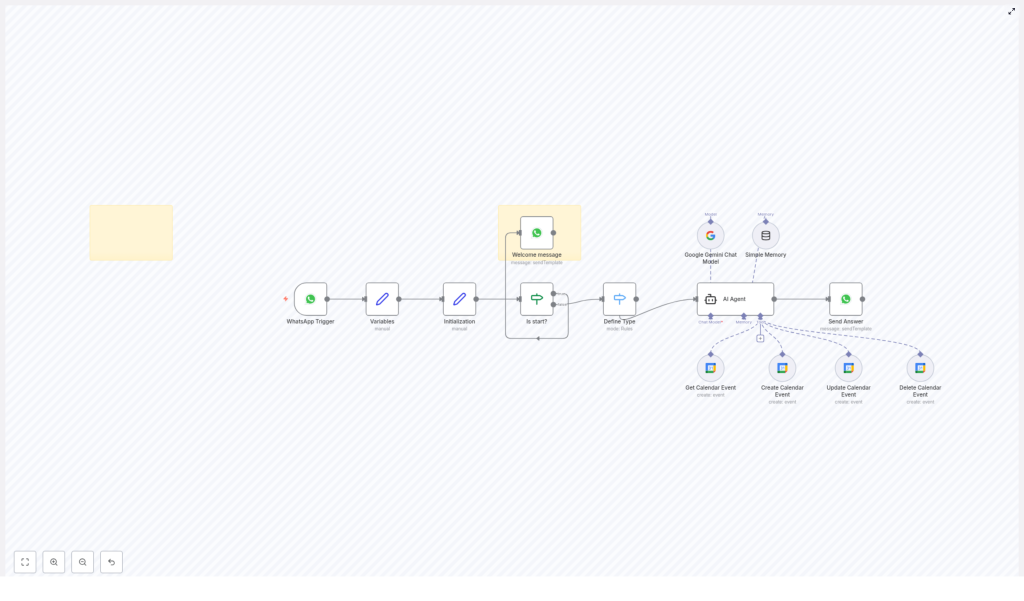
Build a WhatsApp AI Calendar Agent Workflow with n8n
Why turn WhatsApp into your personal calendar assistant?
Imagine being able to text your WhatsApp like you would a friend and say things like:
- “Add a meeting with Sarah tomorrow at 3 PM.”
- “What does my Friday look like?”
- “Move my dentist appointment to next Wednesday.”
- “Delete my 5 PM call today.”
and have everything instantly updated in your Google Calendar, without ever opening it.
That is exactly what this n8n workflow template helps you build: a WhatsApp AI Calendar Agent that understands natural language, talks back to you, and manages your calendar on your behalf using AI.
Under the hood, it connects WhatsApp, Google Gemini (for the AI chat), and Google Calendar, then wraps everything in a friendly chat experience.
What this WhatsApp AI Calendar Agent actually does
This workflow template turns an incoming WhatsApp message into a full conversation with an AI agent that can:
- Understand what you are asking in plain language using Google Gemini Chat
- Decide whether you want to create, read, update, or delete a calendar event
- Talk to Google Calendar to perform that action
- Remember context during the chat so follow-up questions still make sense
- Reply to you on WhatsApp with a clear, human-like answer
So instead of clicking around your calendar, you simply chat on WhatsApp and let n8n handle the rest.
When should you use this workflow?
This template is perfect if you:
- Live in WhatsApp all day and want your calendar to meet you there
- Need to quickly schedule or modify events on the go
- Want an AI-powered scheduling assistant without building everything from scratch
- Prefer conversational commands instead of forms or calendar interfaces
It is especially handy for busy professionals, small teams, or anyone who wants to automate scheduling tasks using natural chat instead of manual input.
How the workflow flows from WhatsApp message to calendar action
Let us walk through what happens step by step when someone sends a WhatsApp message to your connected number.
1. WhatsApp Trigger catches the incoming message
The workflow starts with a WhatsApp Trigger node. This uses a webhook to listen for new WhatsApp messages in real time.
Whenever a user sends a message, this trigger fires and passes the content of that message into the rest of the workflow.
2. Variables are initialized for processing
Next, a set of Variables & Initialization nodes prepare everything the workflow needs to make decisions. These nodes:
- Extract the text of the incoming message
- Store metadata like sender details
- Set up internal variables that will be used for branching and logic
Think of this as the workflow getting its bearings before deciding what to do.
3. Check if it is a new conversation or ongoing chat
Then comes a simple but important check: the Conditional Decision – Is start? node.
This node looks at the message and determines whether it is:
- A new session or first-time message, in which case it can send a welcome or onboarding-style response
- Part of an existing conversation, where it should just continue the interaction naturally
This keeps the experience more human and less robotic, especially for new users.
4. The workflow defines the request type and hands it to the AI agent
Once the basics are set, the workflow needs to figure out what the user is actually trying to do. A Define Type style logic step classifies the intent, then routes the request to the AI agent node.
This is where the real magic happens.
5. AI Agent with Google Gemini handles the conversation
The AI Agent Node is powered by the Google Gemini Chat Model, combined with a simple memory mechanism.
Together, they allow the agent to:
- Understand natural language instructions like “reschedule my 2 PM call”
- Keep track of context across multiple messages using a memory buffer
- Generate helpful, conversational responses
Because of the memory buffer, you can say things like:
“Create a meeting with John tomorrow at 10.”
Then follow up with:
“Actually, make it 11.”
and the agent still knows which event you are talking about.
6. Calendar event nodes talk directly to Google Calendar
Once the AI agent understands what you want, it uses a set of Calendar Event Nodes to perform the actual calendar operations in Google Calendar.
- Get Calendar Event: Fetches event details, so the AI can answer questions like “What is on my schedule this afternoon?”
- Create Calendar Event: Adds new events based on your instructions, including time, date, and description.
- Update Calendar Event: Edits existing events, for example when you reschedule or change details.
- Delete Calendar Event: Removes events that you no longer need.
These nodes work behind the scenes, while the AI agent focuses on the conversation and logic.
7. The final answer is sent back over WhatsApp
After the AI agent has processed your request and the calendar nodes have done their job, the workflow wraps up with the Send Answer Node.
This node uses a WhatsApp message template to send the AI-generated response back to the user. It might say things like:
- “Got it, I have created your meeting with Sarah tomorrow at 3 PM.”
- “You have 3 events on Friday. Here are the details…”
- “Your appointment has been moved to next Wednesday at 11 AM.”
The result is a smooth, chat-based experience that feels like talking to a smart assistant.
Quick recap: How it all works together
Putting it all in one simple flow:
- User sends a WhatsApp message.
- WhatsApp Trigger activates the workflow.
- Variables & Initialization nodes prepare message data.
- Conditional Decision – Is start? checks if it is a new session and responds accordingly.
- The workflow defines the request type and routes it to the AI Agent Node.
- The AI agent, powered by Google Gemini Chat and a memory buffer, interprets the request.
- Calendar Event Nodes (get, create, update, delete) interact with Google Calendar.
- Send Answer Node replies to the user via WhatsApp with the final response.
From the user’s point of view, it is just chatting. Everything else is handled by n8n and this workflow template.
Why this n8n workflow makes your life easier
- Hands-off automation: Routine calendar tasks are handled by AI, so you do not have to open your calendar app for every small change.
- Seamless integration: WhatsApp, Google Gemini, and Google Calendar all work together in one automated workflow.
- Natural, user-friendly experience: You manage your schedule through simple chat messages instead of complex forms or menus.
- Context-aware conversations: Memory keeps track of previous messages so the AI understands follow-ups and ongoing discussions.
Ready to try it yourself?
This WhatsApp AI Calendar Agent workflow is a practical way to bring conversational AI into your daily scheduling. You get an always-on assistant that lives inside WhatsApp and talks directly to your Google Calendar using n8n automation.
If you are already using n8n, you can plug in this template, connect your WhatsApp, Google Gemini, and Google Calendar credentials, then start chatting with your calendar in minutes.
Start automating your WhatsApp calendar interactions today and let AI handle the scheduling for you.
