


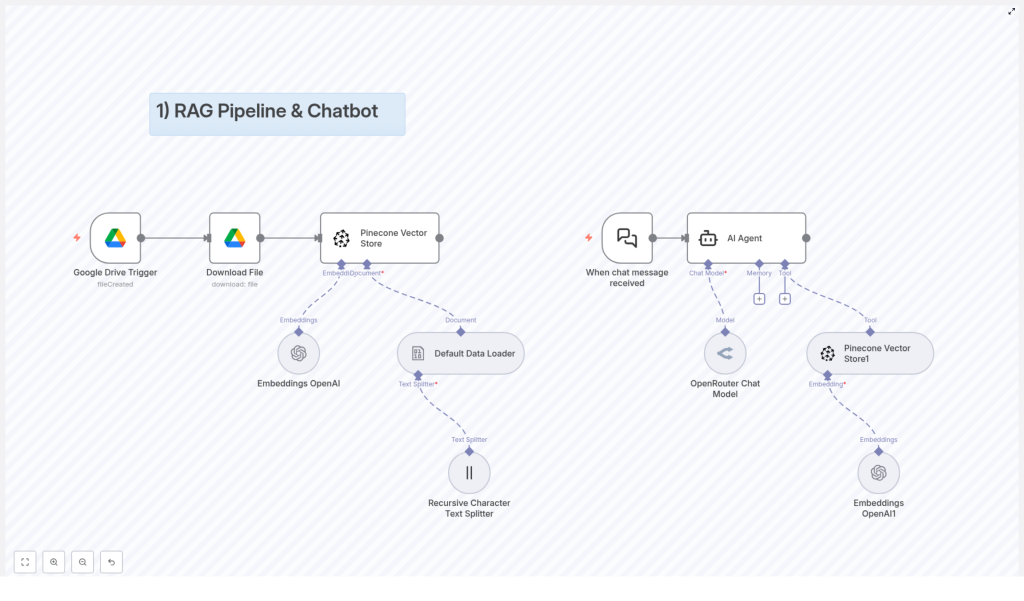
Building a RAG Pipeline & Chatbot with n8n
What This n8n RAG Template Actually Does (In Plain English)
Imagine having a chatbot that actually knows your documents, policies, and FAQs, and can answer questions based on the latest files in your Google Drive. No more manually updating responses, no more copy-pasting information into prompts.
That is exactly what this n8n workflow template helps you build.
It uses a technique called Retrieval-Augmented Generation (RAG), which combines large language models with an external knowledge base. In this case:
- Google Drive holds your documents
- OpenAI turns those documents into vector embeddings
- Pinecone stores and searches those vectors
- OpenRouter (with Anthropic Claude 3.5 Sonnet) powers the chatbot responses
- n8n ties everything together into a clean, automated workflow
The result is a chatbot that can retrieve the right pieces of information from your docs and use them to answer user questions in a smart, context-aware way.
When Should You Use This RAG & Chatbot Setup?
This template is perfect if you:
- Have lots of internal documents, FAQs, or policies in Google Drive
- Want a chatbot that can answer questions based on those specific documents
- Need your knowledge base to update automatically when files change or new ones are added
- Prefer a no-code / low-code approach with clear, modular steps in n8n
If you are tired of static FAQs or chatbots that “hallucinate” answers, a RAG pipeline like this is a big step up.
How the Overall RAG Pipeline Is Structured
The workflow is built around two main flows that work together:
- Document ingestion flow – gets your documents from Google Drive, prepares them, and stores them in Pinecone as vectors.
- Chatbot interaction flow – listens for user messages, pulls relevant info from Pinecone, and generates a response with the AI model.
High-Level Architecture
- Document Ingestion: Google Drive Trigger → Download File → Text Splitting → Embeddings → Pinecone Vector Store
- Chatbot Interaction: Chat Message Trigger → AI Agent with Language Model → Tool that queries the Vector Store
Let us walk through each part in a more conversational way.
Stage 1 – Document Ingestion Flow
This is the “feed the brain” part of the system. Whenever you drop a new document into a specific Google Drive folder, the workflow picks it up, processes it, and updates your knowledge base automatically.
Google Drive Trigger – Watching for New Files
First up, there is a Google Drive Trigger node. You point it at a particular folder in your Drive, and it keeps an eye on it for new files.
Whenever a new document is created in that folder, the trigger fires and kicks off the rest of the ingestion flow. No manual syncing, no button clicks. Just drop a file in and you are done.
Download File – Getting the Content Ready
Once the trigger detects a new file, the workflow uses a Download File node to actually fetch that document from Google Drive.
This is the raw material that will be transformed into searchable knowledge for your chatbot.
Splitting the Text into Chunks
Large documents are not very friendly for embeddings or vector search if you treat them as one giant block of text. That is why the next step uses a:
- Recursive Character Text Splitter
- Default Data Loader
The Recursive Character Text Splitter breaks the document into smaller chunks. These chunks are sized to be manageable for the embedding model while still keeping enough context to be useful.
The Default Data Loader then structures these chunks so they are ready for downstream processing. You can think of it as organizing the content into a format the rest of the pipeline can easily understand.
Embeddings with OpenAI
Now that your document is split into chunks, the Embeddings OpenAI node steps in.
This node uses an OpenAI embedding model to convert each text chunk into a vector representation. These vectors capture semantic meaning, so similar ideas end up close together in vector space, even if the exact words are different.
This is what makes “semantic search” possible, which is much smarter than simple keyword matching.
Storing Vectors in Pinecone
Once the embeddings are generated, they need to be stored somewhere that supports fast, scalable vector search. That is where the Pinecone Vector Store node comes in.
The workflow sends the vectors to a Pinecone index, typically organized under a specific namespace like FAQ. This namespace helps you separate different types of knowledge, for example FAQs vs policy documents.
Later, when a user asks a question, the chatbot will query this Pinecone index to find the most relevant chunks of text to use as context for its answer.
Stage 2 – Chatbot Interaction Flow
Once your documents are in Pinecone, the second part of the workflow handles real-time conversations. This is where the magic feels most visible to your users.
Chat Message Trigger – Listening for User Questions
The chatbot flow starts with a When chat message received trigger. Whenever a user sends a message, this trigger activates and passes the query into the workflow.
This is the entry point for every conversation. From here, the workflow hands the message to the AI agent.
AI Agent – The Conversational Core
The AI Agent node is the heart of the chatbot. It is configured with:
- A language model via OpenRouter Chat Model, using Anthropic Claude 3.5 Sonnet in this setup
- Optional memory management so the chatbot can remember previous turns in the conversation
- Access to tools, including the vector store, so it can pull in relevant information from your documents
Instead of just answering from scratch, the agent is able to call a tool that queries Pinecone, get back the most relevant document chunks, and then generate a response that is grounded in your data.
Retrieving Knowledge from Pinecone
To make this work, the AI agent uses a tool that connects to your Pinecone Vector Store. Here is what happens under the hood:
- The user’s question is converted into a vector using the same embedding model.
- Pinecone performs a semantic similarity search against your FAQ or policy namespace.
- The most relevant chunks of text are returned as context.
- The AI agent uses that context to generate an informed, accurate answer.
This approach dramatically reduces hallucinations and ensures responses stay aligned with your actual documents.
Why This n8n RAG Architecture Makes Your Life Easier
You might be wondering, why go through all this trouble instead of just plugging a model into a chat interface? Here is why this architecture is worth it:
- Automation you can trust: The Google Drive trigger keeps your knowledge base in sync. Add or update a document, and the pipeline handles the rest.
- Smarter search: Vector-based search in Pinecone understands meaning, not just keywords. Users can ask natural questions and still get relevant answers.
- Modular and flexible: Each step is an n8n node. You can tweak, extend, or replace parts without breaking the whole system.
- Modern AI stack: OpenAI embeddings plus Anthropic Claude 3.5 Sonnet via OpenRouter give you a powerful combination of understanding and generation.
In short, you get a scalable, maintainable, and intelligent chatbot that actually knows your content.
How to Get Started with This Template in n8n
Ready to try it out yourself? Here is a simple setup checklist to get the pipeline running:
1. Prepare Your Google Drive Folder
Create or choose a folder in Google Drive where you will store all the documents you want the chatbot to use. This could include:
- FAQ documents
- Internal policies
- Product guides or manuals
Point the Google Drive Trigger in n8n to this folder.
2. Set Up Your Pinecone Index
In Pinecone:
- Create a new index suitable for your expected data size and embedding dimensions.
- Configure a namespace, for example
FAQ, to keep this knowledge set organized.
This is where all your document embeddings will be stored and searched.
3. Configure Your API Credentials in n8n
In your n8n instance, securely add credentials for:
- Google Drive (for file access)
- Pinecone (for vector storage and search)
- OpenAI (for embeddings)
- OpenRouter (for the Anthropic Claude 3.5 Sonnet chat model)
Make sure each node in the workflow is linked to the correct credential set.
4. Test the Full RAG & Chatbot Flow
Once everything is wired up, it is time to test:
- Upload a sample FAQ or policy document into your configured Google Drive folder.
- Wait for the Document Ingestion Flow to run and push embeddings to Pinecone.
- Send a question to the chatbot that should be answerable from that document.
- Check that the response is accurate and clearly grounded in your content.
If something looks off, you can inspect each n8n node to see where the data might need adjustment, for example chunk sizes, namespaces, or model settings.
Wrapping Up
By combining a RAG pipeline with a chatbot in n8n, you get a powerful, practical way to build a context-aware assistant that stays in sync with your internal documents.
With:
- Automated document ingestion from Google Drive
- Vector storage and semantic search in Pinecone
- OpenAI embeddings
- Anthropic Claude 3.5 Sonnet through OpenRouter
- And n8n orchestrating the whole thing
you can create a scalable support or knowledge assistant without writing a full backend from scratch.
Try the Template and Build Your Own Chatbot
If you are ready to upgrade how your users access information, this template is a great starting point. You can customize it, expand it, or plug it into your existing systems, all within n8n.
Start building now and give your chatbot real, up-to-date knowledge.
