


Building a Context-Aware Slack AI ChatBot for DMs & Mentions
Why a Smart Slack AI ChatBot Is So Useful
Imagine dropping a quick question into a Slack channel or DM and getting a thoughtful, context-aware reply in seconds. No hunting through threads, no repeating yourself, no “what were we talking about again?” moments. That is exactly what this n8n workflow template helps you build.
With this setup, you get a Slack AI ChatBot that understands where and how it was contacted, remembers previous messages, and responds in the right place, whether that is a direct message or a public channel mention. All of it is powered by n8n, LangChain, and OpenAI, wrapped in a workflow you can customize as much as you like.
What This n8n Slack AI ChatBot Actually Does
At a high level, this template listens to Slack messages, sends them to an AI agent with memory and tools, then replies in the most appropriate way. Here is what it is designed to handle:
- Detect when someone DMs the bot or mentions it in a channel
- Map Slack message data into a clean format for the AI to understand
- Use an OpenAI Chat Model with memory and tools to generate smart replies
- Decide whether to respond in a DM or directly in the public channel
- Optionally tap into Slack channel history or external vector stores for deeper context
In short, it is a context-aware Slack assistant that feels a lot more like a helpful teammate than a simple bot.
When You Should Use This Template
This workflow is a great fit if you want to:
- Give your team a Slack-based AI assistant that can answer questions in real time
- Handle support or internal FAQs directly in Slack without switching tools
- Keep conversations coherent across multiple messages or threads
- Let people interact with AI naturally, either in DMs or in public channels
If your team already lives in Slack and you want to add a smart AI layer without building everything from scratch, this n8n template is a nice shortcut.
How the Slack AI ChatBot Workflow Is Structured
Let us break down the core building blocks first, then we will walk through how a message flows from Slack to AI and back.
Core Components in the Workflow
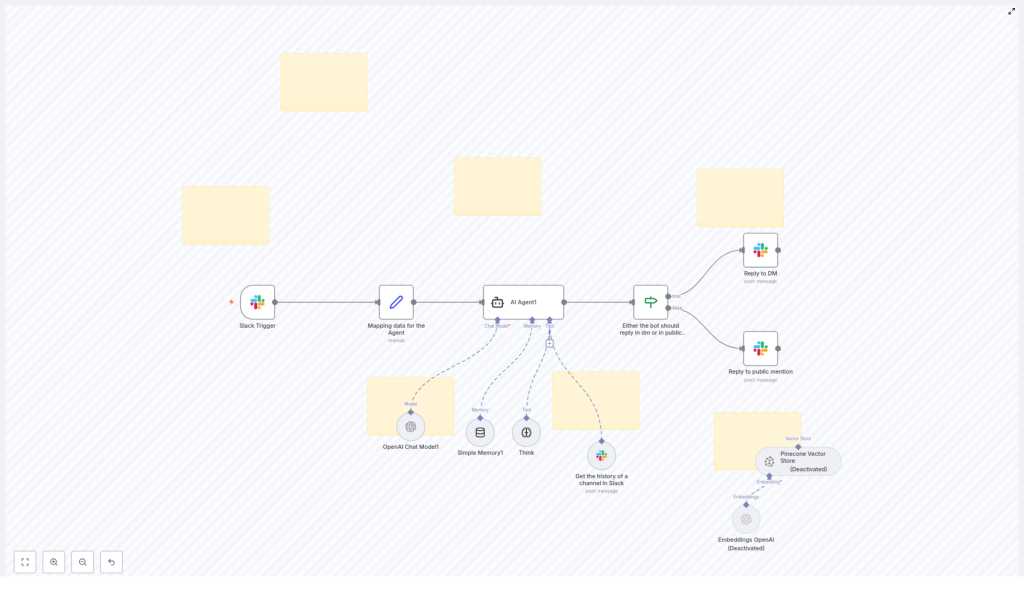
- Slack Trigger – Listens for new messages that mention the bot or arrive as direct messages.
- Data Mapping Node – Cleans and structures the incoming Slack data so the AI agent gets exactly what it needs.
- AI Agent – Uses the OpenAI Chat Model plus memory and tools to generate context-aware responses.
- Conditional Router – Uses an “If” condition to decide where the reply should go: DM or public channel.
- Response Nodes – Actually send the reply back to Slack, either as a direct message or a channel message.
Step-by-Step: How a Message Flows Through the Bot
Let us walk through what happens from the moment someone types a message to your bot in Slack.
1. Slack Trigger Node – Listening for Messages
Everything starts with the Slack Trigger node. This node is configured to fire whenever:
- Someone sends a direct message to your bot, or
- Someone mentions your bot in a public Slack channel
This trigger is the entry point to your n8n workflow. It passes along the message text, who sent it, where it came from (DM or channel), and other useful metadata.
2. Mapping the Slack Data for the AI Agent
Raw Slack events are a bit messy to feed directly into an AI. That is where the Data Mapping node comes in. This node:
- Extracts the important bits of the Slack event, like message content, user, and channel
- Structures the data in a format the AI agent expects
- Makes sure metadata is available so the agent can understand the context
Think of this step as translating “Slack speak” into a clean, AI-friendly input.
3. The AI Agent – Where the Intelligence Lives
Now we get to the fun part: the AI Agent. This is where your chatbot gets its brains, thanks to LangChain and OpenAI. The agent is built from a few key pieces:
- OpenAI Chat Model
This is the language model that actually reads the user’s question and generates a human-like response. It takes into account the mapped input and any extra context you pass in. - Simple Memory
The memory component lets the agent keep track of previous messages in the conversation. That means your bot can remember what was said earlier, follow up on previous questions, and respond more naturally instead of treating every message as a brand new request. - Think Tool
Sometimes the agent needs to “think” a bit more or call additional tools. The Think Tool allows it to perform extra reasoning steps or tool-based operations if needed, which can improve the quality of replies for more complex queries. - Slack Channel History Tool
This tool is especially useful for context-aware replies in public channels. It lets the agent access prior messages in a Slack channel so it can understand what the current conversation is about, refer back to earlier points, and avoid out-of-context answers.
All of these pieces work together so your Slack AI ChatBot can give responses that feel relevant, aware of the conversation, and tailored to the current user and channel.
4. Conditional Routing – DM or Public Reply?
Once the AI has generated a response, the workflow needs to decide how to send it back. That is where the Conditional Router (an “If” node) comes in.
This node checks whether the original message came from a DM or a public channel mention. Based on that, it routes the reply down one of two paths:
- Reply to DM – If it was a direct message, the response is sent back as a private DM to the user.
- Reply to Public Mention – If the bot was mentioned in a channel, the response is posted directly in that channel, so everyone in the conversation can see it.
This simple decision point is what makes the bot feel natural in Slack. It always responds in the context where it was contacted, without you having to manually manage routing logic.
5. Response Nodes – Sending Messages Back to Slack
Finally, the workflow uses dedicated Response Nodes to send the AI’s message back to Slack. There are typically two separate nodes here:
- One node for sending direct messages
- Another node for sending channel replies
Each node uses the appropriate Slack API method for that type of message and includes the AI-generated text as the reply content.
Optional Advanced Features You Can Turn On
The template also includes some more advanced pieces that are initially deactivated. You can enable them when you are ready to level up your bot’s abilities.
- Embeddings with OpenAI
By using embeddings, you can give your bot a semantic understanding of text. This is great for more advanced context retrieval, like searching through documents or long histories based on meaning rather than exact keywords. - Pinecone Vector Store
Pinecone acts as a vector database for those embeddings. You can store and query large amounts of information so your bot can tap into long-term memory and answer questions more accurately, even when the relevant information is not in the immediate Slack history.
These extensions are perfect if you want your Slack AI ChatBot to handle more complex knowledge bases, internal documentation, or long-running project discussions.
Why This Slack AI ChatBot Makes Life Easier
So what do you actually gain by setting this up with n8n and this template?
- Context-aware conversations – Your bot understands whether it is in a DM or a public channel and replies accordingly.
- Instant, relevant answers – Team members can ask questions in Slack and get helpful responses right where they are already working.
- Better use of Slack history – With channel history and optional embeddings, the bot can reference previous messages and deeper context.
- Flexible reply modes – Private, sensitive questions stay in DMs, while general discussions can happen in public channels.
All of this reduces friction, keeps communication flowing, and lets your team lean on AI without leaving Slack.
How to Get Started With the Template
Ready to try this out in your own workspace? Here is a simple way to move forward:
- Connect your Slack workspace to n8n.
- Import the Slack AI ChatBot template from the link below.
- Configure the Slack Trigger to listen for DMs and mentions to your bot.
- Set up your OpenAI credentials for the AI Agent.
- Optionally enable the embeddings and Pinecone nodes if you need advanced context retrieval.
- Test in a private channel or DM, then roll it out to your team.
Bring Your Own AI Assistant Into Slack
You do not need to build a chatbot from scratch to get something powerful and context-aware. This n8n workflow template gives you a solid starting point that you can tweak, extend, and integrate with the rest of your stack.
Call to Action: Connect your Slack workspace today and deploy this intelligent, context-aware bot for your team. If you want help customizing it or integrating with other tools, feel free to reach out for expert support and tailored automation.
