


Calendar Event Auto-Tag with n8n and Weaviate
Ever stared at your calendar thinking, “What on earth is Project Sync – Final Final v3 and why did I tag it as ‘Other’ again?” If you are tired of manually tagging events, second-guessing what they were about, and living in fear of your own calendar filters, this workflow is for you.
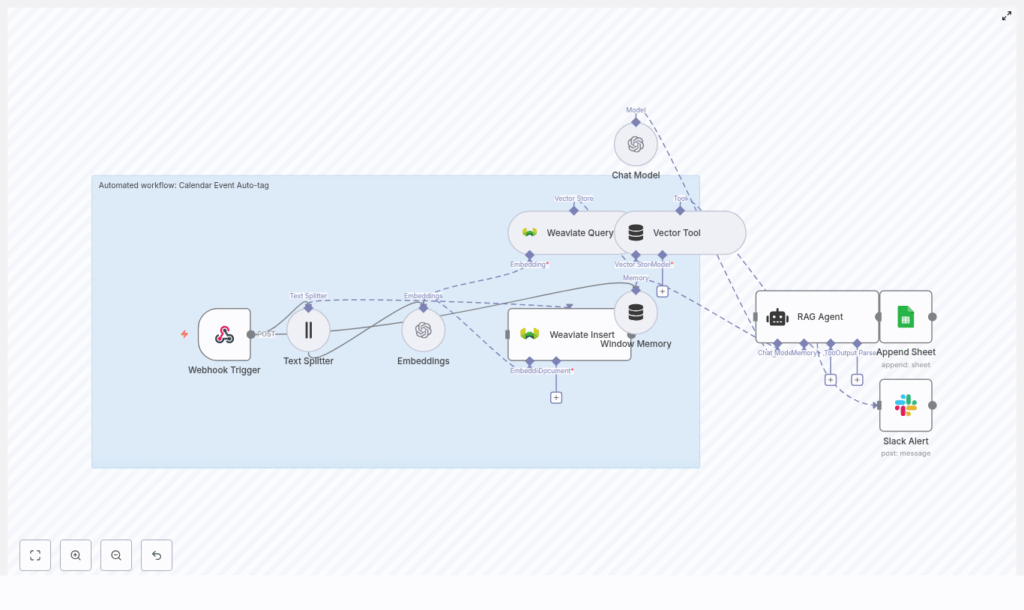
In this guide, you will set up an automated calendar event tagging system using an n8n workflow that plugs into OpenAI embeddings and Weaviate. It takes your raw event data, stores it in a vector database, uses a RAG agent to figure out smart tags, logs the results in Google Sheets, and even pings Slack when something breaks. Think of it as a very polite robot assistant that loves metadata and never forgets a meeting.
What this n8n workflow actually does
At a high level, this calendar event auto-tag workflow in n8n:
- Receives calendar event payloads through a Webhook Trigger
- Splits long descriptions into chunks using a Text Splitter
- Generates OpenAI embeddings for each text chunk
- Stores those vectors in Weaviate as a vector store
- Runs similarity queries to find related past events
- Uses a RAG agent with memory to propose meaningful tags
- Logs everything neatly into Google Sheets
- Sends a Slack alert if something goes wrong
The result: consistent, searchable, analytics-friendly tags on your calendar events, without you repeatedly clicking dropdowns and wondering why “Internal” and “Team” are two separate tags.
Why bother auto-tagging calendar events?
Manual tagging is one of those tiny tasks that seems harmless until you are doing it for the 200th time in a week. Automation steps in to save your sanity and your team’s time.
Auto-tagging helps you:
- Keep labels consistent across events, teams, and time zones
- Improve search and filtering in calendars, CRMs, and reporting tools
- Enable analytics based on standardized tags like “Sales”, “Interview”, or “Internal”
- Reduce admin workload so humans can stop playing “Guess That Meeting” and do actual work
With this n8n workflow, you get a reusable, scalable pipeline that your future self will be very grateful for.
How the architecture fits together
The workflow is built around n8n as the automation engine and combines several tools into a single pipeline:
- Webhook Trigger – receives incoming calendar event payloads (POST)
- Text Splitter – breaks long event descriptions into chunks for better embeddings
- OpenAI Embeddings – converts text chunks into vector representations
- Weaviate Vector Store – stores those vectors and acts as a retrieval store
- Weaviate Query + Vector Tool – fetches relevant context for new events
- Window Memory – keeps short-term context for the RAG agent
- RAG Agent – uses a chat model plus retrieved context to propose tags and analysis
- Append Sheet (Google Sheets) – logs the RAG agent output to a Log sheet
- Slack Alert – notifies your ops or data team when errors occur
Under the hood, this is a classic n8n workflow + vector store + RAG agentcalendar event auto-tagging.
Quick setup overview
Before diving into each node, here is the high-level flow from start to finish:
- Calendar sends event data to your n8n webhook
- Event text is split into chunks
- Chunks are turned into OpenAI embeddings
- Embeddings are saved in Weaviate with event metadata
- New events trigger similarity queries against Weaviate
- A RAG agent uses that context to decide tags
- Results are logged to Google Sheets
- Any errors fire a Slack alert
Now let us walk through each step in more detail so you can recreate the workflow in n8n.
Step 1 – Create the Webhook Trigger in n8n
Start by setting up the entry point for your data.
In n8n:
- Add a Webhook node
- Set the method to
POST - Configure a path like
/calendar-event-auto-tag - Secure it using an API key, IP whitelist, or your preferred security method
This webhook trigger is where your calendar provider or middleware sends event payloads. Each payload should include details like the title, description, attendees, times, and any other fields you want to use for tagging.
Step 2 – Split event text for better embeddings
Long event descriptions can be messy, especially when they include agendas, notes, or entire email threads. To keep embeddings accurate, you want to break them into smaller, overlapping pieces.
Add a Text Splitter node and configure it to chunk:
- Event titles
- Descriptions
- Attendee lists or other relevant text fields
Recommended chunk settings:
- Chunk size: 400 characters
- Overlap: 40 characters
This chunking strategy helps the OpenAI embeddings capture context while staying consistent for insertion into the vector store.
Step 3 – Generate OpenAI embeddings for each chunk
Next, convert those text chunks into vectors that Weaviate can store and search.
In n8n:
- Add an OpenAI Embeddings node
- Use a model such as
text-embedding-3-small - Make sure your OpenAI API credentials are correctly configured in n8n
Each chunk becomes a separate document with its own embedding. These embeddings are what power similarity search in your Weaviate vector store.
Step 4 – Insert vectors into Weaviate
Now that you have embeddings, it is time to store them in Weaviate so you can query them later.
Configure a Weaviate Insert node with:
- An index (class) name like
calendar_event_auto-tag - Fields for the embedding vector
- Metadata fields such as:
event_idsource(calendar name or account)start_timeandend_timeoriginal_text(the text chunk)
This metadata is extremely useful later when you want to filter, debug, or refine retrieval behavior.
Step 5 – Query Weaviate for similar events
Once vectors are in place, your workflow can start acting smart instead of just storing data.
When a new event comes in and you generate its embeddings, you can optionally:
- Use a Weaviate Query node to search for similar past events
- Return the top N similar documents based on vector similarity
Those retrieved documents give the RAG agent historical context. That way, if you have consistently tagged similar meetings as “Sales” or “Interview”, the agent can follow that pattern instead of reinventing your taxonomy every time.
Step 6 – Configure the RAG agent with memory and tools
This is where the magic happens. The RAG agent takes context from Weaviate, your event text, and your instructions, then outputs structured tags.
In n8n:
- Set up Window Memory to keep short-term context for the agent
- Connect the retrieved Weaviate results to a Vector Tool that the agent can call
- Create a RAG Agent node using a chat model
In the agent’s system prompt, clearly state the goal. For example, you might instruct it to classify events into tags such as:
- Meeting
- Interview
- Sales
- Follow-up
- Internal
- Personal
- Other
Also tell the agent to return output in clean JSON with tags and confidence scores. This keeps your workflow deterministic and easier to debug.
Recommended RAG agent prompt
{  "system": "You are an assistant that assigns consistent tags to calendar events. Use the provided context from past events when available. Reply only with valid JSON containing 'tags' (array of strings) and 'confidence' (0-1).",  "user": "Event: {{event_text}}\nContext: {{retrieved_context}}"
}
You can tweak the tag list or confidence behavior later, but this is a solid starting point for your calendar event auto-tag setup.
Step 7 – Log results and handle errors like a pro
Once the RAG agent has done its job, you want a permanent record of what it decided. That makes it easier to audit, retrain, or build dashboards later.
Add an Append Sheet node for Google Sheets and configure columns such as:
TimestampEvent IDSuggested TagsRAG Agent Response(raw JSON output)
This gives you a running log of all classifications, perfect for analytics, QA, or training a future supervised model.
To keep operations smooth, also connect a Slack Alert node that triggers on errors. Send messages to an #alerts channel with error details so someone can jump in quickly when something breaks instead of discovering a silent failure two weeks later.
Design tips for reliability and performance
To keep your n8n workflow and vector store happy, consider these best practices:
- Rate-limit the webhook consumer so calendar sync bursts do not overwhelm your workflow.
- Normalize text before embeddings, such as lowercasing and removing punctuation, to improve similarity matching.
- Persist a small semantic index of common tags to improve recall and keep classifications consistent.
- Use schema.org-style metadata in stored documents so you can filter by event type, organizer, or other structured fields during retrieval.
- Keep the RAG agent deterministic by enforcing a JSON schema and validating the response in n8n before writing to Sheets.
These small tweaks make your n8n workflow more predictable and easier to scale.
Troubleshooting common issues
Embeddings look irrelevant
If your similarity results feel random, check:
- Your chunking strategy. Try adjusting chunk size (up or down from 400) and overlap.
- That you are using the intended OpenAI embedding model and not a different one by mistake.
Weaviate insert or query fails
When Weaviate acts up, verify:
- Network connectivity from n8n to your Weaviate instance
- Credentials and API keys
- That the Weaviate schema for
calendar_event_auto-tag(or your chosen class name) exists and matches the metadata you are sending
RAG agent returns unstructured text
If your agent suddenly gets chatty and forgets the JSON rule:
- Strengthen the system prompt to require strict JSON only
- Add a JSON parse step in n8n and validate the response
- On parse failure, route the output to a human review queue and send a Slack alert so someone can fix the event manually
Privacy, PII, and governance
Calendar data often includes personal information, so treat it carefully. Before sending anything to OpenAI or Weaviate:
- Mask or redact sensitive fields like emails and phone numbers when required by your data policy
- Align vector and log retention with your compliance rules
- Make sure your use of third-party services matches your organization’s privacy and governance standards
Automation is great, but not at the cost of leaking your CEO’s private dentist appointments.
Extensions and next steps
Once your calendar event auto-tag workflow is running smoothly, you can extend it in several useful ways:
- Write tags back to the calendar using your provider’s API after a quick verification pass.
- Train a supervised classifier on the labeled data in Google Sheets to reduce reliance on model calls over time.
- Build a review UI where admins can approve or edit suggested tags before they are saved.
This workflow is a flexible foundation for more advanced automation, analytics, and human-in-the-loop review flows.
Wrapping up
You now have an end-to-end design for a robust n8n workflow that:
- Starts with a webhook trigger
- Uses OpenAI embeddings and a Weaviate vector store
- Leverages a RAG agent to classify calendar events
- Logs outcomes to Google Sheets and alerts via Slack on errors
It scales with your data, integrates nicely with other tools, and dramatically cuts down on repetitive tagging work. You can adjust chunking, vector store capacity, and model choices as your usage grows, or plug in extra nodes for analytics, review, and calendar write-back.
To get started, set up your webhook and OpenAI credentials in n8n, then follow the steps above to wire in Weaviate, the RAG agent, Google Sheets logging, and Slack alerts. If you prefer not to build everything from scratch, you can use a ready-made n8n template and customize the prompts and schema to match your tagging strategy.
Call to action: Try this workflow on a test calendar for 7 days. Let it auto-tag your events, review the suggestions in Google Sheets, and refine the prompt and vector schema based on what you see. Need help? Book a consultation or grab the starter n8n template from our repo.
