


Calorie Tracker Backend: Food Image Analysis with OpenAI Vision and n8n
Turning a simple photo of a meal into structured nutrition data is a powerful way to improve any calorie tracking app. Instead of asking users to type every ingredient and portion, you can let them take a picture and let automation do the rest.
This guide explains, step by step, how an n8n workflow template uses OpenAI Vision and LLM parsing to analyze meal images and return clean JSON nutrition data. You will see how each node works, how the data flows through the system, and what to consider when using this in production.
What you will learn
By the end of this tutorial-style walkthrough, you will understand how to:
- Design an image-based food analysis backend in n8n
- Receive meal photos through a secure webhook
- Call the OpenAI Vision API to analyze food images
- Parse and validate the AI response into strict JSON using LLM tools
- Return a predictable nutrition payload to your frontend or API client
- Handle uncertainty, errors, and non-food images safely
Why use image-based food analysis in a calorie tracker?
Manual food logging is one of the main reasons users abandon calorie tracking apps. Image-based analysis reduces this friction and increases the amount of nutrition data you can capture.
With an automated backend that can read meal photos, you can provide:
- Fast and consistent estimates of calories and macronutrients
- Structured JSON output that is easy to store, query, and analyze
- Confidence and health scoring that helps users interpret results
The n8n workflow template described here follows a pattern you can reuse in many AI automation projects: accept input, invoke a model, parse the result, and return a stable JSON response.
High-level workflow overview
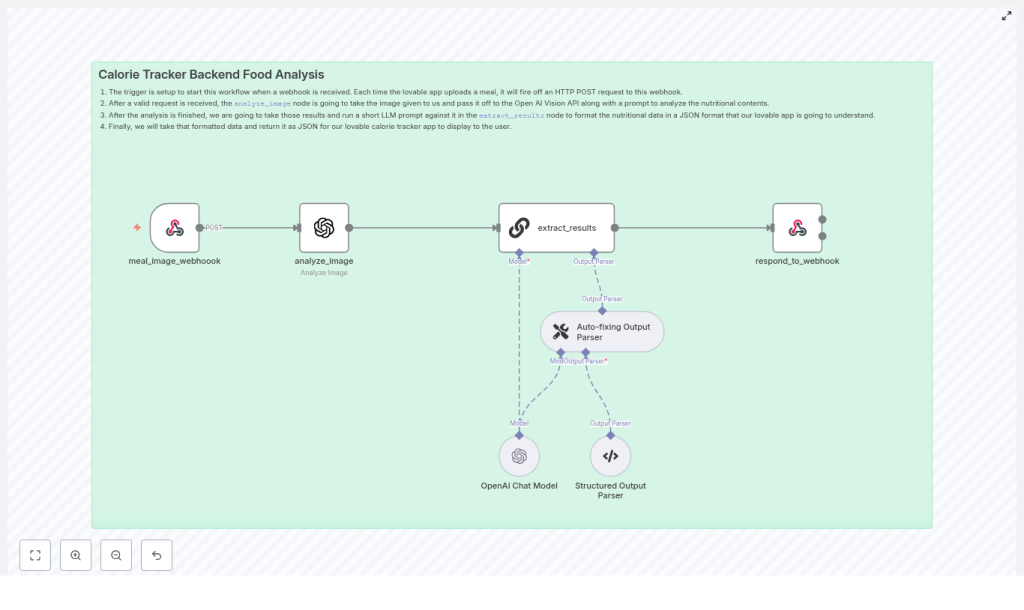
The calorie tracker backend template in n8n is a linear pipeline with a few key validation and parsing steps. At a high level, it works like this:
- Webhook receives the meal image from your app.
- Analyze Image node sends the image to OpenAI Vision with a nutrition-focused prompt.
- Extract Results node uses an LLM and output parsers to convert the raw analysis into strict JSON.
- Respond to Webhook returns the final JSON payload to the client.
Next, we will walk through each node in the n8n workflow and see exactly how they work together.
Step-by-step: building the n8n workflow
Step 1: Accepting meal images with the Webhook node
Node: meal_image_webhook
The Webhook node is the public entry point of your calorie tracker backend. Your mobile or web app sends an HTTP POST request to this endpoint whenever a user uploads a meal photo.
What the Webhook receives
The webhook can accept:
- A base64-encoded image in the request body
- A multipart form upload with an image file
How to configure the Webhook in n8n
- Set the HTTP method to
POST. - Configure authentication, for example:
- API keys in headers
- Signed URLs or tokens
- Map the incoming image field (base64 string or file) to a known property in the workflow data.
Tip for production: Log the incoming payload or metadata in a temporary store for debugging, but avoid keeping images or any personal information longer than necessary unless you have user consent.
Step 2: Analyzing the food image with OpenAI Vision
Node: analyze_image
Once the image is available, the workflow passes it to a node that calls the OpenAI Vision API. This is where the core food recognition and nutrition estimation takes place.
Designing an effective prompt for nutrition analysis
The accuracy and usefulness of the output depend heavily on your prompt. In the template, the prompt is crafted to guide the model through a clear reasoning process:
- Assign a role and mission, for example:
- “You are a world-class AI Nutrition Analyst.”
- Ask for intermediate steps so the model does not skip reasoning:
- Identify food components and ingredients
- Estimate portion sizes
- Compute calories, macronutrients, and key micronutrients
- Assess the overall healthiness of the meal
- Handle non-food images explicitly by defining a specific error schema the model should return if the image does not contain food or is too ambiguous.
In n8n, you pass the image from the webhook node into the OpenAI Vision node, along with this prompt. The node returns a free-form text response that describes the meal, estimated nutrition values, and reasoning.
Step 3: Converting raw AI output into strict JSON
Node: extract_results
The response from OpenAI Vision is rich but not guaranteed to be in the exact JSON format your app needs. To make the data safe to consume, the workflow uses another LLM step configured to enforce a strict schema.
How the Extract Results node works
The template uses an LLM node with two important parser tools:
- LLM prompt for structured output
- The prompt instructs the model to transform the raw Vision analysis into a specific JSON structure.
- You define the exact fields your app expects, such as
mealName,calories,protein,confidenceScore, and more.
- Auto-fixing Output Parser
- Automatically corrects minor schema issues, for example:
- Missing optional fields
- Small formatting deviations
- Automatically corrects minor schema issues, for example:
- Structured Output Parser
- Enforces data types and required fields.
- Prevents the model from returning unexpected keys or formats that could break your application.
The result of this node is a clean, validated JSON object that your frontend or API clients can rely on.
Step 4: Returning the final JSON to the client
Node: respond_to_webhook
The last step is to send the structured nutrition data back to the caller that triggered the webhook. This is handled by the Respond to Webhook node.
Configuring the response
- Set the response body to the JSON output from the
extract_resultsnode. - Use Content-Type: application/json so clients know how to parse the response.
- Optionally add caching headers or ETag headers if you want clients to cache results.
At this point, your n8n workflow acts as a full backend endpoint: send it a meal photo, and it returns structured nutrition data.
Understanding the nutrition JSON output
After the parsing and validation steps, the backend returns a predictable JSON payload. The exact schema is up to you, but a conceptual example looks like this:
{  "mealName": "Chicken Caesar Salad",  "calories": 520,  "protein": 34,  "carbs": 20,  "fat": 35,  "fiber": 4,  "sugar": 6,  "sodium": 920,  "confidenceScore": 0.78,  "healthScore": 6,  "rationale": "Identified grilled chicken, romaine, and dressing; assumed standard Caesar dressing amount. Portions estimated visually."
}
In this example:
mealNameis a human-readable description of the dish.calories,protein,carbs,fat,fiber,sugar, andsodiumare numeric estimates.confidenceScoreindicates how certain the model is about the identification and portion sizes.healthScoregives a simple 0-10 style rating of meal healthiness.rationaleexplains how the model arrived at its estimates, which can be helpful for debugging or user transparency.
Handling uncertainty, errors, and non-food images
No vision model can perfectly estimate portion sizes or ingredients from every photo. It is important to make uncertainty explicit in your API design so your frontend can communicate it clearly to users.
Key design considerations
- confidenceScore
- Use a value from
0.0to1.0. - Lower scores mean the model is less sure about what it sees or about the portion sizes.
- Use a value from
- healthScore
- Use a simple scale such as
0-10. - Base it on factors like:
- Processing level of the food
- Macronutrient balance
- Estimated sodium and sugar levels
- Use a simple scale such as
- Deterministic error response
- Define a standard JSON object for non-food or ambiguous images.
- For example, set
confidenceScoreto0.0and include a clear error message field.
By keeping errors and low-confidence cases structured, you avoid breaking client code and can gracefully prompt users for more information when needed.
Production tips for a robust calorie tracker backend
Security and validation
- Protect the webhook with:
- API keys or tokens in headers
- Signed URLs that expire after a short time
- Validate uploaded images:
- Check content type (for example,
image/jpeg,image/png). - Enforce reasonable file size limits.
- Check content type (for example,
- Log inputs and responses for debugging, but avoid:
- Storing personally identifiable information without consent
- Keeping images longer than necessary
Rate limits and cost control
Vision and LLM calls are more expensive than simple API or database operations, so it helps to optimize usage:
- Batch or queue requests where it makes sense for your UX.
- Consider a lightweight first-pass classifier to detect obvious non-food images before calling OpenAI Vision.
- Monitor your usage and set limits or alerts to avoid unexpected costs.
Testing and calibration
To improve accuracy over time, treat the system as something you calibrate, not a one-time setup.
- Collect a set of human-labeled meal photos with known nutrition values.
- Compare model estimates against these ground truth labels.
- Tune prompts, portion-size heuristics, and health scoring rules.
- Use human-in-the-loop review for edge cases or for training a better heuristic layer.
Extending your n8n calorie tracking system
Once your per-image analysis is stable and reliable, you can add more features around it:
- Historical nutrition logs
- Store each meal’s JSON output in a database.
- Use it for personalization, daily summaries, and long-term trend analysis.
- Barcode scanning integration
- Combine image-based analysis with barcode data for packaged foods.
- Pull exact nutrition facts from a product database when available.
- Healthier swap suggestions
- Use the
healthScoreand nutrient profile to suggest simple improvements. - For example, smaller portion sizes, dressing on the side, or alternative ingredients.
- Use the
Common pitfalls to avoid
- Assuming perfect portion size accuracy
- Always communicate that values are estimates.
- Use the
confidenceScoreto show uncertainty.
- Skipping schema validation
- LLM outputs can drift from the desired format.
- Rely on structured parsers and auto-fixers so your app does not break on unexpected responses.
- Ignoring edge cases
- Mixed plates, heavily obscured items, or unusual dishes can confuse the model.
- Consider asking the user a follow-up question or offering a manual edit option when confidence is low.
Recap and next steps
This n8n workflow template shows how to convert meal photos into structured nutrition data using a clear, repeatable pattern:
- Webhook receives the image.
- OpenAI Vision analyzes the food and estimates nutrition.
- An LLM node converts the raw analysis into strict JSON using structured parsers.
- The workflow returns a predictable JSON response to your client.
With proper error handling, confidence scoring, and security measures, this approach can power a scalable and user-friendly calorie tracker backend.
Ready to try it in your own project? Clone the n8n template, connect it to your app, and test it with a set of labeled meal images. Iterate on your prompts and parsers until the output fits your product’s needs. If you need a deeper walkthrough or a starter repository, you can subscribe or reach out to our team for a tailored implementation plan.
