Automate Lead Generation & Cold Email Outreach

Automate Lead Generation & Cold Email Outreach with n8n

What You Will Learn

In this guide, you will learn how to use an n8n workflow template to:

  • Collect lead criteria through a form and trigger the workflow automatically
  • Search for businesses via an external API based on your target audience
  • Filter websites and extract the best contact email using AI
  • Validate and store leads in Google Sheets without duplicates
  • Generate personalized cold emails with AI and send them via Gmail
  • Log email status and timestamps for tracking and reporting

By the end, you will understand how each n8n node works in the template and how the entire automation fits together, from intake to outreach.

Concept Overview: How the Workflow Works

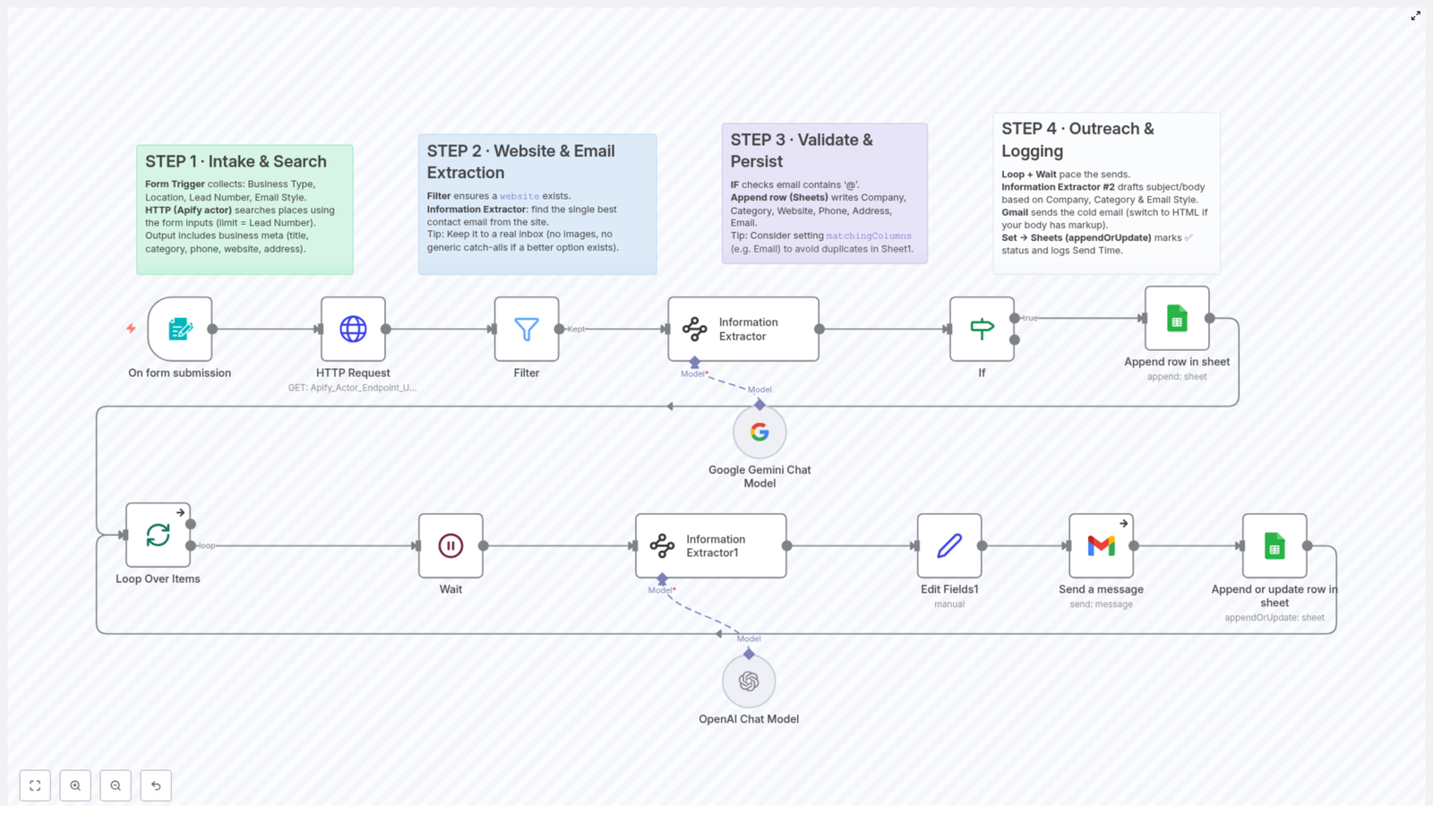
This n8n workflow automates the full lead generation and cold email process. It connects:

  • A Form Trigger to collect your targeting criteria
  • An HTTP Request node to call an external business search API (for example, an Apify actor)
  • An AI-powered Information Extractor to find the best email address on each site
  • Validation logic using Filter and If nodes
  • A Google Sheets integration to store and deduplicate leads
  • A Loop Over Items and Wait structure to pace email sending
  • A second Information Extractor to draft personalized email content
  • Gmail nodes to send emails and log the result back to your sheet

Think of it as a pipeline: you define what kind of leads you want, the workflow finds businesses, extracts contact data, validates it, stores it, and then sends tailored emails at a safe pace.


Step 1 – Collect Lead Criteria & Start the Workflow

Form Trigger: Intake of Targeting Parameters

The workflow starts with a Form Trigger node. This is where you or your team provide the input that will guide the entire automation. The form typically asks for:

  • Business Type – for example, “restaurants,” “SaaS companies,” or “marketing agencies”
  • Location – such as a city, region, or country
  • Lead Number – how many leads you want the workflow to collect
  • Email Style – the tone of the outreach email, for example:
    • Friendly
    • Professional
    • Simple

These inputs are passed into the next nodes and used for search, filtering, and email generation. Treat this form as your control panel for each campaign.

Business Search via HTTP Request

After the form is submitted, an HTTP Request node calls an external API to find businesses that match your criteria. A common choice is an Apify actor that can search business directories or similar sources.

The HTTP Request node is configured to:

  • Use the Business Type and Location from the form as search parameters
  • Limit the number of returned results to the specified Lead Number
  • Retrieve structured data for each business, such as:
    • Company title or name
    • Category
    • Phone number
    • Website URL
    • Address

At the end of this step, you have a raw list of potential leads with basic business information.


Step 2 – Filter Websites & Extract the Best Email with AI

Filter Node: Keep Only Leads with a Website

Not every result from the API will have a usable website. Since the next step relies on visiting each site to find an email address, the workflow uses a Filter node to improve data quality.

The Filter node checks whether each item includes a valid website field. Only entries that contain a website URL are allowed to continue. This prevents unnecessary errors and wasted AI calls on incomplete data.

Information Extractor: AI-Based Email Discovery

Once you have a clean list of businesses with websites, the workflow uses an Information Extractor node powered by AI models like Google Gemini or OpenAI.

This node is configured to:

  • Visit each company’s website
  • Scan the content for contact information
  • Identify the single best contact email address

The AI is instructed to prioritize:

  • Real inbox email addresses over image-based or obfuscated emails
  • Specific contact emails over generic catch-all addresses where possible

The goal is to ensure your outreach reaches a real, active inbox rather than a generic or low-priority email.


Step 3 – Validate Email Addresses & Store Leads

If Node: Basic Email Format Validation

After extracting emails, the workflow performs a simple validation step using an If node. This node checks whether the extracted email address contains the @ character.

If the condition is met, the email is considered to have a valid basic format and the lead continues to the next step. If not, the lead is skipped to avoid storing invalid or incomplete contact information.

Google Sheets: Centralized Lead Storage and Deduplication

Valid leads are then written to a Google Sheet. This sheet becomes your main database for collected leads and contains columns such as:

  • Company Name
  • Category
  • Website
  • Phone
  • Address
  • Email

To keep your data clean, the Google Sheets node uses the matchingColumns option for deduplication. A common choice is to match on the Email field. This means if a lead with the same email is found again, it is not added as a new row. Instead, you avoid repetitive entries and maintain a tidy, up-to-date sheet.


Step 4 – Automate Outreach & Log Results

Loop Over Items: Process Leads in Batches

With a validated and stored list of leads, the workflow moves into the outreach phase. A Loop Over Items container is used to handle each lead one by one or in small batches.

Inside this loop, a Wait node is often included. The Wait node:

  • Introduces delays between email sends
  • Helps you avoid spam detection and sending rate limits
  • Makes your outreach appear more natural and less automated

Information Extractor #2: Generate Personalized Email Content

Next, the workflow uses a second Information Extractor node, again powered by AI models like Google Gemini or OpenAI. This time, the goal is not to extract an email, but to generate the email you will send.

This node uses:

  • The company’s details (name, category, website, etc.)
  • The Email Style chosen in the initial form (Friendly, Professional, or Simple)

Based on these inputs, the AI drafts:

  • A personalized email subject line
  • A tailored email body that speaks directly to that company

This step turns raw lead data into context-aware, human-like outreach messages without manual writing.

Gmail Nodes: Send the Cold Emails

Once the subject and body are generated, Gmail nodes handle the actual sending. These nodes are configured with your Gmail account and can:

  • Send emails to the extracted contact email address
  • Use the AI-generated subject and body content
  • Optionally send in HTML format for richer styling and layout

Append or Update: Log Email Status and Timestamp

After each email is sent, the workflow writes results back to your Google Sheet using an appendOrUpdate operation. This step usually records:

  • A status indicator, such as a checkmark for successful sends
  • The timestamp of when the email was sent

This logging keeps your outreach records synchronized and gives your sales or marketing team real-time visibility into what has been sent and when.


Key Benefits of This n8n Workflow Template

  • Fully automated lead generation – Save hours of manual research, copy-pasting, and data cleanup.
  • High quality email extraction – AI-based scraping and selection help you reach real inboxes, not dead or generic addresses.
  • Scalable, safe outreach – Looping with Wait nodes lets you scale up volume while reducing spam risk.
  • Real-time tracking – Google Sheets logging keeps everyone aligned with up-to-date outreach history.
  • Customizable communication style – Quickly switch between Friendly, Professional, or Simple email tones to match your audience.

Quick Recap

  1. Intake – Use a Form Trigger to define Business Type, Location, Lead Number, and Email Style.
  2. Search – Call an external API with an HTTP Request node to find matching businesses.
  3. Filter – Keep only leads with a website using a Filter node.
  4. Extract – Use an AI-powered Information Extractor to find the best contact email.
  5. Validate & Store – Check email format with an If node, then write valid leads to Google Sheets with deduplication.
  6. Outreach – Loop over leads, pace sending with Wait, generate personalized emails with AI, and send via Gmail.
  7. Log – Append or update the sheet with send status and timestamps for full visibility.

FAQ

Do I need coding skills to use this template?

No. The workflow is built with n8n’s visual interface. You configure nodes, connect them, and adjust settings, but you do not need to write code to follow the steps described here.

Can I change the email style or content?

Yes. The Email Style comes from the form input, and you can adjust the prompts in the Information Extractor nodes to change tone, structure, or call to action. This lets you adapt the outreach to different campaigns or audiences.

How do I avoid sending duplicate emails to the same lead?

The Google Sheets node uses matchingColumns (for example, on the Email field) to prevent duplicate entries. You can also add additional checks or conditions in n8n if you want more advanced deduplication logic.

Is it possible to use a different email provider instead of Gmail?

The template uses Gmail nodes by default, but n8n supports many email integrations. You can swap the Gmail nodes for another email provider while keeping the rest of the workflow intact.


Start Automating Your Lead Generation & Outreach

This n8n workflow template gives you a complete system for finding leads, extracting high quality contact details, and sending personalized cold emails at scale. Once configured, it runs with minimal manual effort and keeps your lead database and outreach logs always up to date.

Integrate this template into your marketing stack to save time, improve consistency, and increase your chances of converting cold prospects into warm opportunities.
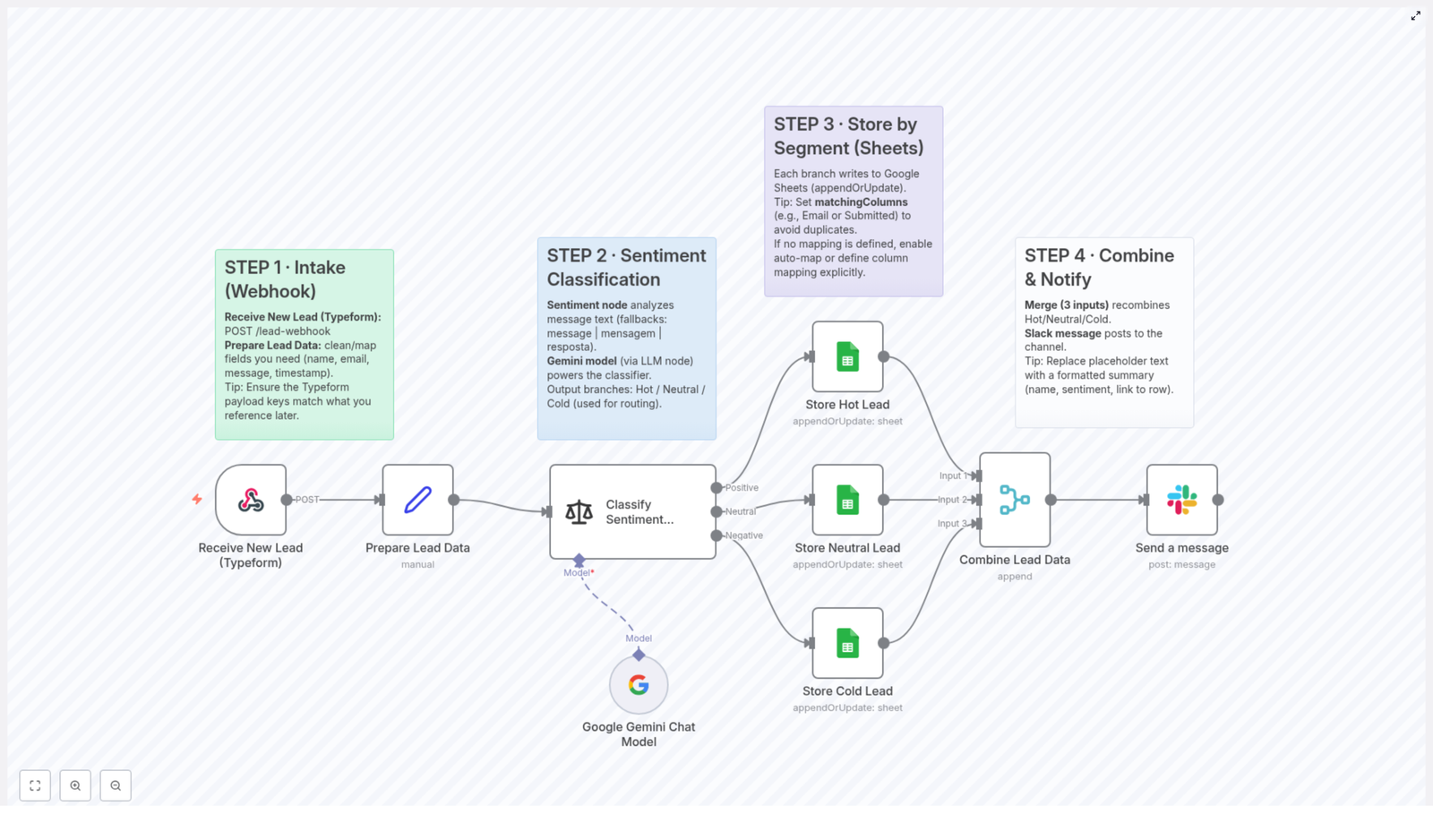
Automating Lead Sentiment Classification with Google Gemini & n8n

Automating Lead Sentiment Classification with Google Gemini & n8n

Imagine this…

Your Typeform is doing its job a little too well. New leads keep rolling in, your inbox is bursting at the seams, and you are stuck playing detective: Is this person actually interested, just browsing, or colder than last quarter’s coffee?

Manually reading every message, guessing the sentiment, copying data into spreadsheets, pinging sales on Slack… it is a heroic effort, but also a tiny bit soul-crushing.

Good news: you do not have to live like this.

With n8n automation and the Google Gemini Chat Model, you can automatically classify lead sentiment, neatly organize everything in Google Sheets, and notify your team in Slack – all while you focus on work that does not feel like digital paperwork.

What this n8n workflow template actually does

This workflow template connects your form tool (like Typeform) to n8n, then uses Google Gemini to figure out whether a lead is Hot, Neutral, or Cold. After that, it:

  • Cleans and structures lead data as it arrives through a webhook
  • Runs sentiment classification using the Google Gemini Chat Model via an LLM node
  • Sends each lead to the right Google Sheets tab based on sentiment
  • Recombines all leads into one stream and posts a Slack notification to your team

So instead of manually sorting leads, you get an automated lead triage system that works quietly in the background and does not complain about repetitive tasks.

How the workflow flows: from form to Slack ping

1. New leads enter via webhook (Typeform intake)

Everything starts when someone submits a form, for example through Typeform. That response is sent straight to n8n using a webhook.

  • Receive New Lead (Typeform): The n8n webhook listens for POST requests that contain your lead data.
  • Prepare Lead Data: Inside n8n, the workflow cleans and maps the incoming payload so that key fields like name, email, message, and timestamp are consistent and ready for processing.

Tip: Double check that your Typeform field keys, such as message and email, match what the workflow expects. A tiny mismatch here can cause big confusion later.

2. Let Google Gemini judge the vibe (sentiment classification)

Once the data is cleaned up, the workflow passes the lead message to an LLM node that uses the Google Gemini Chat Model. This is where the magic (and the time savings) really kick in.

  • The sentiment node looks for the lead’s message text in the message field. If that is not available, it falls back to mensagem or resposta, so localized forms still work.
  • Google Gemini analyzes the text and classifies the lead as Hot, Neutral, or Cold.
  • Based on this sentiment, the workflow routes each lead down the appropriate branch for storage.

In other words, you get consistent, AI powered sentiment classification instead of “I skimmed this between meetings and guessed.”

3. Automatically sort leads into Google Sheets by segment

Next up, each sentiment branch saves the lead to a separate tab or worksheet in Google Sheets. No more copy paste marathons.

  • Hot Leads: High intent leads are written to a dedicated Hot Leads sheet so your sales team can jump on them quickly.
  • Neutral Leads: Leads that show some interest but are not quite on fire yet go into their own worksheet.
  • Cold Leads: Low intent or low engagement leads are stored separately for later nurturing or analysis.

Tip: In your Google Sheets node, use matchingColumns such as Email or Submitted timestamp to prevent duplicate entries. If you do not set explicit mappings, you can enable auto-map or manually define column mapping so that every field lands in the correct column.

4. Merge everything and ping your team on Slack

After leads are safely stored in their respective sheets, the workflow pulls them back together and lets your team know what just happened.

  • A merge node is configured with three inputs to recombine Hot, Neutral, and Cold leads into a single aggregated dataset.
  • A Slack integration node then posts a message to your chosen channel with a summary of the new lead.
  • Tip: Customize the Slack message text. Include useful details like the lead’s name, their sentiment category, and a link to the exact Google Sheets row so your team can act fast.

The result: your sales or marketing team gets real time alerts without anyone manually crafting “Hey, new lead!” messages all day.

Why this n8n + Google Gemini workflow is worth your time

  • Faster lead triage: Sentiment is classified automatically, so hot leads do not sit around waiting for someone to read them.
  • Clean, organized data: Leads are segmented by interest level in Google Sheets, making follow up strategies easy to plan.
  • Real time notifications: Slack alerts keep your team instantly informed whenever a new prospect comes in.
  • Less manual work: You spend less time copying, pasting, and guessing, and more time actually talking to the right people.

In short, this workflow turns a messy, repetitive process into a neat, automated system that quietly does the boring parts for you.

Quick setup guide: from zero to automated lead sentiment

Here is a simplified checklist to get this template running smoothly in your n8n environment:

  1. Import the template into n8n.
    Open n8n, import the template from the link below, and save it in your workspace.
  2. Configure the webhook and Typeform.
    Point your Typeform (or other form tool) to the n8n webhook URL. Make sure the payload includes fields like email, message, and timestamp.
  3. Check field mapping.
    In the data preparation step, confirm that the workflow is mapping your payload keys correctly. Adjust names if your form uses different labels.
  4. Connect Google Gemini in the LLM node.
    Set up the Google Gemini Chat Model credentials in n8n and ensure the sentiment node is using the correct model.
  5. Set up Google Sheets.
    Create or connect three tabs or worksheets for Hot, Neutral, and Cold leads. Configure the Google Sheets node with matchingColumns and mapping as needed.
  6. Configure Slack integration.
    Connect your Slack account, choose the target channel, and customize the notification message so your team gets the exact information they need.
  7. Test with a sample submission.
    Submit a test lead through your form, watch the workflow run, and confirm that the lead lands in the right sheet and triggers a Slack notification.

Next steps and ideas to build on this workflow

Once this template is humming along, you can extend it further inside n8n:

  • Add automatic follow up emails for Hot leads using your email provider
  • Trigger CRM updates whenever a new lead hits the Hot or Neutral segment
  • Schedule periodic reports based on your Google Sheets data

The core workflow already handles sentiment classification, segmentation, and notifications, so you have a solid base to build a fully automated lead pipeline.

Conclusion: let automation handle the boring bits

This n8n workflow template, powered by the Google Gemini Chat Model, takes you from raw form submissions to organized, sentiment classified leads and instant team notifications. It reduces manual lead triage, keeps your data clean, and helps your team focus on the right prospects faster.

Ready to stop manually sorting leads? Plug this template into your n8n setup, connect your tools, and let automation do the repetitive work while you handle the conversations that actually close deals.

Automate Attendance Extraction Pipeline with VLM Run & n8n

Automate Attendance Extraction Pipeline with VLM Run & n8n

Imagine Never Taking Attendance Manually Again

Picture this: it is 9:00 AM, you have a room full of people, a coffee that is already going cold, and a crumpled attendance sheet that keeps disappearing under someone’s laptop. You squint at handwriting, misread names, and later spend way too much time typing it all into a spreadsheet. Again.

If that sounds familiar, this workflow is your new best friend.

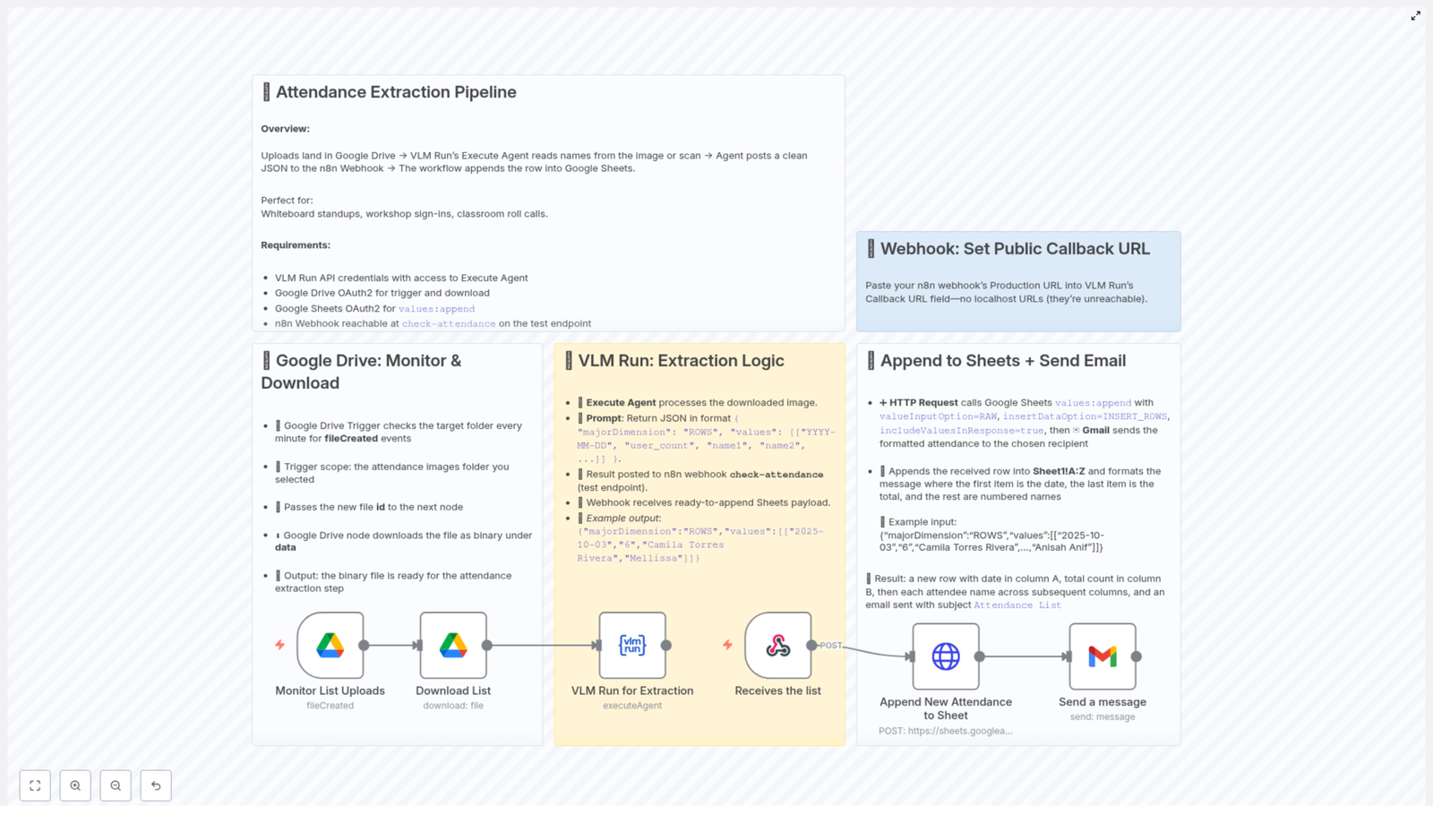
In this guide, you will see how to build a fully automated Attendance Extraction Pipeline using VLM Run’s Execute Agent, Google Drive, Google Sheets, and n8n. Snap a photo or upload a scan of your attendance sheet, and the workflow quietly does the rest – extracts names, logs them in a spreadsheet, and emails you a tidy summary.

What This n8n Attendance Workflow Actually Does

Here is the big picture of the automation, from “photo on your phone” to “attendance neatly logged”:

  • You upload attendee images or scans to a dedicated Google Drive folder.
  • VLM Run’s Execute Agent processes each image, runs OCR, and extracts the attendance data.
  • The agent sends the cleaned data as structured JSON to an n8n webhook.
  • n8n takes that JSON and appends it as a new row in Google Sheets.
  • Finally, n8n sends you an email via Gmail with a summary of who attended and when.

End result: your attendance is tracked, stored, and summarized while you focus on the actual event instead of chasing pens and paper.

Why Bother Automating Attendance?

Besides the obvious “I have better things to do” factor, there are some solid reasons to automate:

  • Time-saving – No more manual data entry from photos or paper sheets. Upload, walk away, done.
  • Accuracy – Fewer typos and missed names compared to rushed roll calls or messy spreadsheets.
  • Seamless integration – Uses tools you probably already rely on: Google Drive, Google Sheets, Gmail, and n8n.

Where This Workflow Really Shines

  • Workshops that need quick, reliable attendance tracking from sign-in sheets.
  • Classrooms where teachers would rather teach than decode handwriting.
  • Team standups or daily scrums where attendance needs to be logged but nobody wants to be the “attendance person.”

What You Need Before You Start

Before you spin up the n8n workflow, make sure you have these pieces ready:

  • Valid VLM Run API credentials with access to the Execute Agent.
  • Google Drive OAuth2 credentials so n8n can monitor and download files.
  • Google Sheets OAuth2 credentials so n8n can append rows via the Sheets API.
  • An exposed and reachable n8n webhook endpoint to receive JSON from VLM Run.

Once those are in place, the rest is mostly connecting the dots.

How the Automation Works, Step by Step

Step 1 – Watch Google Drive and Grab New Attendance Images

First up, we teach n8n to keep an eye on your attendance folder in Google Drive so you never have to manually “import” anything.

  • Use a Google Drive Trigger node configured to watch for fileCreated events.
  • Set it to check every minute and point it to your specific attendance images folder.
  • When a new file appears, pass its file ID to a regular Google Drive node.
  • Use that node to download the file as binary data.

At this point, each new image or scan in that folder is automatically pulled into the workflow and is ready for VLM Run to work its magic.

Step 2 – Use VLM Run Execute Agent to Extract Attendance Data

Now comes the brains of the operation. The VLM Run Execute Agent handles the OCR and converts your image into structured attendance data.

The agent is responsible for:

  • Processing the downloaded attendance image from Google Drive.
  • Extracting the attendance details and returning JSON in a strict format that Google Sheets will love:
{  "majorDimension": "ROWS",  "values": [["YYYY-MM-DD", "user_count", "name1", "name2", ...]]
}
  • Posting that JSON payload to your configured n8n webhook, for example check-attendance.

This means every attendance image is turned into a single, clean row of data with the date, total count, and a list of all attendees.

Step 3 – Append to Google Sheets and Email a Summary

Once n8n receives the JSON from VLM Run, it handles the admin work you do not want to touch.

  • Use an HTTP Request node to call the Google Sheets API values:append endpoint.
  • Configure it with the following parameters:
    • valueInputOption=RAW
    • insertDataOption=INSERT_ROWS
    • includeValuesInResponse=true
  • Append the data to a range like Sheet1!A:Z, where:
    • Column A holds the date.
    • Column B stores the total attendee count.
    • Columns C onward list individual attendees, one per column.
  • Then use a Gmail node to send an email that summarizes:
    • The attendance date.
    • The total number of attendees.
    • The list of names, nicely formatted so you do not have to open the spreadsheet unless you really want to.

End result: your Google Sheet stays up to date, and your inbox gets a friendly recap without any copy-paste marathons.

Making the Webhook Public: The Callback URL Trick

For VLM Run to send data back to n8n, it needs a URL it can actually reach. That means:

  • Take your public production URL for the n8n webhook that receives attendance data.
  • Paste that URL into the callback URL field in your VLM Run Execute Agent settings.

Localhost URLs will not work because VLM Run cannot see your local machine. Make sure the webhook is publicly accessible so the JSON can flow in without getting stuck.

Putting It All Together

With this pipeline in place, attendance tracking goes from “ugh, not again” to “oh, that just happened automatically.”

You upload a photo, VLM Run reads it, n8n updates your Google Sheet, and Gmail sends you a summary. No more deciphering handwriting, no more spreadsheet wrangling, and no more late-night data entry after a long event.

Automating attendance with VLM Run, Google Drive, Google Sheets, and n8n lets you focus on teaching, hosting, or leading, while the workflow quietly handles the boring bits in the background.

Ready to Try the n8n Attendance Template?

If you want to skip the “build it from scratch” phase, you can start directly from the ready-made template and customize from there. Grab your VLM Run API keys, set up your Google Drive and Sheets credentials, plug in your webhook URL, and you are on your way to a hands-off attendance system.

Automate Client Onboarding with Google Gemini & n8n

Automate Client Onboarding with Google Gemini & n8n

Why automate client onboarding in the first place?

If you’ve ever copied a client’s details from a form, pasted them into an email, tweaked the wording, double-checked the checklist, and only then hit send, you know how repetitive onboarding can get. Do it once, fine. Do it ten times a week, and it starts eating your day.

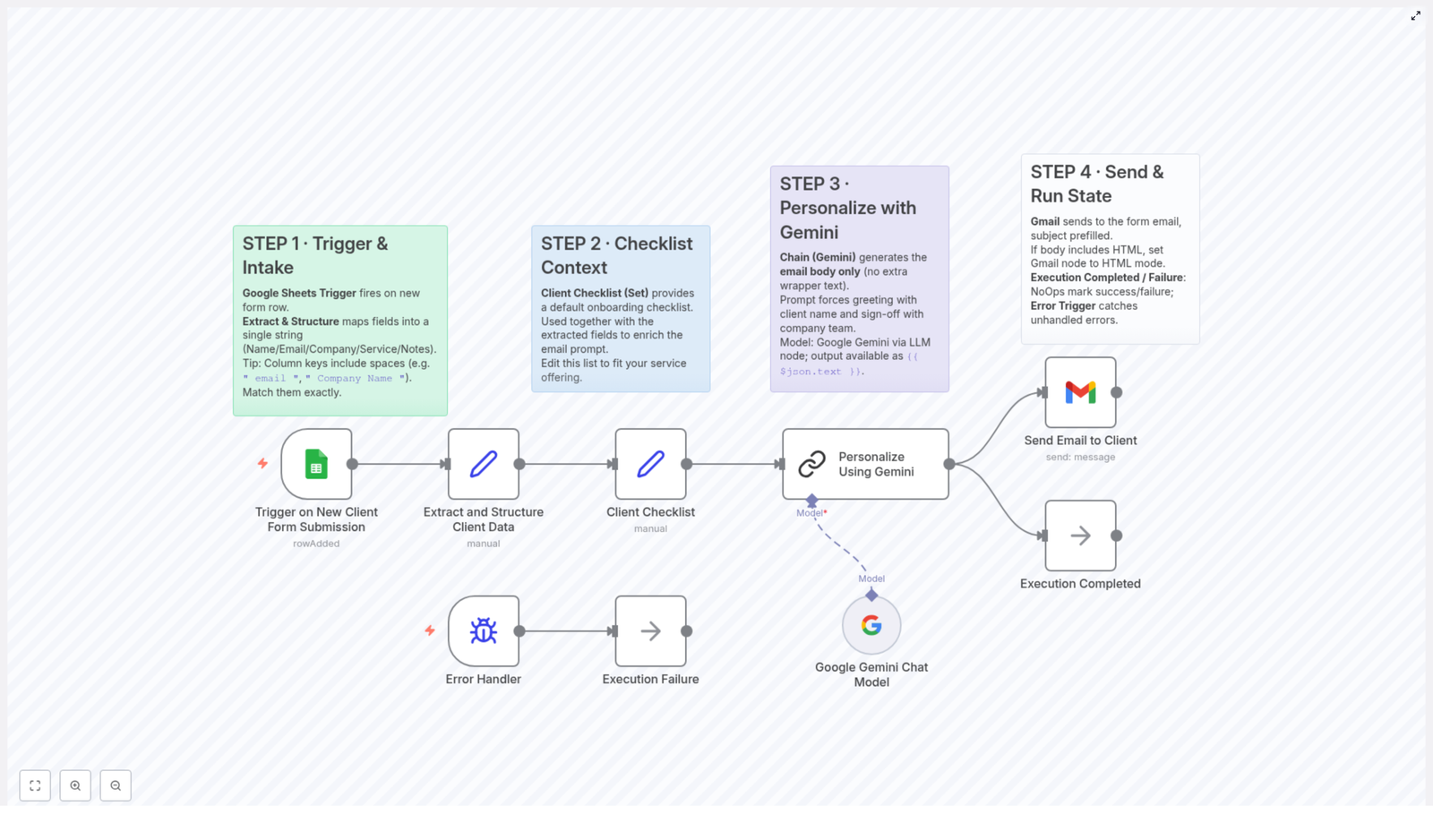
That is exactly where this n8n workflow template comes in. It connects Google Sheets, Google Gemini, and Gmail so that every new client submission automatically turns into a polished, personalized onboarding email. No more manual drafting, no more “Did I forget a step?” worries.

In this walkthrough, we will look at what the template does, when to use it, and how each part of the workflow fits together so you can customize it for your own business.

What this n8n workflow actually does

At a high level, the template:

  • Listens for new client entries in a Google Sheets onboarding form
  • Extracts and structures the client’s details from that sheet
  • Combines those details with a predefined client onboarding checklist
  • Uses the Google Gemini language model (via n8n) to write a custom onboarding email
  • Sends the email automatically with the Gmail node
  • Tracks success or failure and catches errors for reliable operation

So instead of typing out a new welcome email for each client, you let the workflow do the busywork while you focus on the actual relationship.

When this template is perfect for you

You will get the most value from this workflow if:

  • You collect client info through a form that feeds into Google Sheets
  • You send similar onboarding emails every time, but still want them to feel personal
  • You need a consistent checklist so no important onboarding step gets missed
  • You want a setup that scales easily as your client list grows

If that sounds like your situation, this template can quickly become your “set it and forget it” onboarding assistant.

How the workflow starts: Trigger and intake

Google Sheets Trigger: catching every new client

The whole automation kicks off with a Google Sheets Trigger node. This node watches your onboarding form spreadsheet for new rows. Each time someone submits the form and a new row is added, the workflow fires automatically.

No button to press, no manual sync. Every new submission gets processed as soon as it hits the sheet.

Extracting and structuring client data

Next comes the Extract and Structure node. Its job is to take the raw data from the spreadsheet and turn it into a structured string that is easy for Gemini to understand.

Typical fields you might map include:

  • Name
  • Email
  • Company
  • Services Needed
  • Any other onboarding-specific info you collect

One important detail here: the node respects the sheet’s column names exactly. That includes spaces. So if your column is labeled " email " or " Company Name " with extra spaces, those spaces need to be matched in the node configuration too. It might look picky, but it keeps the field mapping precise and avoids annoying “why is this field empty?” debugging later.

Adding context: the client checklist

Client Checklist (Set) node: your onboarding playbook

Before Gemini writes anything, the workflow prepares a bit of context using a Client Checklist (Set) node. Think of this node as your default onboarding playbook.

In this node, you define a standard checklist that usually includes steps like:

  • Account setup
  • Scheduling a welcome call
  • Collecting required documents
  • Configuring requested services
  • Running an onboarding session
  • Reviewing the first milestone

This checklist is not just for your internal use. It is passed along as context so Gemini can weave these steps into the email in a natural, client-friendly way.

Why the checklist matters

By giving Gemini a structured list of what needs to happen, you get emails that:

  • Explain the next steps clearly to the client
  • Stay aligned with your internal process
  • Feel consistent, even as Gemini personalizes the wording

So you get both personalization and process consistency, which is usually hard to balance when you are writing everything by hand.

Let Gemini do the writing: personalized onboarding emails

Using the Google Gemini Chat Model via LLM Chain

Now for the fun part. The workflow uses an LLM Chain node in n8n that connects to the Google Gemini Chat Model. This is where the actual email copy is generated.

The prompt that goes into Gemini combines two key pieces:

  1. The extracted client data from the sheet (name, company, services, etc.)
  2. The client checklist you defined earlier

Together, these give Gemini enough context to write an email that is specific to each client, while still covering all your standard onboarding steps.

Prompting Gemini for the right tone

The prompt is set up to guide Gemini to:

  • Start with a warm greeting that includes the client’s name
  • Reference the client’s company and services needed where relevant
  • Walk through the key onboarding steps from your checklist
  • End with a friendly sign-off from your company team

The result is an email that feels like it was written just for that client, not like a cold generic template.

Sending the email and handling workflow state

Gmail node: delivering the message

Once Gemini produces the email body, the workflow passes it to an n8n Gmail node. This node sends the email directly to the client’s email address that came from the Google Sheet.

The subject line is also personalized. It includes a warm welcome that mentions the client’s name, which helps the email stand out in their inbox and feel more human.

Success, failure, and error handling

To keep things robust, the template includes:

  • Two no-op nodes that represent the success and failure states of the workflow
  • An error trigger node that catches any unhandled errors

These pieces help you monitor how the workflow is running and make it easier to plug in alerts or logging later if you want deeper observability.

Why this workflow makes your life easier

  • Time savings – Once set up, every new client gets an onboarding email without you lifting a finger. No more copying from templates or rewriting the same paragraphs.
  • Consistency – The checklist ensures every client goes through a complete and uniform onboarding process, regardless of who is on your team or how busy you are.
  • Real personalization – Google Gemini’s natural language capabilities help the emails sound warm and tailored, not robotic or cookie-cutter.
  • Scalability – Whether you onboard five clients a month or fifty, the workflow handles multiple form submissions in parallel without slowing you down.

How to customize the template for your business

The template works out of the box, but you will probably want to tweak it so it matches your brand, tone, and process. Here is where to start.

1. Edit the client checklist

Open the Client Checklist (Set) node and adjust the steps to reflect how you onboard clients. You can:

  • Add new steps that are unique to your services
  • Remove steps you do not use
  • Rename items so they match your internal language

These changes will automatically flow into the email content Gemini generates, since the checklist is part of the prompt.

2. Adjust the Gemini prompt and tone

In the Personalize Using Gemini (LLM Chain) node, you can edit the prompt text to better fit your brand voice. For example, you might:

  • Make the tone more formal or more casual
  • Add specific phrasing or taglines you always use
  • Change how detailed the explanation of next steps should be

Tiny prompt tweaks can make the emails feel exactly like something you would have written yourself.

3. Align Google Sheets columns with the extraction node

In the Extract and Structure Client Data node, double-check that the field names match your Google Sheets columns exactly, including any spaces or formatting. For example, if your column is literally named " email " with spaces, you must use that exact string.

Getting this mapping right ensures that Gemini receives complete and accurate client info, which is key for good personalization.

Ready to streamline your onboarding?

If you are tired of rewriting the same welcome emails or worrying that you forgot a step somewhere, this n8n workflow is a simple way to level up your client experience. You connect your Google Sheet, tweak the checklist and prompt, and let Google Gemini handle the rest.

The result: fast, consistent, and genuinely warm onboarding emails that go out automatically whenever a new client signs up.

Automate Lead Response Follow-Up with AI & N8N

Automate Lead Response Follow-Up with AI & n8n

The Day Jamie Realized Manual Follow-Up Was Broken

Jamie, a growth-focused SaaS founder, thought things were finally starting to click. The team had ramped up outbound campaigns, leads were replying from all directions, and the Gmail inbox looked busy in the best possible way.

Then the cracks started to show.

Hot leads disappeared under a pile of newsletters. A prospect who wrote “Ready to move forward this week” waited three days for a reply. Another one sent a thoughtful objection, but by the time Jamie noticed it, the deal had already cooled.

Every morning began the same way: coffee in one hand, Gmail in the other, scrolling through replies, tagging, copying, pasting into Google Sheets, pinging the sales team in Slack, and manually creating tasks in HubSpot. It felt less like running a company and more like being a human router.

Jamie knew this was not a scale-ready system. Leads were slipping through the cracks, response times were inconsistent, and the team was spending way too much energy on triage instead of actual selling.

That was the moment Jamie went looking for a better way and discovered an n8n workflow template that promised to automate the entire lead response follow-up process with AI-powered analysis.

Discovering an AI-Driven n8n Workflow

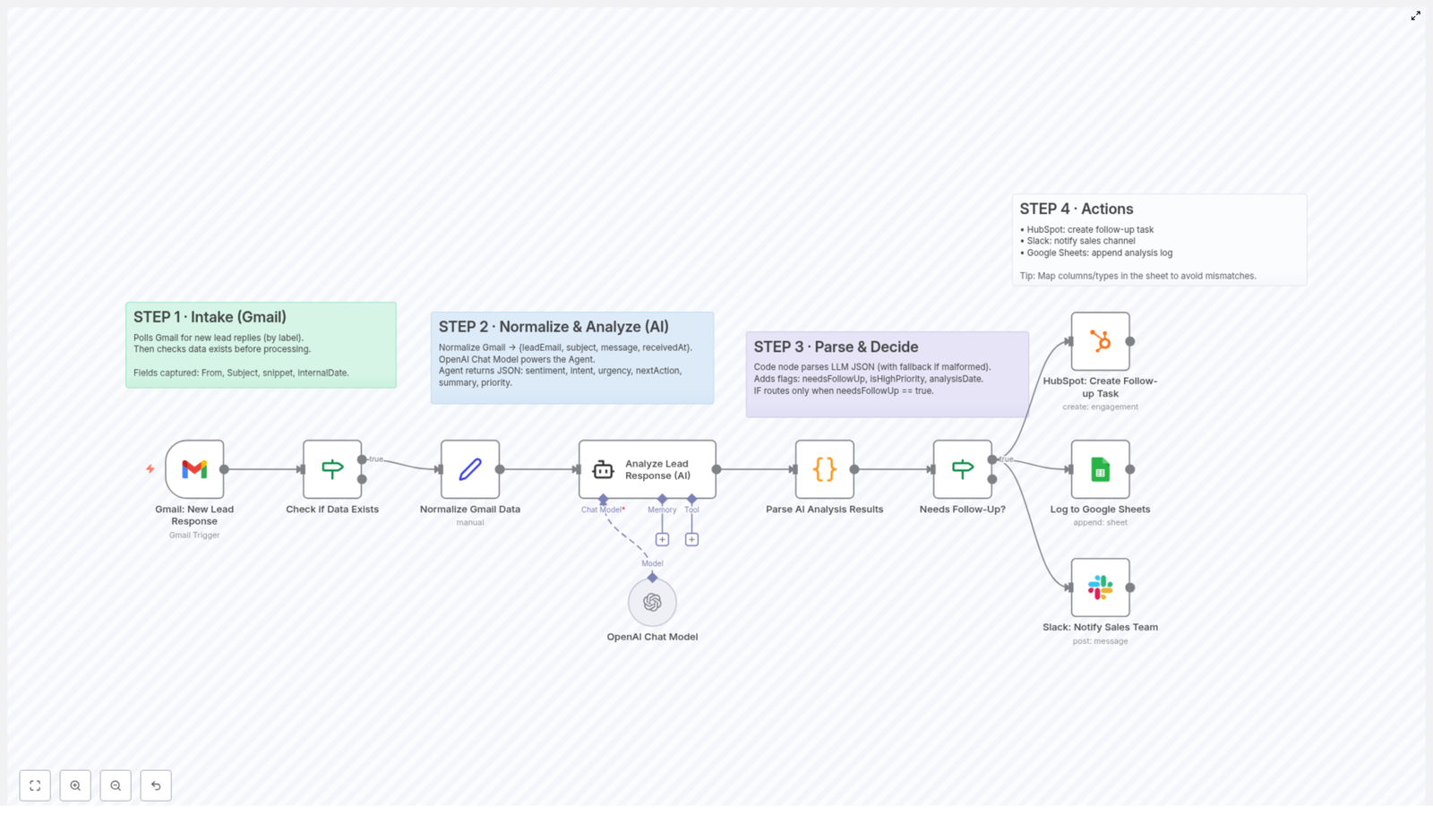
What caught Jamie’s eye first was the promise: a workflow that would automatically pull lead replies from Gmail, analyze them with AI, decide what to do next, and trigger follow-up actions across HubSpot, Slack, and Google Sheets.

No more manual sorting. No more guessing which lead to tackle first. Just a clean, consistent system that would:

  • Read incoming lead responses from Gmail
  • Use AI to understand sentiment, intent, urgency, and next steps
  • Decide whether follow-up was needed and how important it was
  • Automatically create tasks, send notifications, and log everything

It sounded like exactly what Jamie needed. So the experiment began.

Rising Action: Turning Gmail Chaos Into Structured Data

Step 1 – Teaching n8n to Listen to Gmail

The first part of the workflow focused on intake. Jamie configured n8n to poll Gmail for new replies that had a specific label, something like lead-reply. This label acted as a filter, so only relevant responses entered the automation.

Each time a new labeled email appeared, the workflow grabbed key fields:

  • From – to identify the lead’s email address
  • Subject – useful context for the conversation
  • Snippet – a short preview of the message
  • internalDate – the timestamp from Gmail

But the workflow was smart enough not to waste resources. Before moving on, it checked whether there was actually new data to process. If nothing had changed, it simply stopped, avoiding unnecessary processing of empty or irrelevant emails.

For Jamie, this was the first win. The inbox was no longer a place to manually hunt for replies. n8n was now quietly watching, capturing only what mattered.

Step 2 – Normalizing the Chaos for AI

Raw Gmail data is messy, and Jamie knew AI models work best with clean, structured input. The next step in the workflow normalized everything into a consistent format.

The workflow transformed each email into a tidy object with fields like:

  • leadEmail – the sender’s address
  • subject – the email subject line
  • message – the full text of the lead’s response
  • receivedAt – the timestamp converted into a readable format

This normalization step meant that no matter how Gmail formatted the original message, the AI agent would always receive data in a predictable structure. That consistency set the stage for accurate analysis.

The Turning Point: Letting AI Judge Every Lead

Step 3 – AI-Powered Analysis With OpenAI

Now came the part Jamie was most excited about. Instead of manually reading each reply and guessing how serious or urgent it was, the workflow handed the normalized data to an AI agent powered by the OpenAI chat model.

The AI analyzed each lead response and returned a structured JSON object with several key dimensions:

  • Sentiment – Positive, Neutral, or Negative
  • Intent – Interested, Not Interested, Needs Info, Ready to Buy, or Objection
  • Urgency – High, Medium, or Low
  • Next Action – Call, Email, Demo, Quote, or No Action
  • Summary – a concise 1-2 sentence overview of the lead’s reply
  • Priority – Hot, Warm, or Cold

For the first time, Jamie could see leads categorized in a consistent, objective way. A short message like “Can you send pricing today? We need to decide this week” was no longer just another email. It became a high urgency, hot, ready-to-buy

Step 4 – Parsing AI Output and Making Decisions

Of course, Jamie knew that any automation involving AI needed guardrails. That is where the next part of the n8n workflow came in.

A code node parsed the AI’s JSON response. It included fallback logic to handle malformed or incomplete data, so a single odd response would not break the system. During this step, the workflow also enriched the data with helpful flags:

  • needsFollowUp – set to true if the AI’s Next Action was anything other than No Action
  • isHighPriority – based on the AI’s Priority and Urgency scores
  • analysisDate – the timestamp when the AI analysis was performed

These flags made routing decisions simple. Instead of Jamie or a sales rep reading every email, the workflow could automatically decide which leads required attention and which could safely be logged for reference.

At this point, Jamie realized something important had shifted. The workflow was no longer just a passive data pipeline. It was actively making decisions about follow-up, in a way that was both transparent and consistent.

Resolution: Automating the Follow-Up Across the Stack

Step 5 – Triggering Follow-Up in HubSpot, Slack, and Google Sheets

For any lead where needsFollowUp was true, the n8n template kicked off a series of automated actions. This was where the real time savings showed up in Jamie’s day.

The workflow handled follow-up in three directions at once:

  • HubSpot – It automatically created a follow-up task linked to the contact, based on the AI’s recommended Next Action. If the AI said “Call,” HubSpot got a call task. If it said “Send a quote,” the task reflected that.
  • Slack – It posted a notification into the sales team’s Slack channel, summarizing the lead’s status, sentiment, urgency, and priority. Hot, high urgency leads immediately popped onto the team’s radar.
  • Google Sheets – It logged the full analysis, including sentiment, intent, urgency, next action, summary, and priority, into a spreadsheet. This gave Jamie a clear historical record for reporting, training, and optimization.

Instead of Jamie manually copying snippets into a sheet, pinging reps one by one, and creating tasks, the system handled everything in seconds.

What Changed for Jamie’s Team

Within a few days of using the n8n workflow template, the difference was obvious:

  • Time-saving automation – Manual lead triage nearly disappeared. The team spent time talking to leads, not sorting emails.
  • Consistent lead qualification – Every reply was analyzed using the same AI-driven criteria. No more subjective “this feels important” guesswork.
  • Instant notifications – Hot, ready-to-buy leads triggered immediate Slack alerts, so reps could jump in while interest was highest.
  • Accurate tracking – Google Sheets became a transparent log of all AI analyses and actions, perfect for reporting and continuous improvement.

Most importantly, the team stopped losing deals simply because an email got buried. The combination of n8n automation and AI-powered analysis turned a stressful inbox into a reliable, scalable lead management system.

How You Can Put This n8n Template to Work

If Jamie’s story feels familiar, you can replicate the same setup with this n8n workflow template. The core building blocks are already in place. You just plug in your own tools and settings.

To get started, you will need to configure:

  • A Gmail label that marks lead replies you want to process
  • Your OpenAI credentials for the AI analysis step
  • HubSpot access so the workflow can create tasks for your contacts
  • Slack integration, including the channel ID where you want lead alerts to appear
  • Google Sheets access for logging all analysis data and follow-up details

Once those pieces are in place, the workflow will quietly run in the background, watching Gmail, analyzing responses, deciding what matters, and triggering the right actions across your stack.

From Overwhelmed Inbox to Predictable Pipeline

Jamie no longer starts the day buried in Gmail. Instead, the team opens Slack to see a prioritized list of leads needing action, checks HubSpot for auto-created tasks, and reviews Google Sheets for a clean record of every AI analysis.

This is the power of combining n8n, AI, and your existing tools. You keep the systems you already use, but you remove the manual glue that was slowing everything down.

If you are ready to stop missing leads and start scaling your follow-up with confidence, this n8n workflow template is a practical first step.

Note: Make sure to customize parameters like Gmail labels, Slack channel IDs, and API credentials to match your organization’s setup and security requirements.

Automated Image Extraction with Google Drive & VLM Run

Automated Image Extraction with Google Drive & VLM Run

What You Will Learn

In this tutorial, you will learn how to build an automated image extraction workflow in n8n that connects Google Drive and VLM Run. By the end, you will know how to:

  • Automatically detect new files in a Google Drive folder
  • Send those files to a VLM Run agent for image extraction
  • Receive the extracted image URLs in n8n via a webhook
  • Split, download, and save each image into a dedicated Google Drive folder

This is especially useful if you regularly handle PDFs or documents containing receipts, reports, or machine learning image assets and want to remove manual steps from your workflow.

When to Use This Image Extraction Workflow

This n8n template is ideal if you want to:

  • Extract receipt images from PDFs so you can process them in accounting or expense tools
  • Capture report images for documentation, presentations, or analysis
  • Automatically harvest images from documents to build machine learning datasets

Instead of manually opening each file, copying images, and uploading them, this pipeline handles everything automatically in the background.

What You Need Before You Start

Make sure you have the following in place before configuring the n8n workflow:

  • VLM Run API credentials with Execute Agent permission so you can run the image extraction agent
  • Google Drive OAuth2 credentials to:
    • Monitor a folder for new files
    • Download the source documents
    • Upload the extracted images to a destination folder
  • An n8n Webhook URL that VLM Run can call to send back extracted image URLs
    Example name in n8n: image-extract-via-agent
  • Two Google Drive folder IDs:
    • A source folder ID that n8n will watch for new files
    • A destination folder ID where extracted images will be saved (for example a folder called Extracted Image)

Conceptual Overview: How the Pipeline Works

Before diving into the step-by-step setup, it helps to understand the full flow at a high level.

Overall flow:

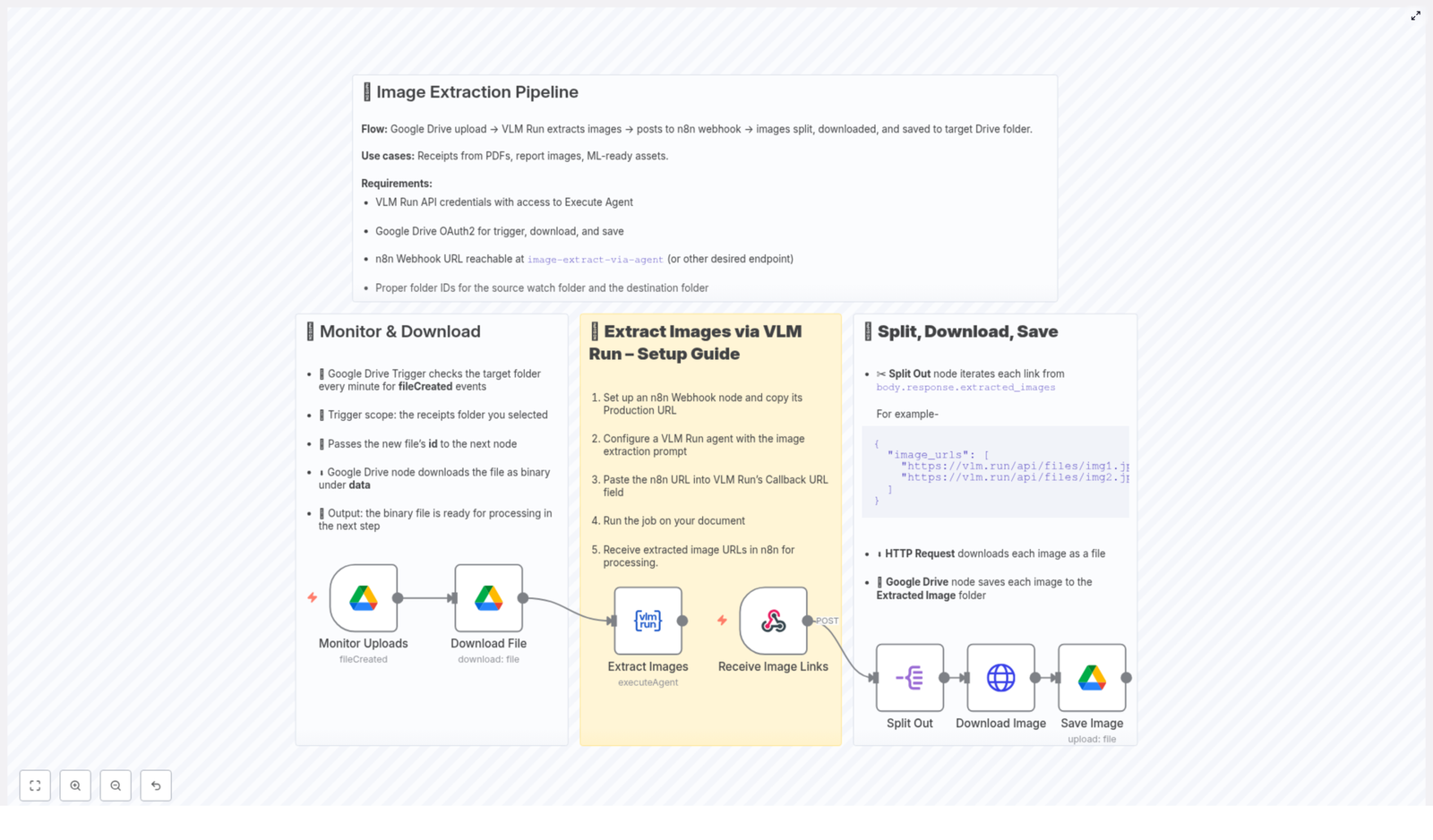
  1. A new file is uploaded to a specific Google Drive folder that n8n is monitoring.
  2. n8n detects the new file, downloads it as binary data, and passes it to VLM Run.
  3. VLM Run processes the document and extracts image URLs.
  4. VLM Run sends those extracted image URLs to your n8n Webhook URL.
  5. n8n receives the list of image URLs, splits them into separate items, downloads each image, and saves them into a destination folder in Google Drive.

This creates a complete automated pipeline from document upload to organized image storage.


Step 1 – Monitor and Download Files from Google Drive

1.1 Configure the Google Drive Trigger

The first part of the automation is to detect when a new file appears in a specific Google Drive folder.

  • Use a Google Drive Trigger node in n8n.
  • Set it to watch a particular folder, such as your receipts or reports folder.
  • Configure the trigger to check for new files at a regular interval, for example every minute.

When a new file is created in that folder, the trigger node will fire and pass data about the file to the next node in your workflow.

1.2 Pass the File ID and Download the File

From the trigger, you will receive the file’s id. This id is used to download the actual document.

  • Add a regular Google Drive node after the trigger.
  • Use the operation that downloads the file using the file id from the trigger.
  • Make sure the file is downloaded as binary data, which is the format VLM Run will need for processing.

At this point, your workflow can automatically fetch any new document that appears in your watch folder and prepare it for image extraction.


Step 2 – Extract Images with VLM Run Agent

2.1 What the VLM Run Agent Does

The VLM Run agent is responsible for analyzing the downloaded document and identifying any images inside it. It then returns:

  • A list of image URLs extracted from the document
  • These URLs are sent as a JSON payload to your n8n Webhook endpoint

2.2 Configure the n8n Webhook Node

Before you set up the VLM Run agent, you need an endpoint where it can send results.

  1. Add a Webhook node in n8n.
  2. Switch the node to use its production URL (or the URL you will expose externally).
  3. Copy the Webhook URL. You will paste this into VLM Run as the callback URL.

This Webhook node will later receive a JSON body that includes the extracted images, typically in a field like body.response.extracted_images.

2.3 Set Up the VLM Run Agent

Now you can configure the VLM Run agent that will process your documents.

  1. In VLM Run, create or configure an agent with an image extraction prompt. The prompt should instruct the agent to analyze the document and return image URLs.
  2. In the agent settings, locate the callback or webhook field.
  3. Paste the n8n Webhook URL that you copied from the Webhook node.
  4. Make sure your VLM Run API credentials have Execute Agent permission so the agent can run.

2.4 Run the Agent from the Workflow

Next, connect n8n to VLM Run so the downloaded document is actually sent for processing.

  • Add a VLM Run Agent node after the Google Drive download node.
  • Configure it with:
    • Your VLM Run API credentials
    • The specific agent you configured for image extraction
    • The binary file data from the previous node
  • When this node runs, it will:
    • Send the document to VLM Run
    • Trigger the agent job
    • Cause VLM Run to send the extracted image URLs back to your n8n Webhook endpoint

Once the agent finishes, n8n will receive a callback to the Webhook node with the image URLs ready for further processing.


Step 3 – Process, Download, and Save Extracted Images

3.1 Understand the Webhook Payload

When VLM Run finishes extracting images, it sends a JSON payload to your Webhook node. This payload typically contains a field similar to:

body.response.extracted_images

This field holds a list of image URLs that point to each extracted image.

3.2 Split the Image URLs into Individual Items

To handle each image separately, you need to split the list of URLs into single items.

  • Use a node in n8n (such as Item Lists or a similar node) to split out the array of URLs.
  • After this step, each workflow item will represent one image URL.

This splitting is crucial for scalability because it lets you process large numbers of images efficiently, one per item.

3.3 Download Each Image via HTTP Request

With individual image URLs available, you can now download each image.

  • Add an HTTP Request node after the split step.
  • Set the HTTP method to GET.
  • Use the image URL from the current item as the request URL.
  • Configure the node to download the response as binary data so you get the actual image file.

Each execution of this node will download one image file based on its URL.

3.4 Save the Downloaded Images to Google Drive

The final part of the pipeline is to store the downloaded images in your chosen Google Drive folder.

  • Add a Google Drive node after the HTTP Request node.
  • Use the operation that uploads a file from binary data.
  • Set the binary property to the one coming from the HTTP Request node.
  • Specify the destination folder ID, for example the folder named Extracted Image that you prepared earlier.

Now, each extracted image will be saved as a separate file in your target Google Drive folder, fully automatically.


Why This n8n Workflow Is So Effective

  • High automation No more manual downloading, copying, or uploading images from PDFs or other documents. The entire process runs hands free once a file is uploaded.
  • Scalable handling of many images The split step allows the workflow to process multiple images per document efficiently, even when there are dozens of images.
  • Powerful integrations You combine the strengths of Google Drive for storage, n8n for orchestration, and VLM Run for AI-driven image extraction.

Quick Recap

Here is a short recap of the full pipeline:

  1. Google Drive Trigger watches a folder for new files.
  2. A Google Drive node downloads each new file as binary data.
  3. The VLM Run Agent node sends the file to VLM Run for image extraction.
  4. VLM Run calls back your n8n Webhook with a JSON list of extracted image URLs (for example body.response.extracted_images).
  5. A node splits the array of URLs into separate items.
  6. An HTTP Request node downloads each image by URL as binary data.
  7. A final Google Drive node uploads each binary image to a destination folder such as Extracted Image.

FAQ

Do I need coding skills to use this template?

No. The entire pipeline is built with n8n nodes and configuration. You only need to set credentials, folder IDs, and URLs.

Where do I get the folder IDs for Google Drive?

Open the folder in Google Drive and look at the URL in your browser. The long string after folders/ is the folder ID. Use that in your Google Drive nodes.

Can I use this with file types other than PDFs?

Yes, as long as VLM Run can process the file type and extract images from it. The n8n part of the workflow does not depend on the document type, only on the image URLs returned by VLM Run.

What happens if a document has no images?

If no images are found, the extracted_images list will be empty. In that case, the split step will not create any items and the download and upload steps will simply not run for that file.


Start Using the Template

To put this into action:

  1. Create or choose your source and destination folders in Google Drive.
  2. Set up your Google Drive OAuth2 credentials in n8n.
  3. Configure your n8n Webhook node and copy its production URL.
  4. Set up your VLM Run agent with the image extraction prompt and paste the Webhook URL as the callback.
  5. Import and customize the n8n template, then run the workflow.

Once configured, you will have a fully automated image extraction system that turns document uploads into neatly organized image files in Google Drive.

Automated Image Extraction Pipeline with Google Drive & VLM Run

Automated Image Extraction Pipeline with Google Drive & VLM Run

What You Will Learn

In this guide, you will learn how to build an automated image extraction pipeline using:

  • Google Drive to store and monitor your documents
  • VLM Run to identify and extract image URLs from those documents
  • n8n to orchestrate the workflow, download the images, and save them back to Google Drive

By the end, you will understand the full end-to-end process and be able to:

  • Automatically react whenever a new file is uploaded to a Google Drive folder
  • Send that file to VLM Run to extract image links
  • Receive those image URLs in n8n via a webhook
  • Download each image and store it in a dedicated Google Drive folder

Why Automate Image Extraction?

Manually opening documents, saving images, and organizing them into folders quickly becomes tedious and error prone. An automated image extraction pipeline in n8n removes this repetitive work and ensures images are consistently stored where you need them.

This kind of workflow is especially useful for:

  • Expense processing – automatically extract receipt images from PDF invoices or statements
  • Reporting and analytics – collect images from reports for dashboards, presentations, or archives
  • Machine learning preparation – build ML-ready datasets by batch extracting images from large document collections

What This Pipeline Does, End to End

At a high level, the pipeline behaves like this:

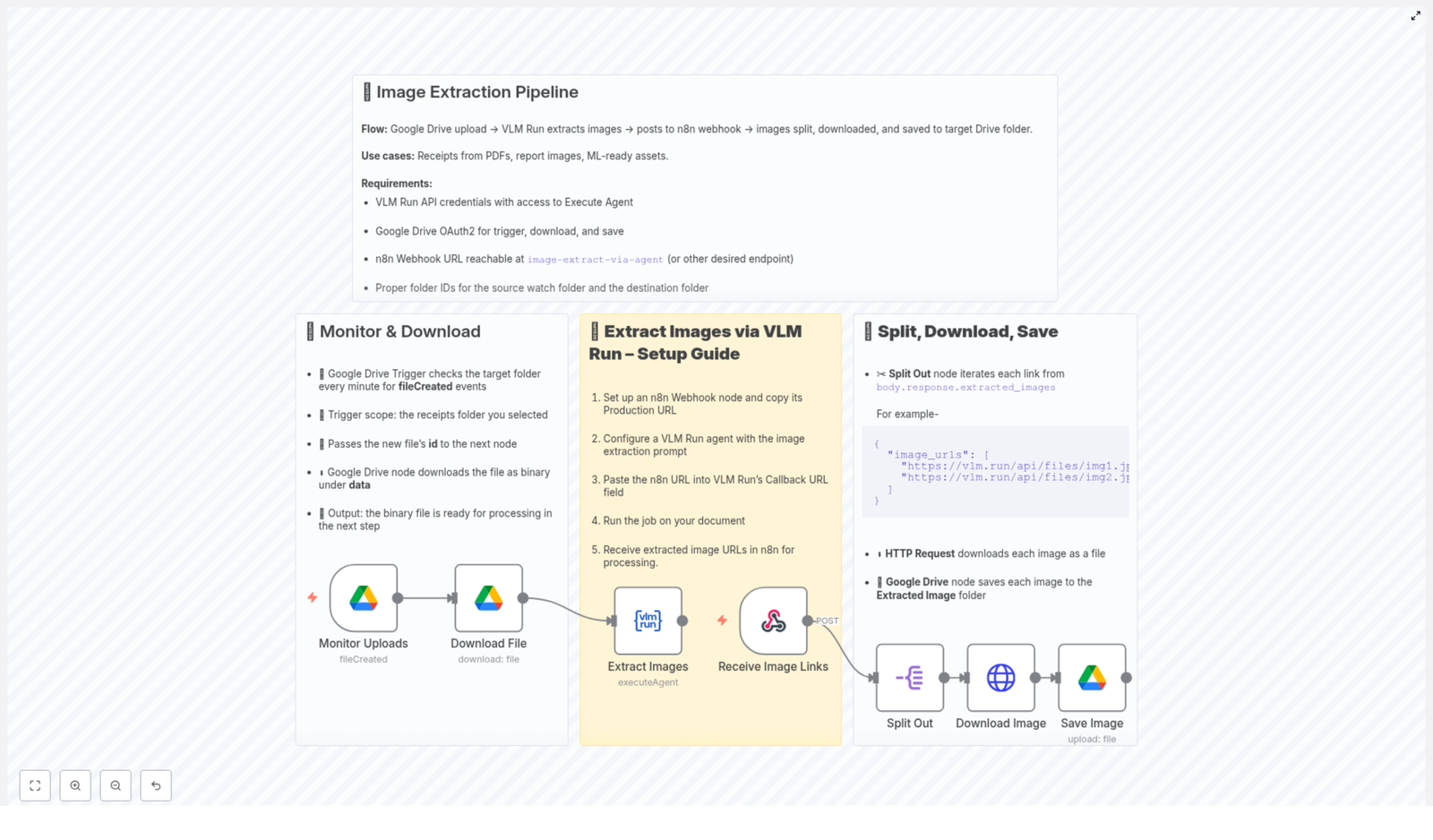
  1. You upload a file (for example a PDF) into a specific Google Drive folder.
  2. n8n detects the new file using a Google Drive trigger node.
  3. n8n downloads the file and sends it to VLM Run.
  4. VLM Run scans the document, extracts image URLs, and sends those URLs to an n8n webhook.
  5. The webhook receives a JSON payload containing an array of image URLs.
  6. n8n loops through each URL, downloads the corresponding image, and uploads it to a target Google Drive folder.

The result is a fully automated image extraction and storage process that runs every time a new document is added to your chosen folder.

Prerequisites and Requirements

Before you start building the workflow in n8n, make sure you have the following in place:

Accounts and Credentials

  • VLM Run API credentials with Execute Agent access so that n8n can call the VLM Run agent.
  • Google Drive OAuth2 credentials configured in n8n to:
    • Monitor a folder for new files
    • Download the uploaded document
    • Upload the extracted images to a destination folder
  • n8n webhook URL that VLM Run can send image URLs to, for example a webhook named image-extract-via-agent.

Folder Setup in Google Drive

  • The source folder ID where new files will be uploaded and monitored (for example a “Receipts” folder).
  • The destination folder ID where extracted images will be saved (for example an “Extracted Images” folder).

Key Concepts Before You Build

1. Using n8n as the Orchestrator

n8n connects Google Drive and VLM Run together. It:

  • Listens for new files in a specific Drive folder
  • Triggers VLM Run when a document is uploaded
  • Receives the list of image URLs via a webhook
  • Downloads and stores each image in your chosen destination folder

2. Role of VLM Run

VLM Run acts as the “image extractor” for your documents. You configure an agent with a prompt that instructs it to:

  • Analyze the uploaded document
  • Detect and extract image URLs
  • Return those URLs in a structured JSON format

This JSON is then sent to your n8n webhook endpoint.

3. Webhook and JSON Payload

The webhook node in n8n acts as the entry point for the extracted image URLs. VLM Run calls this webhook with a JSON body that typically looks like this:

{  "image_urls": [  "https://vlm.run/api/files/img1.jpg",  "https://vlm.run/api/files/img2.jpg"  ]
}

n8n parses this JSON and then processes each URL one by one.

Step-by-Step: Building the n8n Image Extraction Workflow

Step 1 – Monitor a Google Drive Folder for New Files

First, you need to detect when a new document is added to Google Drive.

  1. Add a Google Drive Trigger node to your n8n workflow.
  2. Configure it to:
    • Watch a specific folder using its folder ID (for example your receipts or reports folder).
    • Trigger on file creation events.
  3. Each time a new file appears in that folder, this node fires and passes the file ID downstream.

This file ID is what you will use to download the file in the next step.

Step 2 – Download the Uploaded File from Google Drive

Once the trigger fires, you need the actual document content so it can be sent to VLM Run.

  1. Add a regular Google Drive node after the trigger.
  2. Use the file ID from the trigger node as the input.
  3. Set the operation to Download and make sure the file is retrieved in binary format.

At this point, n8n holds the uploaded document as binary data, ready to be processed by VLM Run.

Step 3 – Call VLM Run to Extract Image URLs

Next, you will send the downloaded file to VLM Run so it can identify and extract images.

  1. Add a VLM Run node to the workflow.
  2. Configure it with your VLM Run API credentials and set the operation to Execute Agent.
  3. Attach the binary file from the previous Google Drive node as the input file.
  4. Configure the agent prompt so that it:
    • Analyzes the document
    • Extracts image URLs from the content
    • Returns them as a JSON array in the response
  5. Set VLM Run to send its output (the JSON with image URLs) to your n8n webhook URL.

The VLM Run node acts as the bridge between the document and the list of images you want to download.

Step 4 – Receive Image URLs via the n8n Webhook

Once VLM Run finishes processing, it calls your webhook with the extracted image URLs.

  1. Create a Webhook node in a workflow that will handle the image download and saving.
  2. Copy the webhook URL generated by n8n and configure VLM Run to send its results to this URL (for example, a path like /image-extract-via-agent).
  3. When VLM Run calls this URL, the webhook node receives a JSON payload that includes an array of image URLs, such as:
    {  "image_urls": [  "https://vlm.run/api/files/img1.jpg",  "https://vlm.run/api/files/img2.jpg"  ]
    }
    
  4. The webhook node then passes this array downstream for further processing in n8n.

Step 5 – Split, Download, and Save Each Image

Now that you have an array of image URLs, the final part of the workflow is to process each one individually.

5.1 Split the Array of Image URLs

You need to handle each image URL as its own item in n8n.

  1. Add a Split Out (or similar item-splitting) node after the webhook.
  2. Configure it to iterate over each URL in the array, such as body.response.extracted_images or image_urls depending on your VLM Run response structure.
  3. This creates one execution item per image URL, which makes it easy to download each image separately.

5.2 Download Each Image with HTTP Request

Once you have one URL per item, you can download each image.

  1. Add an HTTP Request node after the Split Out node.
  2. Set the method to GET and use the current item’s image URL as the request URL.
  3. Configure the node to:
    • Return the response as binary data since it is an image file.

After this step, each item in the workflow contains a downloaded image in binary format.

5.3 Upload the Downloaded Image to Google Drive

The last step is to save each image into your chosen Google Drive folder.

  1. Add another Google Drive node.
  2. Set the operation to Upload.
  3. Use the binary data from the HTTP Request node as the file content.
  4. Specify the destination folder ID for your “Extracted Image” or similar folder.
  5. Optionally, configure a naming convention for the files (for example using part of the URL or a timestamp).

Each image is now automatically stored in your Google Drive destination folder, ready for further processing, sharing, or machine learning use.

Example JSON Payload From VLM Run

To help you test your webhook and downstream nodes, here is a sample JSON payload that VLM Run might send:

{  "image_urls": [  "https://vlm.run/api/files/img1.jpg",  "https://vlm.run/api/files/img2.jpg"  ]
}

You can use this example in n8n’s Test mode or with mock data to verify that your Split Out, HTTP Request, and Google Drive upload nodes behave as expected.

Benefits of This n8n Image Extraction Template

  • Fully automated workflow – from document upload to image storage, no manual steps are required.
  • Time savings – reduces repetitive tasks such as downloading images and organizing them into folders.
  • Reliable organization – all images are consistently stored in your chosen Google Drive folder.
  • Scalable solution – suitable for handling large volumes of documents and images.
  • Works with familiar tools – integrates Google Drive, VLM Run, and n8n in a single, cohesive pipeline.

Quick FAQ and Troubleshooting Tips

What happens if a document has no images?

If VLM Run does not find any images, the JSON payload might contain an empty array. In that case, the Split Out node will not produce any items and no downloads or uploads will occur. This is normal behavior.

How do I check that my webhook is receiving data?

In n8n, open the workflow with the Webhook node, click Execute Workflow, then trigger VLM Run to send a request. You should see the incoming JSON payload in the execution data.

Can I change the destination folder later?

Yes, you can update the folder ID in the final Google Drive upload node at any time. The workflow will then save new images to the updated folder.

Next Steps

With this pipeline in place, you can streamline tasks like expense management, reporting, and machine learning data preparation. All you need to do is drop files into your monitored Google Drive folder and let n8n, VLM Run, and Google Drive handle the rest.

If you need help configuring OAuth2 credentials, setting up the webhook, or customizing the workflow, explore our detailed n8n tutorials or contact our support team for guidance.

How to Build an Automated Search Workflow with Firecrawl & n8n

How to Build an Automated Search Workflow with Firecrawl & n8n

From Manual Searching to Focused, Automated Work

Most of us spend more time than we would like jumping between tabs, repeating the same searches, and trying to pull together information from different corners of the web. It is tiring, easy to miss important insights, and it pulls your focus away from the work that actually moves the needle for your business or personal projects.

Automation offers a different path. Instead of hunting for information by hand, you can design a system that does the heavy lifting for you, runs in the background, and delivers organized results exactly where you need them. That is where n8n combined with the Firecrawl Search API and a large language model like GPT becomes a powerful ally.

In this guide, you will walk through a complete n8n workflow template that turns a simple search request into a multi-faceted, AI-powered search engine. You will see how each step saves you time, reduces friction, and lays the foundation for a more automated and focused workflow.

Adopting an Automation Mindset

Before we dive into nodes and queries, it helps to shift how you think about search. Instead of asking “How do I search faster?” start asking:

  • “How can I avoid repeating this search ever again?”
  • “What parts of this process are predictable and can be turned into a system?”
  • “How could this workflow grow with me as my projects and data needs expand?”

This n8n template is more than a one-off solution. It is a starting point you can extend, remix, and adapt. By the end, you will not just have an automated search workflow. You will have a reusable pattern for building future automations that support your personal and business growth.

The Big Picture: What This n8n & Firecrawl Workflow Does

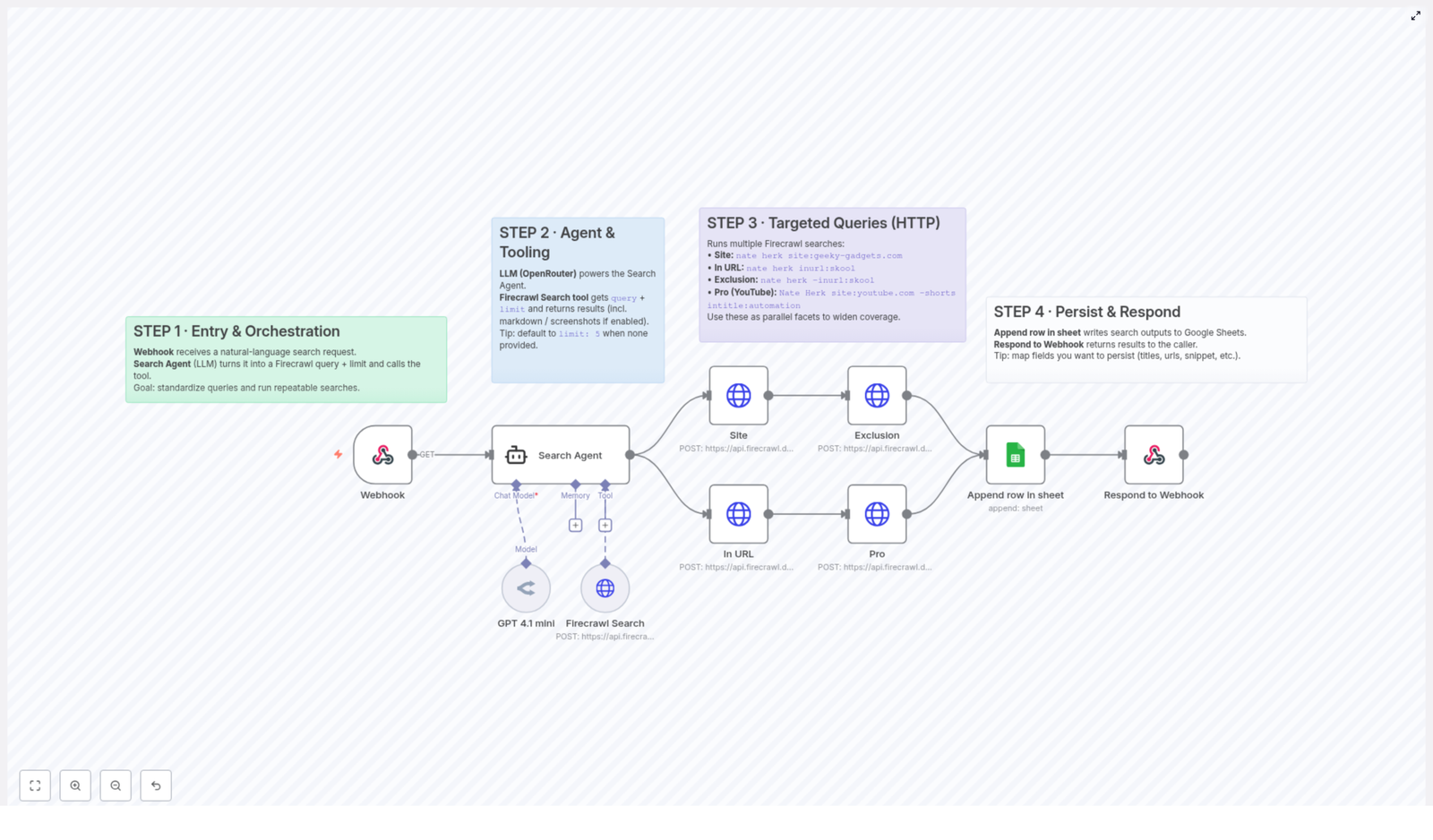
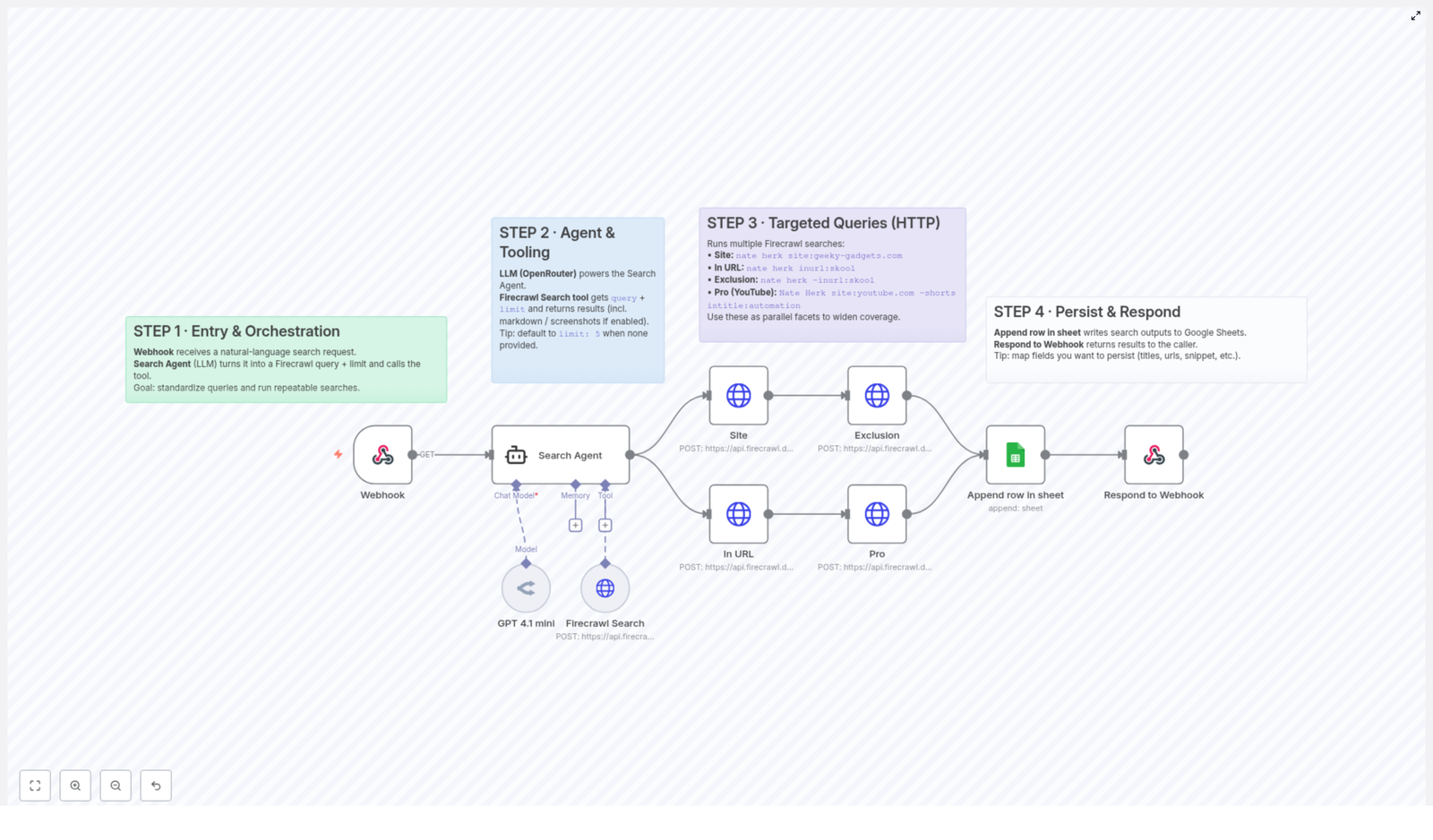
At a high level, this workflow does four powerful things for you:

  1. Accepts a natural language search request through a webhook.
  2. Uses an AI “Search Agent” to convert that request into structured Firecrawl queries.
  3. Runs multiple targeted Firecrawl searches in parallel to cover different angles and contexts.
  4. Stores all results in Google Sheets and returns them to the caller for instant use.

The result is a robust, multi-layered search system that you can trigger with a simple phrase, then reuse and refine over time.

Step 1: Turn Natural Language Into Action With Webhooks & Orchestration

Every great automation starts with a clear entry point. In this workflow, that entry point is a Webhook node in n8n. This is where your journey from “I need this information” to “Here is everything I need in one place” begins.

When a user sends a natural language search request to the webhook, n8n immediately passes it to a Search Agent, which is powered by a large language model. This agent is responsible for translating human language into structured Firecrawl queries that the API can understand and execute consistently.

Why this matters for your productivity

  • Standardized queries mean your searches are no longer random or one-off. The Search Agent converts everyday language into Firecrawl’s query syntax so that your workflow can repeat successful searches over and over.
  • Repeatable searches let you treat information gathering like a process instead of a one-time task. Whether you are tracking a topic, a brand, or a competitor, you can trigger the same automated search pattern on demand.

This first step sets the tone: you are no longer manually translating your intent into search operators. The workflow does that work for you, freeing your mind for higher value decisions.

Step 2: Put AI To Work With the Search Agent & Tools

At the heart of the Search Agent is the OpenRouter GPT-4.1 mini model. This model takes your natural language request and generates precise query strings that reflect your true intent, not just the exact words you typed.

Once the query is formed, the Firecrawl Search tool steps in. It receives:

  • The formatted query created by the Search Agent
  • A specified limit on the number of results (or a default of 5 if none is provided)

Firecrawl then returns enriched search results that go beyond simple links. You can receive markdown summaries as well as full-page screenshots, giving you quick insight and visual context without visiting each page manually.

Pro tip for efficient workflows

Always define a result limit. This keeps your workflow lean, your data manageable, and your automation fast. It is a simple habit that makes your system more scalable as you add more searches and integrations over time.

Step 3: Expand Your Reach With Targeted, Parallel Firecrawl Searches

Once you have a structured query, you can start thinking bigger. Instead of running a single generic search, this workflow executes multiple Firecrawl searches in parallel using HTTP Request nodes. Each one focuses on a different angle or context so your coverage is far more complete.

Here are the targeted query types included in the template:

  • Site-specific search
    Filter results by domain to zero in on particular websites.
    nate herk site:geeky-gadgets.com
  • URL-specific search
    Look for terms that appear inside URLs to find very specific pages.
    nate herk inurl:skool
  • Exclusion search
    Remove unwanted results and noise by excluding certain patterns.
    nate herk -inurl:skool
  • Pro YouTube search
    Run a deeper search across YouTube, excluding Shorts and focusing on titles that match your topic, such as automation.
    Nate Herk site:youtube.com -shorts intitle:automation

All of these searches run side by side. Instead of manually repeating variants of the same query, the workflow does it for you, widening your coverage with no extra effort on your part.

How this fuels growth

By designing your workflow to search from multiple angles, you build a richer picture of your topic or market. That means better decisions, faster research cycles, and more space to focus on strategy instead of mechanics.

Step 4: Persist Your Results & Close the Loop With a Response

Gathering data is only half the story. To truly benefit from automation, your results need to be easy to revisit, analyze, and share. This workflow handles that by persisting all relevant search results into Google Sheets.

Once Firecrawl returns its enhanced results, n8n collates them and appends them to a dedicated Google Sheets document. From there, you can filter, sort, connect to BI tools, or share with your team.

Smart persistence practices

  • Map essential fields such as titles, URLs, and snippets to clear columns in your sheet. This makes scanning and filtering effortless.
  • Use Google Sheets as a hub so it is easy to connect your data to other tools, dashboards, or additional n8n workflows.

Finally, the workflow returns the search outputs directly to the caller through a Webhook Response node. That means instant feedback for the user and a complete loop from request to result, fully automated.

Why This Automated Search Workflow Matters

Beyond the technical steps, this n8n and Firecrawl setup creates real, practical benefits:

  • Automation & efficiency
    You eliminate repetitive manual searching and data collection. Your time is freed up for interpretation, decision making, and creative work.
  • Custom search queries
    You can tailor parameters for your specific use case, whether you are tracking content, monitoring mentions, or exploring new niches.
  • Scalability
    The workflow is easy to extend. Add new search facets, more domains, or deeper AI analysis without redesigning everything from scratch.
  • Data centralization
    All your results land in one place, ready for analysis, reporting, or further automation.

This is not just about saving a few minutes here and there. It is about building a foundation where your tools work together, your information is organized, and your attention is focused on higher value work.

Using This Template as a Stepping Stone

The real power of this workflow template is that it gives you a proven structure you can learn from and expand. Once you are comfortable with it, you can:

  • Add more Firecrawl queries for new platforms or domains.
  • Introduce additional LLM steps to summarize or classify the results.
  • Trigger notifications in Slack, email, or other tools when new relevant content appears.
  • Connect the Google Sheets output to dashboards or reporting workflows for ongoing monitoring.

Each small improvement compounds. Over time, you are not just automating searches. You are building your own tailored information system that grows with your goals.

Take the Next Step: Try the n8n & Firecrawl Template

If you are ready to move from scattered searches to a focused, automated research engine, this template is a powerful place to start. You do not need to design everything from scratch. You can import the workflow, explore how it is built, and then adapt it to match your unique needs.

Start by running it as-is, then gradually customize the queries, result limits, and Google Sheets structure. Treat it as a living system that you can refine as your questions, projects, and business evolve.

Automation is not about complexity. It is about freeing your time and attention for the work that matters most. This n8n and Firecrawl workflow is your invitation to take that next step.

How to Automate Targeted Web Searches with Firecrawl and n8n

How to Automate Targeted Web Searches with Firecrawl and n8n

From Information Overload to Focused Insight

Most people know the feeling of losing an entire afternoon to research. You open a browser to “quickly check something,” and suddenly you are ten tabs deep, copy-pasting links into a spreadsheet, trying to make sense of scattered information.

What if that time could be reclaimed? What if you could turn vague, natural-language questions into structured, targeted web searches that run for you in the background, save the results, and hand everything back in a clean, organized format?

That is exactly what this n8n workflow template with Firecrawl is designed to do. It transforms a messy manual process into a smooth, automated system. The result is more time for strategy, creativity, and meaningful work, and less time spent on repetitive searching and data collection.

Shifting Your Mindset: From Manual Searching to Automated Discovery

Automation is not just about saving clicks. It is about changing how you think about your work. Instead of “I need to search for this,” you can start thinking “I need a system that finds this for me, every time I ask.”

With n8n and Firecrawl, you can:

  • Turn natural-language requests into precise, repeatable web searches
  • Collect results in a structured way that is easy to analyze later
  • Build a foundation you can extend into more powerful research and monitoring workflows

This template is a practical starting point. Use it as your first step into a more automated, focused way of working. Once it is running, you can keep improving it, layering in new logic and tools as your needs grow.

How the Workflow Works at a Glance

Before we dive into each step, here is the big picture of what this n8n and Firecrawl workflow does:

  1. Receives a natural-language query through a webhook.
  2. Uses an AI-powered Search Agent to turn that query into Firecrawl-compatible search strings.
  3. Runs multiple targeted Firecrawl searches in parallel with different operators.
  4. Appends all enriched results to a Google Sheet for tracking and analysis.
  5. Returns a structured response back to the webhook caller with the aggregated data.

Each part is simple on its own, but together they form a powerful, reusable search automation system that can support both personal projects and business workflows.

Step 1: Start the Journey with a Webhook and Natural-Language Input

Every great workflow starts with a clear entry point. In this template, that gateway is a webhook.

The webhook listens for incoming requests that contain a natural-language search query. This could be something as simple as:

  • “Find recent articles about Nate Herk on tech blogs.”
  • “Look up automation content by Nate Herk on YouTube, but skip shorts.”

Because it is a webhook, you are free to trigger it from almost anywhere:

  • Your own app or internal tools
  • Other automations and workflows
  • Chatbots, forms, or low-code interfaces that can call webhooks

This gives you a flexible, universal entry point. You describe what you need in plain language, and the workflow takes it from there.

Step 2: Turn Plain Language into Targeted Queries with the Search Agent

The next piece of the journey is where the magic of AI meets structured search. Once the webhook receives the query, it passes it to a Search Agent powered by an AI language model, such as GPT 4.1 mini via OpenRouter.

The Search Agent has one clear responsibility: translate your natural-language request into Firecrawl-specific search queries that use advanced operators. These operators allow the agent to:

  • Target specific sites or domains
  • Filter by URL patterns
  • Focus on titles with certain keywords
  • Exclude unwanted URLs or content types

Instead of you trying to remember special syntax or complex search strings, the agent builds them for you. This makes the system both powerful and approachable, even if you are not a search expert.

Step 3: Equip the Agent with Firecrawl as a Search Tool

Once the Search Agent has created the appropriate query string, it calls the Firecrawl Search tool from within your n8n workflow.

Here is what happens in this stage:

  • The agent sends the formatted query string to Firecrawl.
  • A limit on the number of search results is specified.
  • Firecrawl runs the search and returns enriched results.

The enriched results can include:

  • Markdown text for easy reading, parsing, or summarization
  • Screenshots of pages if you have this option enabled

Tip: If the user does not specify a limit, the workflow defaults to 5 results. This keeps performance fast and results focused, while still giving you enough data to work with.

At this point, you have already replaced a manual search, click, and copy-paste loop with a single automated step.

Step 4: Run Multiple Targeted Searches in Parallel with HTTP Requests

To make your research more complete and more relevant, the workflow does not stop at a single query. Instead, it uses multiple parallel Firecrawl searches, coordinated through HTTP request nodes in n8n.

Each search focuses on a different angle using Firecrawl-compatible operators. Here are the main query types this template uses:

1. Site-specific search

Focus on a single website or domain. This is ideal when you want to know everything a particular site has published on a topic.

Example: nate herk site:geeky-gadgets.com

2. In URL search

Target URLs that contain a specific term. This helps you zero in on content types, sections, or platforms identified by their URL structure.

Example: nate herk inurl:skool

3. Exclusion search

Filter out content you do not want, such as certain platforms or URL patterns. This keeps your results clean and relevant.

Example: nate herk -inurl:skool

4. Pro search (YouTube focused)

Target YouTube content while filtering out shorts and focusing on titles that include a specific keyword, such as “automation.” This is a powerful way to surface high-signal content.

Example: Nate Herk site:youtube.com -shorts intitle:automation

By running these searches in parallel, the workflow:

  • Expands coverage across sites and formats
  • Improves the quality and variety of the results
  • Reduces waiting time compared to sequential searches

This is where automation really shines. What would take multiple manual searches and filters becomes a single, coordinated, repeatable step.

Step 5: Store Your Insights and Close the Loop with a Webhook Response

Good research is only valuable if you can track it, revisit it, and build on it. The final stage of the workflow focuses on persistence and feedback.

Persist results in Google Sheets

All search results are appended to a Google Sheet. This gives you:

  • A growing database of your past searches and findings
  • An easy way to review, filter, or sort results
  • A simple foundation for reporting, dashboards, or further automation

From there, you can connect that sheet to BI tools, share it with your team, or use it as input for other n8n workflows.

Respond to the webhook caller

Once the data is stored, the workflow sends a response back to the webhook caller with the aggregated results. This closes the automation loop:

  • You send a natural-language query.
  • The system searches, filters, and stores the results.
  • You receive a structured response you can use immediately.

The process stays interactive and responsive, which makes it ideal for integrating into chatbots, internal tools, or user-facing apps.

Why This Workflow Is a Powerful Starting Point

This template is more than a one-off automation. It is a reusable building block that can grow with you. Here are some of the key benefits:

  • Smooth orchestration from natural language to advanced search operators, powered by an AI Search Agent.
  • Parallel targeted searches that increase coverage and relevance without extra manual effort.
  • Automatic data persistence to Google Sheets so you always have a record of what was found.
  • Real-time webhook responses that keep the experience interactive and easy to integrate into other systems.

Once you have this in place, you can extend it further by:

  • Adding notifications in Slack, email, or other channels when new results are found
  • Triggering follow-up workflows that summarize or classify the results
  • Scheduling recurring searches to monitor topics, brands, or competitors

Each improvement turns your workflow into a more powerful research assistant that works tirelessly in the background.

Take the Next Step: Make This Template Your Own

Automation is not about replacing your judgment. It is about freeing your mind from repetitive tasks so you can focus on higher-value decisions and creative work.

This Firecrawl and n8n workflow template gives you a practical, ready-to-use system for targeted web searches. From there, you can adapt it to your unique goals, experiment with new operators, and gradually build a personalized research engine that scales with your ambition.

If you are ready to reclaim your time, improve your research, and move toward a more automated workflow, start by exploring this template and customizing it step by step.

Automate Telegram Video Downloads with n8n Workflow

Automate Telegram Video Downloads with n8n (So You Never Copy-Paste Links Again)

Why automate Telegram video downloads in the first place?

If you often share videos in Telegram chats, you probably know the drill: copy a link, open a downloader, wait for it to process, download the file, then upload it back to Telegram. It works, but it gets old fast.

With an n8n workflow, you can turn that whole routine into a simple action: just send a message with a video URL to your Telegram bot, and the workflow does the rest. It processes the link, downloads the video through a proxy, then sends the file right back into the same chat – all on autopilot.

Let’s walk through how this template works, when you might want to use it, and how it makes your life easier if you live in Telegram all day.

What this n8n workflow template actually does

At a high level, this automation:

  • Listens for new Telegram messages that contain a video or media URL
  • Sends that URL to the mediadl API to resolve the actual media file
  • Waits a bit to make sure everything is ready and stable
  • Downloads the video via a proxy, using proper headers so it behaves like a real browser
  • Sends the downloaded video back into the original Telegram chat, with a sensible filename

In other words, it turns any supported media URL into a video file in your chat, without you having to touch a downloader or manually upload anything.

When should you use this workflow?

This template is especially handy if you:

  • Regularly share videos from different websites into Telegram groups or channels
  • Run a Telegram community and want to quickly mirror external content as native Telegram videos
  • Like to archive or forward interesting videos without juggling multiple tools
  • Want a “send link, get video back” experience inside Telegram itself

If you’ve ever thought, “I wish this link would just turn into a video in the chat,” this workflow is basically that wish in automation form.

How the Telegram video download workflow is structured

Let’s break the template down into its key parts so you know exactly what is happening behind the scenes.

1. Telegram Trigger – listening for new messages

Everything starts with the Telegram Trigger node. This node is connected to your Telegram bot and wakes up whenever a new message comes in.

For this workflow, it expects the incoming message to contain a URL in message.text, typically pointing to a video or some other media resource. As soon as that message arrives, the rest of the automation kicks off.

2. Sending the URL to mediadl and extracting the real media link

Next comes the URL handling part, which is where the magic of resolving the actual media file happens.

  • URL Download node: This node sends a POST request to the mediadl API. It takes the URL from the Telegram message (message.text) and passes it to mediadl, which then:
    • Analyzes the link
    • Prepares the media for download
    • Returns a structured response with one or more media URLs
  • Filtering URL Only: Once mediadl responds, the workflow parses the data and picks out the first media entry, usually medias[0].url. That URL is the direct link to the video file that will be downloaded in the next step.

So instead of you digging through page source or using a separate downloader, the workflow quietly does all that URL resolution work for you.

3. Adding smart delays for reliability

Automation is great, but if it runs too fast or hits an API before it is ready, you end up with flaky behavior. To avoid that, this template includes two intentional pauses of 3 seconds each at key points.

  • First delay: This pause gives mediadl enough time to fully resolve the media URL before the workflow moves on. That way, the next node is not trying to work with incomplete data.
  • Second delay: Right before the actual download, the workflow waits again. This helps avoid throttling, rate limits, or half-finished responses from the media host.

During the download, the workflow also uses proper headers and user-agent strings so it behaves more like a real browser. That can help with CORS or CDN-related restrictions, and generally makes the download more reliable.

4. Downloading the video and sending it back to Telegram

Once the direct media URL is ready and the delays have done their job, the final part of the workflow takes over.

  • Download node: This node sends a GET request to the proxied media URL. It:
    • Uses the previously resolved URL
    • Applies the configured headers
    • Fetches the video as binary data
  • Send To Telegram Video node: With the binary file in hand, this node sends the video back into the same Telegram chat where the URL was originally posted. It attaches the video file and assigns a filename that is typically derived from the media metadata, so you do not end up with random or meaningless file names.

The end result: you drop a link in Telegram, and a short while later, a playable video appears right there in the chat.

Things to keep in mind before going all-in

As convenient as this workflow is, there are a few important points you should keep in mind:

  • Respect copyright and terms of service: Always make sure you are allowed to download and redistribute the content you are working with. Follow the rules of the platforms you pull media from, and comply with copyright regulations.
  • Telegram bot file size limits: Telegram bots cannot send files above certain size thresholds. If you try to download very large videos, you may hit these limits. It is a good idea to add checks or handling for oversized files in your workflow.
  • Network performance and large files: For slow connections or very big files, the default 3-second delays might not be enough. You may want to:
    • Increase the delay durations
    • Add retry logic
    • Include more robust error handling

    to make the workflow more resilient.

Why this n8n Telegram video workflow makes life easier

Instead of juggling multiple tools and repeating the same steps over and over, this template lets you keep everything inside Telegram and n8n. You:

  • Save time on every single video you share
  • Cut out manual downloads and uploads
  • Get a consistent, repeatable process that runs the same way every time
  • Can extend or customize the workflow further if you want extra logic or integrations

Once you set it up, it quietly does the boring work in the background so you can focus on the content itself instead of the mechanics of moving files around.

Ready to try the template?

This n8n workflow is a neat example of how a few connected nodes can replace a surprisingly tedious daily task. By combining:

  • The Telegram Trigger node
  • mediadl API calls
  • Timed delays for reliability
  • And the Telegram video sending node

you end up with a simple loop: send URL, receive video.

If that sounds like something your future self will thank you for, go ahead and give it a spin.

Call to Action: Want to explore more ideas like this? Check out n8n automations and start building your own smart workflows for Telegram and other messaging platforms.