Ultimate Tesla Tweet Analysis Workflow

Ultimate Tesla Tweet Analysis Workflow

Overview

This documentation describes a complete n8n workflow template that continuously monitors Tesla related content on X (formerly Twitter), analyzes both text and images with Google Gemini and Langchain, classifies sentiment and relevance, then logs high value posts into Airtable and notifies a Telegram monitoring group. The workflow is designed for technical users who want a reproducible, configurable pipeline for social media listening and brand monitoring.

The automation uses a combination of scheduled or manual triggers, HTTP based scraping, conditional filtering, AI powered text and image analysis, deduplication, and structured data storage. It is optimized for Tesla specific keywords, but all parameters can be adapted to any brand or topic.

Workflow Architecture

At a high level, the workflow executes the following stages:

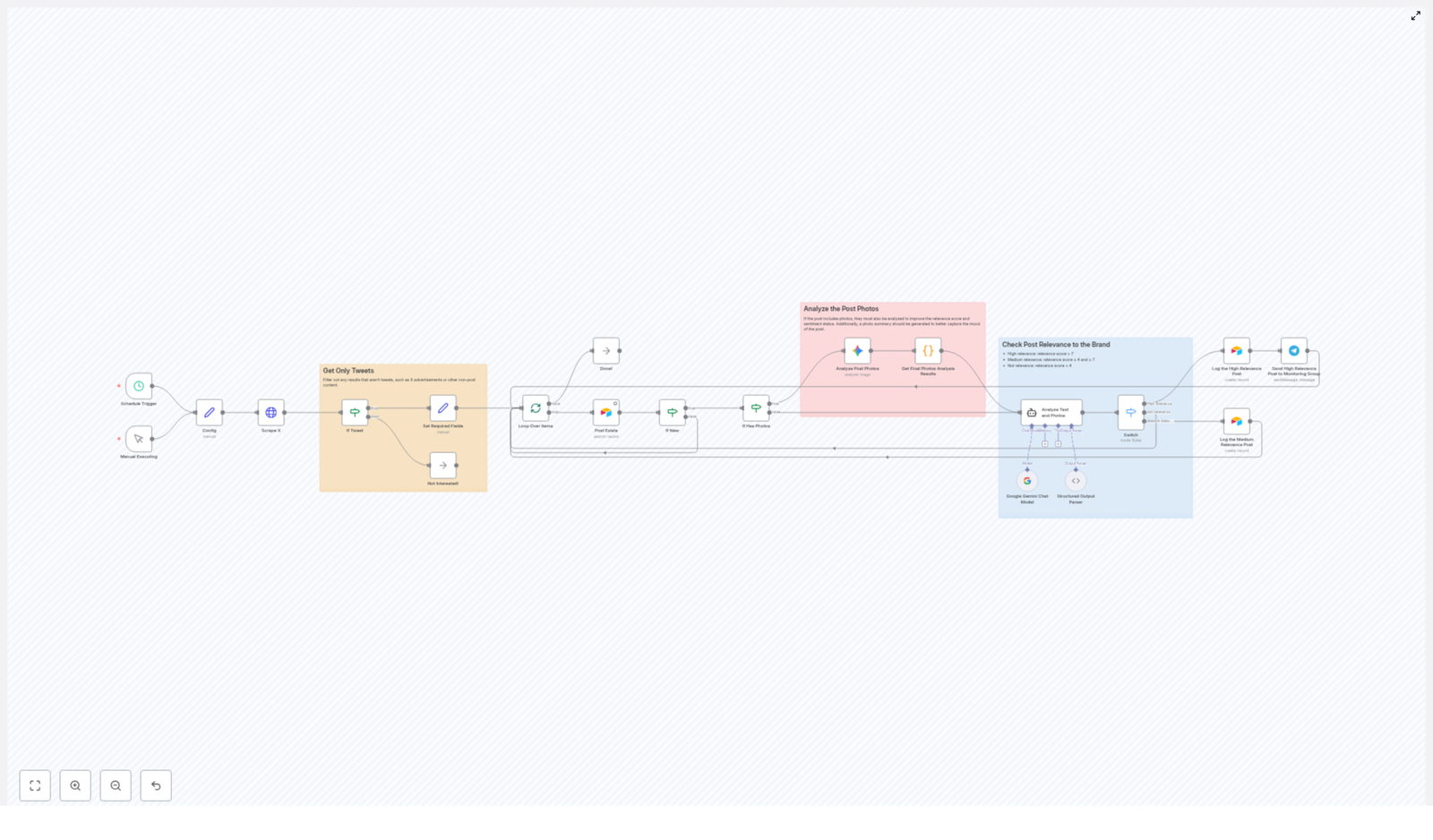
  1. Trigger the workflow on a fixed schedule or manually.
  2. Configure search parameters and Airtable identifiers.
  3. Scrape recent Tesla related tweets via an HTTP request to an external API.
  4. Filter and normalize raw results to keep only relevant tweets.
  5. Check for duplicates against existing Airtable records.
  6. Run image analysis with Google Gemini for tweets that contain photos.
  7. Perform combined text and visual sentiment analysis with a Langchain agent powered by Google Gemini.
  8. Classify and route tweets by relevance, log to Airtable, and send Telegram alerts for high priority items.

Each stage is implemented as one or more n8n nodes, connected in a linear but conditionally branched flow. Data flows through the workflow as JSON objects that carry tweet metadata, analysis results, and classification scores.

Triggers and Execution Model

Primary Trigger Options

The workflow can start in two ways:

  • Cron / Schedule Trigger – Runs automatically every 4 hours to fetch and analyze new Tesla related tweets. This is the default mode for continuous monitoring.
  • Manual Trigger – Allows an operator to execute the workflow on demand from the n8n editor, useful for testing, debugging, or ad hoc analysis.

Both triggers feed into the same downstream logic, so the behavior of the workflow remains consistent regardless of how it is started.

Configuration and Parameters

Search and Filtering Parameters

Before scraping, the workflow defines a set of key parameters that control what is retrieved from X and how results are filtered:

  • Language – Limits tweets to a specific language code (for example, en for English). Only tweets matching this language are processed further.
  • Search terms – A list of Tesla related keywords and symbols, such as:
    • Tesla
    • $TSLA
    • Cybertruck
    • Model Y
    • FSD

    These terms define the core query for the scraping API.

  • Minimum favorites – A threshold for the minimum number of favorites (likes) a tweet must have to be considered. This helps focus on posts with some engagement.

Airtable Configuration

To persist data, the workflow requires Airtable configuration values:

  • Base ID – Identifies the Airtable base used for storing tweet records.
  • Table ID or table name – Points to the specific table where new entries are created and where duplicates are checked.

These values are usually defined as environment variables or input parameters in n8n, then referenced by the Airtable nodes.

Node-by-Node Breakdown

1. HTTP Request Node – Scraping Tesla Mentions on X

The first processing step is an HTTP Request node that calls an external API endpoint responsible for scraping X. This API:

  • Executes a search query using the configured Tesla related keywords.
  • Applies language and minimum favorites filters.
  • Excludes:
    • Retweets
    • Replies
    • Advertisements and promoted content
  • Focuses on original tweets that contain engagement and images where possible.

The node returns a collection of tweet like objects, which may also include some non tweet entities such as ads or cards, depending on the API provider. These are handled in the next stage.

2. Filtering and Normalization Nodes

After the HTTP request, the workflow uses conditional logic nodes (for example, IF or Switch nodes) and data transformation nodes to clean and standardize the results.

Key filtering and processing steps:

  • Exclude non-tweet results – Any item that represents an advertisement, card, or non-standard object is filtered out. Only true tweets are passed forward.
  • Language validation – Items that do not match the configured language parameter are discarded, even if they passed the initial API filter.
  • Card data check – Tweets with card data are excluded. The workflow only continues with tweets that have no card data, which typically represent standard tweet content with or without media.
  • Extraction of core fields – For each valid tweet, the workflow extracts and normalizes:
    • Tweet ID
    • Tweet URL
    • Text content
    • Language
    • Creation timestamp
    • Author details (for example, username or display name, depending on available data)
    • Media information, including:
      • Photos
      • Videos

The result is a structured JSON payload per tweet that is ready for downstream analysis and storage.

3. Duplicate Check against Airtable

Before investing compute resources in AI analysis, the workflow performs a deduplication step using Airtable as the source of truth.

Typical behavior of this stage:

  • An Airtable node queries the configured base and table for existing records that match the current tweet ID.
  • If a matching record is found, the tweet is considered already processed and is not analyzed again.
  • If no matching record is found, the tweet continues to the AI analysis stage.

This prevents redundant entries in Airtable and avoids repeated sentiment analysis on the same tweet.

4. Photo Analysis with Google Gemini

For tweets that contain photos, the workflow branches into an image analysis path. If no photos are present, this step is skipped and only text based analysis is performed later.

In the photo branch:

  • The workflow inspects the media array and identifies items classified as photos.
  • For each photo, a node configured with Google Gemini is invoked to perform image analysis.
  • The Gemini model generates:
    • Descriptive information about what appears in the image.
    • Sentiment related insights where applicable, such as whether the image context seems positive, negative, or neutral toward Tesla or its products.

These per image results are aggregated into a structured object that later feeds into the combined sentiment analysis. If the API fails or a particular image cannot be processed, the workflow can still continue with available text data, depending on how error handling is configured in n8n.

5. Text and Visual Sentiment Analysis with Langchain + Gemini

Next, the workflow combines the tweet text and any image analysis results into a unified context and sends this to a Langchain agent that uses Google Gemini as the underlying model.

The agent receives:

  • The original tweet text.
  • Summaries or descriptions from the photo analysis stage, if photos exist.

The Langchain agent is responsible for:

  • Producing an overall sentiment assessment for the tweet, considering both text and visuals.
  • Computing a relevance score that indicates how important or actionable the tweet is for Tesla brand monitoring.
  • Generating reasoning that explains why a given sentiment and score were assigned.
  • Creating a concise photo summary that captures the essence of the visual content in relation to Tesla.

All of these outputs are attached to the tweet object and used in the classification and routing stage.

6. Classification and Routing

Based on the relevance score returned by the Langchain agent, the workflow classifies each tweet into one of three categories:

  • High relevance – score greater than 7.
  • Medium relevance – score between 4 and 7 inclusive.
  • Low relevance – score lower than 4.

An IF or similar conditional node evaluates the score and routes items into separate branches:

  • High relevance branch:
    • A new record is created in the configured Airtable table, storing:
      • Tweet metadata (ID, URL, text, author, timestamp, media info).
      • Sentiment analysis results.
      • Relevance score and reasoning.
      • Photo summary when available.
    • A Telegram node sends a notification to a dedicated monitoring group, allowing the team to react quickly to important posts.
  • Medium relevance branch:
    • Tweets are flagged for weekly review. In practice, this can mean:
      • Storing them in Airtable with a different status field.
      • Or marking them in a way that makes it easy to filter for periodic manual evaluation.
  • Low relevance branch:
    • Tweets are disregarded after analysis and not logged, which keeps Airtable focused on actionable content.

Configuration Notes & Edge Considerations

Credentials and Access

  • HTTP Request node – Requires valid credentials or API keys for the X scraping service, configured in n8n credentials.
  • Google Gemini – Needs appropriate API access and credentials configured in the Gemini related nodes.
  • Airtable – Uses an Airtable API key or personal access token stored as n8n credentials.
  • Telegram – Requires a bot token and chat/group ID for sending notifications.

Error Handling

Typical error handling patterns you may want to apply in this workflow include:

  • HTTP request failures – Configure the HTTP Request node to retry or fail gracefully if the scraping API is temporarily unavailable.
  • AI analysis errors – If Gemini or Langchain calls fail for a specific tweet, you can:
    • Skip that tweet and continue processing others.
    • Or log the error details in Airtable for later inspection.
  • Airtable write conflicts – In rare cases where a tweet is processed twice in a short window, Airtable may already contain a record by the time the write occurs. A pre write duplicate check, as described above, helps mitigate this.

Language and Content Edge Cases

  • Tweets that appear multilingual or have missing language metadata might be filtered out if they do not strictly match the configured language code.
  • Tweets with card data are intentionally excluded. If you want to include link cards or other rich formats, you would adjust the card data filter logic.
  • Tweets with videos but no photos will not go through the photo analysis stage, but their text still goes through sentiment and relevance evaluation.

Advanced Customization Ideas

Although this template is optimized for Tesla brand monitoring, it is straightforward to adapt for other use cases:

  • Change keywords and symbols – Replace Tesla specific terms like Cybertruck or $TSLA with your own brand names or product lines.
  • Tune the minimum favorites threshold – Raise it to focus only on viral content, or lower it to capture more early stage conversations.
  • Adjust relevance thresholds – Modify the numeric boundaries for high, medium, and low relevance to match your team’s capacity and priorities.
  • Extend logging – Add more Airtable fields for internal labels, reviewer assignments, or follow up actions.
  • Additional notification channels – Besides Telegram, you can connect Slack, email, or other messaging platforms using additional n8n nodes.

Conclusion

This n8n workflow template delivers a complete, automated pipeline for Tesla tweet analysis. It continuously scrapes X for relevant mentions, filters noise, analyzes both text and images with Google Gemini and Langchain, classifies sentiment and relevance, and logs high priority posts into Airtable while notifying a Telegram group.

For brand monitoring teams, this structure provides real time visibility into social sentiment and visual narratives around Tesla, so they can respond quickly to important conversations and emerging issues.

Interested in deploying this workflow for your own brand monitoring stack? Contact us to get started with a customized social media listening solution built on n8n.
How to Automate Image Uploads in Airtable with n8n

Automating Airtable Image Attachments with n8n

Efficient image handling is a recurring requirement in modern data operations and content pipelines. Airtable provides attachment fields for storing images, yet teams often receive or maintain image references as URLs rather than files. Manually converting those URLs into attachments is error-prone and does not scale.

This article explains how to implement an n8n workflow template that automatically converts image URLs stored in Airtable into attachment records. The approach is lightweight, repeatable, and suitable for production-grade no-code and low-code environments.

Solution Overview

The automation uses n8n to:

  • Identify Airtable records that contain an image URL.
  • Transform the URL into an Airtable-compatible attachment object.
  • Update the corresponding attachment field on the same record.

The workflow is intentionally minimal and built around three core nodes so it can be easily audited, extended, or integrated into larger automation chains.

Prerequisites

Before you configure the workflow, ensure the following are in place:

  • An Airtable base with a table that includes:
    • A text field to store the image URL, for example Image source URL.
    • An attachment field to store the actual image file, for example Image attachment.
  • An operational n8n instance with:
    • A configured Airtable credential using your Airtable API key or token.
    • Network access to both Airtable and the image host serving the URLs.

Designing the Airtable Structure

Start by modeling the Airtable table to support the automation clearly and predictably.

Define the key fields

At minimum, your table should contain:

  • Image source URL (text field) – holds the raw URL pointing to the image.
  • Image attachment (attachment field) – the destination field where n8n will write the image as an attachment.

Use descriptive field names that match your internal naming conventions. The field labels you choose will be referenced in n8n, so consistency is important for maintainability.

Workflow Architecture in n8n

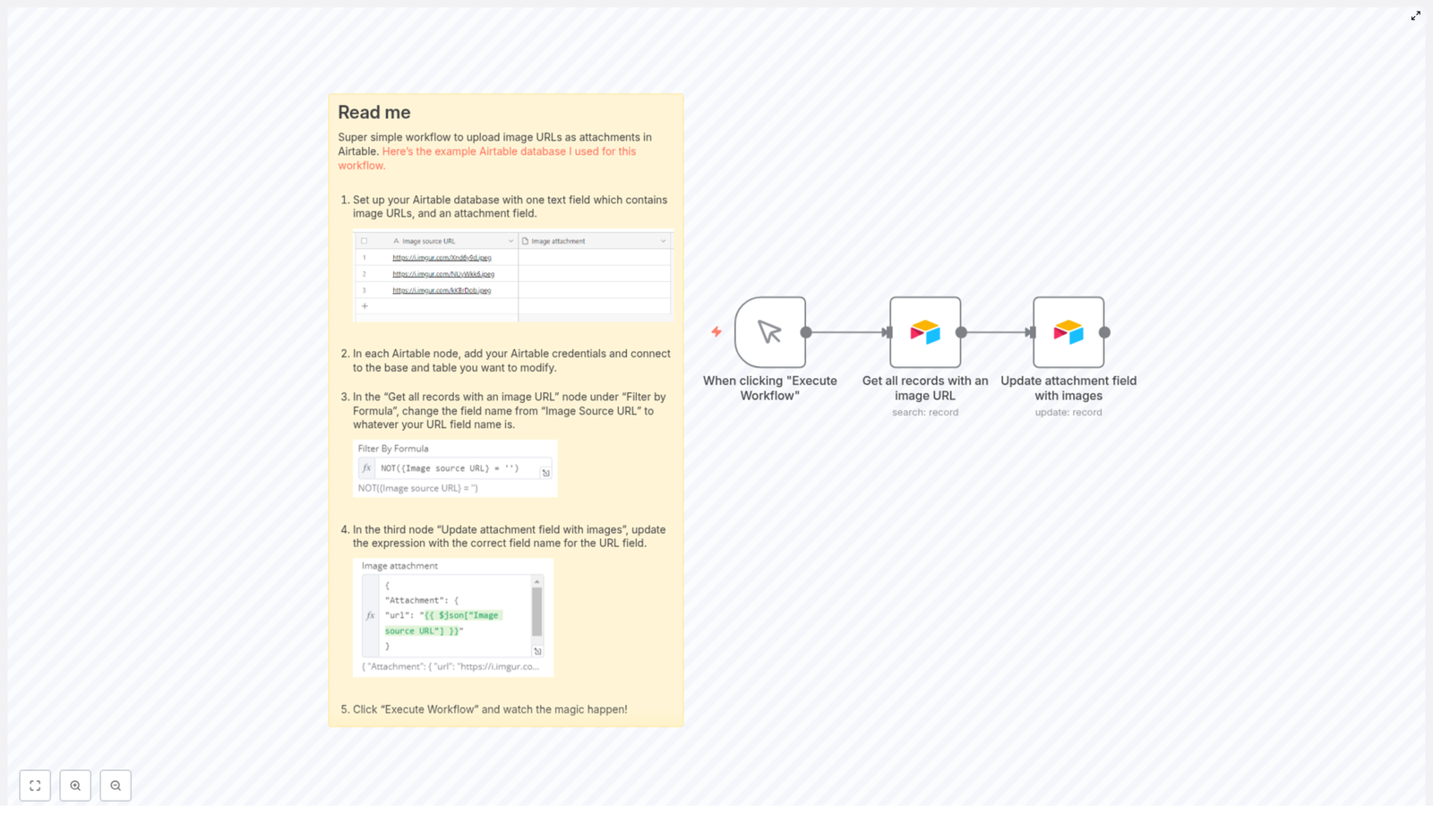
The workflow consists of three nodes that work in sequence:

  1. Manual Trigger – initiates the workflow on demand.
  2. Airtable: Get Records with Image URLs – retrieves all records that contain a non-empty URL in the configured text field.
  3. Airtable: Update Attachment Field – writes the attachment object back to Airtable using the URL from each record.

This simple architecture is easy to reason about and can be extended later with scheduling, error handling, or conditional logic.

Configuring Each Node

1. Manual Trigger Node

Add a Manual Trigger node as the entry point of the workflow. This trigger is suitable for testing, ad hoc runs, or controlled batch operations. In production, you can optionally replace or complement it with a scheduled trigger or a webhook trigger, depending on your use case.

2. Airtable Node – Get Records with Image URLs

Next, add an Airtable node responsible for retrieving only the records that contain an image URL.

Key configuration steps:

  • Select your Airtable credentials, base, and table.
  • In the node settings, configure a Filter formula so that only records with a populated URL field are returned.

Use a formula similar to the following, adjusting the field name to match your schema:

NOT({Image source URL} = '')

This formula ensures the node only fetches records where the Image source URL field is not empty. If your field uses a different label, update the expression accordingly.

3. Airtable Node – Update Attachment Field

The third node updates the attachment field on each record using the URL retrieved by the previous node.

Configuration guidelines:

  • Set the operation to Update (or the equivalent update mode in your n8n version).
  • Map the Record ID from the output of the “Get Records” node so each record is updated in place.
  • Configure the Attachment field to use a JSON expression that converts the URL into the structure Airtable expects.

Use a JSON mapping similar to this, replacing the field name with your own if necessary:

{  "Attachment": {  "url": "{{$json["Image source URL"]}}"  }
}

The expression {{$json["Image source URL"]}} reads the value of the Image source URL field from the current item in the workflow. Ensure that the key in the JSON object matches the exact label of your attachment field in the Airtable node configuration.

Executing and Validating the Workflow

With all nodes configured, run the workflow from n8n:

  1. Click Execute Workflow in the n8n editor.
  2. The Manual Trigger node starts the execution.
  3. The Airtable “Get Records” node fetches all records that have a non-empty image URL.
  4. For each returned record, the “Update Attachment Field” node sends an update to Airtable, instructing it to create or update the attachment using the provided URL.

After the run completes, open your Airtable base and verify that the Image attachment field is populated for the records that had URLs in the Image source URL field. The images should now be stored as native attachments, ready for use in views, interfaces, and downstream processes.

Operational Benefits and Best Practices

Implementing this n8n template for Airtable image uploads provides several operational advantages:

  • Reduced manual effort – Eliminates repetitive copy-paste tasks when transforming image URLs into attachments.
  • Improved data consistency – Ensures that any record with a valid URL can be programmatically synchronized to an attachment field, reducing mismatches between references and stored files.
  • Scalability – Handles large batches of records without additional manual work, ideal for content catalogs, asset libraries, or media-heavy databases.
  • Extensibility – The workflow can be expanded with additional nodes for validation, logging, notification, or integration with other systems.

Suggestions for Further Enhancement

For production scenarios or more advanced automation needs, consider:

  • Adding a Cron or Schedule trigger to run the workflow at regular intervals.
  • Inserting a Function or IF node to validate URLs or skip records that already have attachments.
  • Sending notifications (for example via email or Slack) when an image fails to load or when a batch completes.

Next Steps

Automating the conversion of image URLs into Airtable attachments is a straightforward improvement that delivers immediate value to content operations and data management workflows. By leveraging n8n, you can maintain a clean, attachment-ready Airtable base without manual intervention.

Deploy this workflow in your n8n environment, adapt the field names to your schema, and integrate it into your broader automation strategy.

Additional Resources

For deeper technical details and configuration options, refer to:

Automate Notion Entries with n8n Webhook Integration

Automate Notion Entries with n8n Webhook Integration

A Marketer, a Messy Spreadsheet, and a Missed Opportunity

On a Tuesday afternoon, Mia stared at her Notion dashboard and sighed. As a marketing manager for a fast-growing startup, she lived inside forms, landing pages, and campaign links. Every day, new leads came in through different tools, and every day she copied and pasted their details into a Notion database so her team could keep track of everything.

Except she was always behind.

Some form submissions never made it into Notion. Interesting URLs and references got lost in chat threads. Feedback from users sat in inboxes instead of in a central place. By the time Mia finished the manual updates, it was already time to start on the next campaign.

She did not need another tool. She needed a way for the tools she already used to talk to Notion automatically.

That was the day she discovered an n8n workflow template that could capture data from a webhook and create Notion database pages on its own.

Discovering n8n and the Webhook-to-Notion Template

Mia had heard of n8n as an automation platform, but she had never tried building a workflow herself. When she came across a template titled something like “Webhook to Notion,” it sounded exactly like what she needed.

The promise was simple but powerful: send a POST request to a webhook, and have that data appear as a new page in a Notion database. No more copy-paste. No more forgotten entries.

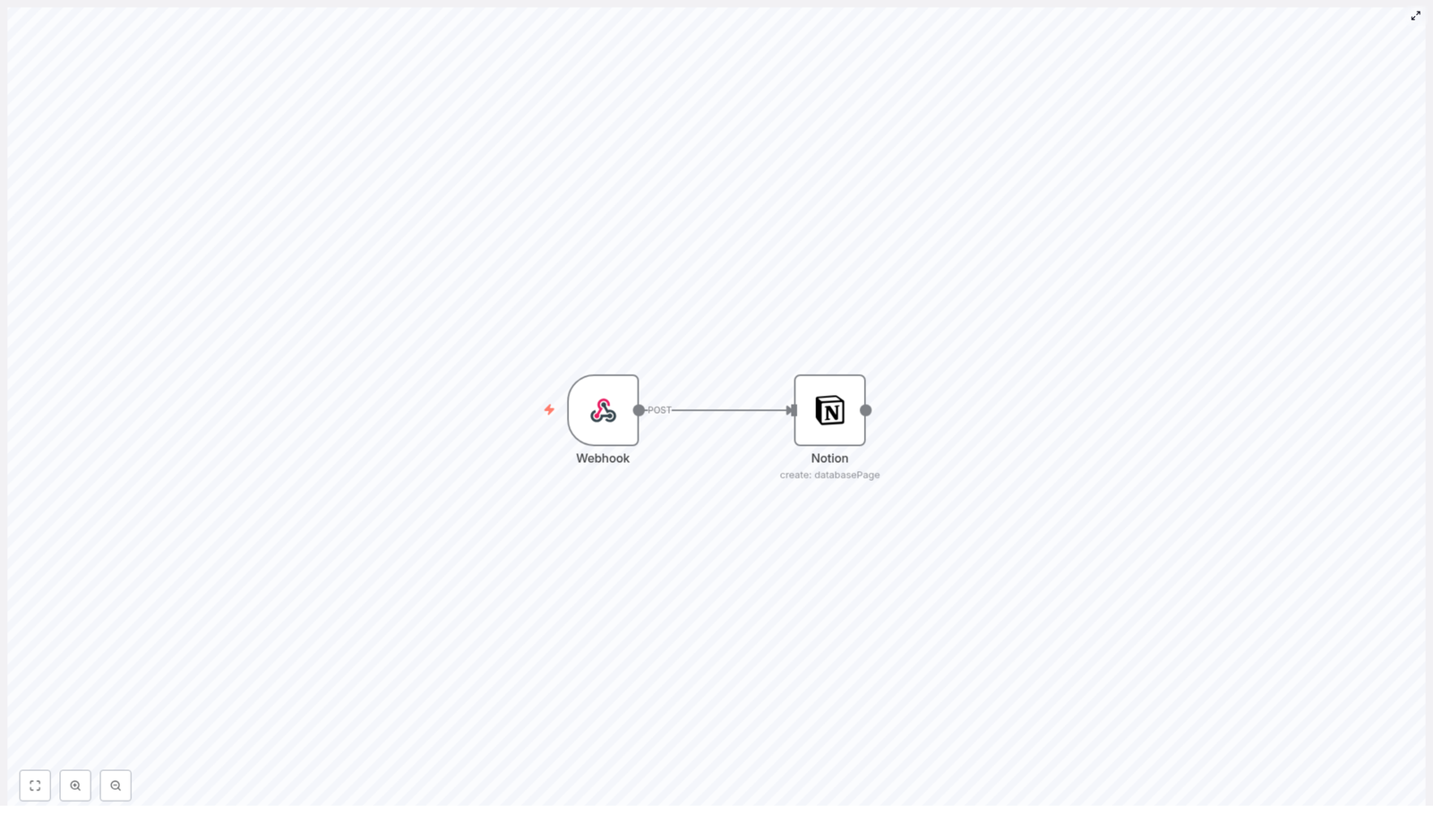
Under the hood, the workflow relied on just two main pieces:

  • Webhook node that listens for incoming HTTP POST requests and receives structured data.
  • Notion node that uses the Notion API to create new pages in a chosen database using that data.

If she could get those two nodes working together, her Notion workspace would finally reflect reality in real time.

Rising Action: Turning Chaos Into a Clean Data Flow

Mia decided to test the template with one of her biggest pain points: collecting form submissions from a custom landing page and logging them straight into Notion.

Step 1 – Setting Up the Webhook Node

Inside the n8n editor, she dragged a Webhook node onto the canvas. This would be the entry point for all the data she wanted to send to Notion.

She configured it carefully:

  • Set the HTTP method to POST so her forms and tools could send data in the body of the request.
  • Defined a clear path, something like webhook-to-notion, so she could easily recognize and reuse it later.

This node would now act as the receiver for any JSON payload she pushed from her forms, scripts, or other services.

Step 2 – Connecting n8n to Her Notion Database

Next, she added a Notion node and set its operation to create a new database page. This was where the magic would happen. Every time the webhook got a POST request, this node would turn the incoming data into a fresh Notion entry.

She selected the target databaseId, the specific Notion database where she wanted all her leads and notes to land.

Then she faced a small but important question: what should the title of each Notion page be? Leads could come with different kinds of data. Sometimes there was a name, sometimes only a URL, and sometimes just a short note.

To keep things flexible, Mia used an expression in the title field of the Notion node:

= {{ $json.body.title || $json.body.url || 'New Entry' }}

This simple line gave her a smart fallback logic:

  • If the incoming JSON body had a title, use that.
  • If not, but there was a url, use the URL instead.
  • If neither was present, default to New Entry.

No matter what kind of data came in, the Notion page would always have a usable title.

Step 3 – Linking the Nodes and Testing the Flow

With both nodes configured, Mia connected the output of the Webhook node to the input of the Notion node. This connection meant that every time the webhook received a POST request, the Notion node would automatically run and create a new page.

She activated the workflow, sent a test POST request with a JSON payload from her form tool, and refreshed her Notion database.

There it was. A brand new page, titled exactly as she expected, with the data neatly in place.

For the first time, her Notion database did not feel like a chore. It felt like a living, automated system.

The Turning Point: From Manual Entry to True Automation

Once the basic workflow was working, Mia started to see how much more she could do with the same template. The core setup – a webhook feeding into Notion – was flexible enough to support several of her daily tasks.

How She Started Using the n8n Notion Workflow

  • Collecting form submissions She pointed her marketing forms to the n8n webhook URL. Every time a user filled out a form, a POST request hit the webhook and a new Notion page appeared. No more manual logging, no more forgotten signups.
  • Bookmarking URLs and references When she or her teammates found an article, tweet, or resource worth saving, they sent it via a small script or integration to the same webhook. The Notion node created a database entry with the URL as the title when no other title was provided.
  • Recording user feedback and issues Feedback from support tools or internal forms got posted to the webhook, then stored in a dedicated Notion database. Her team now had a structured backlog of user comments and bug reports that they could filter and prioritize.

What began as a simple experiment became a central part of her workflow. The more she used the template, the more she trusted Notion as a single source of truth, backed by n8n automation.

Strengthening the Workflow: Security, Validation, and Reliability

With more and more data flowing into Notion, Mia knew she had to think beyond just getting it to work. She needed her automation to be secure, accurate, and resilient.

Keeping the Webhook Secure

She started by tightening security around the Webhook node. Instead of accepting any incoming request, she implemented webhook secret tokens so that only trusted sources could send data.

By validating these secrets before processing the payload, she reduced the risk of unwanted or malicious requests hitting her Notion database.

Validating Incoming Data

Next, she added extra nodes between the Webhook and Notion nodes to perform data validation. These checks helped ensure that required fields were present and properly formatted before Notion tried to create a page.

For example, she could verify that an email field was not empty or that URLs followed a valid structure. This reduced errors and kept her Notion database clean and consistent.

Handling Errors Gracefully

Finally, Mia configured error workflows in n8n. If something went wrong, such as Notion being temporarily unavailable or a malformed payload, the workflow could:

  • Trigger retries to attempt the request again.
  • Send notifications so she knew something needed attention.

Instead of silently failing, her automation became transparent and dependable.

Resolution: A Notion Workspace That Updates Itself

Weeks later, Mia looked at her Notion space and barely recognized her old process. What used to be a tangle of spreadsheets, emails, and forgotten notes had turned into a streamlined system powered by a simple n8n webhook to Notion workflow.

Her team could trust that:

  • Form submissions were logged instantly in Notion.
  • Interesting links and references were captured the moment they were shared.
  • User feedback and issues were organized in a single, searchable database.

Most of the work was still driven by the same two core nodes, the Webhook node and the Notion node, but now wrapped in thoughtful security, validation, and error handling. The automation saved time, reduced manual mistakes, and gave Mia the mental space to focus on strategy instead of data entry.

Start Your Own Webhook-to-Notion Journey

If you recognize yourself in Mia’s story – juggling forms, URLs, and feedback across different tools – this n8n Notion automation can do the same for you. By connecting a Webhook node to a Notion node, you can build a workflow that:

  • Captures data from any tool that can send an HTTP POST request.
  • Creates new pages in your chosen Notion database automatically.
  • Adapts dynamically using expressions like:
    = {{ $json.body.title || $json.body.url || 'New Entry' }}

Whether you are a marketer, founder, or developer, integrating n8n and Notion can transform how you organize and use your data.

Ready to set up your own webhook to Notion integration and experience effortless data management? Get started with n8n, load the template, and let your Notion workspace finally keep up with the pace of your work.

Efficient Domain Extraction from URLs & Emails

Efficient Domain Extraction from URLs & Emails

From Messy Links To Meaningful Data

Every modern workflow is flooded with URLs and email addresses. They come from forms, CRMs, marketing platforms, support tools, and countless other sources. Hidden inside each one is a simple piece of information that can unlock cleaner data, sharper insights, and smarter automation: the domain.

Yet extracting that domain reliably is not always simple. Multi-part TLDs like co.uk, tracking parameters, ports, subdomains, and free email providers can turn a basic task into a recurring headache.

This is exactly where an automated n8n workflow becomes a quiet superpower. Instead of manually cleaning and parsing, you can let a reusable template handle the heavy lifting, so you stay focused on strategy, growth, and the work that really moves the needle.

Shifting Your Mindset: From Manual Cleanup To Scalable Automation

Think about the time you or your team spend doing repetitive cleanup work. Copying and pasting domains, removing protocols, checking whether an email is from a free provider, fixing edge cases like example.co.uk or unusual TLDs. It might feel small in the moment, but it adds up over weeks and months.

Automating domain extraction in n8n is more than a technical trick. It is a mindset shift.

  • You stop reacting to messy data and start designing clean systems.
  • You turn a tedious routine into a reliable, reusable building block.
  • You create a foundation you can plug into lead scoring, enrichment, routing, and reporting.

The n8n workflow template below is designed to be that foundation. It gives you a robust, tested way to extract domains from URLs and emails, identify free email providers, and prepare your data for whatever comes next.

What This n8n Template Helps You Do

This domain extraction workflow is built to be both practical and powerful. It cleans and processes URLs and emails so you can use them confidently in your automations.

  • Accepts either a URL or an email as input.
  • Removes unnecessary parts like protocols and ports.
  • Handles complex and multi-part TLDs such as co.uk.
  • Extracts the correct domain, including second-level domains where needed.
  • Identifies whether an email domain belongs to a free provider like Gmail, Outlook, and many others.
  • Outputs a clear, structured result you can plug into any other n8n workflow.

Instead of reinventing domain parsing every time, you can drop this template into your existing automations and immediately upgrade your data quality.

How The Domain Extraction Works Behind The Scenes

At the heart of this workflow is a smart approach to parsing URLs and emails that respects the complexity of real-world domains.

The workflow:

  • Analyzes the input and detects whether it is a URL or an email address.
  • For URLs, strips away protocols (like http or https), ports, and paths so only the host is left.
  • Uses an extensive list of global TLDs to correctly identify where the domain actually begins, including multi-part suffixes such as .co.uk.
  • Extracts the precise domain name in a consistent format.
  • For emails, isolates the domain part after the @ and checks it against a list of common free email providers.

The result is a clean, trustworthy domain value plus a simple boolean that tells you whether the email comes from a free provider. This gives you a solid base for lead qualification, segmentation, security checks, and more.

Key Features That Save Time And Reduce Friction

To support reliable automation at scale, this n8n workflow template includes several important capabilities:

  • Broad URL support – Handles many different URL formats, including unusual or multi-part TLDs.
  • Accurate TLD handling – Uses a comprehensive list of global TLDs so domains like lemlist.co.uk are extracted correctly.
  • Precise domain extraction – Captures both top-level and second-level domains where appropriate.
  • Email domain detection – Works with email addresses as input and extracts the domain consistently.
  • Free email provider flag – Checks if the domain belongs to a free mail provider such as Gmail, Outlook, and many others, then returns a simple boolean.
  • Reusable building block – Designed to be dropped into larger automations, ETL pipelines, enrichment workflows, and routing logic.

Using The Template In Your n8n Workflow

You can integrate this automation into your existing n8n setup with minimal effort. The workflow is triggered by variables and returns structured, ready-to-use data.

Input expectations:

  • Provide a URL in a variable named url, or
  • Provide an email address in a variable named email.

You only need one of these per execution. The workflow will detect what you passed in and process it accordingly.

Output fields:

  • The original input (URL or email).
  • The extracted domain (for example lemlist.co.uk or hitmail.com).
  • A boolean flag that indicates whether the domain is a free mail provider.

From there, you can branch your workflow, apply filters, enrich data, or feed the results into other tools or databases.

Workflow Node Journey: From Trigger To Enriched Data

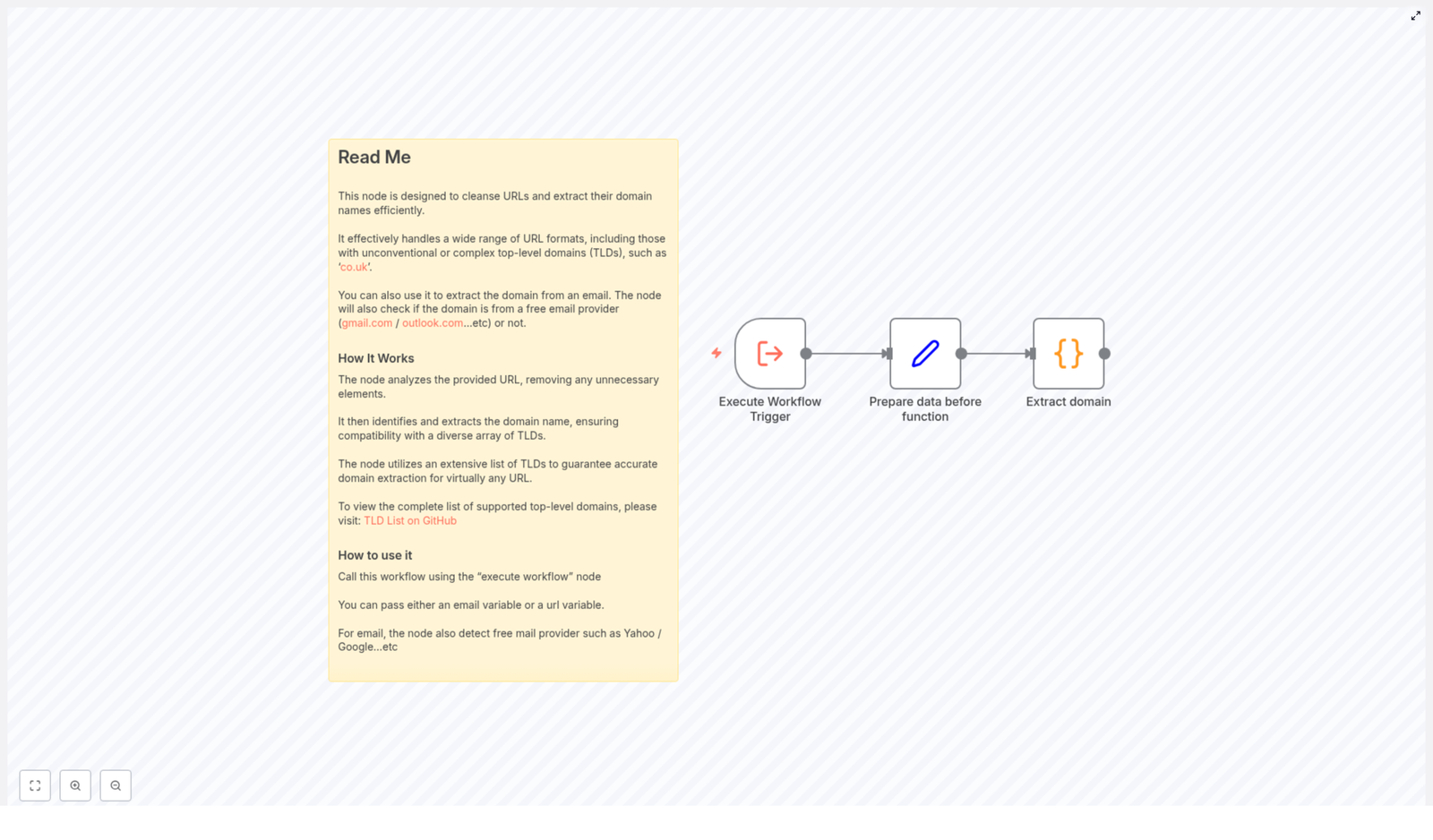
This n8n template is intentionally simple to understand so you can customize and extend it with confidence. It uses three core nodes:

  • Execute Workflow Trigger
    This node starts the workflow. It is the entry point that receives the variables url or email. You can connect it to other workflows, webhooks, schedules, or any trigger you prefer.
  • Prepare Data Before Function
    Here the workflow extracts the relevant input from the incoming data. It checks for the presence of the url or email variable and prepares the value so the next step can work with a clean, predictable structure.
  • Extract Domain
    This node runs custom JavaScript code that does the core work:
    • Parses the URL or email.
    • Strips away protocols, ports, and paths when dealing with URLs.
    • Validates and resolves TLDs against a comprehensive list.
    • Extracts the final domain value.
    • Checks whether the domain belongs to a known free email provider.
    • Outputs the enriched data with the original input, extracted domain, and free provider flag.

Because this logic is encapsulated in one function node, you can easily adapt it, add your own conditions, or extend the provider list as your needs grow.

Concrete Examples: See The Automation In Action

To better visualize what this n8n template does, here are two simple examples.

Example 1: Extracting a domain from a URL

Input URL:

http://subdomain.lemlist.co.uk/hello/?utut=eafa

Output domain:

lemlist.co.uk

The workflow ignores the protocol, the subdomain, the path, and query parameters. It focuses on the correct domain and respects the multi-part TLD co.uk.

Example 2: Identifying a free email provider

Input email:

lucas@hitmail.com

Output:

  • Extracted domain: hitmail.com
  • Free mail provider: true

The workflow isolates hitmail.com from the email address and checks it against its list of free providers, then returns a boolean you can use for routing or scoring.

Turning This Template Into Your Automation Stepping Stone

This n8n domain extraction template is more than a single-use utility. It can become a core part of how you treat data across your stack.

Once you have reliable domain extraction, you can:

  • Route leads differently based on corporate vs free email addresses.
  • Prioritize outreach based on domain type or region.
  • Enrich domains with external APIs for company size, industry, or technology stack.
  • Clean and normalize URLs before storing them in your database or analytics tools.
  • Standardize data across multiple sources in your ETL pipelines.

Use this template as your starting point. Duplicate it, tweak the JavaScript, expand the list of free providers, or connect it with other n8n nodes and external services. Each small improvement compounds, and soon you will have a powerful, fully automated data processing flow.

Next Step: Add This Domain Extraction To Your n8n Stack

Every automation journey begins with a single workflow. By integrating this template into your n8n projects, you remove friction from your daily work and unlock cleaner, more actionable data across your systems.

Use it inside your automation or ETL pipelines to:

  • Effortlessly cleanse URL inputs.
  • Extract accurate domains from URLs and emails.
  • Verify and flag free email providers in a consistent way.

From there, keep iterating. Let this template inspire you to automate the next repetitive task, then the next, until your workflows feel lighter and your time is focused where it matters most.

For detailed and up-to-date TLD information, explore the comprehensive list on GitHub Public Suffix List. This resource underpins accurate domain parsing at scale.

Automate YouTube Competitor Video Analysis

Automate YouTube Competitor Video Analysis with n8n

Overview

This n8n workflow template automates competitor analysis for YouTube channels by extracting key performance data for their most engaging videos and storing it in Google Sheets. The workflow connects to the YouTube Data API to retrieve channel and video metadata, computes a simple engagement performance metric, then appends all results as structured rows in a spreadsheet.

Instead of manually checking views, likes, and comments for each video, this automation lets you submit a single input (a YouTube channel name) and receive an up-to-date, queryable dataset for ongoing analysis.

Workflow Architecture

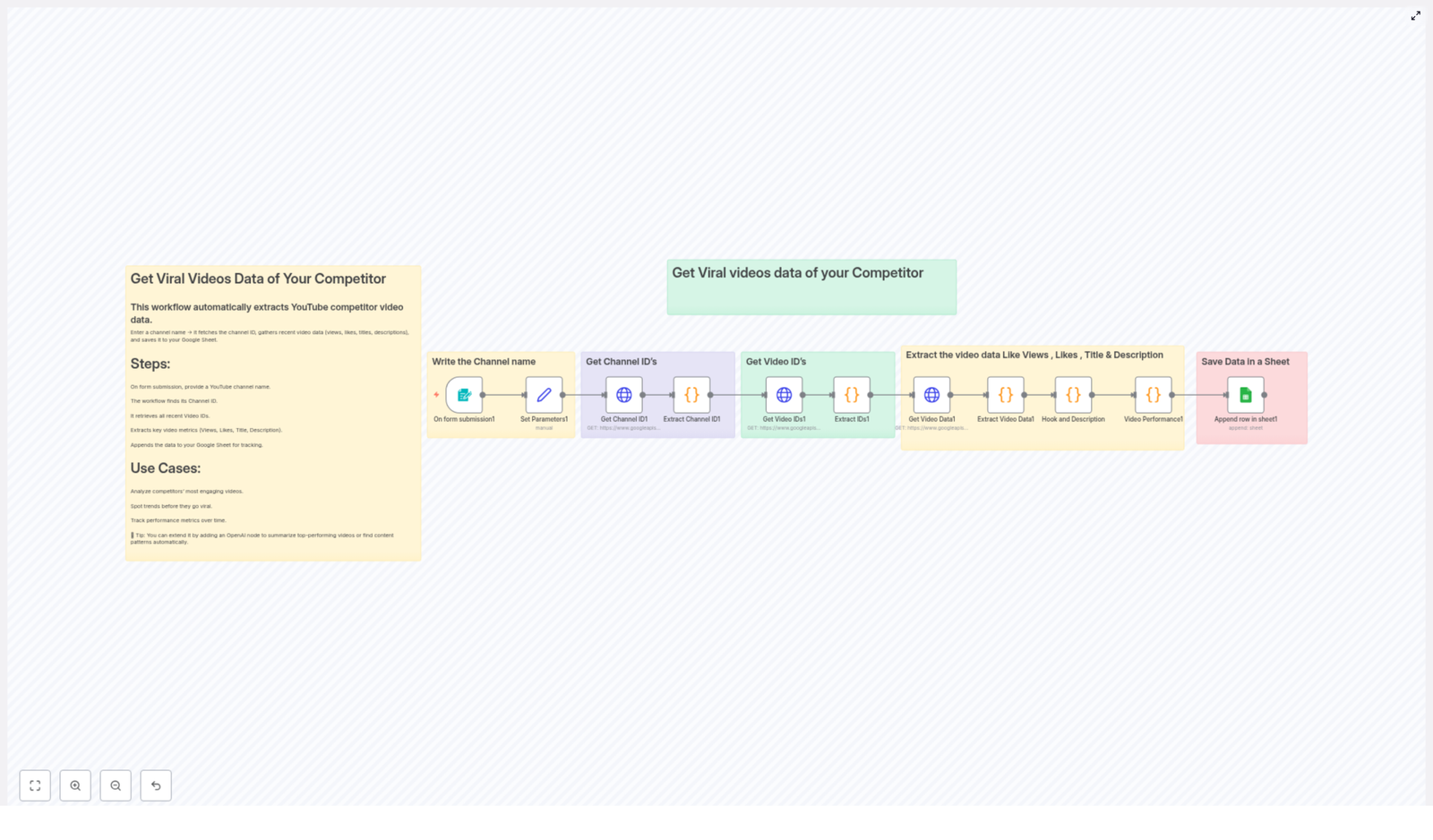
The workflow follows a linear, data-driven architecture that transforms a user-provided channel name into a set of enriched video metrics. At a high level, it performs the following stages:

  1. Input collection – Capture the target YouTube channel name from a form.
  2. Channel resolution – Convert the human-readable channel name into a YouTube channel ID using the YouTube API.
  3. Video discovery – Retrieve video IDs for that channel using configurable filters such as maximum number of videos and ordering.
  4. Video enrichment – Fetch detailed video metadata and statistics (titles, descriptions, thumbnails, views, likes, comments).
  5. Performance calculation – Compute an engagement performance score for each video.
  6. Data persistence – Append the processed dataset into a specified Google Sheet.

Each step is implemented as one or more n8n nodes, chained together so that the output of one node becomes the input for the next. The workflow is designed for repeatable, low-maintenance use, with minimal manual intervention once configured.

Node-by-Node Breakdown

1. Input Node – Channel Name Submission

Purpose: Accept the YouTube channel name that you want to analyze.

Typical implementation:

  • A form-based trigger node or a manual input node that collects a single text field representing the competitor channel name.

Data flow:

  • Input: No prior input is required. The user manually submits the channel name.
  • Output: A JSON object that includes the channel name, for example: { "channelName": "Example Channel" }

This node functions as the entry point to the workflow. All subsequent nodes reference this field when querying the YouTube API.

2. YouTube API – Get Channel ID

Purpose: Convert the channel name into a canonical YouTube channel ID, which is required for accurate video retrieval.

Key behavior:

  • Queries the YouTube Data API using the provided channel name.
  • Resolves the associated channel ID so the workflow can uniquely identify the channel.

Data flow:

  • Input: The channel name from the previous node.
  • Output: A JSON payload containing, at minimum, the resolved channelId along with any additional metadata returned by the API.

If the channel name is ambiguous or not found, the node will typically return no channel ID or raise an API error. In those cases, you can add error handling or validation nodes around this step to stop the workflow or notify you when the channel cannot be resolved.

3. YouTube API – Fetch Video IDs

Purpose: Retrieve a list of video IDs that belong to the resolved channel, based on configurable search or listing parameters.

Core parameters:

  • Channel ID: The ID obtained in the previous step. This ensures only videos from the correct channel are retrieved.
  • Ordering: Determines how videos are sorted, for example by view count to focus on the most-watched or most engaging content.
  • Video duration filters: Allows you to limit results to specific duration ranges (such as short, medium, or long videos), depending on your analysis needs.
  • Maximum results: The number of videos to retrieve. This lets you control the size of the dataset, for example the top 10 or top 50 videos.

Data flow:

  • Input: The channelId from the previous node and any configured filter settings.
  • Output: A collection of video IDs, typically as an array of objects where each item includes a videoId field.

This node focuses on discovery only. It does not yet provide full statistics or descriptive information. Those are added in the next step.

4. YouTube API – Extract Detailed Video Data

Purpose: Enrich each video ID with detailed metadata and statistics.

Data retrieved:

  • Snippet data:
    • Video title
    • Video description
    • Thumbnail URLs and related metadata
  • Statistics:
    • View count
    • Like count
    • Comment count

Data flow:

  • Input: The list of video IDs from the previous node.
  • Output: For each video ID, a fully populated object containing both snippet and statistics fields.

The node typically runs once per video ID, either via n8n’s built-in iteration or by passing the entire array of IDs to the YouTube API. The result is a structured dataset that is ready for numeric computations and downstream reporting.

5. Calculation Node – Video Performance Metric

Purpose: Compute a simple engagement performance score for each video based on likes, comments, and views.

Formula:

((likes + comments) / views) * 100

This calculation returns an engagement percentage that reflects how many interactions (likes plus comments) occur relative to the total number of views. Higher values indicate videos that generate more interaction per view.

Data flow:

  • Input: For each video, the likeCount, commentCount, and viewCount fields from the YouTube statistics.
  • Output: The original video data, augmented with an additional field such as engagementScore containing the computed value.

Edge case considerations:

  • If viewCount is zero or missing, the formula would cause a division by zero. In practice, you should guard against this by either:
    • Setting the engagement score to 0 when views are 0, or
    • Skipping those entries in your calculation node.
  • If likes or comments are missing, treat them as 0 to avoid invalid numeric operations.

The template uses this metric as a straightforward way to compare video performance, but you can extend or replace the formula in advanced scenarios.

6. Google Sheets Node – Append Data

Purpose: Persist all computed metrics and metadata as new rows in a Google Sheet for long-term tracking and analysis.

Behavior:

  • Connects to a specified Google Sheets document and worksheet.
  • Appends each video’s data as a new row, preserving your existing data and adding new entries at the bottom.

Data flow:

  • Input: The enriched video objects from the previous node, including titles, descriptions, thumbnails, statistics, and the engagement score.
  • Output: A confirmation from Google Sheets indicating that rows were successfully appended.

Once written, the data can be filtered, sorted, or visualized directly in Google Sheets or used as a source for additional reporting tools.

Configuration Notes

YouTube Credentials and API Configuration

  • You must configure valid YouTube Data API credentials in n8n before running the workflow.
  • Make sure the API key or OAuth client has permission to access the YouTube endpoints used for channel and video data.
  • Be aware of YouTube API quota limits. Large result sets or frequent runs can consume more quota.

Google Sheets Credentials

  • Set up Google Sheets credentials in n8n and authorize access to the target spreadsheet.
  • Ensure the configured account has edit permissions for the specific Google Sheet where data will be appended.

Sheet Structure and Column Mapping

  • Before running the workflow, create a Google Sheet with appropriate column headers, for example:
    • Channel Name
    • Video ID
    • Title
    • Description
    • Thumbnail URL
    • Views
    • Likes
    • Comments
    • Engagement Score
  • Map each field from the n8n items to the corresponding columns in the Google Sheets node configuration.

Filtering and Limits

  • Use the video retrieval parameters to control:
    • The maximum number of videos per run.
    • The sorting criteria, such as view count, to focus on the most relevant videos.
    • The duration range, if you want to analyze only short-form or long-form content.
  • Adjust these settings to balance data depth with execution time and API usage.

Error Handling Considerations

  • If the channel name is invalid or not found, the workflow may return empty results. Consider adding:
    • A check after the “Get Channel ID” node to verify that a valid ID exists.
    • A notification or stop condition if no channel ID is returned.
  • For the engagement calculation, ensure that division by zero is prevented when view counts are zero.
  • If Google Sheets fails to append rows due to permission or network issues, you can add retry logic or alerting nodes to handle such failures.

Use Cases and Benefits

Strategic Applications

  • Competitor benchmarking: Automatically analyze which competitor videos drive the most engagement and identify recurring patterns in topics, titles, or formats.
  • Trend detection: Spot emerging themes or content types before they become saturated, using engagement scores and view counts as early indicators.
  • Historical tracking: Build a longitudinal dataset of competitor performance by running the workflow regularly and tracking changes over time.
  • Data-driven content planning: Use the collected metrics to inform your own YouTube content strategy and prioritize formats that consistently perform well.

Advanced Customization Ideas

Extending the Engagement Metric

  • Adjust the formula to weight likes and comments differently if needed.
  • Incorporate additional YouTube statistics fields if they are available and relevant to your analysis.

Integrating AI for Deeper Insights

You can extend the template by connecting it with AI tools such as OpenAI to:

  • Summarize the top-performing videos directly from their titles and descriptions.
  • Generate topic suggestions or content ideas based on recurring patterns in competitor videos.

This adds a qualitative layer on top of the quantitative metrics already stored in your Google Sheet.

Scheduling and Automation

  • Attach a scheduler or cron-based trigger to run the workflow on a regular cadence, such as daily or weekly.
  • Combine with notification nodes to send a summary of newly discovered high-performing videos to your team.

Getting Started with the Template

To begin using this n8n workflow template for YouTube competitor video analysis:

  1. Open the template in n8n using the link below.
  2. Configure your YouTube and Google Sheets credentials.
  3. Set up your Google Sheet with the desired columns.
  4. Adjust the video retrieval filters and limits as needed.
  5. Run the workflow, enter the competitor channel name, and review the results in your spreadsheet.

Once configured, the workflow handles the entire data collection and metric calculation process for you.

Tip: Combine this template with additional n8n workflows to build a complete YouTube analytics stack, including automated reporting and AI-assisted content ideation.

How to Build an Effective B2B Lead Generation Workflow with n8n

Introduction

High quality lead generation is a fundamental requirement for any B2B organization that aims to scale efficiently. Manual prospecting and research are not only time consuming, they are also difficult to standardize and optimize. By using n8n to orchestrate data collection, enrichment, and qualification, you can build a repeatable and measurable lead generation engine that supports your sales pipeline with minimal manual effort.

This article explains how to design an effective B2B lead generation workflow template in n8n. It walks through the complete process from initial keyword based discovery to AI powered lead qualification and CRM handoff, with a focus on automation best practices, node configuration, and robust data handling.

Why Use n8n for B2B Lead Generation?

n8n is an extensible, open source workflow automation platform that connects APIs, services, and internal tools through visual workflows. It is particularly well suited for B2B lead generation because it can:

  • Integrate search, scraping, enrichment, and CRM tools in a single orchestrated pipeline.
  • Run custom logic and transformations through Code and Function nodes.
  • Embed AI based decision making as part of a governed, auditable workflow.
  • Scale from simple experiments to production grade lead generation systems.

Instead of stitching together ad hoc scripts, n8n allows automation professionals to design and maintain a robust, version controlled lead generation workflow that is transparent and easy to adapt as the ICP or market focus evolves.

Use Case Overview: Automated B2B Lead Discovery and Qualification

The workflow template covered in this article automates the journey from initial discovery of potential companies to delivery of validated, scored leads into downstream systems. At a high level, the process consists of the following stages:

  • Discovery via keyword based search to identify candidate companies that match your ICP.
  • Result decomposition and crawling to extract website content from each relevant domain.
  • Data extraction and normalization to capture contact details and key company attributes.
  • AI driven lead qualification using an Anthropic model via the AI Agent node.
  • Validation, filtering, and routing of only qualified leads into CRM or other sales tools through HTTP requests.

The result is an end to end B2B lead generation pipeline that can be executed on demand, tuned for different verticals, and integrated with existing sales operations.

Workflow Architecture and Trigger Strategy

Manual Trigger for Controlled Execution

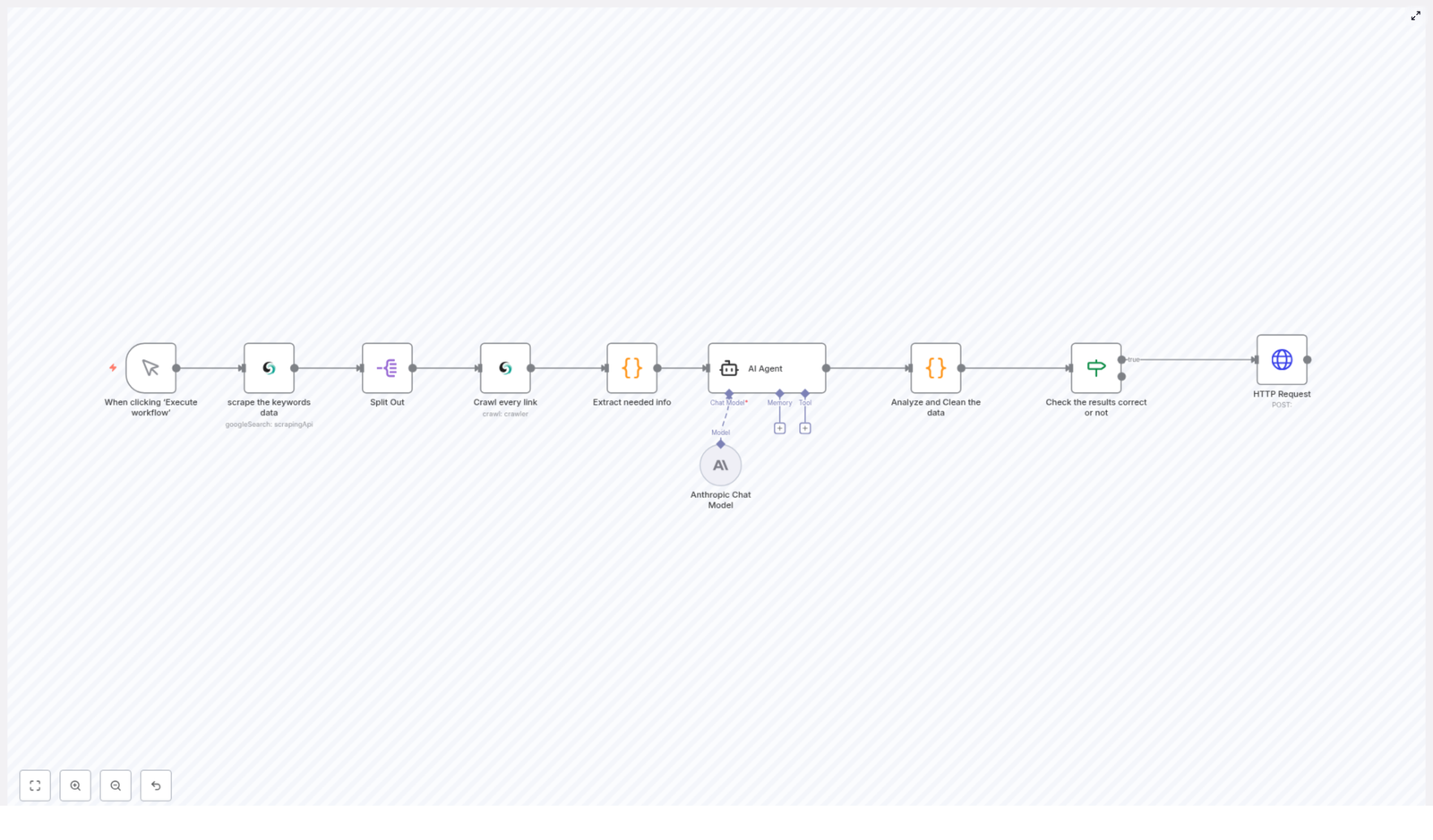
The template uses a manual trigger as its entry point. The workflow starts with the When clicking “Execute workflow” trigger node. This design is suitable for teams that want explicit control over when the pipeline runs, for example to launch targeted campaigns, test new ICP criteria, or avoid overloading external services.

In production, this trigger can be replaced or complemented with scheduled triggers or event based initiators, but the manual trigger is ideal for initial configuration, validation, and debugging.

Stage 1: Discover Potential Leads via Keyword Search

Scraping Keyword Based Google Search Results

The first operational step is a node that performs a Google search based on predefined B2B focused keywords. Typical examples include:

  • “software companies”
  • “enterprise clients”
  • “marketing agencies”
  • other phrases aligned with your ideal customer profile (ICP)

This node collects URLs from the organic search results that are likely to correspond to businesses in your target segment. From an automation best practice perspective, maintain your keyword set in a central location or environment variable so it can be updated without editing node logic.

Splitting Search Results for Parallel Processing

Once the search results are retrieved, a Split Out node is used to break the list of results into individual items. Each organic result is transformed into a separate execution branch so that subsequent steps can process each URL independently.

This pattern improves observability and error handling. If a single URL fails to crawl or parse, it does not block the entire batch, and you can apply conditional logic at the item level.

Stage 2: Website Crawling and Content Acquisition

Crawling Target Websites with Scrapeless

For each URL, the workflow invokes a Scrapeless crawler node. This node visits the website and collects visible content. To balance coverage and performance, the crawl is configured with a page limit so the workflow captures enough context for qualification without unnecessary depth.

Key considerations when configuring this node include:

  • Respecting rate limits and robots.txt policies.
  • Defining sensible depth limits to avoid irrelevant sections.
  • Ensuring that the crawler focuses on content that reflects the company profile, services, and contact details.

Stage 3: Data Extraction, Cleaning, and Structuring

Transforming Raw Crawl Output in a Code Node

The raw HTML or markdown returned by the crawler is not yet suitable for AI analysis or CRM ingestion. A custom Code node is used to normalize and enrich this data. The logic in this node typically performs the following tasks:

  • Cleaning the content by removing navigation menus, images, legal notices, and privacy references that do not contribute to lead qualification.
  • Extracting key company metadata such as business name, email addresses, and phone numbers.
  • Identifying and segmenting important sections like “About”, “Services”, and “Contact” pages.
  • Building a concise, structured summary of the website content that is optimized for downstream AI consumption.
  • Assessing basic content quality indicators that can later support scoring or filtering.

Implementing this logic in a Code node gives you full control over parsing and allows you to adapt quickly if website structures or target industries change.

Stage 4: AI Powered Lead Qualification

Configuring the AI Agent Node with Anthropic

With the website data cleaned and structured, the workflow leverages an AI Agent node that uses an Anthropic language model. A carefully crafted system prompt guides the model to interpret the structured content and return a standardized lead object.

The AI Agent is instructed to extract and infer key attributes, such as:

  • Company name and primary domain.
  • Industry and business type.
  • Estimated company size, where possible.
  • Relevant contact information, for example emails and phone numbers.
  • Additional context that supports sales qualification.

The node also requests a lead score. This score is based on factors such as alignment with the ICP, completeness of the data, and perceived quality of the website content. Using AI at this stage allows the workflow to capture nuance that simple rule based filters might miss, while still producing a structured JSON output.

Stage 5: Validation, Normalization, and Quality Control

Analyzing and Cleaning AI Output

Following the AI Agent, the workflow includes a dedicated step to validate and normalize the AI output. A node parses the returned JSON, verifies that it conforms to the expected schema, and handles edge cases such as missing fields or malformed structures.

This layer of validation is critical for building a resilient automation. It ensures that downstream systems receive consistent, high quality data and that errors are caught early in the pipeline rather than at the CRM or sales tool level.

Conditional Filtering Based on Lead Score

Once the data is validated, a conditional node evaluates whether the lead meets predefined qualification criteria. Common conditions include:

  • Lead score greater than or equal to a configured threshold.
  • Successful processing flags from the previous nodes.
  • Presence of mandatory fields such as company name and at least one contact method.

Only leads that satisfy these conditions are allowed to pass through to the final delivery stage. This approach prevents low quality or incomplete records from polluting your CRM and keeps sales teams focused on high potential opportunities.

Stage 6: Delivery to CRM or Sales Stack

Sending Qualified Leads via HTTP Request

The final step uses an HTTP Request node to push qualified leads to external systems. The node is typically configured to perform an HTTP POST request to:

  • CRM platforms such as HubSpot, Salesforce, or Pipedrive.
  • Marketing automation tools or lead nurturing workflows.
  • Messaging or notification services for real time alerts to sales teams.

The payload structure can be customized to align with the target system’s API schema. This makes the workflow adaptable to different stacks while keeping the core qualification logic within n8n.

Automation Best Practices for B2B Lead Generation with n8n

  • Iterate on keywords regularly so that your discovery stage reflects evolving ICP definitions, new verticals, and updated positioning.
  • Optimize lead scoring thresholds based on feedback from sales. Adjust the minimum score and required attributes to balance volume and quality.
  • Maintain compliance with data protection and privacy regulations when scraping websites and collecting contact information. Document your data sources and purposes.
  • Monitor workflow performance using n8n’s execution logs and analytics. Track error rates, lead acceptance ratios, and processing time to identify bottlenecks.
  • Version and test prompts used in the AI Agent node. Small prompt changes can significantly affect output quality, so treat them as part of your configuration management.

Benefits of an Automated n8n Lead Generation Pipeline

Implementing this workflow in n8n delivers tangible advantages for B2B teams:

  • Significantly reduced manual research time and faster identification of relevant companies.
  • Consistent data cleansing and structuring that improves reporting and downstream automation.
  • Better ICP alignment through AI driven scoring instead of purely manual judgment.
  • Seamless integration with existing sales and marketing systems via HTTP and other native n8n nodes.

Conclusion

An automated B2B lead generation workflow built on n8n, coupled with intelligent web scraping and Anthropic based AI qualification, gives your organization a scalable and repeatable engine for sourcing high intent prospects. Instead of spending hours on manual research, sales teams can focus on engagement, strategy, and closing.

The workflow template described here illustrates how to connect discovery, crawling, extraction, AI analysis, and CRM integration into a cohesive system that can be adapted to different industries and company sizes.

Implement this workflow in your n8n instance to accelerate your pipeline with structured, qualified B2B leads.

Call to Action

If you require support tailoring this lead generation workflow to your specific ICP, tech stack, or compliance requirements, consider collaborating with automation specialists or exploring n8n’s extensive community resources and documentation.

Automate B2B Lead Generation with n8n Workflow

Automate B2B Lead Generation with n8n Workflow

Imagine Never Copy-Pasting Leads Again

You open your laptop, sip your coffee, and spend the next 2 hours copy-pasting company names, websites, and contact details into a spreadsheet. Again. For the third time this week.

If that scenario feels painfully familiar, it is probably time to let automation do the boring stuff. With an n8n workflow template, you can scrape websites, analyze companies with AI, qualify B2B leads, and send them straight to your CRM while you do literally anything else.

This guide walks you through a complete automated B2B lead generation workflow in n8n that uses:

  • Scrapeless API for targeted web scraping and crawling
  • Anthropic Claude (Sonnet 4) for AI-based lead analysis
  • n8n nodes to orchestrate the whole pipeline from keyword search to CRM handoff

Same outcome as hours of manual research, except now it happens on demand, in the background, and without you rage-clicking through search results.

What This n8n Lead Generation Workflow Actually Does

At a high level, this workflow acts like a very dedicated research assistant who:

  1. Searches the web for companies that match your B2B keywords
  2. Crawls their websites and extracts useful details
  3. Hands that data to an AI agent for deeper analysis
  4. Scores and qualifies each lead
  5. Sends the good ones to your webhook or CRM for your sales team

Under the hood, it is a chain of n8n nodes working together to scrape, analyze, clean, and route lead data. Let us break down the main components in a more human-friendly way.

Inside the Workflow: Node-by-Node Tour

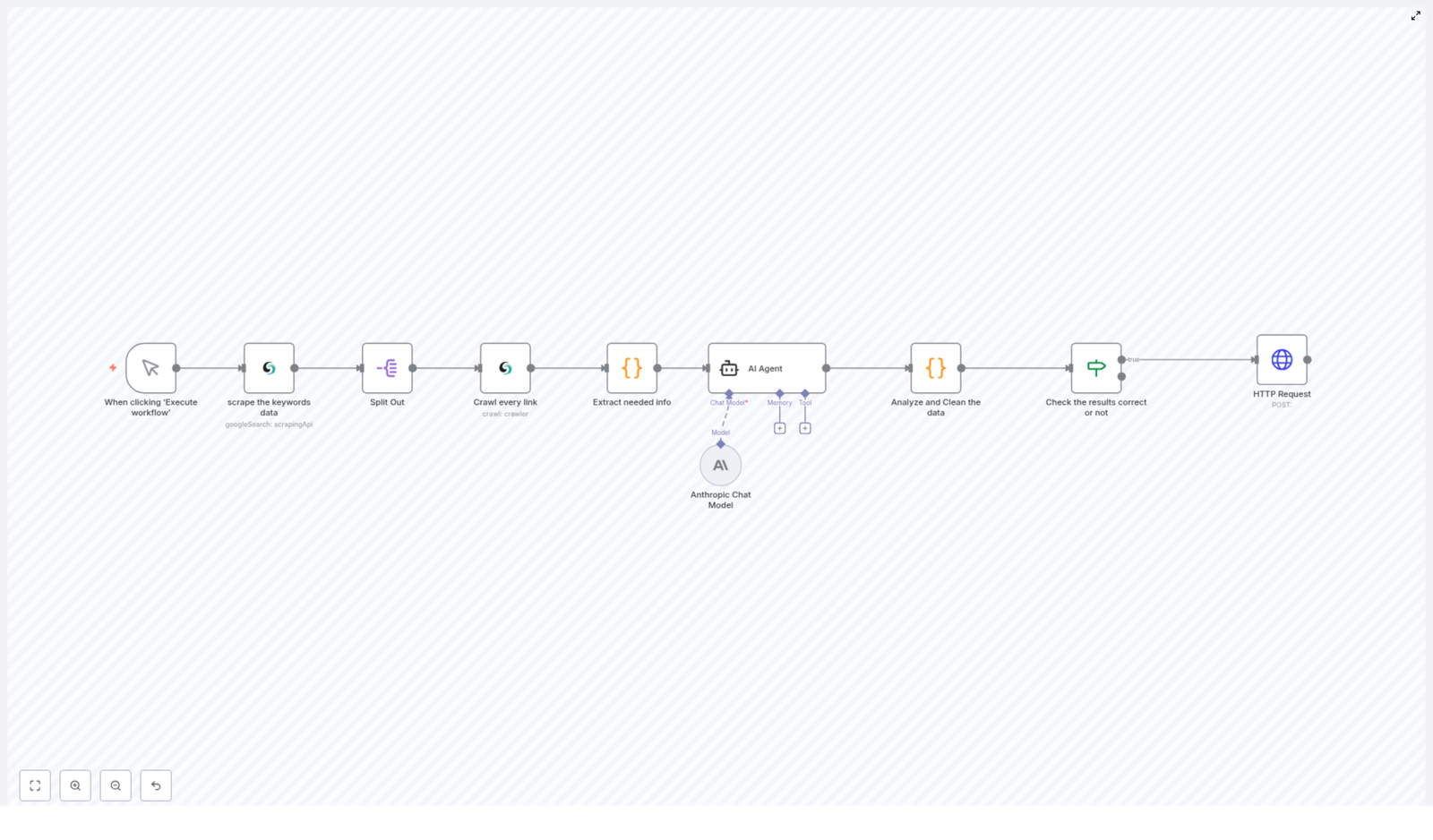
1. Manual Trigger – You Are the Boss

The workflow starts with a Manual Trigger node. You decide when to run the whole pipeline. No schedules, no surprises, just click Execute workflow when you are ready to hunt for new B2B leads.

2. Scraping Keyword Data with Scrapeless API

Next, the workflow calls the Scrapeless API to search the web based on your chosen keywords. Typical examples include:

  • Software companies
  • Marketing agencies
  • SaaS startups
  • Other B2B niches you care about

The result is a set of company URLs and search results that serve as raw material for the rest of the workflow. Think of this as your big bucket of potential leads.

3. Splitting Out Each Result for Individual Processing

Scrapeless returns an organic_results array, which is great for machines, not so great for processing each lead one by one. That is where the Split Out node comes in.

This node takes that array and splits it so that every single link becomes its own item. That way, all later steps can work on one URL at a time, which keeps things clean and manageable.

4. Crawling Every Link for Website Content

Now that each URL stands alone, the workflow uses the Scrapeless crawler to visit each website and pull out the page content.

This step grabs the text and structure you need to understand what the company does, who they serve, and whether they fit your ideal customer profile. No more opening 50 tabs and squinting at “About” pages.

5. Extracting the Important Bits with JavaScript

Raw crawler data is messy. To fix that, a custom JavaScript code node processes the scraped content and extracts:

  • Key company information
  • Potential contact details
  • Relevant website content for analysis

This node also cleans and structures the data so the AI model can understand it more easily. Think of it as tidying up your notes before handing them to a very smart assistant.

6. AI Agent Node – Claude Builds Lead Profiles

Once the data is structured, it is time for the AI to shine. The workflow uses an AI Agent node powered by an Anthropic conversational model (Claude Sonnet 4).

This AI step:

  • Analyzes the extracted company data
  • Builds detailed B2B lead profiles in JSON format
  • Evaluates key attributes like:
    • Company size
    • Industry
    • Services or products offered
    • Overall fit as a potential lead

Instead of you reading each website and taking notes, the AI does it at scale and outputs structured information you can use immediately.

7. Analyzing and Cleaning the AI Output

AI is powerful, but its output still needs to be checked and standardized. A second code node takes the JSON from the AI and:

  • Parses the response
  • Sanitizes and normalizes fields
  • Ensures data consistency for downstream steps

The result is clean, reliable data that is ready for qualification checks and CRM integration.

8. Checking If the Lead Is Actually Qualified

Next up is an IF node that acts as your gatekeeper. It evaluates whether:

  • The AI processing was successful
  • The lead score or qualification metrics meet your threshold

If a lead passes these checks, it is considered qualified and moves on to the final step. If not, it can be filtered out or handled differently, so your sales team only sees promising opportunities instead of a random pile of websites.

9. Sending Qualified Leads via HTTP Request

Finally, the workflow uses an HTTP Request node to send qualified leads to your chosen destination using an HTTP POST request.

This could be:

  • A webhook endpoint
  • Your CRM system
  • Another internal tool for notifications or enrichment

From here, your sales team can follow up, nurture, and convert, without ever having to do the initial research by hand.

Why Automate B2B Lead Generation with n8n?

Beyond saving your sanity, this n8n workflow template delivers some very practical benefits.

  • Improved Efficiency: It automates manual research, scraping, and qualifying steps so your team can focus on conversations, not copy-paste.
  • Higher Lead Quality: AI-driven scoring and rich data extraction help you focus on leads that actually match your target criteria.
  • Flexible and Customizable: You can easily tweak keywords, score thresholds, and logic to match your ideal customer profile.
  • Easy Integration: With the HTTP Request node, it plugs into your CRM, webhooks, or notification tools with minimal effort.

What You Need Before You Start

To get this automated B2B lead generation workflow running in n8n, you will need:

  • An n8n instance (self-hosted or n8n cloud)
  • Scrapeless API access for web scraping and crawling
  • Anthropic Claude API access for AI-based analysis
  • A webhook URL or CRM endpoint to receive the qualified leads

Once these pieces are in place, you can plug them into the template, adjust your keywords, and start running the workflow whenever you want fresh leads.

Quick Setup Guide for the Template

Here is a simplified way to get from zero to automated B2B leads:

  1. Open your n8n instance and import the template from the link below.
  2. Configure the Scrapeless API credentials and set your target keywords for the type of companies you want to find.
  3. Set up your Anthropic Claude API credentials in the AI Agent node.
  4. Adjust any JavaScript code nodes if you want to customize what fields are extracted or how they are formatted.
  5. In the IF node, review or tweak the qualification logic and thresholds.
  6. Point the HTTP Request node at your webhook or CRM endpoint.
  7. Hit Execute workflow and watch the automation do the heavy lifting.

From that point on, you can run it on demand or plug it into a schedule if you want a steady stream of fresh leads arriving automatically.

Tips, Tweaks, and Next Steps

  • Refine your keywords: Start broad, then narrow down as you see what kind of companies are coming through.
  • Adjust scoring rules: Update your IF node logic as your understanding of a “qualified” lead evolves.
  • Connect more tools: Use additional n8n nodes to send alerts to Slack, email summaries, or push leads into different CRMs.
  • Iterate on AI prompts: Small changes in how you ask Claude to structure or evaluate data can significantly improve lead quality.

Wrap Up: Let Automation Do the Boring Work

Automating B2B lead generation with n8n, web scraping, and AI turns a repetitive, time-consuming process into a streamlined pipeline.

This workflow helps you:

  • Discover relevant B2B leads at scale
  • Analyze and qualify them automatically
  • Send only the best opportunities to your sales team

The result is a faster sales pipeline, better conversion rates, and a lot less manual research.

Try building or importing this workflow today and unlock smarter, faster B2B lead acquisition.

Ready to stop copy-pasting and start automating? Click “Execute workflow” and let n8n handle the heavy lifting.

Sync Google Drive Files Automatically with Airtable

How One Marketer Stopped Drowning in Google Drive Files With an n8n Workflow

By Tuesday afternoon, Emma’s inbox already felt like a graveyard of “final_v3” attachments.

As a marketing manager for a fast-growing startup, she lived inside Google Drive. Designers dropped new assets into shared folders, freelancers uploaded drafts, and her team constantly asked, “Did you see the latest version?” Every campaign meant another folder, another round of links, and another spreadsheet trying to track who had which file and when.

One mis-shared link could delay a campaign. One missing file could trigger a frantic search through nested folders. She knew there had to be a better way to sync Google Drive files with Airtable and make sharing automatic, but every manual workaround eventually broke.

That was the week she discovered an n8n workflow template that would quietly watch her Google Drive folder, share every new file with the right person, and log all the metadata into Airtable without her lifting a finger.

The Problem: Files Everywhere, Clarity Nowhere

Emma’s process started simple enough. A designer uploaded a file to Google Drive, shared the link, and Emma pasted that link into an Airtable base that tracked campaigns. Except:

  • Sometimes the file was uploaded but never shared.
  • Sometimes the link changed after an edit or rename.
  • Sometimes the metadata was wrong or incomplete in Airtable.

Over time, her Airtable base – which was supposed to be the single source of truth – became unreliable. She had no consistent record of:

  • Which file belonged to which campaign.
  • When a file was actually created or last modified.
  • Who had received the file by email and who was still waiting.

Every week, she repeated the same manual steps.

  1. Check the Google Drive folder for new files.
  2. Right-click, adjust sharing permissions, and send an email.
  3. Copy the file name and link into Airtable.
  4. Add notes like file ID, date, or recipient, if she remembered.

It was slow, error-prone, and completely unnecessary in a world where automation tools existed. She did not need another spreadsheet. She needed a workflow that could connect Google Drive and Airtable directly.

The Discovery: An n8n Template That Did Exactly What She Needed

One evening, while searching for “automatically sync Google Drive with Airtable,” Emma landed on an n8n template built for exactly this problem. The description was almost suspiciously specific: automatically sync new Google Drive files with Airtable, share them by email, and log all the metadata in one place.

Instead of writing custom scripts or paying for yet another integration tool, she realized she could use this n8n workflow template as a ready-made automation. The template already had the logic built in. Her job was simply to connect her Google Drive and Airtable accounts, then point the workflow at the right folder and base.

Setting the Stage: What Emma Needed Before She Could Automate

Before she could hit “execute,” Emma checked that she had everything required for the workflow to run smoothly.

  • A Google Drive account with API permissions enabled.
  • An Airtable account with a base ready to store file metadata.
  • Credentials configured for both Google Drive and Airtable in n8n.

Her Airtable base already existed. It had columns for file names, campaign names, and notes, but she decided to add a few more fields to match what the template would log:

  • File name
  • File ID
  • Creation time
  • Last modification time
  • Recipient email

With the structure in place, she was ready to wire everything together.

Inside the Workflow: How the Automation Actually Works

As Emma walked through the template in n8n, she realized how each part of the workflow neatly matched a step she used to do by hand.

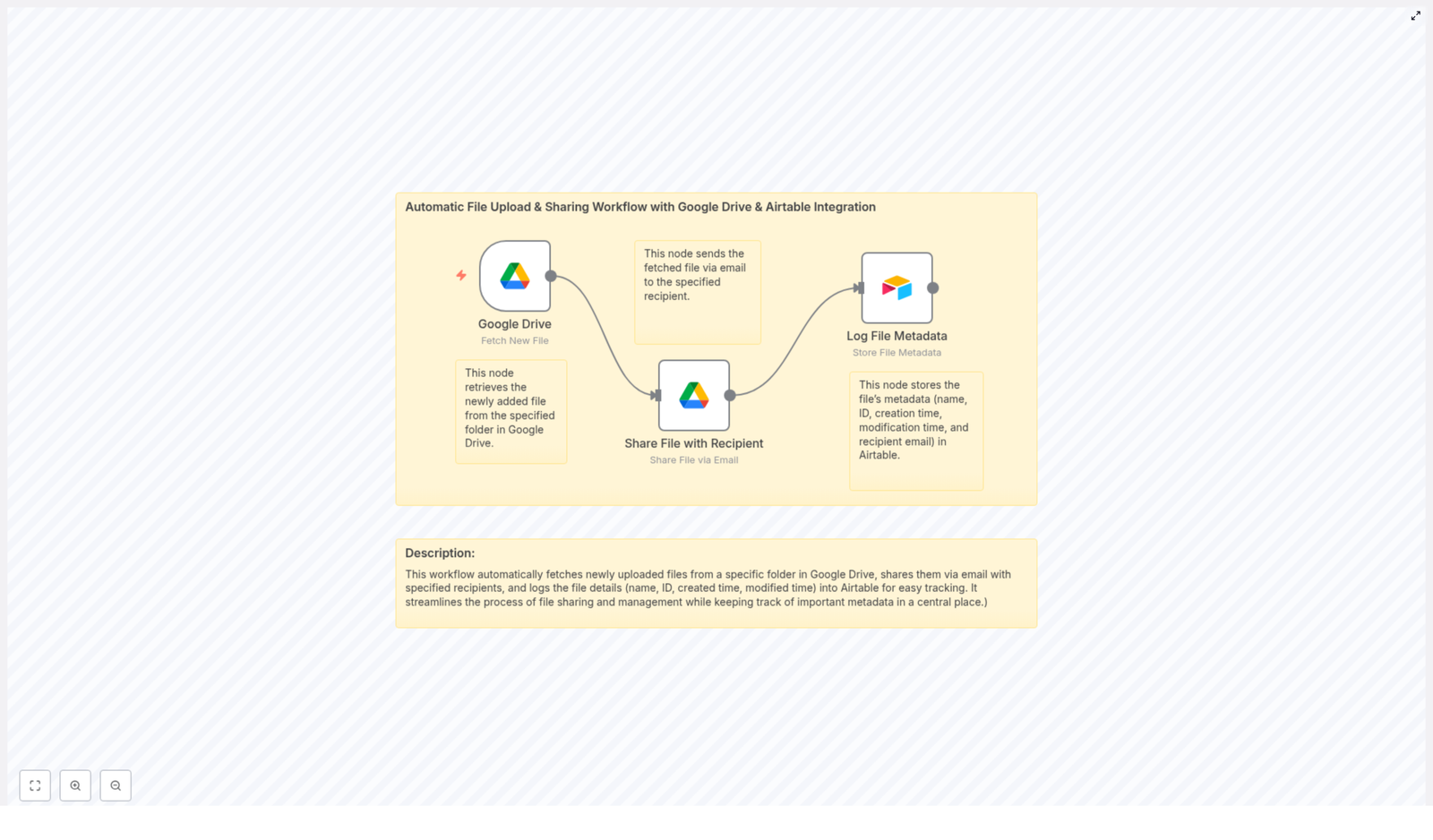
1. Google Drive Node – Watching the Right Folder

The first node in the workflow was a Google Drive trigger. Its only job was to watch a specific folder for new files. Instead of Emma checking that folder every morning, n8n would do it for her.

  • The Google Drive node monitored a chosen folder.
  • Whenever a new file was uploaded, the node detected it automatically.
  • The file details were passed along to the rest of the workflow.

This meant no more “Did someone upload it yet?” refreshes. As soon as a file existed in that folder, the workflow woke up.

2. Share File Node – Automatic Sharing With the Right Recipient

Next came the part Emma used to forget: actually sharing the file with the intended recipient.

The Share File node handled this step. As soon as the trigger detected a new file, this node used Google Drive’s sharing permissions to send it to a specified email address.

  • The node took the file from the Google Drive trigger.
  • It set the appropriate sharing permissions.
  • It sent an email to the recipient automatically.

Instead of copy-pasting links into emails, Emma could now define the recipient once and let the workflow do the rest. Every new file meant an immediate email, without delay.

3. Airtable Node – Logging Every Detail for Future Reference

The final step was the one that made Emma feel like she had a real system again. The Airtable node logged all relevant metadata into her chosen base.

Each time a file was shared, the workflow captured:

  • File name
  • File ID
  • Creation time
  • Modification time
  • Recipient email

The Airtable node then created a new record with this information. No more copying file names, no more guessing when a file had been updated, and no more wondering who had received what.

The Turning Point: From Manual Chaos to Reliable Automation

Emma ran a test. She dropped a new file into the monitored Google Drive folder and watched.

  • The Google Drive node detected the new file almost instantly.
  • The Share File node sent an email to her test address with access to the file.
  • The Airtable node added a new row to her base, complete with all the metadata.

For the first time, her Airtable base updated itself. The file was shared, tracked, and fully documented without a single manual step. The tension she felt around “Did I log everything correctly?” started to fade.

She imagined scaling this beyond a single campaign. Designers, freelancers, and partners could all drop files into the same folder, and the workflow would take care of sharing and logging every time.

Why This n8n Workflow Changed Her Day-To-Day Work

After a week of running the automation, the benefits were obvious.

Efficiency That Actually Felt Real

The workflow eliminated the repetitive busywork that used to eat up her mornings. She no longer had to:

  • Check for new uploads in Google Drive.
  • Manually share each file by email.
  • Copy and paste metadata into Airtable.

All of that happened automatically every time a file appeared in the folder.

Centralized Tracking in Airtable

Her Airtable base finally became what she wanted from the beginning: a reliable dashboard of everything that had been shared.

  • Every file had a corresponding record.
  • Metadata like creation and modification times were always accurate.
  • She could filter by recipient email, date, or campaign and know the data was correct.

Instead of asking “Where is that file?” her team now asked “What is the record ID in Airtable?” and pulled it up instantly.

Timely, Automatic Sharing

Recipients no longer waited for Emma to catch up on notifications. The moment a file was uploaded, the workflow sent it out.

  • No lag between upload and delivery.
  • No risk of forgetting to share a file.
  • No more “Can you resend that link?” messages.

The process felt seamless, both for her team and the people receiving the files.

What You Need To Recreate Emma’s Success

If you see yourself in Emma’s story, you can use the same n8n template to sync Google Drive files automatically with Airtable.

Requirements Checklist

  • Google Drive access with API permissions enabled.
  • An Airtable account with a base prepared to store file metadata.
  • Credentials set up for both Google Drive and Airtable connectors inside n8n.

Workflow Overview

Once your accounts are ready, the process is straightforward.

  1. Google Drive Node watches a specific folder for new files.
  2. Share File Node automatically shares each new file with a designated email address using Google Drive permissions.
  3. Airtable Node logs all relevant metadata in your Airtable base for future tracking and reporting.

You can adapt the template to your own use case, but the core automation remains the same: detect, share, and log.

Resolution: From Stress To a Seamless File Management Workflow

Within a month, Emma had expanded the automation to multiple folders and different recipients. Her campaigns were smoother, her Airtable dashboards were cleaner, and her inbox was quieter.

Instead of spending time chasing files, she could finally focus on strategy, content, and performance. The workflow did not just save her time. It restored trust in her systems.

If you are managing files across teams and tools, you do not have to keep juggling manual steps. Let an n8n workflow handle the repetitive work so you can focus on the work that actually matters.

Ready to automate your file sharing and metadata tracking? Use this n8n template to start syncing your Google Drive files with Airtable and experience a smoother, more reliable file management workflow.

How to Generate and Send Dall-E 3 Images on Telegram

How to Generate and Send Dall-E 3 Images on Telegram with n8n

Why this workflow is so useful

Imagine chatting on Telegram and casually asking your bot, “Hey, can you draw a cyberpunk cat playing chess?” and a few seconds later, a shiny Dall-E 3 image pops up in your chat. Pretty cool, right?

That is exactly what this n8n workflow template helps you do. It connects Telegram, OpenAI GPT-4, and Dall-E 3 so your bot can:

  • Understand what users are asking in plain language
  • Reply with smart, natural messages
  • Generate images with Dall-E 3 when someone asks for one
  • Send those images back directly in the Telegram chat

You set it up once, and from then on your Telegram bot can act like a friendly AI assistant that both talks and draws on demand.

What this n8n template actually does

Under the hood, the workflow is split into two main parts that work together smoothly:

1. Chatting on Telegram and understanding requests

This part handles all the back-and-forth with your users. It:

  • Listens for new messages on Telegram using a Telegram Trigger
  • Passes those messages to an AI Agent powered by GPT-4
  • Keeps track of recent chat history so replies feel natural and consistent
  • Decides when the user is actually asking for an image, not just text
  • Sends a text response back to the user on Telegram

2. Generating and sending Dall-E 3 images

When the AI agent realizes the user wants an image, it calls a separate part of the workflow that:

  • Triggers an internal workflow dedicated to image generation
  • Calls OpenAI’s /v1/images/generations endpoint with the Dall-E 3 model
  • Grabs the generated image URL from the API response
  • Sends that image as a photo message to the user on Telegram
  • Adds a response field so the workflow can confirm the image was delivered successfully

The result is a fully automated loop: user asks, AI understands, image gets created, Telegram sends it back.

When should you use this template?

This workflow is perfect if you:

  • Already have a Telegram bot or community and want to make it more interactive
  • Want users to generate AI images without leaving Telegram
  • Are building a creative assistant, art bot, or visual brainstorming tool
  • Prefer a low-code approach using n8n instead of writing everything from scratch

If you have people asking for “visuals,” “mockups,” “concept art,” or “show me what this looks like,” this template saves you from manually creating and sending images every time.

Key components of the n8n workflow

Let’s walk through the main pieces so you know what each one is doing behind the scenes.

1. Telegram Trigger – listening for new messages

The workflow starts with a Telegram Trigger node. Its job is simple but crucial: it listens for incoming messages from your Telegram users.

Whenever someone sends a message to your bot, this trigger fires and kicks off the entire workflow. That is how your automation stays reactive and real-time.

2. AI Agent – the brain of the operation

The AI Agent is the central decision-maker. It is powered by GPT-4 and is responsible for:

  • Analyzing what the user is saying
  • Maintaining context using memory, so it does not forget what you said two messages ago
  • Deciding whether to respond with text only or call the image generation tool

Think of it as the “personality” of your bot. It reads the conversation, understands when someone is asking for an image, and then delegates that job to the Dall-E 3 tool.

3. OpenAI Chat Model – GPT-4 configuration

Behind the AI Agent is the OpenAI Chat Model node, configured with GPT-4. In this template, it uses:

  • Temperature: 0.7 for a good balance between creativity and reliability
  • A frequency penalty to reduce repetitive answers

This setup helps your bot give responses that feel natural, informative, and not like it is repeating itself every time someone asks a similar question.

4. Window Buffer Memory – keeping the conversation flowing

To keep your bot from sounding forgetful, the workflow uses a Window Buffer Memory component.

It stores up to 10 recent messages in the conversation. That way, the AI Agent can see a bit of history and respond in a way that fits the ongoing chat, not just the last message in isolation.

For example, if a user says “Make it blue instead” right after requesting an image, the AI still knows what “it” refers to.

5. Dall-E 3 Tool – the image specialist

The Dall-E 3 Tool is a dedicated interface between the AI Agent and the image generation workflow.

Instead of the AI directly calling the OpenAI image API, it uses this tool as a bridge. The tool receives the prompt from the AI Agent and then hands it off to the image generation part of the workflow.

This keeps things modular and easier to maintain or extend later.

6. Execute Workflow Trigger & Image Generation

When the AI Agent decides an image is needed, it activates an Execute Workflow Trigger node that starts the nested image generation workflow.

In that nested workflow, n8n makes a request to:

/v1/images/generations

using the Dall-E 3 model.

The user’s prompt is passed along to this endpoint, Dall-E 3 generates an image based on the description, and the workflow retrieves the resulting image URL.

7. Sending the image back on Telegram

Once the image URL is available, another Telegram node kicks in to send the image as a photo message directly to the user.

So from the user’s perspective, they just asked for an image and received it right in the same chat. No extra links, no switching apps.

8. Error handling – fixing message delivery issues

Things are not always perfect, so the workflow also includes an error correction step.

If there is an issue sending the initial message or image, this node tries to correct the problem and resend. That way, your users are less likely to see failures or broken responses, and the overall experience stays smooth.

Why this integration makes your life easier

So why go through the trouble of setting this up in n8n instead of wiring everything manually?

  • Fully automated, yet interactive
    The AI Agent handles both text and image requests, so you are not stuck manually responding or generating images yourself.
  • Context-aware conversations
    Thanks to the memory buffer, your bot can respond in a way that feels more human, remembering what was said earlier in the chat.
  • Rich media in Telegram
    You are not limited to plain text. Users can receive AI-generated images directly inside Telegram, which makes your bot feel much more engaging.
  • Scalable and modular setup
    Because everything is built in n8n, you can easily:
    • Add more tools for different tasks
    • Adjust prompts, memory length, or model settings without rewriting code

Getting started with the template

If you are ready to give your Telegram bot some visual superpowers, this template is a great starting point. You can import it into n8n, plug in your OpenAI and Telegram credentials, and then tweak the prompts and behavior to match your use case.

From there, you can experiment with different prompts, styles, or additional tools to make your AI assistant even smarter and more creative.

Try the n8n template for Dall-E 3 images on Telegram

Want to see it in action and start customizing it for your own bot?

Use this ready-made n8n workflow template to connect GPT-4, Dall-E 3, and Telegram, and start sending AI-generated images in your chats with almost no manual work.

Automated Client Onboarding Workflow for SaaS & Agencies

Automated Client Onboarding Workflow for SaaS & Agencies

What You Will Learn

This guide walks you through an n8n workflow template that fully automates client onboarding for SaaS products, agencies, and B2B teams. By the end, you will understand:

  • How the workflow captures client data and validates emails using a webhook and verification service
  • How onboarding tiers and priorities are assigned based on client plans
  • How Google Sheets, Trello, Slack, Gmail, and Airtable work together in the automation
  • How a personalized Welcome Pack PDF is generated and delivered to the client
  • How weekly onboarding reports are created and sent to management

This article is designed to be instructional and step-by-step, so you can both understand the logic and confidently adapt the template in your own n8n instance.

Workflow Overview

The automated client onboarding workflow is built in n8n and connects several common SaaS tools:

  • n8n Webhook to receive client form submissions
  • Email verification service to validate client emails
  • Google Sheets for centralized client logging
  • Trello for Customer Success task management
  • Slack for internal notifications
  • Gmail (or another email node) for client communication
  • Airtable for structured storage and reporting
  • PDF generation for personalized Welcome Packs

The goal is to move from a manual, error-prone onboarding process to a fully automated pipeline that starts with a form submission and ends with weekly reports for your leadership team.

Core Capabilities of the Template

Key Automation Features

  • Client Onboarding Webhook – receives client details from your onboarding form and starts the workflow.
  • Email Validation – checks the authenticity of the email to filter out spam or invalid entries.
  • Automatic Tier Assignment – maps client plans (Free, Pro, Enterprise) to onboarding tiers (Basic, Standard, Premium) and sets priority.
  • Client Logging in Google Sheets – keeps a live, shareable record of all onboarding clients.
  • Trello Task Creation – creates onboarding task cards for Customer Success Managers with clear next steps.
  • Personalized Welcome Pack PDF – generates a custom PDF with client details, plan, priority, and onboarding ID.
  • Internal & Client Notifications – notifies your team in Slack and sends a welcome email with the PDF attached to the client.
  • Data Archiving in Airtable – stores all onboarding data for reporting and auditing.
  • Weekly Reporting – compiles weekly onboarding stats from Airtable and emails a summary to management.

How the n8n Workflow Runs: Step-by-Step

In this section, we will walk through the full onboarding flow as it happens inside n8n, from the first client form submission to the weekly summary email.

Step 1 – Start With a Webhook and Validate the Email

The automation begins when a new client submits your onboarding form. The form is connected to an n8n Webhook node, which receives fields such as:

  • Client name
  • Email address
  • Selected plan (Free, Pro, Enterprise)
  • Any additional onboarding details you include

As soon as the webhook receives the data, the next node in the flow calls an email verification service. This service checks whether the email address is valid and can be used for communication.

In practice, the workflow does something like this:

  • If the email is valid, the execution continues to the next steps.
  • If the email is invalid, the workflow stops or can be routed to an error-handling branch, which prevents fake or mistyped signups from entering your system.

This early validation keeps your CRM, sheets, and tools clean and avoids wasted time on bad data.

Step 2 – Log the Client and Assign Tiers in n8n

Once the email passes validation, n8n moves on to two key operations that happen in parallel logic:

  1. Client Logging in Google Sheets
  2. Tier and Priority Assignment

2.1 Log the Client in Google Sheets

An n8n Google Sheets node writes the client data into a dedicated sheet. Typical columns might include:

  • Client name
  • Email
  • Selected plan
  • Onboarding tier
  • Priority level
  • Onboarding ID or reference
  • Timestamp

This creates a live, centralized view of all onboarding clients that can be shared with your team without giving them direct access to n8n.

2.2 Use Code-Based Logic to Assign Tiers

At the same time, a Function node or similar logic node evaluates the client’s selected plan. The logic maps plans to onboarding tiers and priority levels. A common setup is:

  • Enterprise planPremium onboarding tier with high priority
  • Pro planStandard onboarding tier with medium priority
  • Free planBasic onboarding tier with lower priority

The workflow attaches these computed values to the client data, which will be used in later steps such as Trello card creation, PDF generation, and Airtable storage.

Step 3 – Create Trello Tasks and Generate the Welcome Pack PDF

With the client data enriched and stored, the workflow now focuses on making onboarding actionable for your Customer Success team and clear for the client.

3.1 Create a Trello Card for the CSM Team

An n8n Trello node automatically creates a card in your Customer Success or onboarding board. The card typically includes:

  • Card title: Client name and plan
  • Description: Key onboarding details, assigned tier, and any internal notes
  • Labels or lists: Reflecting the onboarding tier or status (for example, “Premium”, “New”, “In progress”)
  • Due dates or checklists: Optional, to guide the CSM through the onboarding steps

This ensures that every valid signup immediately appears as a task for the responsible team, without manual data entry.

3.2 Generate a Personalized Welcome Pack PDF

In parallel or right after Trello card creation, the workflow triggers a PDF generation step. Using the client data and assigned tier, n8n generates a customized Welcome Pack that can include:

  • Client name
  • Selected plan and onboarding tier (Basic, Standard, Premium)
  • Priority level
  • Onboarding ID or reference number
  • Key steps for getting started

The PDF node outputs a file link or binary data, which the workflow will later attach to the client email and store in Airtable. This document sets expectations and gives the client a professional, personalized starting point.

Step 4 – Notify Your Team and Welcome the Client

After the Welcome Pack PDF is generated, the workflow moves into communication mode, targeting both your internal team and the client.

4.1 Internal Slack Notification

An n8n Slack node sends a message to a chosen channel, such as #new-clients or #onboarding. The message usually includes:

  • Client name and email
  • Selected plan and onboarding tier
  • Onboarding ID
  • Link to the Trello card or Google Sheets row

This instant notification keeps the team aligned and ensures that high-priority clients are seen and handled quickly.

4.2 Send the Welcome Email With PDF Attachment

Next, a Gmail node or similar email node sends a personalized welcome email to the client. The email typically:

  • Greets the client by name
  • Mentions their selected plan and what to expect from onboarding
  • Includes the Welcome Pack PDF as an attachment
  • Provides links or instructions for the first steps inside your product or service

This step turns the automation into a client-facing experience that feels tailored, even though it is fully automated in n8n.

Step 5 – Archive All Onboarding Data in Airtable

To keep your data structured and ready for reporting, the workflow then archives the onboarding record in Airtable.

An n8n Airtable node creates a new record that typically includes:

  • Client name and email
  • Selected plan and assigned onboarding tier
  • Priority level
  • Onboarding status
  • Link to the Welcome Pack PDF
  • Links or IDs for Trello and Google Sheets entries
  • Timestamps and any additional metadata

This Airtable base becomes the single source of truth for all onboarding-related data, which is especially useful for audits, long-term reporting, or integration with other tools.

Step 6 – Generate Weekly Onboarding Reports

The final part of the template focuses on management reporting and ongoing visibility.

6.1 Scheduled Weekly Trigger

A Schedule node in n8n is configured to run once a week. When triggered, it starts a separate branch of the workflow dedicated to reporting.

6.2 Pull Data From Airtable

The workflow uses an Airtable node to fetch all relevant onboarding records for the reporting period. This might include all clients onboarded in the last 7 days or all clients with a specific status.

6.3 Calculate Key KPIs

A data processing node, such as a Function or Aggregate node, calculates key onboarding metrics, for example:

  • Total number of new clients onboarded
  • Distribution by plan (Free, Pro, Enterprise)
  • Distribution by onboarding tier (Basic, Standard, Premium)

The result is a concise snapshot of your onboarding performance for the week.

6.4 Email the Report to Management

Finally, a Gmail or email node composes an email with the weekly stats and sends it to your management or leadership distribution list. The email can include:

  • Summary counts and percentages
  • Highlights of higher tier or Enterprise onboardings
  • Optional CSV or attached report files generated from the Airtable data

This ensures that stakeholders stay informed without having to log into Airtable or n8n directly.

Benefits of Using This n8n Onboarding Template

  • Efficient and scalable onboarding – Automates repetitive manual tasks so your team can handle higher volumes of clients without extra headcount.
  • Improved data accuracy – Email verification and centralized logging in Google Sheets and Airtable reduce errors and keep your records clean.
  • Better team coordination – Trello task creation and Slack notifications keep Customer Success and internal teams aligned on new signups.
  • More personalized client experience – Customized Welcome Pack PDFs and tailored emails make the process feel high-touch, even when automated.
  • Actionable reporting – Weekly summary emails with KPIs help management track onboarding performance and adjust strategy as needed.

Quick Recap

To summarize, this n8n workflow template:

  1. Captures client details through a webhook from your onboarding form.
  2. Validates emails to filter out invalid signups.
  3. Logs clients in Google Sheets and automatically assigns onboarding tiers and priorities.
  4. Creates Trello cards for Customer Success and generates a personalized Welcome Pack PDF.
  5. Notifies your internal team in Slack and sends a welcome email with the PDF to the client.
  6. Archives all onboarding data in Airtable for structured storage and analysis.
  7. Runs a weekly scheduled report that pulls Airtable data, calculates KPIs, and emails a summary to management.

FAQ: Implementing This Workflow in n8n

Do I need all the tools to use this template?

No, but the full value comes from using the complete stack: Google Sheets, Trello, Slack, Gmail, and Airtable. You can adapt or replace tools as long as you configure the corresponding n8n nodes.

Can I change the tier assignment logic?

Yes. The tier and priority mapping is handled by a logic or Function node. You can edit the conditions to match your own plans, tiers, and internal rules.

Is the email verification step mandatory?

Technically no, but it is highly recommended. Validating emails at the start of the workflow prevents invalid or fake signups from flowing through your entire system.

How customizable is the Welcome Pack PDF?

The PDF template can be customized with your branding, messaging, and structure. You can add or remove fields as long as the data is available in the workflow.

Can I adjust the weekly reporting schedule?

Yes. The Schedule node can be configured to run at any interval, such as daily, weekly, or monthly, depending on your reporting needs.

Get Started With This Automated Onboarding Workflow

By implementing this n8n workflow template, your SaaS or agency can:

  • Save time on manual onboarding tasks
  • Reduce data entry errors
  • Provide a smoother, more professional onboarding experience
  • Give management clear visibility into onboarding performance

Start automating your client onboarding today by connecting your tools in n8n and customizing this template to fit your process.

Need help setting up or tailoring the workflow to your stack? Our expert team can assist with implementation, customization, and optimization.